Reduce Storage with Windows Server 2012 Deduplication

Deduplication is a new feature for File Services Role in Windows Server 2012 that helps to reduce the required storage space. This is done by inspecting the stored data. Identical parts are replaced by only a reference to a single stored part. Deduplication works great for data that has similar parts and is rarely modified, e.g. Archives. However, Deduplication works only for volumes. Migration to an iSCSI connected LUN is an option to get a deduplicatable volume.

  • Select a Windows Server 2012 machine to serve as Deduplicator
  • Open your storage system configuration interface and create a new iSCSI target and LUN
  • Start the Windows builtin iSCSI Initiator, connect the LUN, init and format the volume
  • Copy all files from the traditional share to the connected iSCSI LUN
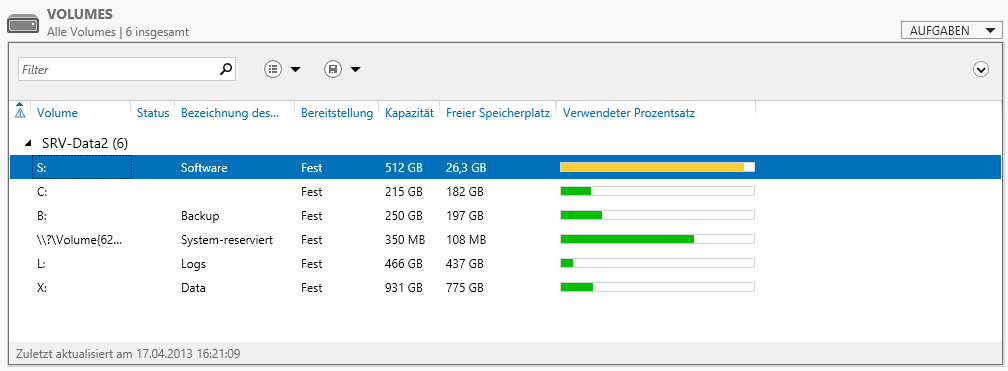
    Here is an example for an iSCSI connected LUN. Drive S: is our Software Archive with installation files, MSDN Downloads, Trial Versions, etc. All these files require about 480 GB storage.

Windows Server 2012 Volumes before Deduplication

  • Open Server Manager and select the File Service Roles
  • Navigate to the volume to deduplicate, open the context menu to configure the Deduplication schedule
  • In the schedule dialog configure if and when the Deduplication should run in background
    If you’ve just moved files from a file share to a connected LUN be aware that the modified timestamp was updated and Deduplication might not immediately start Deduplication. However, this can be configured in the Deduplication schedule dialog.
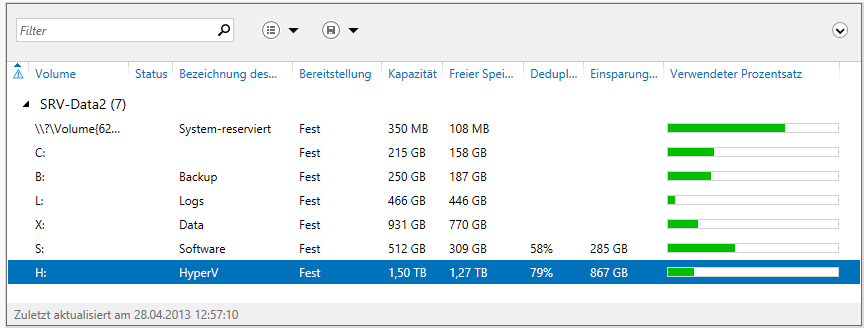
    Here is the Deduplication result applied to the software archive. Windows came up with a Deduplication rate about 58% and required storage was reduced by 285 GB.

Deduplication saves 58% storage space 

  • Finally create new file share on the Windows Server Machine in order to grant access over the network

Update 28.4: Deduplication Applied to HyperV Image Template Archive achieved 79% deduplication

image

Office Web Apps Server – KB2592525 Installation failed

I’ve recently updated our company’s internal SharePoint 2010 portal to SharePoint 2013. One difference is that web apps is now a separate installation on another machine. The installation is straight forward and documented on Technet . However, there was on tricky issue. KB2592525 is a prerequisite and the PS New-OfficeWebAppsFarm cmdlet checks if the KB2592525 is installed. I was installing on a Windows Server 2008 R2 SP1 with all the actual patches but KB2592525  was not installed and the KB2592525 installer refused to install on this machine. One way to get around this issue is to force the update using pkgmgr.

  1. Download KB2592525  to folder on your system
  2. Create a new folder called “files”
  3. Extract the MSU: expand Windows6.1-KB2592525-x64.msu –F:* .\files
  4. go to files
  5. Install using Pkgmgr: pkgmgr /ip /m:Windows6.1-KB2592525-x64.cab

That’s it, and the New-OfficeWebAppsFarm cmdlet will accept this workaround.

Metadata Service Exception: Option with ID -1 unknown

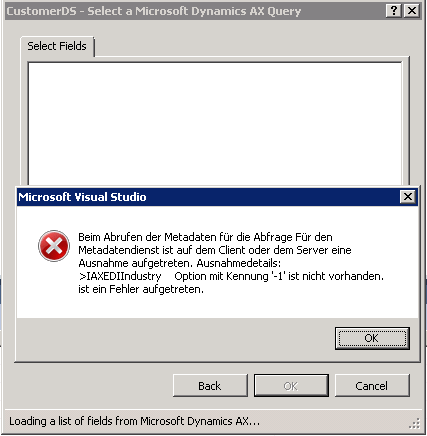
A colleague started to develop a report in Visual Studio and experienced a strange exception when selecting a query as dataset. It said that an exception occurred in the metadata service >SOMEFIELD option with ID -1 was not recognized

image

A look at the table being part of the query reveled the reason for this problem. The filed on the table is based on an extended datatype, but this datatype was deleted a while ago. However on a first look the field looks okay.

image

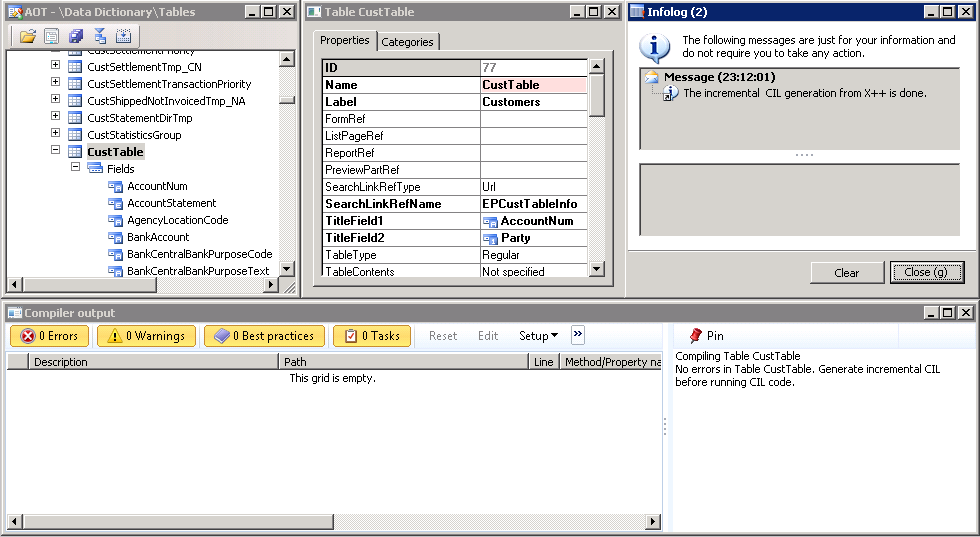
The table does compile without errors and incremental IL succeeds(!)

image

As soon as your select the fields enum property in the property window, you’ll see that the datatype is missing.

image

Set the compiler level up to 4 in order to get best practice errors displayed. It tells your that the field has an unknown type (BP:100) and that each field should be defined using a type.

image

Windows Mobile & CE

They say Windows Mobile is dead. I agree, its dead on the mobile phone market. However Mobile and CE legacy OS’ are still relevant to develop mobile applications on barcode reader and RFID reader / writer devices. Just to mention Smiley ..

scanner

Send SSRS Report as Email

The SSRS Report Viewer in AX 2012 does not have a built in Email function. However, there are some implementations available to add an email button in SharePoint or ASP.NET pages, e.g. Codeproject . The idea is simple, save the report as PDF, open outlook email and add the PDF file as attachment. Follow these steps to implement an Email button for Dynamics AX.

In the AOT add a reference to the Microsoft.Reporting.WinForms DLL. It contains the SRS Report Viewer class. The DLL can be found here: C:\Program Files (x86)\Microsoft Visual Studio 10.0\ReportViewer. Make sure you are using the corresponding assembly version as your SQL Server.

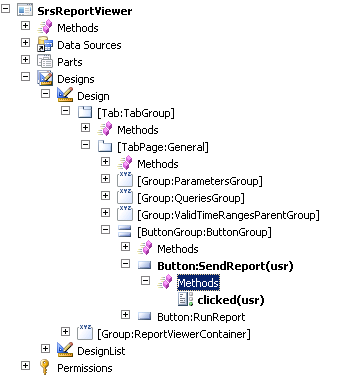
Open the SrsReportViewer Form in the AOT, and add a button to the ButtonGroup. Call it “SendReport”.

image

Add the following Code to the clicked method:

void clicked()
{
    Microsoft.Dynamics.AX.Frameworks.Controls.ReportViewer.AxReportViewer axviewer;
    Microsoft.Reporting.WinForms.ReportViewer nviewer;
    Microsoft.Reporting.WinForms.LocalReport report;
    System.Exception ex;
    System.Array bytear;
    System.Object no;
    System.IO.File file;
    str tmpPath;
    System.IO.FileStream fs;
    SmmOutlookEmail smmOutlookEmail = new SmmOutlookEmail();
    super();

    axviewer = AxReportViewer.control();
    nviewer = axviewer.get_ReportViewerControl();
    try
    {
  
        //render as PDF
        report = nviewer.get_ServerReport();
        bytear = report.Render("PDF");
        no = bytear;

        //path to temp. files
        tmpPath = System.IO.Path::GetTempPath();
        tmpPath = tmpPath + "report.pdf";


        //save to file
        fs = System.IO.File::Create(tmpPath);
        fs.Write(no,0,bytear.get_Length());
        fs.Flush();
        fs.Close();

        //open outlook email
        if (smmOutlookEmail.createMailItem())
        {
            smmOutlookEmail.isHTML(true);
            smmOutlookEmail.addFileAsAttachment(tmpPath);
            smmOutlookEmail.sendEMail(smmSaveCopyofEmail::No);
        }

    }
    catch(Exception::CLRError)
    {
        ex = CLRInterop::getLastException();
        info(ex.ToString());
    }
}

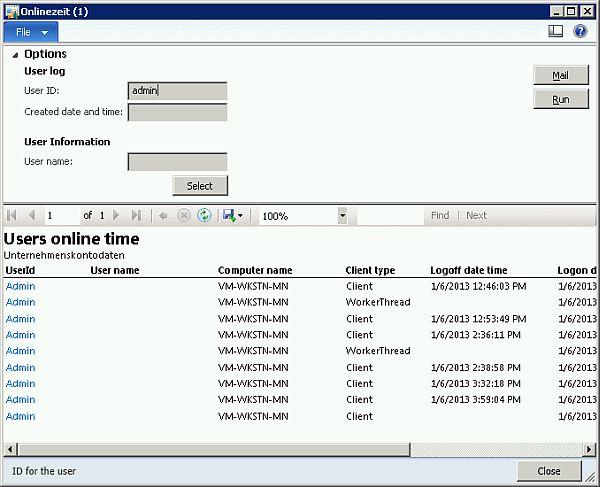
Save, Compile and open a report. Enlarge the “Options” and you’ll see the new Email button.

image

By clicking the Email button, the report is rendered as PDF, stored locally in your temp. files and attached to a new outlook email.

image

This is a very simple implementation. You may add more customizations, e.g. take the report parameters into account to initialize the TO and CC Email fields.

Receive large texts via AIF

One of our customer’s business partner transmits data as XML file. However, they did not make it to use a structured xml document service, but send a string that (in most cases) contains a valid xml document. Therefore we’ve setup an AIF service, using a class that takes one str parameter called _txt and stores it at a memo field.

public void storeText(str _text)
{
    AifBigData bigData;
    ;
    bigData.Text = _text;
    bigData.insert();
}

However, the business partner recently told us they get an error message while transmitting data to the AIF service telling them the transmitted data is too large. We were able to reproduce the issues by calling the service using a larger random-generated text.

class Program
{
    static void Main(string[] args)
    {
        var client = new BigData.BigDataServiceClient();
        client.ClientCredentials.Windows.ClientCredential = new
         System.Net.NetworkCredential("user","pass123","domain");

        // works fine
        client.storeText("Hello World");

        // fails 😦
        string txt = GenerateBigText();
        client.storeText(txt);
    }

    private static string GenerateBigText()
    {
        var random = new Random(); 
        var sb = new StringBuilder();
        for (int i = 0; i < 61440; i++)
        {
            char c =  (char)random.Next(65, 122);
            sb.Append(c);
        }

        return sb.ToString();
    }
}

The second call results in an exception

The formatter threw an exception while trying to deserialize the message: There was an error while trying to deserialize parameter http://insideax.at/bigdata:_text. The maximum string content length quota (8192) has been exceeded while reading XML data. This quota may be increased by changing the MaxStringContentLength property on the XmlDictionaryReaderQuotas object used when creating the XML reader.

However, the exception is well explained and contains a solution proposal to set the MaxStringContentLength

Go to Basic > AIF > Services > Button Configure

image

Select Binding > basicHTTPBinding > ReaderQuotas > MaxStringContentLenght and set e.g. 2147483647

image

Save and generate the .NET artifacts. Open windows explorer and navigate to the AIF virtual directory e.g. C:\Program Files\Microsoft Dynamics AX\50\AifWebServices . Select the web.config and open it with internet explorer. Make sure the MaxStringContentLength value is set

image

With this configuration the service call will work and a large text message is stored properly in Dynamics AX

image

Make Motorola/Symbol 9090 Scanner scan

I was recently working on a Motorola 9090 scanner device, loaded with Windows Mobile 6.5, developing a .NET Compact Framework application. Most scanner devices automatically trigger the scanner when pressing the scan button and write the decoded barcode text in any text field or document. This device didn’t and there was no preinstalled scanner tool to configure the devices behavior. However, there is a nice application called DataWegde provided by Motorola to make the scanner scan without using any obscure APIs.

SSRS Error: Dynamic packer query not found

Once again I came across an SSRS error, telling me the dynamic packed query was not found.
\Classes\SRSQueryBuilder\initalize (21)

The environment has 3 AOS, all of them running on one windows server (2712/8101, 2713/8102, 2714/8103) and 3 SSRS instances all running on another windows server. Since default AX voodoo like restart and incremental IL did not resolve the problem, I check and corrected issues following this checklist

In Dynamics AX

  • All AX instances have the BC Proxy account configured as system service account under
    System Administration > Setup > System > System service account
  • Every AX instance has its own SSRS report server configured
    System Administration > Setup > Business Intelligence > Reporting Services > Report Server
  • There is only one default configuration
  • The name (of the windows server) is correct e.g. VM-SRV-SQL
  • The name of the SSRS instance (!) is correct and configured e.g. MSSQLSERER, SSRSLIVE, SSRSTEST,etc.
  • Check the URL (they are in reverse order in the SSRS configuration manager) *argh*
      The report manager url is correct. That’s where you can browse the folder and set permissions
      The report service url is corret. That’s the web service
  • The configuration is assigned to the correct AOS
    Check the online users form if you are not sure which AOS you are actually using

On the SSRS server

  • All SSRS instances are running and all SSRS instances run as BC Proxy account
  • The default configuration (that cannot be changed in the AX configuration utility) is valid
  • The SSRS instances have a valid Microsoft.Dynamics.AX.ReportConfiguration.axc.configuration file in the Report Server\bin directory. If you are not sure, create a new configuration using the configuration utility, test the configuration by starting AX, save the configuration as file and replace the old one in the Report Server\Bin directory
  • Make sure the Business Connector configuration has a default company name e.g. DAT
  • Restart the SSRS instances

A Lightweight Approach For Product Line Scoping

Noebauer M., Seyff N., Groher I., Dhungana D.,

Many organizations providing products with common features wish to take advantage of that similarity in order to reduce development and maintenance efforts. Their goal is to move from a single-system development paradigm towards a product line approach. However, this transition is not trivial and requires a systematic scoping phase to decide how the product line should be defined, i.e. what products and features should be included and thus developed for reuse. Currently available product line scoping approaches require huge upfront investments in the scoping phase, consuming a lot of time and resources. Our experience has shown that small and medium enterprises require a lightweight approach to decide how the existing products are related to each other so that their potential for reuse can be estimated more easily. In this paper we present a conceptual solution and early tool support enabling companies to semi-automatically identify similarity within existing product configurations.


The paper “A Lightweight Approach for Product Line Scoping” was recently presented at the Euromicro Conference on Software Engineering and Advanced Applications in Cesme (Turkey). The paper can soon be found in ieeexplore.

Radisson Blu Conference Hotel

The Beach at Radisson Blu Conference Hotel in Cesme

Experience on Installing AX 2012 on Server 2012 RC

Right now Server 2012 has reached RTM but was not released yet. AX 2012 is not officially supported on Server 2012, however you may want to give it a try. Here is my experience installing AX 2012 FPP + CU3 on Server 2012 RC running SQL Server 2012 RTM.

Windows Server 2012

Install Windows Server 2012 with graphically UI. Use the new server manager to install .NET Framework 3.5 which is required for SQL Server 2012. Also install Windows Identity Foundation 3.5 which is required for SharePoint.

windows features

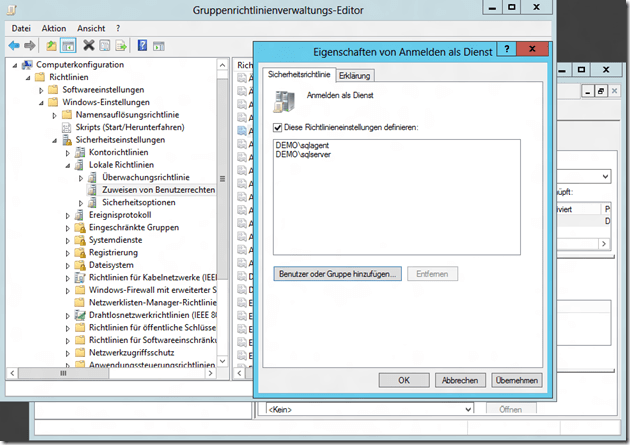
Install Domain Services, create a new domain an create user with password never expires. Create a new group policy and allow the sql users to logon as service.

  • sqlserver, sqlagent
  • aos, bcproxy, search
  • sharepoint, spservice
    sql gpo

SQL Server 2012

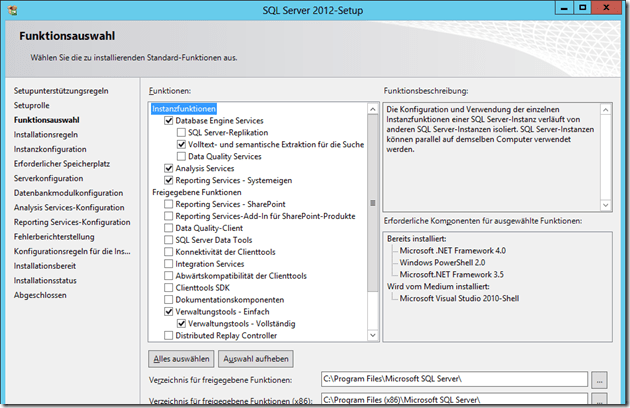
Install SQL Server 2012, you’ll require these features. When installing reporting services choose “install only” but don’t configure. During configuring installation provide the sqlagent account for the SQL Server Agent, bcproxy account for reporting services and sqlserver account for database services.

  • Database with Fulltext  (run as sqlserver)
  • Reporting Services (run as bcproxy)
  • Analysis Services
  • Management Tools
  • Data Tools (includes Visual Studio 2010 BI Studio) if don’t want to install VS 2012 full featured later
sql install

Dynamics Ax 2012

Download the latest Dynamics AX 2012 cumulative update (CU3) and patch your installation medium. This can be done by unzipping the ISO to a file share and copying the CU3 into the updates folder, see technet. The AX 2012 installer will recognize the updates in this folder and prompt you to accept the license terms. Also make sure to have the SQL Server 2012 hotfix for AX 2012 in the updates folder.

If you are using one of the demo data backups from Microsoft or if you use your own backup from another AX installation there are some things you have to take care of.

  • Update the Administrator users SID, Domain and Username in the UserInfo table
  • Delete old entries from the SysServerSessions table

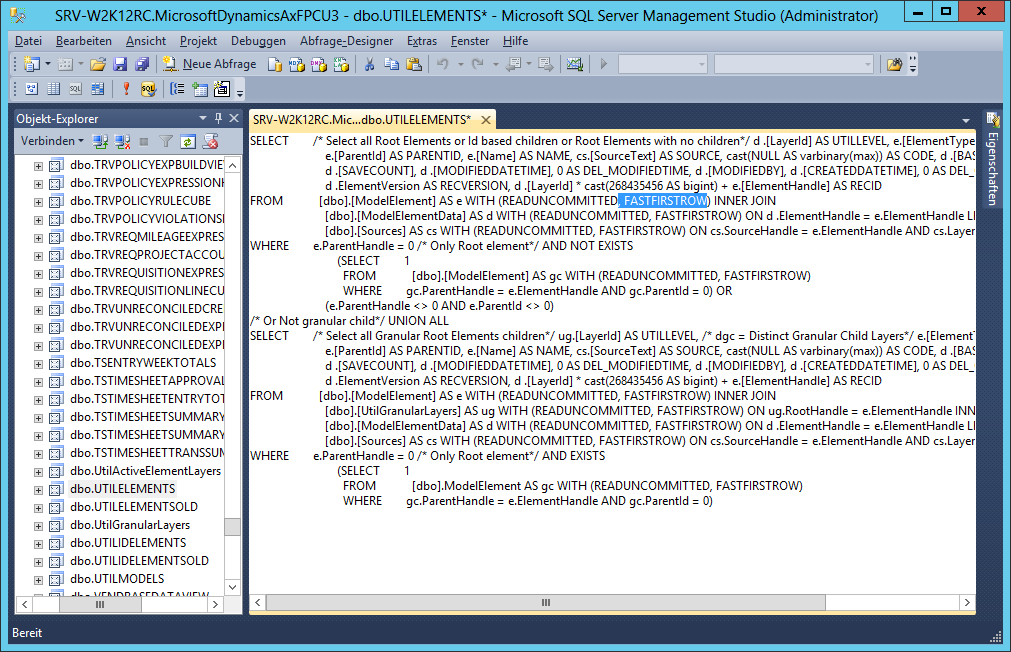
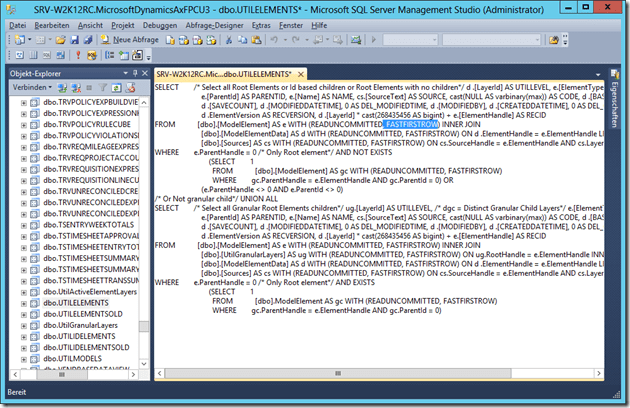
SQL Server 2012 does no longer support the FIRSTFASTROW keyword which is used in the UtilElements and UtilIdElements view. You have modify the views SQL statement and delete any occurrence. The easiest way is to copy/paste the SQL Statement to notepad, replace “, FIRSTFASTROW” with “” and copy/paste the cleaned statement back to SQL Server.
ax FASTFIRSTROW

Install Dynamics AX 2012 AOS and client. Afterwards make sure to clean the BI Configurations and the Server configurations in AX (System Administration > Settings). Don’t forget to provide the bcproxy account as business connector account in system service accounts in AX.

Reporting Services

Installing Reporting Services is straight forward as you know from SQL Server 2008 R2. However, there are at least 2 prerequisites before the installation can succeed. You’ll need to install

  • Microsoft System CLR Types for SQL Server 2008 R2
  • SQL Server 2008 R2 Shared Memory Objects
    Start the SQL Server Reporting Services configuration manager. Make sure SSRS is running as bcproxy account. Follow the steps in the configuration tool, create databases, web services, report server manager and make sure there is no execution account provided in the Reporting Service configuration.

ax ssrs config

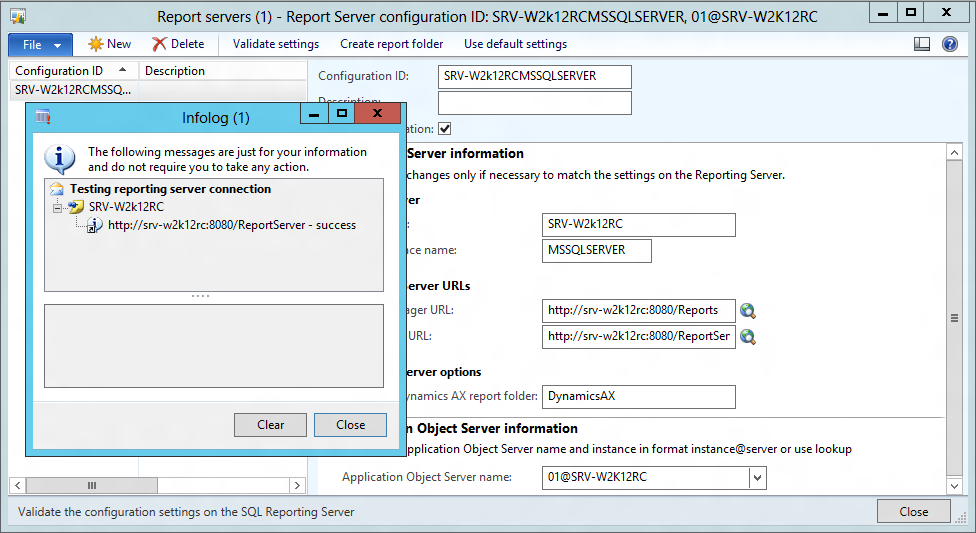
In Dynamics AX check if the SSRS configuration is valid and give it a try. Reporting should work properly
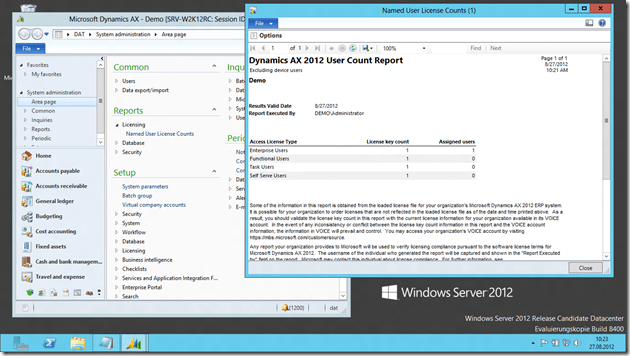
ax ssrs on w2k12

If you don’t have installed Visual Studio 2010 SP1 or SQL Server Data Tools yet, do this now. Install the development components, Debugger, Visual Studio Tools, Trace Parser and .NET Business Connector. Good news; these components should install and work without any additional steps. Try to create a simple report, deploy it to SSRS and call it from AX to verify your installation.
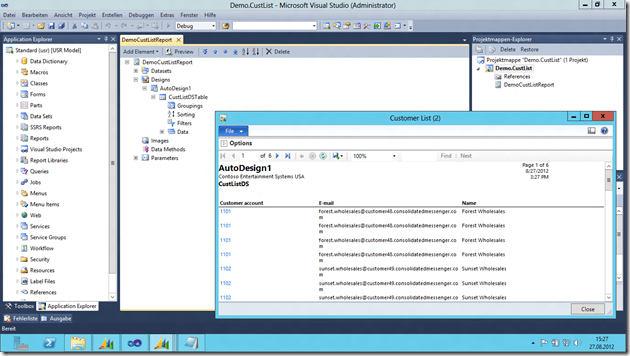
ax reporting

SharePoint Server 2010, Enterprise Portal and Enterprise Search

Here comes the tricky part, SharePoint out-of-the-box is not willing to install on server 2012. However, Mohamed Radwan has made a great video on youtube that guides you through the installation on server 2012. When you run the sharepoint installation configuration wizard, use the sharepoint account to access the database and the spservice account to run the services (like excel services).

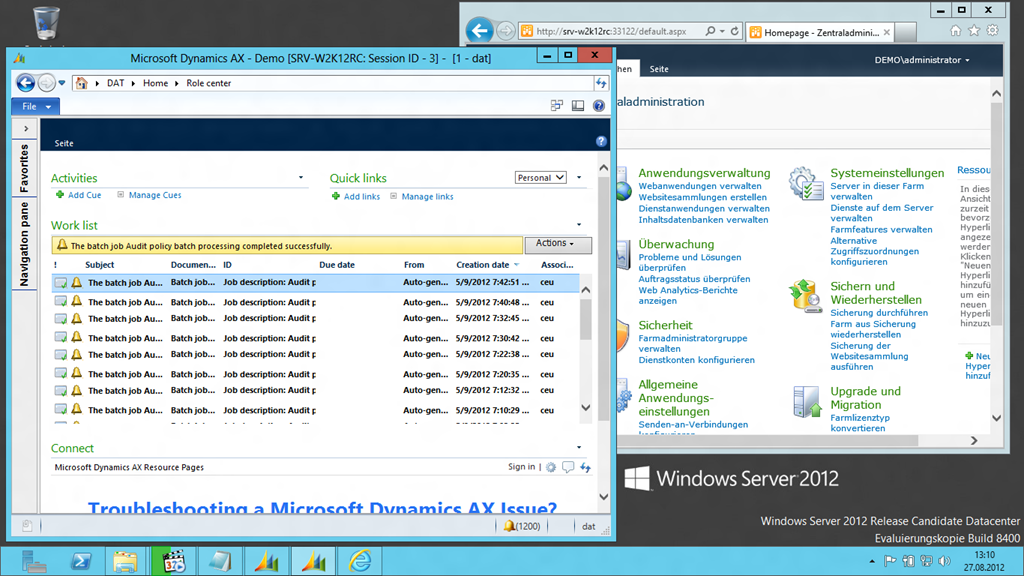
As you know from other EP installation, you’ll need to register the bcproxy account as managed service account in sharepoint (central administration > Security > Managed Accounts). Create a new web application (application management > manage web applications > new). Use the bcproxy account to run this web application and make sure you don’t use any previous used TCP Ports by SSRS (e.g. 80). Don’t create a web site collection, the AX installer will do this for you. Start the Dynamics AX 2012 installer, and install EP. If you’ve done the SharePoint configuration correctly, AX will be able to install and configure EP for you. When you start AX and navigate to Home, you should the see the role center page.
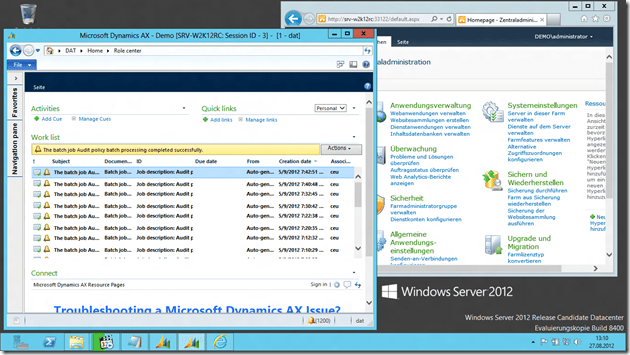
ax ep

If you have installed SharePoint Server, all prerequisites for enterprise search should be fulfilled. Follow the Technet guide to install and configure enterprise search. Go to SharePoint Central Administration > Farm Services > SharePoint Server Search > Search Application > Content Source > Microsoft Dynamics AX and configure at least a daily full crawl.

search full crawl

Fazit

  • SQL Server 2012 RTM is working on Server 2012 RC and AX 2012 supports SQL 2012 RTM
  • Core Components are working on Server 2012 RC
  • Additional Components like SharePoint, Search Server etc. are tricky