Windows Mobile & CE

They say Windows Mobile is dead. I agree, its dead on the mobile phone market. However Mobile and CE legacy OS’ are still relevant to develop mobile applications on barcode reader and RFID reader / writer devices. Just to mention Smiley ..

scanner

Send SSRS Report as Email

The SSRS Report Viewer in AX 2012 does not have a built in Email function. However, there are some implementations available to add an email button in SharePoint or ASP.NET pages, e.g. Codeproject . The idea is simple, save the report as PDF, open outlook email and add the PDF file as attachment. Follow these steps to implement an Email button for Dynamics AX.

In the AOT add a reference to the Microsoft.Reporting.WinForms DLL. It contains the SRS Report Viewer class. The DLL can be found here: C:\Program Files (x86)\Microsoft Visual Studio 10.0\ReportViewer. Make sure you are using the corresponding assembly version as your SQL Server.

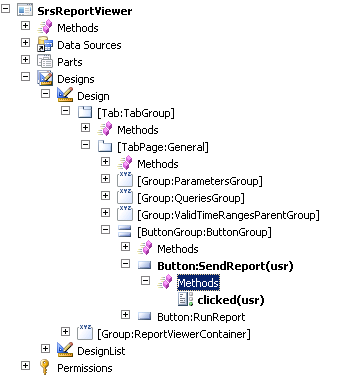
Open the SrsReportViewer Form in the AOT, and add a button to the ButtonGroup. Call it “SendReport”.

image

Add the following Code to the clicked method:

void clicked()
{
    Microsoft.Dynamics.AX.Frameworks.Controls.ReportViewer.AxReportViewer axviewer;
    Microsoft.Reporting.WinForms.ReportViewer nviewer;
    Microsoft.Reporting.WinForms.LocalReport report;
    System.Exception ex;
    System.Array bytear;
    System.Object no;
    System.IO.File file;
    str tmpPath;
    System.IO.FileStream fs;
    SmmOutlookEmail smmOutlookEmail = new SmmOutlookEmail();
    super();

    axviewer = AxReportViewer.control();
    nviewer = axviewer.get_ReportViewerControl();
    try
    {
  
        //render as PDF
        report = nviewer.get_ServerReport();
        bytear = report.Render("PDF");
        no = bytear;

        //path to temp. files
        tmpPath = System.IO.Path::GetTempPath();
        tmpPath = tmpPath + "report.pdf";


        //save to file
        fs = System.IO.File::Create(tmpPath);
        fs.Write(no,0,bytear.get_Length());
        fs.Flush();
        fs.Close();

        //open outlook email
        if (smmOutlookEmail.createMailItem())
        {
            smmOutlookEmail.isHTML(true);
            smmOutlookEmail.addFileAsAttachment(tmpPath);
            smmOutlookEmail.sendEMail(smmSaveCopyofEmail::No);
        }

    }
    catch(Exception::CLRError)
    {
        ex = CLRInterop::getLastException();
        info(ex.ToString());
    }
}

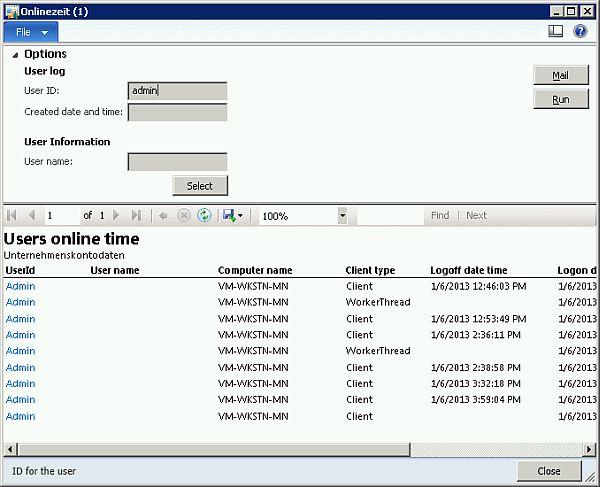
Save, Compile and open a report. Enlarge the “Options” and you’ll see the new Email button.

image

By clicking the Email button, the report is rendered as PDF, stored locally in your temp. files and attached to a new outlook email.

image

This is a very simple implementation. You may add more customizations, e.g. take the report parameters into account to initialize the TO and CC Email fields.

Receive large texts via AIF

One of our customer’s business partner transmits data as XML file. However, they did not make it to use a structured xml document service, but send a string that (in most cases) contains a valid xml document. Therefore we’ve setup an AIF service, using a class that takes one str parameter called _txt and stores it at a memo field.

public void storeText(str _text)
{
    AifBigData bigData;
    ;
    bigData.Text = _text;
    bigData.insert();
}

However, the business partner recently told us they get an error message while transmitting data to the AIF service telling them the transmitted data is too large. We were able to reproduce the issues by calling the service using a larger random-generated text.

class Program
{
    static void Main(string[] args)
    {
        var client = new BigData.BigDataServiceClient();
        client.ClientCredentials.Windows.ClientCredential = new
         System.Net.NetworkCredential("user","pass123","domain");

        // works fine
        client.storeText("Hello World");

        // fails 😦
        string txt = GenerateBigText();
        client.storeText(txt);
    }

    private static string GenerateBigText()
    {
        var random = new Random(); 
        var sb = new StringBuilder();
        for (int i = 0; i < 61440; i++)
        {
            char c =  (char)random.Next(65, 122);
            sb.Append(c);
        }

        return sb.ToString();
    }
}

The second call results in an exception

The formatter threw an exception while trying to deserialize the message: There was an error while trying to deserialize parameter http://insideax.at/bigdata:_text. The maximum string content length quota (8192) has been exceeded while reading XML data. This quota may be increased by changing the MaxStringContentLength property on the XmlDictionaryReaderQuotas object used when creating the XML reader.

However, the exception is well explained and contains a solution proposal to set the MaxStringContentLength

Go to Basic > AIF > Services > Button Configure

image

Select Binding > basicHTTPBinding > ReaderQuotas > MaxStringContentLenght and set e.g. 2147483647

image

Save and generate the .NET artifacts. Open windows explorer and navigate to the AIF virtual directory e.g. C:\Program Files\Microsoft Dynamics AX\50\AifWebServices . Select the web.config and open it with internet explorer. Make sure the MaxStringContentLength value is set

image

With this configuration the service call will work and a large text message is stored properly in Dynamics AX

image

Make Motorola/Symbol 9090 Scanner scan

I was recently working on a Motorola 9090 scanner device, loaded with Windows Mobile 6.5, developing a .NET Compact Framework application. Most scanner devices automatically trigger the scanner when pressing the scan button and write the decoded barcode text in any text field or document. This device didn’t and there was no preinstalled scanner tool to configure the devices behavior. However, there is a nice application called DataWegde provided by Motorola to make the scanner scan without using any obscure APIs.

SSRS Error: Dynamic packer query not found

Once again I came across an SSRS error, telling me the dynamic packed query was not found.
\Classes\SRSQueryBuilder\initalize (21)

The environment has 3 AOS, all of them running on one windows server (2712/8101, 2713/8102, 2714/8103) and 3 SSRS instances all running on another windows server. Since default AX voodoo like restart and incremental IL did not resolve the problem, I check and corrected issues following this checklist

In Dynamics AX

  • All AX instances have the BC Proxy account configured as system service account under
    System Administration > Setup > System > System service account
  • Every AX instance has its own SSRS report server configured
    System Administration > Setup > Business Intelligence > Reporting Services > Report Server
  • There is only one default configuration
  • The name (of the windows server) is correct e.g. VM-SRV-SQL
  • The name of the SSRS instance (!) is correct and configured e.g. MSSQLSERER, SSRSLIVE, SSRSTEST,etc.
  • Check the URL (they are in reverse order in the SSRS configuration manager) *argh*
      The report manager url is correct. That’s where you can browse the folder and set permissions
      The report service url is corret. That’s the web service
  • The configuration is assigned to the correct AOS
    Check the online users form if you are not sure which AOS you are actually using

On the SSRS server

  • All SSRS instances are running and all SSRS instances run as BC Proxy account
  • The default configuration (that cannot be changed in the AX configuration utility) is valid
  • The SSRS instances have a valid Microsoft.Dynamics.AX.ReportConfiguration.axc.configuration file in the Report Server\bin directory. If you are not sure, create a new configuration using the configuration utility, test the configuration by starting AX, save the configuration as file and replace the old one in the Report Server\Bin directory
  • Make sure the Business Connector configuration has a default company name e.g. DAT
  • Restart the SSRS instances

A Lightweight Approach For Product Line Scoping

Noebauer M., Seyff N., Groher I., Dhungana D.,

Many organizations providing products with common features wish to take advantage of that similarity in order to reduce development and maintenance efforts. Their goal is to move from a single-system development paradigm towards a product line approach. However, this transition is not trivial and requires a systematic scoping phase to decide how the product line should be defined, i.e. what products and features should be included and thus developed for reuse. Currently available product line scoping approaches require huge upfront investments in the scoping phase, consuming a lot of time and resources. Our experience has shown that small and medium enterprises require a lightweight approach to decide how the existing products are related to each other so that their potential for reuse can be estimated more easily. In this paper we present a conceptual solution and early tool support enabling companies to semi-automatically identify similarity within existing product configurations.


The paper “A Lightweight Approach for Product Line Scoping” was recently presented at the Euromicro Conference on Software Engineering and Advanced Applications in Cesme (Turkey). The paper can soon be found in ieeexplore.

Radisson Blu Conference Hotel

The Beach at Radisson Blu Conference Hotel in Cesme

Experience on Installing AX 2012 on Server 2012 RC

Right now Server 2012 has reached RTM but was not released yet. AX 2012 is not officially supported on Server 2012, however you may want to give it a try. Here is my experience installing AX 2012 FPP + CU3 on Server 2012 RC running SQL Server 2012 RTM.

Windows Server 2012

Install Windows Server 2012 with graphically UI. Use the new server manager to install .NET Framework 3.5 which is required for SQL Server 2012. Also install Windows Identity Foundation 3.5 which is required for SharePoint.

windows features

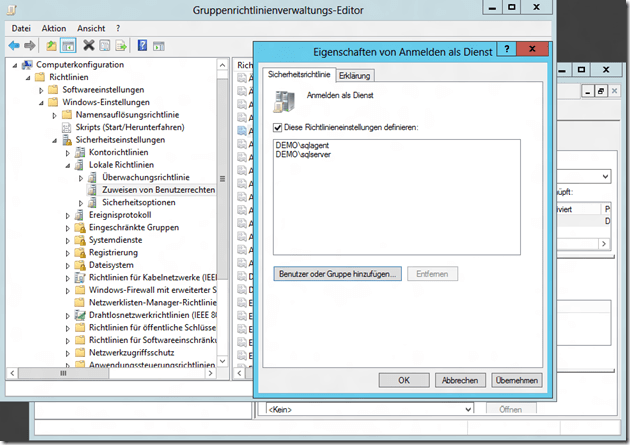
Install Domain Services, create a new domain an create user with password never expires. Create a new group policy and allow the sql users to logon as service.

  • sqlserver, sqlagent
  • aos, bcproxy, search
  • sharepoint, spservice
    sql gpo

SQL Server 2012

Install SQL Server 2012, you’ll require these features. When installing reporting services choose “install only” but don’t configure. During configuring installation provide the sqlagent account for the SQL Server Agent, bcproxy account for reporting services and sqlserver account for database services.

  • Database with Fulltext  (run as sqlserver)
  • Reporting Services (run as bcproxy)
  • Analysis Services
  • Management Tools
  • Data Tools (includes Visual Studio 2010 BI Studio) if don’t want to install VS 2012 full featured later
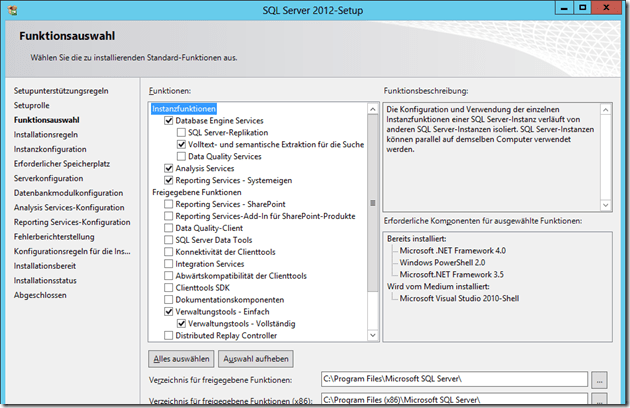
sql install

Dynamics Ax 2012

Download the latest Dynamics AX 2012 cumulative update (CU3) and patch your installation medium. This can be done by unzipping the ISO to a file share and copying the CU3 into the updates folder, see technet. The AX 2012 installer will recognize the updates in this folder and prompt you to accept the license terms. Also make sure to have the SQL Server 2012 hotfix for AX 2012 in the updates folder.

If you are using one of the demo data backups from Microsoft or if you use your own backup from another AX installation there are some things you have to take care of.

  • Update the Administrator users SID, Domain and Username in the UserInfo table
  • Delete old entries from the SysServerSessions table

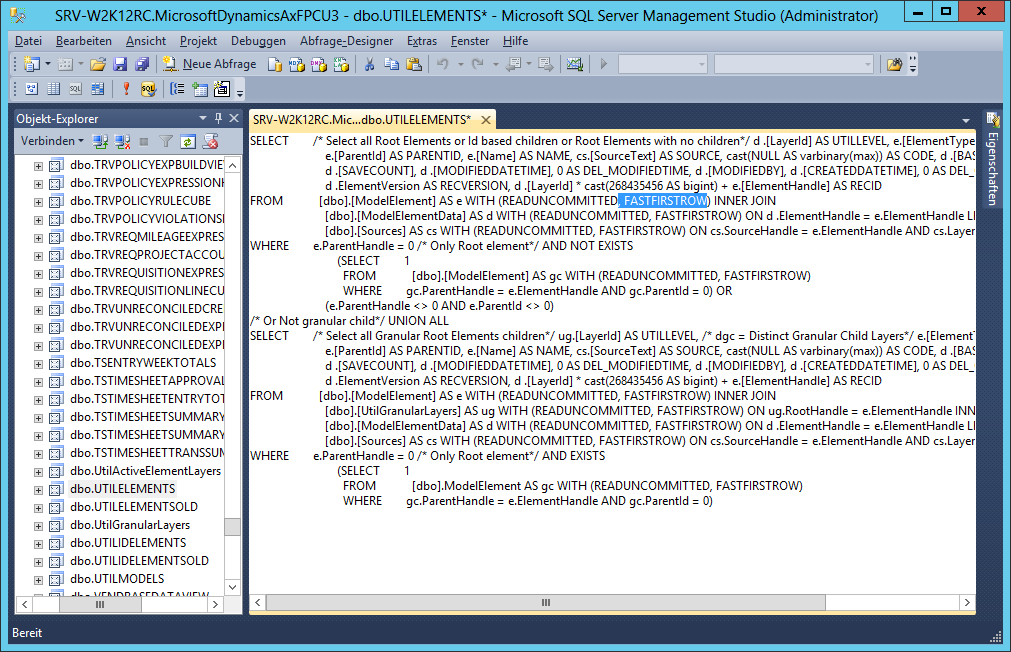
SQL Server 2012 does no longer support the FIRSTFASTROW keyword which is used in the UtilElements and UtilIdElements view. You have modify the views SQL statement and delete any occurrence. The easiest way is to copy/paste the SQL Statement to notepad, replace “, FIRSTFASTROW” with “” and copy/paste the cleaned statement back to SQL Server.
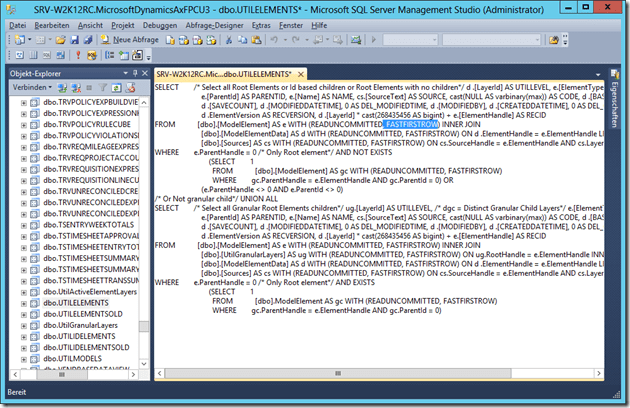
ax FASTFIRSTROW

Install Dynamics AX 2012 AOS and client. Afterwards make sure to clean the BI Configurations and the Server configurations in AX (System Administration > Settings). Don’t forget to provide the bcproxy account as business connector account in system service accounts in AX.

Reporting Services

Installing Reporting Services is straight forward as you know from SQL Server 2008 R2. However, there are at least 2 prerequisites before the installation can succeed. You’ll need to install

  • Microsoft System CLR Types for SQL Server 2008 R2
  • SQL Server 2008 R2 Shared Memory Objects
    Start the SQL Server Reporting Services configuration manager. Make sure SSRS is running as bcproxy account. Follow the steps in the configuration tool, create databases, web services, report server manager and make sure there is no execution account provided in the Reporting Service configuration.

ax ssrs config

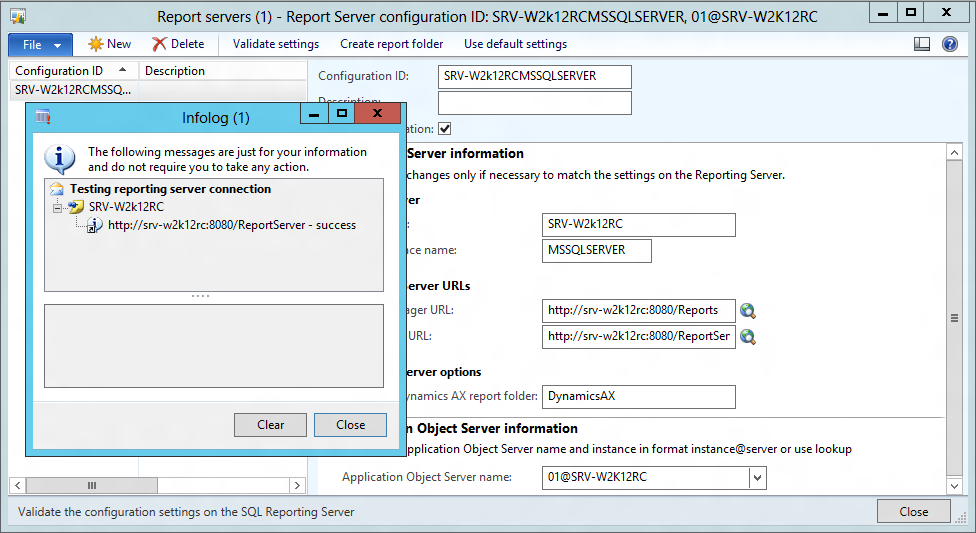
In Dynamics AX check if the SSRS configuration is valid and give it a try. Reporting should work properly
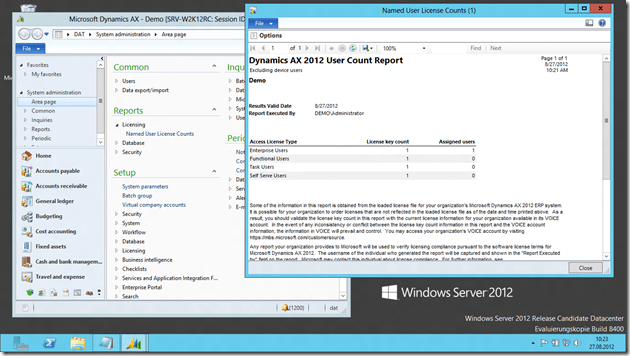
ax ssrs on w2k12

If you don’t have installed Visual Studio 2010 SP1 or SQL Server Data Tools yet, do this now. Install the development components, Debugger, Visual Studio Tools, Trace Parser and .NET Business Connector. Good news; these components should install and work without any additional steps. Try to create a simple report, deploy it to SSRS and call it from AX to verify your installation.
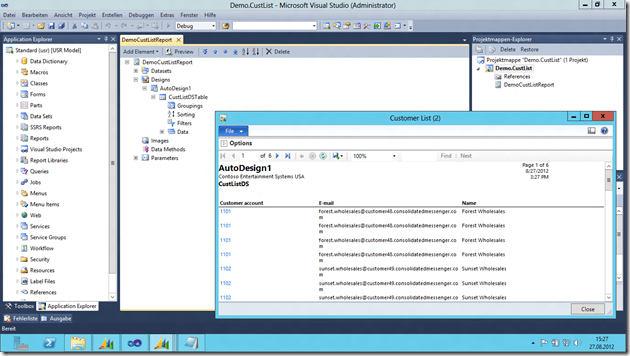
ax reporting

SharePoint Server 2010, Enterprise Portal and Enterprise Search

Here comes the tricky part, SharePoint out-of-the-box is not willing to install on server 2012. However, Mohamed Radwan has made a great video on youtube that guides you through the installation on server 2012. When you run the sharepoint installation configuration wizard, use the sharepoint account to access the database and the spservice account to run the services (like excel services).

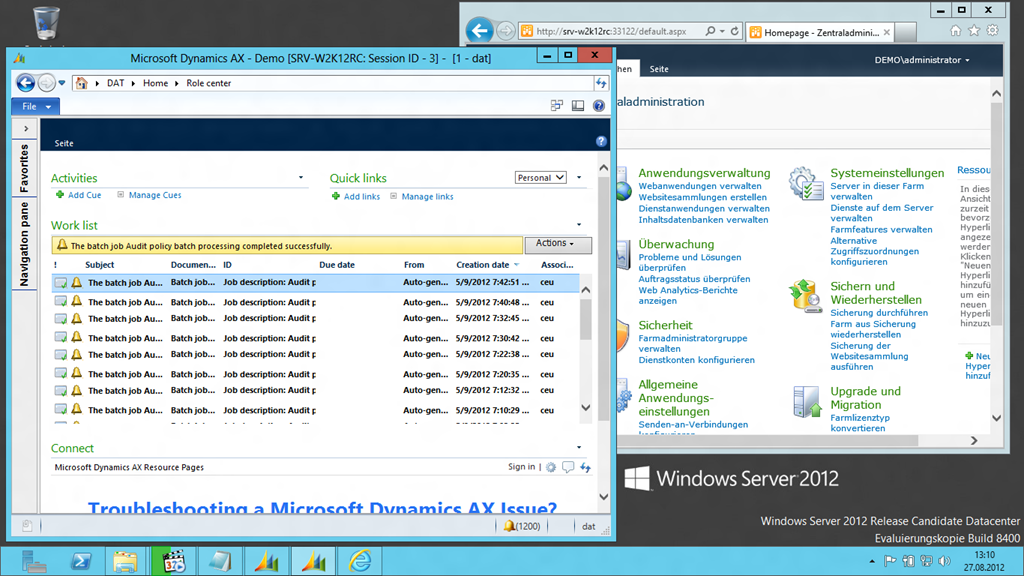
As you know from other EP installation, you’ll need to register the bcproxy account as managed service account in sharepoint (central administration > Security > Managed Accounts). Create a new web application (application management > manage web applications > new). Use the bcproxy account to run this web application and make sure you don’t use any previous used TCP Ports by SSRS (e.g. 80). Don’t create a web site collection, the AX installer will do this for you. Start the Dynamics AX 2012 installer, and install EP. If you’ve done the SharePoint configuration correctly, AX will be able to install and configure EP for you. When you start AX and navigate to Home, you should the see the role center page.
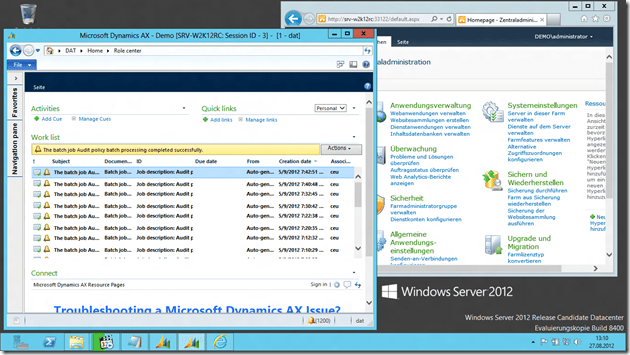
ax ep

If you have installed SharePoint Server, all prerequisites for enterprise search should be fulfilled. Follow the Technet guide to install and configure enterprise search. Go to SharePoint Central Administration > Farm Services > SharePoint Server Search > Search Application > Content Source > Microsoft Dynamics AX and configure at least a daily full crawl.

search full crawl

Fazit

  • SQL Server 2012 RTM is working on Server 2012 RC and AX 2012 supports SQL 2012 RTM
  • Core Components are working on Server 2012 RC
  • Additional Components like SharePoint, Search Server etc. are tricky
Upgrading Windows 8 Release Preview to RTM

Windows 8 Release Preview was quite ok and therefore I’ve run it as quasi production system on my HP 8540w. Although upgrading from any of the preview versions is not supported, you may convince the installer to perform an upgrade by modifying the cversion.ini file, see Bing. Here are some key applications I’ve run on Release Preview:

Dynamics AX 4.0 SP2
Dynamics AX 2009 SP1 RU8
Dynamics AX 2012 CU3

HyperV Role
PPTP VPN connections (3)
Office 2010
Drivers for HP 8540w

Visual Studio 2008 SP1
Visual Studio 2010 SP1
Visual Studio 2012 Preview

Virtual PC SP1 Network driver
Device Emulator for Mobile 5/6
 
Windows Mobile Device Center
Zune for Windows Phone 7

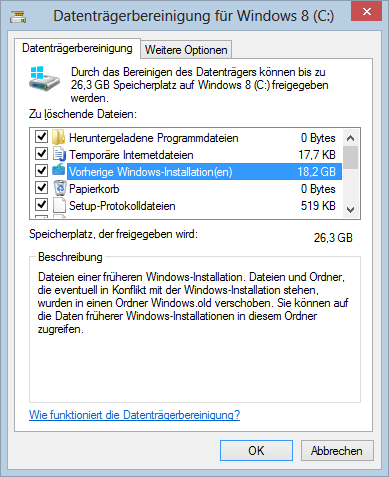
Almost everything was ported successfully. Unfortunately the Virtual PC network driver for device emulator was not working, and the VMs could no longer connect to the network. However, after uninstalling and re-installing Virtual PC 2007 x64 the virtual network adapter was working. Some SQL Server components also reported compatibility problems. Manually cleaning the system drive will remove the old installation and some GB hard disk space.

image

Update 28.8.2012
Windows refused to boot anymore and was stuck at the windows logo. However, after the fourth boot killing power-off windows recognized that it requires a repair. After 20 minutes black magic self healing its working again.

windows 8 self healing

Dynamics AX 2009: FTP Adapter for AIF

The Application Integration Framework in Dynamics AX is an extensible framework for data transportation and reception. It support the separation of transport technology (e.g. MSMQ, XML/SOAP Webservices, Filesystem Share) security aspects (services, permissions, transported data) and data manipulation. Creating new adapters to support other transport technologies is simple. Here is an example to support FTP.

Develop AIF FTP Adapter

  • First, create a new parameter table AifFTPParameters to store FTP server name, user, password and directory (4 strings). Next create a setup form for the AifFTPParameters table and a display menu item. Add an OK command button. Add this code to the buttons clicked event:

    void clicked()
    {;
        super();
        // use the server name as selected value 
        element.closeSelect(Setup_ServerName.text());
    }

    FTP Parameters setup

  • Create a new AifFTPSendAdapter class that implementes the AifSendAdapter interface. You may create empty implementations for begin(), commit(), initialize(), rollback() and terminate(). But you really need to implement the sendMessage() method. I’m using the System.Net Classes to implement the FTP transfer.
     

    public void sendMessage(AifGatewayMessage gatewayMessage)
    {
        System.Text.Encoding encoding;
        System.Byte[] bytes;
        str requestStr = "";
        object ftpo;
        System.Net.FtpWebRequest ftpRequest;
        System.Net.NetworkCredential credential;
        str ftpUser;
        str ftpPass;
        System.IO.Stream requestStream;
        InteropPermission clrPermission =
         new InteropPermission(InteropKind::ClrInterop);
        ;

        clrPermission.assert();

        switch(gatewayMessage.parmEncoding())
        {
            case ‘UTF-8’:
                encoding = System.Text.Encoding::get_UTF8();
                break;
            default:
                throw error("Unsupported Encoding");
        }
        bytes = encoding.GetBytes(gatewayMessage.parmMessageXml());

        requestStr = strfmt(‘ftp://%1′,AifFTPParameters::find().ServerName);
        if(AifFTPParameters::find().Directory)
        {
            requestStr = strfmt(‘%1/%2’,
                                 requestStr,
                                 AifFTPParameters::find().Directory);
        }

        requestStr = strfmt(‘%1/%2%3’,
                              requestStr,
                              gatewayMessage.parmMessageId(),
                              ’.xml’);

        ftpo =  System.Net.WebRequest::Create(requestStr);
        ftpRequest = ftpo;

        ftpUser = AifFTPParameters::find().UserName;
        ftpPass = AifFTPParameters::find().Password;
        //BP deviation documented
        credential = new System.Net.NetworkCredential(ftpUser,ftpPass);
        ftpRequest.set_Credentials(credential);
        ftpRequest.set_ContentLength(bytes.get_Length());
        ftpRequest.set_Method(‘STOR’);

        requestStream = ftpRequest.GetRequestStream();
        requestStream.Write(bytes,0,bytes.get_Length());
        requestStream.Close();

        CodeAccessPermission::revertAssert();
    }

  • Create a new AifFTPAdapter class that implements AifIntegrationAdapter. This class is used by the AIF configuration interface in Dynamics AX to identify an outbound adapter and its configuration form.

    public AifIntegrationAdapterType getAdapterType()
    {;
        return AifIntegrationAdapterType::SendOnly;
    }

    public MenuItemNameDisplay getAddressDisplayMenuItem()
    {;
        // the AifFTPParameter forms display menu items name
        return ‘AifFTPParameters’;
    }

    public AifTransportAddress getCanonicalTransportAddress(AifTransportAddress transportAddress)
    {;
        return transportAddress;
    }

    public MenuItemNameDisplay getConfigurationDisplayMenuItem()
    {;
        return ”;
    }

    public LabelString getLabel()
    {;
        return "AIF FTP Adapter";
    }

    public AifReceiveAdapter getReceiveAdapter()
    {;
        return null;
    }

    public AifSendAdapter getSendAdapter()
    {;
        return new AifFTPSendAdapter();
    }

    public boolean isHosted()
    {;
        return true;
    }

    public void validateConfiguration(AifTransportAddress transportAddress,
                                      AifChannelDirection channelDirection)
    {;
        //TODO:Check or throw error
    }

      1. Register FTP Adapter and configure AIF

    1. Go to Basics > Setup > Application Integration Framework.
    2. In Local Endpoints make sure you have an endpoint configured
    3. In Transport Adapters create a new record, select AifFTPAdapter and mark it as active.
    4. In Channels, create a new outbound FTP Channel, provide server name and credentials.
      Mark the channel as active.
      Configure AIF FTP Adapter 
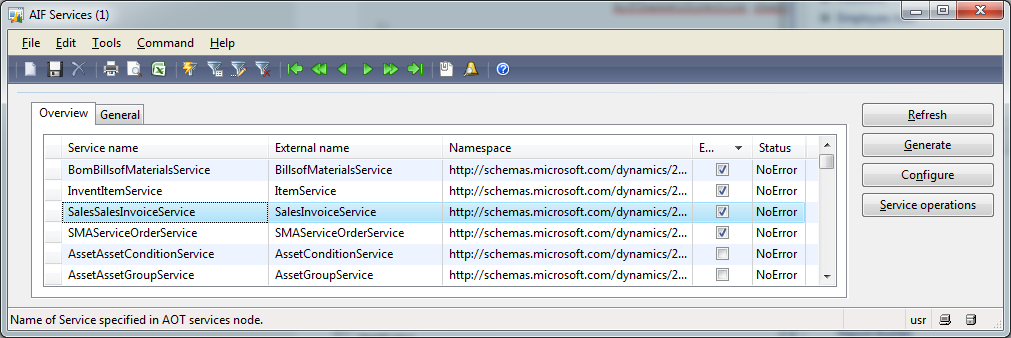
    5. In Services activate the SalesSalesInvoiceService
      Activate SalesSalesInvoiceService 
    6. In Endpoints create a new endpoint. Set the outbound channel to your FTP channel and set the local endpoint. Go to the Constraints tab and set “No Constraints” flag. Mark the endpoint as active.
      Create an endpoint with outbound FTP

      Click the Action Policies button and add the SalesSalesInvoiceService.read method
      Activate SalesSalesInvoiceService.read

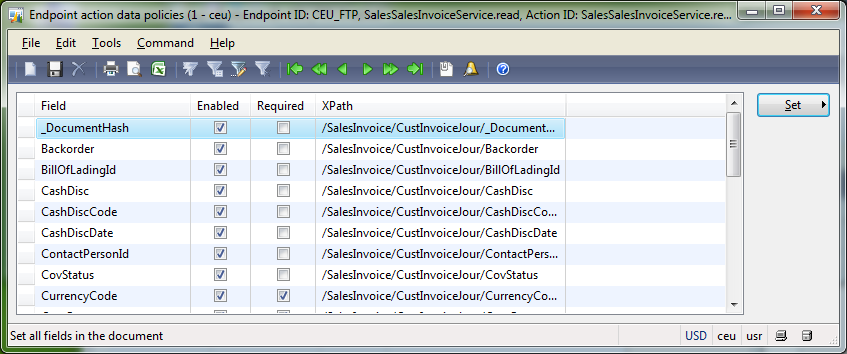
      Click the Data Policies button and use the set button to enable all data fields for transportation.
      Set data policies for invoice

    7. Go to Basic > Inquiries > Batch jobs. Make sure to run a batch job that processes the AIF message send and receive tasks: AIFInboundProcessingService, AIFOutboundProcessingService, AIFGatewaySendService and AIFGatewayReceiveService.
      Setup AIF processing batch jobs
    8. Go to Accounts Receivable > Inquiries > Journals > Invoice. Select an invoice and use the Send Electronically button to put it in the transportation queue.
      Send invoice electronically using AIF
    9. Wait a few miniutes and take a look at your FTP space. There you should see the transmitted invoices as xml file.
      Invoice successfully uploaded

    How to create a custom ribbon Addin for Excel 2010

    Creating a custom ribbon addin for Excel can be done in a few steps

    1. Develop your VBA code in a new Excel sheet, save it as Excel addin .xlam
    2. Open the addin with Custom UI Editor to create Buttons, Groups, etc. and link it with your VBA code
    3. Add the addin directory to the secure folders in excel
    4. Configure Excel to load your addin at startup

        Here are the required steps in detail

      Start Excel and develop your VBA code as you did before. If you do not see a development tab in excel, activate it via the options menu. File > Options > Ribbon > On the right side check “Development Tools”

      Activate the VBA Development Tab in Excel 2010
      You need to create an event handler to make your functions callable from the UI. Here is an example for a function and an event handler. The event handler foo_eventhandler calls the function foo which displays a message box with “Hello World from Excel”.

    Sub foo_eventhandler(control As IRibbonControl)
        foo
    End Sub

    Sub foo()
        MsgBox ("Hello World from Excel")
    End Sub

    Save your Excel as Excel Addin (.xlam) to your C:\Users\YOURNAME\AppData\Roaming\Microsoft\Addins directory. You can save it wherever you want, but the predefined addins directory might be good idea.

    Yet the addin does not have any UI elements. You have to define these elements by yourself. Download and install the Custom UI Editor from http://openxmldeveloper.org/blog/b/openxmldeveloper/archive/2009/08/07/7293.aspx . Start the editor and open your previous saved .xlam file. The editor shows a blank text field. From the Menu > Insert > Sample XML choose Excel Custom Tab. Use the onAction property at the button to call an eventhandler. Here is an example code to call the foo_eventhandler

    <customUI xmlns="http://schemas.microsoft.com/office/2009/07/customui">
        <ribbon>
            <tabs>
                <tab id="customTab" label="MyTab" insertAfterMso="TabHome">
                    <group id="customGroup" label="MyGroup">
                        <button id="customButton1" label="Say Hello" size="large"
                         onAction="foo_eventhandler" imageMso="HappyFace" />
                    </group>
                </tab>
            </tabs>
        </ribbon>
    </customUI>

    Start Excel from the program menu. Go to File > Options > Security Center > Settings > Secure Locations > Add Location, and add your addins directory e.g. C:\Users\YOURNAME\AppData\Roaming\Microsoft\Addins as secure directory to load stuff from. Close Excel.

    Add the Addins directory to the secure locations in Excel 2010

    When you open the .xlam file using Excel, you can already use your addin. However, it is not available when you start Excel from the programs menu. To load the addin when excel starts, go to the development tab  > Add-Ins and check your addin. (The form displays addins from the Appdata\Roaming\Microsoft\Addins directory)

    Load your Addin when Excel starts

    Now the Addin is loaded when Excel starts. Whenever you change something and the Addin does not appear anymore, go and check your xml UI code. Make sure that all IDs are unique and do not have blanks
    (e.g. id=”My Button2” is a bad idea)

    Custom Hello World Addin for Excel 2010

    More Icons

    There are many icons available you can use for your addins. For example download the icon gallery addin from http://www.accessribbon.de/index.php?Downloads:24 . To change the icon on button modify the imageMso property in your xml file.

    <button id="customButton1" label="Say Hello" size="large"
     onAction="foo_eventhandler" imageMso="HappyFace" />

    Have fun!

    Many icons in Excel 2010