Create a PowerPivot BI Application for AX Project Postings (Update)

This is an update on the first posting how to create a PowerPivot Application for Dynamics AX. These are the changes and updates:

  • Excel 2013
  • XML Data Feeds instead of SQL
  • Timeline Filter instead of calculated fields

    Create and Publish Data Access Services

    You can publish Dynamics AX queries as open data feed. In contrast to direct SQL access it gives you more control on what is published because the builtin Dynamics AX security layer is used. Furthermore the data is delivered as XML and can easily be processed by other applications  Create three queries using these datasources and fields:

    Datasource            
    ProjTable ProjId Name        
    ProjJournalTrans ProjId CategoryId Txt Qty Transdate Worker
    HCMWoker join
    DirPerson
    Person RecId from HCMWorker Name      

HcmWorker join DirPerson

Go to Organization Administration > Setup > Document Management > Document data sources. For each of the queries create a new entry using Module “Project” and Type “Query Reference”. Choose your query from the dropdown and activate them.

Document Data Sources

You can check your services by opening the ODataService URL in your Browser. Depending on the name of the Server and Ports it might look like this http://localhost:8101/DynamicsAx/Services/ODataQueryService. You should see three available data services.

ODataFeed collections

You can load the data by adding /COLLECTION_NAME to the URL. For example http://localhost:8101/DynamicsAx/Services/ODataQueryService/ERPProjTable to view the data from the ERPProjTable collection based on the ERPProjTable query.

Projtable ODataFeed

Build the Data Model

PowerPivot and PowerView reports are builtin with Excel 2013. However, these addins need to be activated manually. Go to File > Options > Addins > Dropdown COM Addins. Activate PowerPivot and PowerView.

Active PowerPivot and PowerView

Go to PowerPivot Tab > Manage > Get External Data From Data Service. In the wizard copy the data service URL (without collection name) and click next. Select the data feed collections and finish the import

Import Dynamics AX ODataFeed in Excel

Switch to the Diagram View using the small button on the right bottom. Create the relations between the tables by drag and dropping the related fields. ProjTable.ProjId on ProjJournalTrans.ProjId and ProjJournalTrans.Worker on HcmWorker.RecId

PowerPivot 2013 Relations

Switch back to Excel. From the PowerPivot tab, select Calculated Fields and create 2 new calculated fields. One for the Qty sum and another sum of postings on project Holiday and Illness.

  • sum(ERPProjJournalTrans[ProjJournalTrans_Qty])
  • CALCULATE(sum(ERPProjJournalTrans[ProjJournalTrans_Qty]);
    ERPProjTable[ProjTable_ProjId] = "50002" || ERPProjTable[ProjTable_ProjId] = "50003")

 image

Create a KPI to visualize Absence vs. Productive

In the PowerPivot Tab, create a new KPI. Use the C_Absence as base value and the C_Total as Target value. Change the color scheme to Gree-Yellow-Red and set the sliders to 5% and 10%.

image

Go to Insert Tab, from the Tables Group select PowerPivot Table. In the Dialog select “External Datasource”. Switch to Tables and use Workbook Data Model.

image

Select the ERPWorker and drag the DirPers_Name field in the rows. Select the ERPProjJournalTrans and drag the C_Total calculated field in the Values box. Expand the C_Absence KPI. Drag the Value(C_Absence) and the Status in the values box.
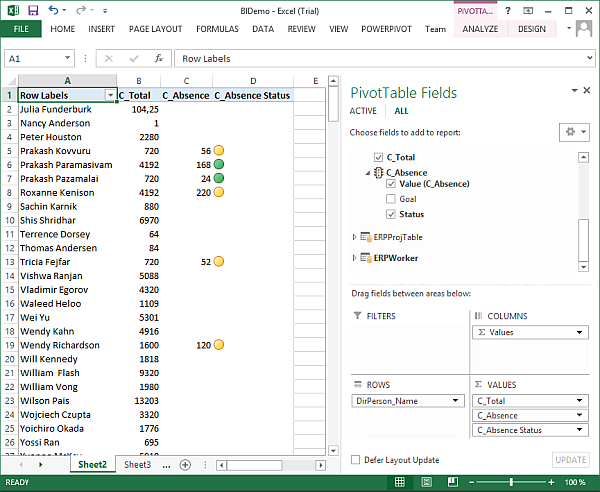
image

Go to the Analyze Tab (only visible if the pivot table is selected), from the group Filter, create a new Timeline Filter and select the ProjJournalTrans_TransDate field. Place the Filter above the table (or wherever your want)

image

Enterprise Portal Installation fails due not enough memory

A typical Dynamics AX 2012 (R2) installation requires lot of RAM to work properly. Especially SharePoint, the basis for Role Center and Enterprise Portal want’s lot of it. I came across an issue where EP installation failed. The DynamicsSetupLog.txt revealed the issue; an exception at the SecurityTokenService.

The service ‘/SecurityTokenServiceApplication/securitytoken.svc’ cannot be activated due to an exception during compilation.The exception message is: Memory gates checking failed because the free memory (723009536 bytes) is less than 5% of total memory

There are some blogs regarding this issue: Restart NodeRunner, Set the App Domain, Configure minFreeMemoryPercentageToActivateService . The simplest solution however is to provide more memory Smiley

UserSessionService/GetPartitionKey

When you upgrade from Dynamics AX 2012 RTM / FP to R2 and start upgrade your reports in Visual Studio, your might run into an error telling you that the GetPartitionKey action was not found in the UserSessionService.

GetPartitionKey action not found

Partitions were introduced in R2 and therefore the UserSessionService has changed and got new methods. However, the WSDL interface definition is the old one and you need to update the interface description.

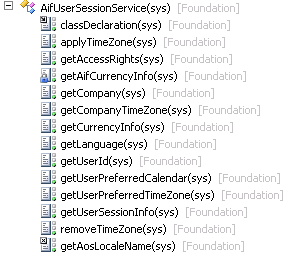
AifUserSessionService in AX 2012 RTM and FP AifUserSessionService in AX 2012 R2
AX 2012 FP AX 2012 R2

If you want to check the actual interface description you might want to look at the WSDL itself. The URL can be found at AX > System Administration > Services and AIF > Inbound Ports > User Session Service > WSDL URI

UserSessionService in Dynamics AX 2012 R2

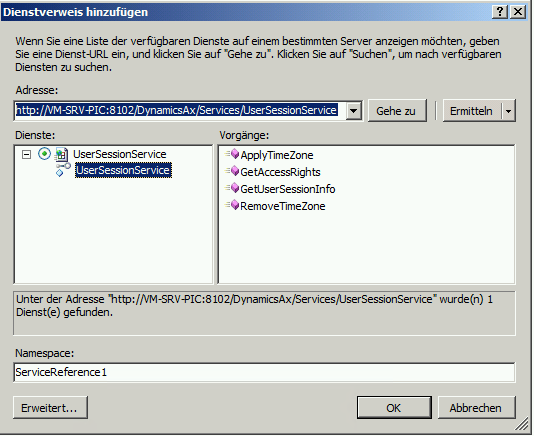
You might open the XML and go all the way through the files until you got the operations, or just feed the URL to Visual Studio. Create a new C# console application, add a service reference and provide the URL. If your WSDL definition is out of date your service reference looks like this.

Check the UserSessionService WSDL in Visual Studio

Go back to Dynamics AX development environment. Compile the AifUserSessionService class in X++ and incremental IL. Make sure there are no errors in your application. Go to the services node in the AOT and select the AifUserSessionService. From the context menu click Add Ins > Register Service. Go to the service group node in the AOT. Select the UserSessionService group. From the context menu click Deploy Service Group. You will see the infolog popping up telling you that the .NET artifacts have been generated and deployed.

Deploy the UserSessionService group

Go back to Visual Studio and refresh the service reference. The service has the same WSDL URL as before but the inferface has changed. Now you should see more methods including the GetPartitionKey.

Check the UserSessionService WSDL in Visual Studio

Create a PowerPivot BI Application for AX Project Postings

PowerPivot is a great extension for Excel to realize BI applications in very short. For Excel 2010 download and install the free PowerPivot extension. PowerPivot ist built in with Excel 2013. To activate PowerPivot go to File > Options > Addins > Choose COM Addins > activate PowerPivot.

PowerPivot Tab in Excel 2010

Load Data

Open PowerPivot Window > External Data > SQL Server. Provide Credentials to access Dynamics AX database. Select PROJTABLE, PROJJOURNALTRANS, HCMWORKER and DIRPARTYTABLE. For each table open the preview and select the following fields.

ProjTable ProjId Name DataAreaId        
ProjJournalTrans ProjId CategoryId Txt Qty Transdate Worker DataAreaId
HcmWorker Person RecId          
DirPartytable Name RecId          

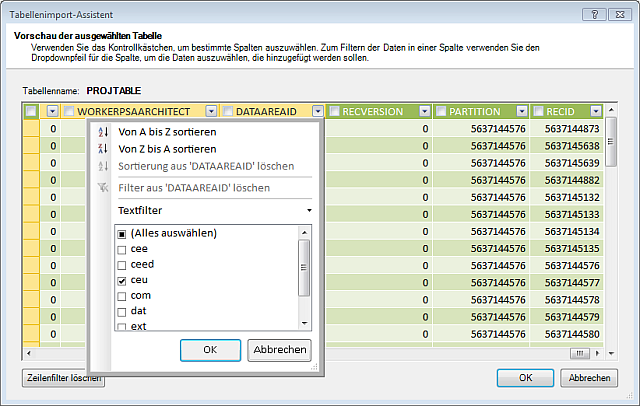
In the import wizard set a filter on the DataAreaId for PROJTABLE and PROJJOURNALTRANS on CEU

PowerPivot Data Import

After the tables have been imported, create relations between these tables. Back in the PowerPivot window > Relations > Manage Relations create these relations.

  • ProjJournalTrans[PROJID] to ProjTable[PROJID]
  • ProjJournaltrans[WORKER] to HcmWorker[RECID]
  • HcmWorker[PERSON] to DirPartytable[RECID]
    Data Model in PowerPivot
    In the PowerPivot window select PROJJOURNALTRANS table and on the right side after the last column select the new empty column. Write =YEAR(‘PROJJOURNALTRANS’[TRANSDATE]) in the formula text field. Rename the new calculated field to YEAR. Add a second calculated column =MONTH(‘PROJJOURNALTRANS’[TRANSDATE]) and rename to MONTH

Calculated Field in PowerPivot

Create the first pivot table

Close the PowerPivot windows and return to Excel. From the PowerPivot tab create new pivot table. Place the PROJJOURNALTRANS[QTY] field in the right lower Values box. Place PROJTABLE[NAME] and PROJJOURNALTRANS[CATEGORYID] in the rows box. Place PROJTABLE[NAME] and PROJJOURNALTRANS[CATEGORYID] in the vertical slicer box. Place PROJJOURNALTRANS[YEAR] and PROJJOURNALTRANS[MONTH] in the columns box and horizontal slicer.

Pivot Table based on Dynamics AX Data

Create charts

From the PowerPivot tab open the PowerPivot table dropdown, select 2 charts vertical and place them in a new sheet. For both charts place the PROJJOURNALTRANS[QTY] in the lower right values box. For the first diagram place the PROJTABLE[NAME] field in the columns box. In the second diagram place the DIRPARTYTABLE[NAME] in the rows box. Now there are two diagrams, postings per employee and postings per project. Place PROJTABLE[NAME], PROJJOURNALTRANS[CATEGORYID] and DIRPARTYTABLE[NAME] in the vertical slicer. Place PROJJOURNALTRANS[YEAR] and PROJJOURNALTRANS[MONTH] in the horizontal slicer.

Dynamics AX Project Postings per Project and per Employee

Connect Slicer to other sheets

Select the YEAR slicer, from the context menu open the pivot table connections. Connect the slicer to the other pivot table created earlier. By connecting the slicer a selection made on one sheet also effects the other sheet.

PowerPivot Slicer

Create Measures and define a KPI

From the PowerPivot tab, PowerPivot table dropdown create a new simple pivot table on a new sheet. Place the DIRPARTYTABLE[NAME] field in the rows box. Place the PROJJOURNALTRANS[YEAR] in the horizontal slicer On the fieldlist select the PROJJOURNALTRANS table and create a new measure from the PowerPivot tab. Call the measure M_TOTAL and use the formula  =sum(PROJJOURNALTRANS[QTY])

PowerPivot Measure posted Qty

Create a second measure on the PROJJOURNALTRANS table called M_ABSENCE. This will be the sum of all postings made on project HOLIDAY (PROJID 50002) and ILLNESS (PROJID 50003). Use the formula
=CALCULATE(sum([QTY]);PROJJOURNALTRANS[PROJID] = "50002" || PROJJOURNALTRANS[PROJID] = "50003") .

PowerPivot Measure posted Qty on Holiday or Illness

On the fieldlist, select the measure M_ABSENCE in the PROJJOURNALTRANS table. From the PowerPivot tab, create a new Key Performance Indicator (KPI) based on the M_ABSENCE Measure. Select the M_TOTAL as target. Choose green > yellow > red color schema. Define green to be from 0 – 5 percent, yellow from 5 to 10 percent and red to all above.

PowerPivot KPI

The pivot table with KPI should look like this

PowerPivot table with KPI

Metadata Service Exception: Option with ID -1 unknown

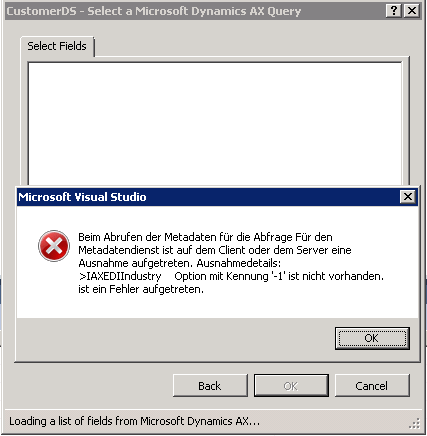
A colleague started to develop a report in Visual Studio and experienced a strange exception when selecting a query as dataset. It said that an exception occurred in the metadata service >SOMEFIELD option with ID -1 was not recognized

image

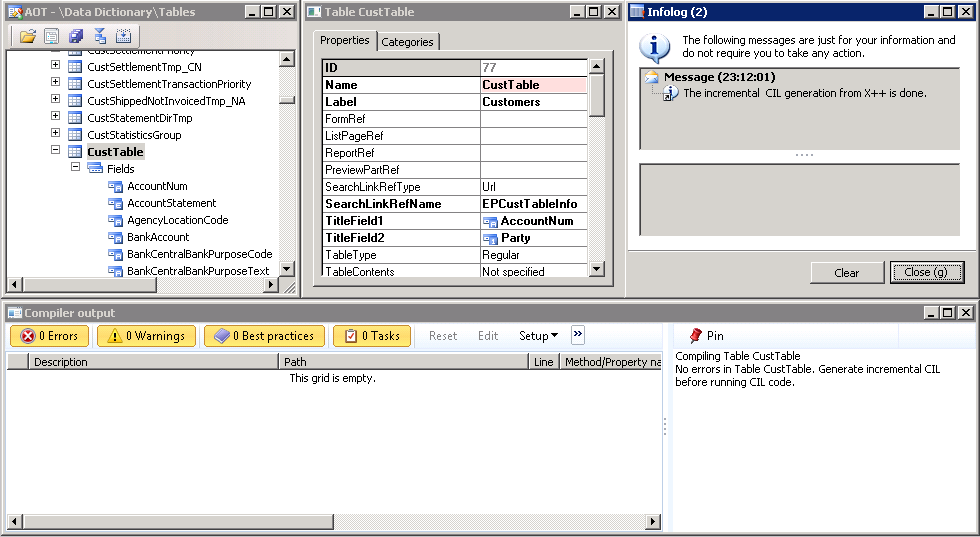
A look at the table being part of the query reveled the reason for this problem. The filed on the table is based on an extended datatype, but this datatype was deleted a while ago. However on a first look the field looks okay.

image

The table does compile without errors and incremental IL succeeds(!)

image

As soon as your select the fields enum property in the property window, you’ll see that the datatype is missing.

image

Set the compiler level up to 4 in order to get best practice errors displayed. It tells your that the field has an unknown type (BP:100) and that each field should be defined using a type.

image

Windows Mobile & CE

They say Windows Mobile is dead. I agree, its dead on the mobile phone market. However Mobile and CE legacy OS’ are still relevant to develop mobile applications on barcode reader and RFID reader / writer devices. Just to mention Smiley ..

scanner

Send SSRS Report as Email

The SSRS Report Viewer in AX 2012 does not have a built in Email function. However, there are some implementations available to add an email button in SharePoint or ASP.NET pages, e.g. Codeproject . The idea is simple, save the report as PDF, open outlook email and add the PDF file as attachment. Follow these steps to implement an Email button for Dynamics AX.

In the AOT add a reference to the Microsoft.Reporting.WinForms DLL. It contains the SRS Report Viewer class. The DLL can be found here: C:\Program Files (x86)\Microsoft Visual Studio 10.0\ReportViewer. Make sure you are using the corresponding assembly version as your SQL Server.

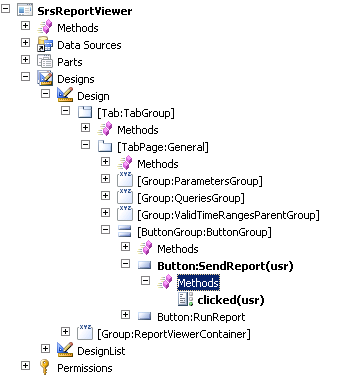
Open the SrsReportViewer Form in the AOT, and add a button to the ButtonGroup. Call it “SendReport”.

image

Add the following Code to the clicked method:

void clicked()
{
    Microsoft.Dynamics.AX.Frameworks.Controls.ReportViewer.AxReportViewer axviewer;
    Microsoft.Reporting.WinForms.ReportViewer nviewer;
    Microsoft.Reporting.WinForms.LocalReport report;
    System.Exception ex;
    System.Array bytear;
    System.Object no;
    System.IO.File file;
    str tmpPath;
    System.IO.FileStream fs;
    SmmOutlookEmail smmOutlookEmail = new SmmOutlookEmail();
    super();

    axviewer = AxReportViewer.control();
    nviewer = axviewer.get_ReportViewerControl();
    try
    {
  
        //render as PDF
        report = nviewer.get_ServerReport();
        bytear = report.Render("PDF");
        no = bytear;

        //path to temp. files
        tmpPath = System.IO.Path::GetTempPath();
        tmpPath = tmpPath + "report.pdf";


        //save to file
        fs = System.IO.File::Create(tmpPath);
        fs.Write(no,0,bytear.get_Length());
        fs.Flush();
        fs.Close();

        //open outlook email
        if (smmOutlookEmail.createMailItem())
        {
            smmOutlookEmail.isHTML(true);
            smmOutlookEmail.addFileAsAttachment(tmpPath);
            smmOutlookEmail.sendEMail(smmSaveCopyofEmail::No);
        }

    }
    catch(Exception::CLRError)
    {
        ex = CLRInterop::getLastException();
        info(ex.ToString());
    }
}

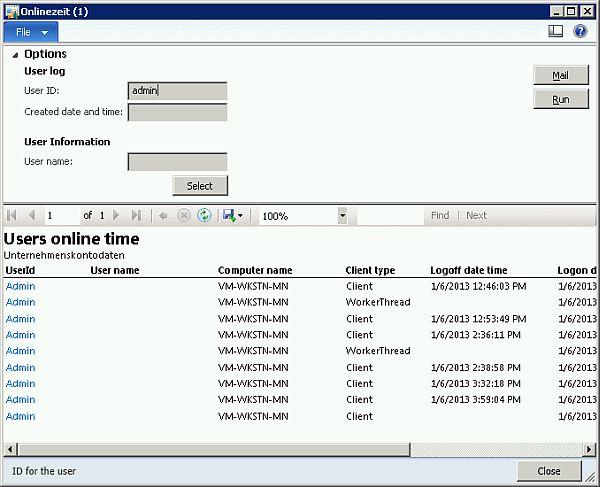
Save, Compile and open a report. Enlarge the “Options” and you’ll see the new Email button.

image

By clicking the Email button, the report is rendered as PDF, stored locally in your temp. files and attached to a new outlook email.

image

This is a very simple implementation. You may add more customizations, e.g. take the report parameters into account to initialize the TO and CC Email fields.

Dynamics AX 2009: FTP Adapter for AIF

The Application Integration Framework in Dynamics AX is an extensible framework for data transportation and reception. It support the separation of transport technology (e.g. MSMQ, XML/SOAP Webservices, Filesystem Share) security aspects (services, permissions, transported data) and data manipulation. Creating new adapters to support other transport technologies is simple. Here is an example to support FTP.

Develop AIF FTP Adapter

  • First, create a new parameter table AifFTPParameters to store FTP server name, user, password and directory (4 strings). Next create a setup form for the AifFTPParameters table and a display menu item. Add an OK command button. Add this code to the buttons clicked event:

    void clicked()
    {;
        super();
        // use the server name as selected value 
        element.closeSelect(Setup_ServerName.text());
    }

    FTP Parameters setup

  • Create a new AifFTPSendAdapter class that implementes the AifSendAdapter interface. You may create empty implementations for begin(), commit(), initialize(), rollback() and terminate(). But you really need to implement the sendMessage() method. I’m using the System.Net Classes to implement the FTP transfer.
     

    public void sendMessage(AifGatewayMessage gatewayMessage)
    {
        System.Text.Encoding encoding;
        System.Byte[] bytes;
        str requestStr = "";
        object ftpo;
        System.Net.FtpWebRequest ftpRequest;
        System.Net.NetworkCredential credential;
        str ftpUser;
        str ftpPass;
        System.IO.Stream requestStream;
        InteropPermission clrPermission =
         new InteropPermission(InteropKind::ClrInterop);
        ;

        clrPermission.assert();

        switch(gatewayMessage.parmEncoding())
        {
            case ‘UTF-8’:
                encoding = System.Text.Encoding::get_UTF8();
                break;
            default:
                throw error("Unsupported Encoding");
        }
        bytes = encoding.GetBytes(gatewayMessage.parmMessageXml());

        requestStr = strfmt(‘ftp://%1′,AifFTPParameters::find().ServerName);
        if(AifFTPParameters::find().Directory)
        {
            requestStr = strfmt(‘%1/%2’,
                                 requestStr,
                                 AifFTPParameters::find().Directory);
        }

        requestStr = strfmt(‘%1/%2%3’,
                              requestStr,
                              gatewayMessage.parmMessageId(),
                              ’.xml’);

        ftpo =  System.Net.WebRequest::Create(requestStr);
        ftpRequest = ftpo;

        ftpUser = AifFTPParameters::find().UserName;
        ftpPass = AifFTPParameters::find().Password;
        //BP deviation documented
        credential = new System.Net.NetworkCredential(ftpUser,ftpPass);
        ftpRequest.set_Credentials(credential);
        ftpRequest.set_ContentLength(bytes.get_Length());
        ftpRequest.set_Method(‘STOR’);

        requestStream = ftpRequest.GetRequestStream();
        requestStream.Write(bytes,0,bytes.get_Length());
        requestStream.Close();

        CodeAccessPermission::revertAssert();
    }

  • Create a new AifFTPAdapter class that implements AifIntegrationAdapter. This class is used by the AIF configuration interface in Dynamics AX to identify an outbound adapter and its configuration form.

    public AifIntegrationAdapterType getAdapterType()
    {;
        return AifIntegrationAdapterType::SendOnly;
    }

    public MenuItemNameDisplay getAddressDisplayMenuItem()
    {;
        // the AifFTPParameter forms display menu items name
        return ‘AifFTPParameters’;
    }

    public AifTransportAddress getCanonicalTransportAddress(AifTransportAddress transportAddress)
    {;
        return transportAddress;
    }

    public MenuItemNameDisplay getConfigurationDisplayMenuItem()
    {;
        return ”;
    }

    public LabelString getLabel()
    {;
        return "AIF FTP Adapter";
    }

    public AifReceiveAdapter getReceiveAdapter()
    {;
        return null;
    }

    public AifSendAdapter getSendAdapter()
    {;
        return new AifFTPSendAdapter();
    }

    public boolean isHosted()
    {;
        return true;
    }

    public void validateConfiguration(AifTransportAddress transportAddress,
                                      AifChannelDirection channelDirection)
    {;
        //TODO:Check or throw error
    }

      1. Register FTP Adapter and configure AIF

    1. Go to Basics > Setup > Application Integration Framework.
    2. In Local Endpoints make sure you have an endpoint configured
    3. In Transport Adapters create a new record, select AifFTPAdapter and mark it as active.
    4. In Channels, create a new outbound FTP Channel, provide server name and credentials.
      Mark the channel as active.
      Configure AIF FTP Adapter 
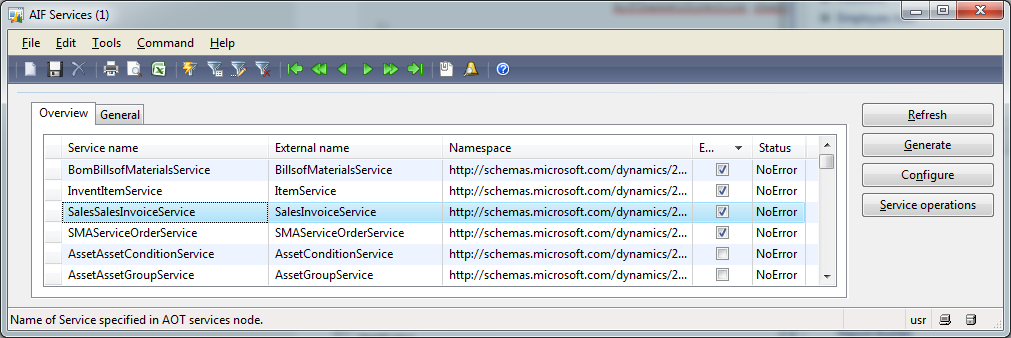
    5. In Services activate the SalesSalesInvoiceService
      Activate SalesSalesInvoiceService 
    6. In Endpoints create a new endpoint. Set the outbound channel to your FTP channel and set the local endpoint. Go to the Constraints tab and set “No Constraints” flag. Mark the endpoint as active.
      Create an endpoint with outbound FTP

      Click the Action Policies button and add the SalesSalesInvoiceService.read method
      Activate SalesSalesInvoiceService.read

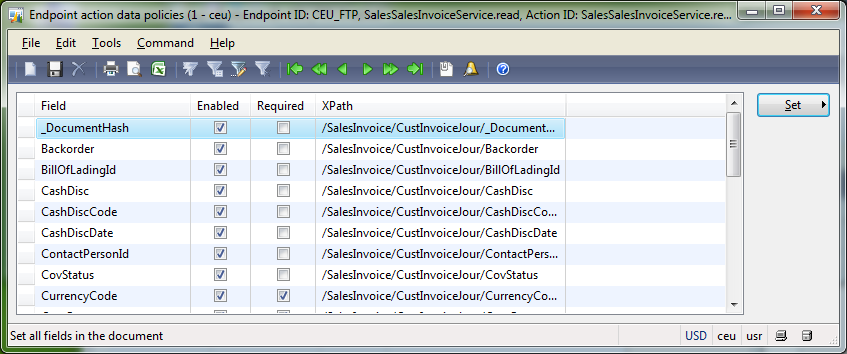
      Click the Data Policies button and use the set button to enable all data fields for transportation.
      Set data policies for invoice

    7. Go to Basic > Inquiries > Batch jobs. Make sure to run a batch job that processes the AIF message send and receive tasks: AIFInboundProcessingService, AIFOutboundProcessingService, AIFGatewaySendService and AIFGatewayReceiveService.
      Setup AIF processing batch jobs
    8. Go to Accounts Receivable > Inquiries > Journals > Invoice. Select an invoice and use the Send Electronically button to put it in the transportation queue.
      Send invoice electronically using AIF
    9. Wait a few miniutes and take a look at your FTP space. There you should see the transmitted invoices as xml file.
      Invoice successfully uploaded

    MCTS: 70-573 SharePoint 2010 Application Development

    image

    On Friday 13th Smiley I was certified for SharePoint 2010 Application Development. Since every Dynamics AX Silver+ Partner need at least on SharePoint guy, I’m the one for InsideAx. I’m already experienced in maintaining SharePoint 2012 (mainly Foundation) for those of our Customers running Rolecenter in AX 2009. Furthermore I’ve upgraded and developed Enterprise Portal applications in the last two years. However, EP development and classic SharePoint development does diverge. Everybody who ever tried to modify EP using SharePoint designer knows what I’m taking about.

    I don’t want to say that all the cool SharePoint features cannot be used to extend Dynamics AX (e.g. I’ve built a web based appointment app using SharePoint and its lists and calendars to visualize the schedules). All those who are now forced to get in touch with SharePoint may experience that it can be used in may cases to provide cool solutions for their customers. But I’d like Microsoft to strengthen the web / enterprise portal development aspect of Dynamics AX by extending the development course materials and provide an Enterprise Portal Certification.

    SSRS: Error when opening design of duplicated report

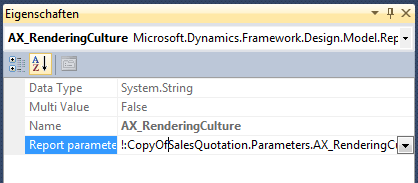
    When you duplicate an SSRS Dynamics AX 2012 report in Visual Studio, and you try to open the design node you may get an error message like “object instance not set to an object”. The reason is that the data set parameters contain the name of the report e.g. SalesQuotation. Now that you have duplicated the report its name is CopyOfSalesQuotation and the report is broken.

    Broken parameter in duplicated SSRS report

    Compiling the report project brings up a list of errors.

    Errors when compiling a duplicated report

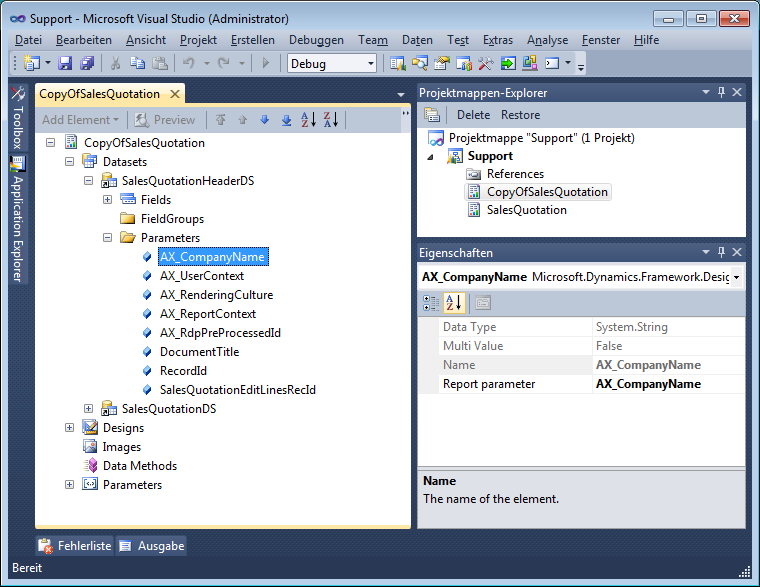
    Navigate to each data set parameter and change the name of the report to match the new name e.g. CopyOfSalesQuotation instead fo SalesQuotation

    Broken parameter in duplicated report

    The fixed parameter should look like this

    Dynamics AX 2012 duplicated report data set parameter

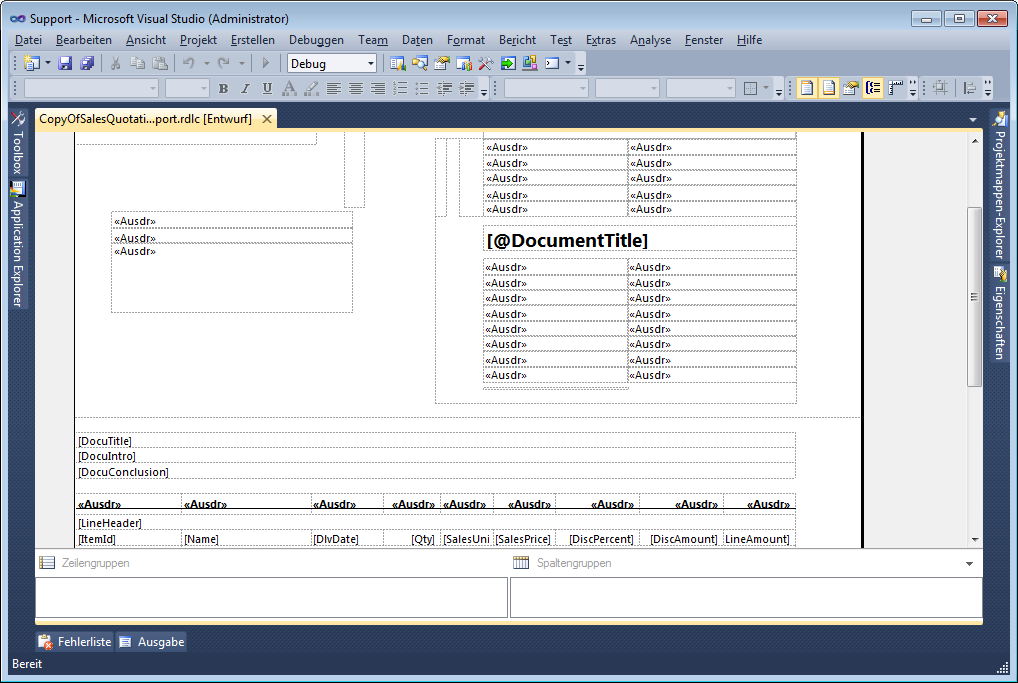
    Finally the report designer is working

    Dynamics AX 2012 duplicated report in report designer