Order Change: Notify customers using Business Events and Flow

The combination of Dynamics 365 Finance and Supply Chain Management Cloud ERP and Microsoft Flow helps to automate many tasks. For example, you can easily notify a customer about changes regarding the confirmed shipping date.

Concept

  • Configure a Blob Storage Endpoint for Business Events
  • Create a Change Based alert for ShippingDateConfirmed
  • Add a flow that triggers on new events
  • Read Email from sales order and notify customer

Configure a Business Event Endpoint

Business events in Dynamics 365 FSCM can be used to notify external systems. It supports different endpoint types like Azure Event Hub, HTTPS web hook and Blob Storage Account. I personally prefer to use a storage account because it’s a very cheap and easy to use, understand and support cloud infrastructure.

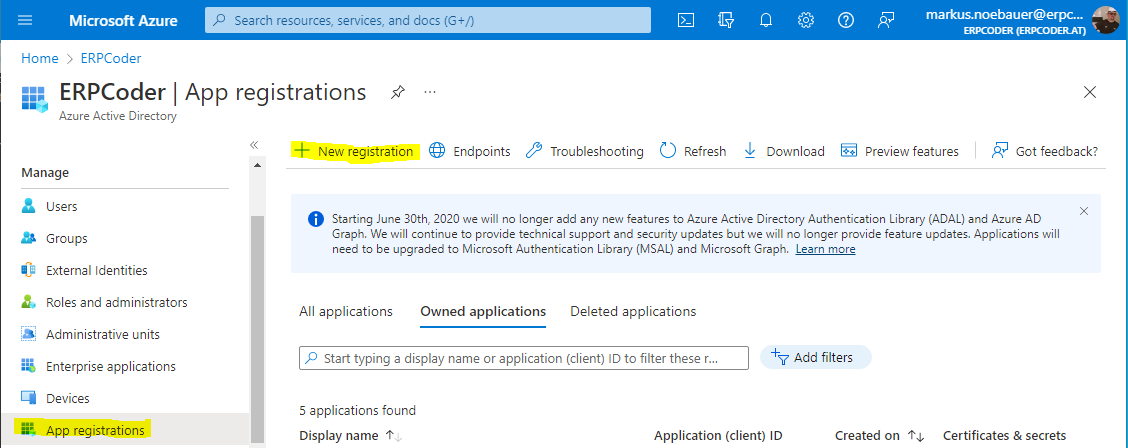
In Entra ID admin Portal (Azure Active Directory) create a new app registration. Note the client ID and create a new secret. Note the application secret as well.

In order to use a Blob Container for Business Events you need some resources. First, of course a storage account with a public endpoint. Copy the Storage Account Connection String. On the menu on the left side select Storage browser. Navigate to the Blob Storage and create a new container.
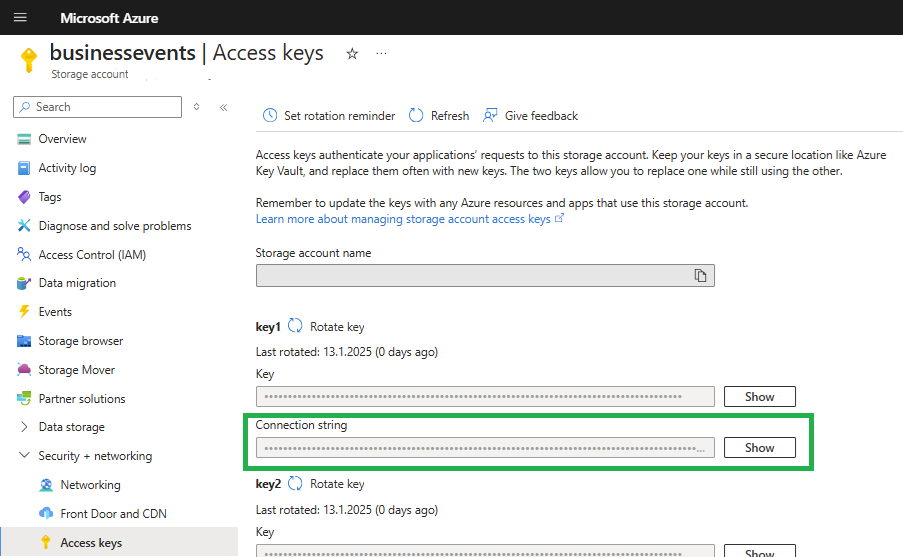
Azure Storage Account for storing business events in a blob container

Next, create a key vault to store the connection string. When creating the key vault make sure to use Vault Access Policies. At the key vault create a new secret and place the connection string there.

Azure Key Vault with Vault Access Policies

In the Key Vault switch to Access Policies and create a new one. Assign the registered app the rights to list and get secrets.
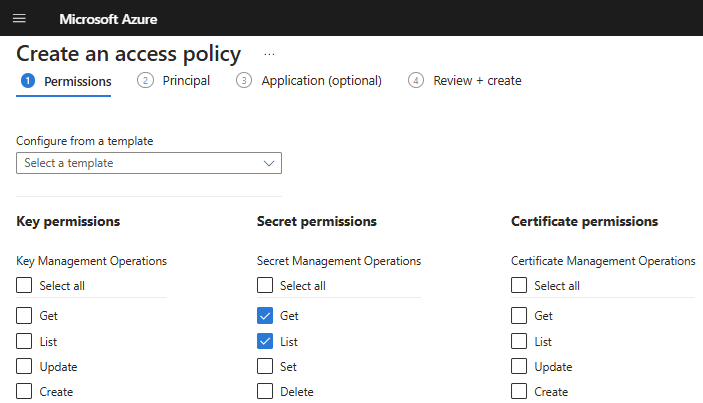
Assign List and Get secrets permissions to the service principal

In Dynamics 365 Finance and Supply Chain Management open the Business Event Catalog (System Administration > Setup > Business Events). Switch to the Enpoint tab and create a new Blob Endpoint. In the dialog provide

  • a meaningful name
  • the name of the Blob container
  • client ID from the app registration
  • client secret
  • the key vaults URI (from the key vaults overview pane)
    e.g. https://yourkeyvault.vault.azure.net/
  • the name of the secret that holds the connection string

Switch to the Business Event Catalog and filter the Business Event ID entries containing the term “Alert”. Make sure you select the BusinessEventsAlertEvent and click on Activate. In the dialog select the legal entity and the recently created blob endpoint.

Business Events Catalog in Dynamics 365 Finance and Supply Chain Management

Test Business Event Endpoint configuration for Alerts

Make sure you have a batch job handling change based alerts in Dynamics 365 Finance and Supply Chain. If you don’t have such a batch job, create on from System Administration > Periodic Tasks > Alerts > Change Based Alerts. Change the recurrence to no end date and provide a time interval e.g 10 minutes.

In Dynamics 365 FSCM go to an existing sales order or create one. In the top menu switch to Options and select Create custom alert.

Create a change based alert for sales orders in Dynamics 365 Finance Supply Chain Management

In the alert dialog choose the Confirmed Ship Date from the field drop down. This will change the alert trigger to Has Changed. Make sure to activate the Send Externally Option as well. Save the alert rule.

Create a change based alert for sales orders in Dynamics 365 Finance Supply Chain Management

Change the confirmed ship date in the sales order. Depending on the time interval for change based alerts batch job you will get notified that the value has been changed.
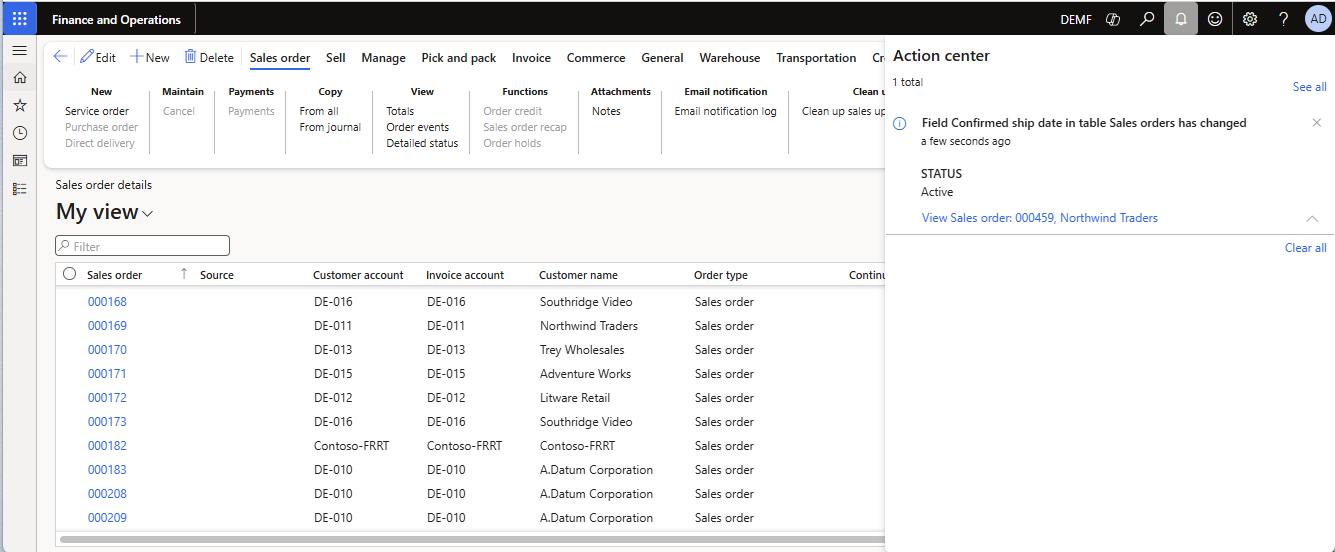
Alert notification that the shipping date confirmed has been changed

Switch to the Azure Portal and go to your storage account. From the Storage Browser, select the Blob Storage and the container you created for the business events. There you should see at least one entry named as GUID.

Azure storage account with business events

Download and open the file in a text editor. I should contain the JSON for the business event. You will find the Sales Order Number in KeyValue1 and the legal entity in the DataAreaId property. You can use this values to lookup the sales order in D365.
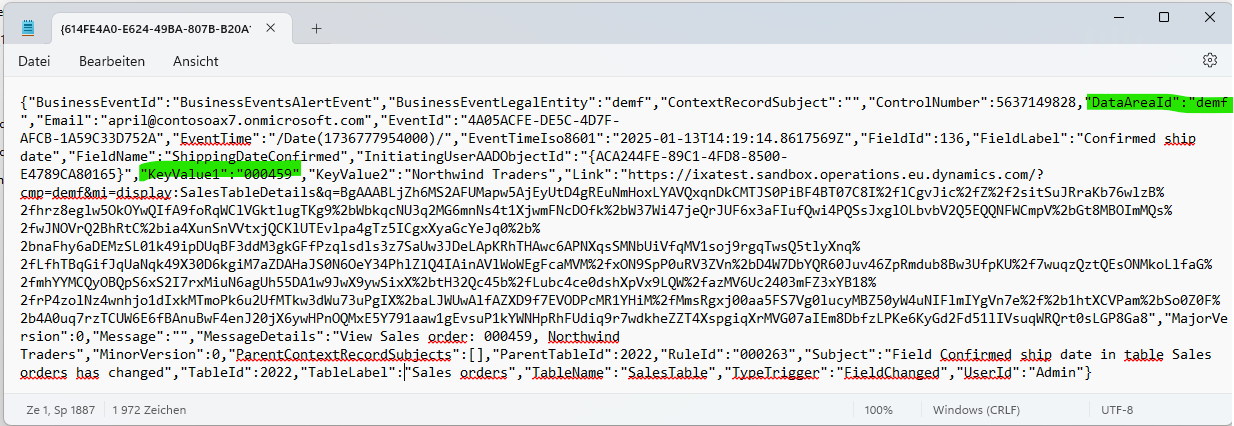
Business Event JSON text

Create a flow to notify the customer

Go to Power Automate and create a new flow that triggers when a blob entry is created or modified. Check if the event was a shipping data change and send an email to the customer. The flow may look like this.

Flow in Power Automate to handle business events

The first action Get Blob Content is used to download the event file itself. The next action will parse the event JSON string. Since the blob file has no file extension, it is necessary to provide the content as string() to the Parser. The schema can be generated by example. E.g. copy the JSON string from the test file and flow will generate the schema.

Parse JSON action for Dynamics 365 Business Events

Because the blob storage account may be used by different business events in the future it is advised to add a condition to check if the alert is triggered by the shipping date.

Condition if change based alert was triggered by changing the shipping date

Next use the DataAreaId and KeyFieldValue1 to lookup the Sales Order in Dynamics 365 FSCM by combining both values seperated with a comma e.g. demf,001234

Lookup sales order in Dynamics 365 Finance and Supply Chain from flow

Add a second condition to check if there is an Email address provided in the sales header. If so use the Send Email action to notify the customer. If required you may work on the FALSE condition and lookup the customer instead to find an email address.
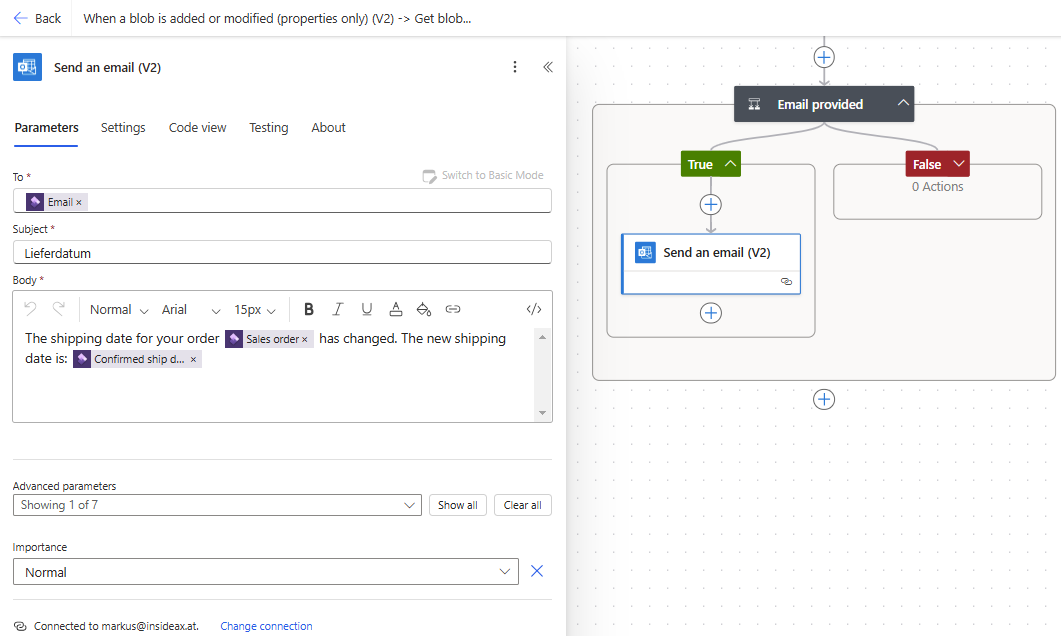
Send email with the updated shipping date to the customer

The final email may look like this

Email with the new shipping date

Mirror Dynamics 365 Finance SCM Entity Database in Fabric

There are many ways to analyze Dynamics 365 Finance and Supply Chain data in Fabric. One way is to replicate the Entity Export database. Then load it into a Lake House and combine it with additional data for reporting. Here is a video that shows the complete process from scratch:

Considerations

Entity Export to Azure SQL

Exporting entities in Dynamics 365 Finance and Supply Chain to your own Azure SQL DB has been around for a long time. There are some considerations and limitations when using your BYOD (Bring Your Own Database) feature with Fabric:

  • Sizing: 100+ DTUs are required. Free and small Basic versions are not supported.
  • Networking: Public Endpoint and allow Azure Services
  • Security: System Assigned Managed Identity ON
  • Table: Column store tables are not supported
  • Table: Primary Index required

Analyze Dynamics 365 Finance / SCM Data in Synapse (Video)

Load Dynamics 365 F/SCM in Synapse and visualize in PowerBI

Synapse link for Dataverse is the replacement for Export to Datalake which has been deprecated in 2023. Although it is called link for Dataverse, it can be used to access Dynamics 365 Finance and Supply Chain tables (and CE data from dataverse as well).

Synapse link for Dataverse

SQL Track Changes has to be enabled in D365 F/SCM. Creates, Updates and Deletes are written to a storage account in CSV format. Synapse is running a spark pool that converts the CSVs into Deltalake format which relies on the (Open-Standard) Parquet format. As result you can see and query the F/SCM tables in the lake like it were tables in a relational database.

Synapse Workspace with Dynamics 365 Finance and Supply Chain data

Good news, Synpase has a serverless SQL pool and a public SQL endpoint. You can find the SQL endpoint from the Manage Icon (down left) > SQL Pools > Select your pool > Workspace SQL Endpoint.

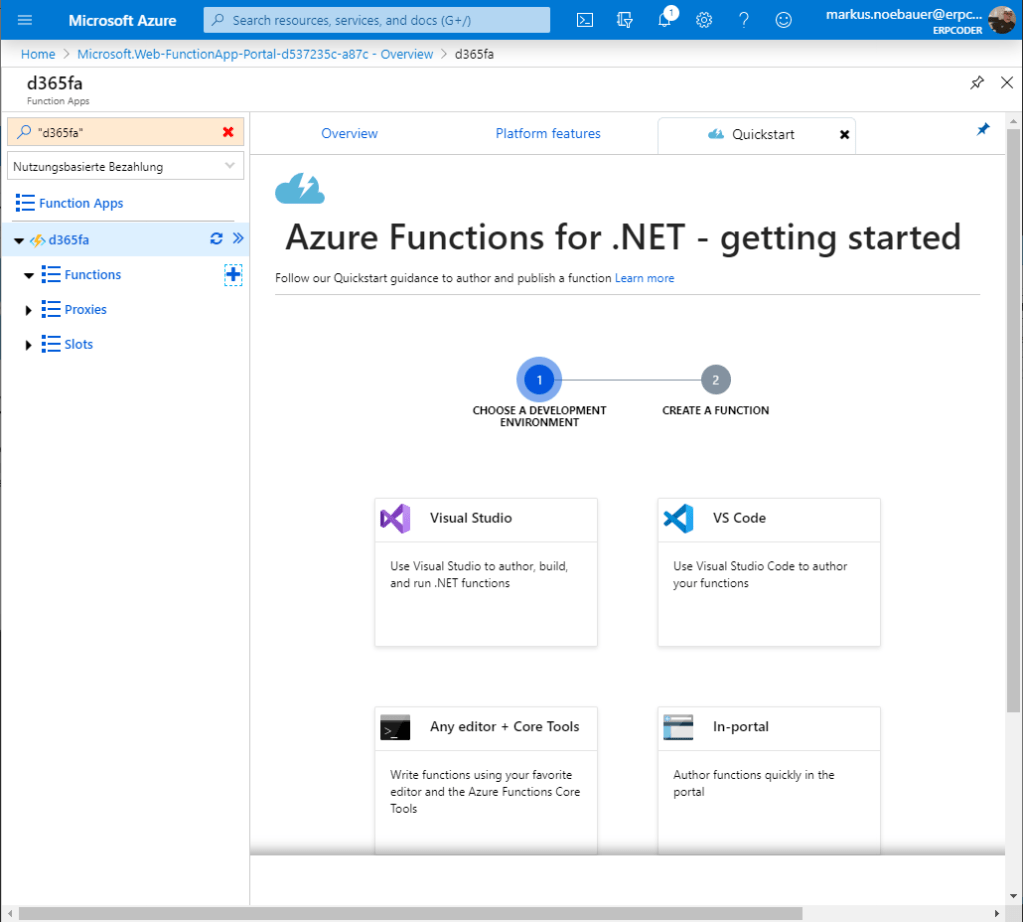
You can create databases in this SQL pool and create views based on the tables in the datalake. For example join CustTable and DirPartyTable and provide a view that contains customer data with a name and address.
Create views in Synapse Workspace

You can use the development workspace in Synapse web based workspace but you could also use other tools to connect e.g. SQL Server Management Studio. Tables in the datalake and views in another database can be accessed.

SQL Endpoint for Synapse Workspace

PowerBI has a built-in connector for Synapse Workspace. You can easily load data from the tables and also from the views.

PowerBI Synapse connector

Admin Provisioning Tool Error: The value’s length for key ‘password’ exceeds it’s limit of ‘128’

Microsoft has recently released the new VHD for Dynamics 365 Finance and Operations 10.0.24 to download from LCS. When you instantly try to execute the Admin Provisioning Tool and provide your domain user you will get an error.

The value’s length for key ‘password’ exceeds it’s limit of ‘128’

There are some steps required before you can assign it to your Domain:

  1. Go to https://portal.azure.com > Active Directory > App Registration and register a new App
Register a new application in Azure Active Directory
  1. Provide the One-Box URL as reponse address
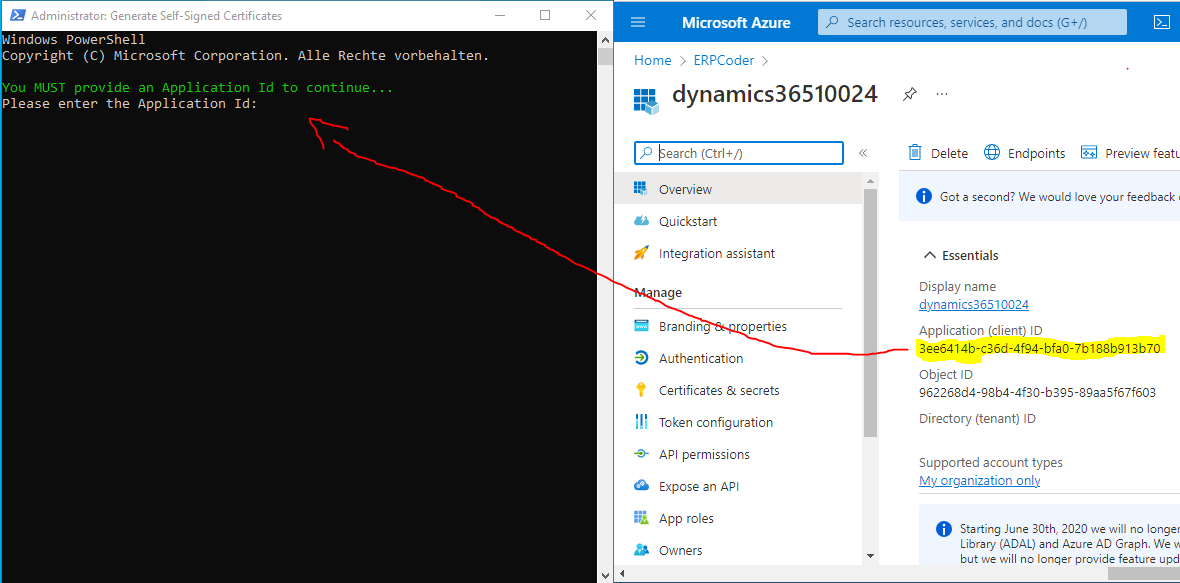
  2. Copy the AppID to your clipboard
App Registration for Dynamics 365 FO 10.0.24 One-Box Environment
  1. Execute the “Generate Self-Signed Certificates” PowerShell script from the Desktop
  2. Provide the AppID from the App Registration
Generate Self-Signed Certificates

6. Execute the Admin Provisioning Tool and provide your Domain account address
7. Open https://usnconeboxax1aos.cloud.onebox.dynamics.com/ in Edge and login

Dynamics 365 Finance and Operations 10.0.24 One-Box Environment

Migrate Azure Analysis Services to another Tenant

Azure Analysis Services are SSAS as a Service hosted and managed in Azure. We recently had to migrate an analysis model from one tenant to another. Here is a video that illustrates how this can be done:

Find more videos in my Youtube Channel.

First week under third Lock-down in Austria (1.1.2021)

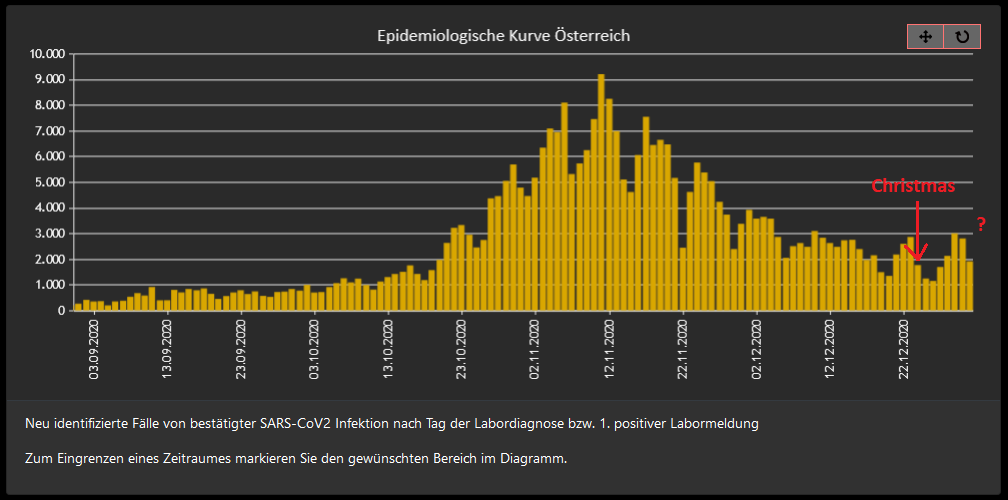
We’re back in a hard lock-down. In contrast to the second lock-down in November and December 2020 this one is a proactive lock-down to keep the infections after Christmas under control. Started on 26th December we are under an all-day curfew and non-essential business are closed. Up to now, the impact of the new GB mutation which is more infectious is unclear. Hopefully this will prevent uns from a third wave.
COVID-19 infections in Austria
COVID-19 Infections in Austria (Wave2) Source: https://covid19-dashboard.ages.at/

The last year was very challenging for all of us. COVID-19 killed approximately 1.8 million people, and many suffer from severe consequences of a COVID-19 infections. Actions taken to get the pandemic under control brought us into a economic and social crisis. However, from an IT perspective the good news are that COVID-19 boosted Digitization.

Something good in 2020

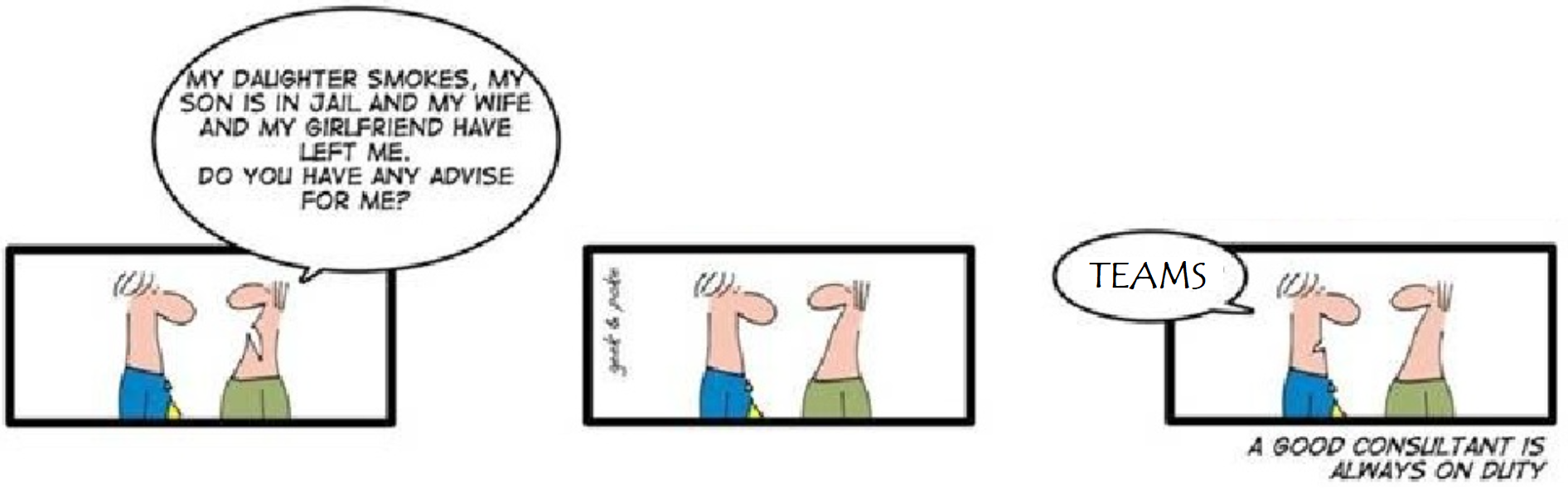
  • Microsoft Teams: 2020 was the year of Teams. Never ever was a Microsoft Product adopted so quickly by so many people and organizations. Thanks to the (very) hard lock-downs in Europe in spring, Teams was one of the few products that kept many organizations operable.
Microsoft Teams in 2020
2020 – The year of Teams
  • The Cloud: Those who didn’t understand the benefit of the cloud have learned it the hard way this year. The only way to scale up in a very short time is the cloud. No matter if it’s in a public or private cloud. But the situation in early 2020 showed that only the public cloud like Azure could handle the situation. When millions of people are forced to work from home, classic on-premises installations and VPN Gateways collapse.
  • Azure Region Austria: Microsoft announced to build two data centers in Austria. We will get our own Azure region. Typically our customers host their Azure Workloads in the West-Europe region. In the future we will be able to place the cloud workloads closed to the our customers.
  • E-Health: Digitalization and health care has never been a big issue in Austria and Digitalization projects like ELGA (electronic health file) was not very widely used. But COVID-19 boosted Digitalization in health care. We’ll get an electronic vaccination pass next year and e-prescription.
  • Home / Distance Schooling: It is said that the Austrian Education system is very old fashioned and stuck in traditions over decades. Over the last centuries E-Learning was explored from time to time but never ever taken serious. COVID-19 forced the education system to adapt to the situation. Universities also struggled to make exams remote compatible and came up with modern, naive and lazy solutions: The closest solution to a normal exam are Zoom-Meeting based exams, where you have to be online including audio and being watched through the webcam. Some Law-Schools found another way without all the fancy technology stuff. You get the exam online and have to upload the results within a given time, including a sworn declaration that you didn’t cheat. And some other lecturers replaced the classic exam by letting the students write an essay about some textbooks.
  • Bitcoin: Lucky you if you are a Bitcoin hodler 😉
Bitcoin skyrocketing in 2020

“A very merry Christmas and a happy New Year Let’s hope it’s a good one”
– John Lennon, Merry Christmas

Azure Backup Server agent installation trouble

Taking backups is crucial. I prefer to use the Azure cloud for storing backups. In case a disaster strikes on-premises, the data is at least save in the cloud. Microsoft is offering a great solution with Azure Backup. For taking simple file-based backups you only need the recovery agent installed on the source server. For taking more complex backups e.g. from SQL Server and HyperV the Azure Backup Server is required.

Azure Backup Server (aka. DPM)

The Azure Backup Server is a re-branded System Center Data Protection Manager. Backups can be stored locally on disk and in an Azure Backup Vault. Like the SCDPM Server, the Azure Backup Server requires agents to be installed on the source systems. This can be done using push or pull techniques. Within a domain you can instruct the DPM Server to install an agent on a server. You may also install the agent by hand and instruct DPM to connect to an already installed agent.

Azure Backup Server Console

I had one legacy server hosting a SQL Server 2012 instance, which was protected with System Center Data Protection Manager 2012 a while ago. The old agents were uninstalled years ago but left some entries that blocked the installation of the new DPM agent.

Identifying the problem

When the installation fails, a Log is created in C:\Windows\Temp. A look in the log file revealed that the installer found an installed product that should not be installed.

Agent installation started
 The agent bootstrapper is doing prerequisite checks
 Querying for Product with Upgrade code: {0BEE7F6A-CE2A-A5CF-FFEB-8E0F8A8CDE75}
 Querying for Product with Upgrade code: {EFF053DE-592F-5574-9AA3-64662A944952}
 IsProductInstalled: MsiEnumRelatedProducts returned ERROR_SUCCESS and product code found is {EECBB752-2C6E-45B7-9F18-2327B886309A}
 IsProductInstalled: Product: {EECBB752-2C6E-45B7-9F18-2327B886309A} is installed
 PerformAgentInstall failed with errorcode=addfd060
 Install ProtectionAgent failed with errorcode=addfd060
 Failed: Hr: = [0x80990a2d] DPMAgentInstaller failed, error says: [(null)]
 Failed: Hr: = [0x80990a2d] : SC-DPMRA found. Cannot install Microsoft Azure Backup Agent
 Failed: Hr: = [0x80990a2d] : Encountered Failure: : lVal : PerformAgentInstall(installargs, silent, skipKB)
 Failed: Hr: = [0x80990a2d] : Encountered Failure: : lVal : InstallProtectionAgent(false , false )

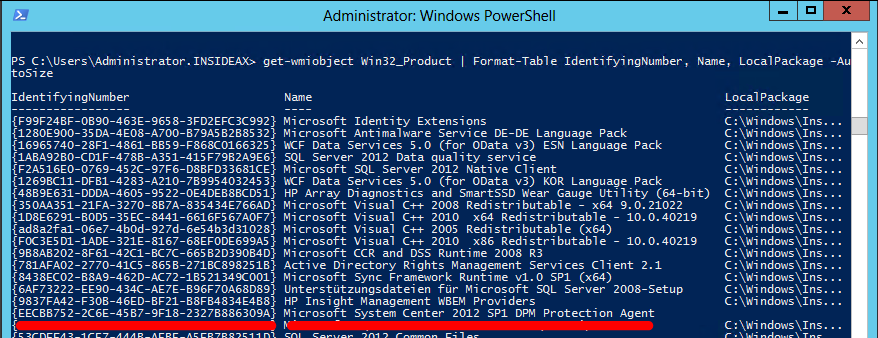
To identify the problem get_wmiobject can be used to display ID and Name. A old version of System Center Data Protection Manager Agent was not removed properly.

get-wmiobject Win32_Product | Format-Table IdentifyingNumber, Name, LocalPackage -AutoSize
DPM 2012 Agent leftover

Remove DPM agent leftovers

A first attempt to get rid of the DPM 2012 was to clean the registry. Therefore the regedit.msc was called and all entries referencing {EFF053DE-592F-5574-9AA3-64662A944952} were deleted. This was not sufficient to install the new agent.

Microsoft provides a tool to remove entries from uninstalled programs. The tool MicrosoftProgram_Install_and_Uninstall.meta.diagcab can be downloaded here: Fix problems that block programs from being installed or removed . It found the entry for DPM 2012 and removed it.

Fixit for blocking installation / uninstallation

The tool was a great step in the right direction, however the installation failed again because the DPM service could not be installed. The log file showed the following entry:

Received type [0x01000000] message [Service 'DPM CPWrapper Service' (DpmCPWrapperService) could not be installed. Verify that you have sufficient privileges to install system services.]

It turned out that there was already a CPWrapper Service but it was not functional anymore. The path to binary was no longer working. Therefore the property dialog from the service MMC was also not working. But there exists a tool to remove corrupt service entries. Process Hacker can be used to simple delete the service entry.

Process Hacker

Finally, the agent installation was successful

Azure Backup Server agent installation finished

Microsoft-hosted Dynamics 365 Finance Tier1 Sandboxes are dicontinued: Switch to Cloud-Hosted

Dynamics 365 Finance / SCM Tier1 sandbox environments are heavily used by partners for development and building Dynamics 365 Finance / SCM applications. Microsoft-hosted Tier 1 environments were a great deal because we got well sized VMs with 28 GB RAM and 4 Cores plus SQL Server, Visual Studio and Dynamics 365 Finance pre-installed for a very small fixed price per month available 24/7. Now Microsoft recently announced that they will no longer include Microsoft-Hosted Tier1 Sandbox environments with the Dynamics 365 Financen / SCM license and we will no longer be able to purchase additional Tier1 sandbox Addons. The preferred solution is to use Cloud-Hosted environments instead.

No more Microsoft-Hosted Tier1 environments

Microsoft-Hosted vs. Cloud-Hosted

From a technical standpoint there is no difference between a Microsoft-Hosted or a Cloud-Hosted environment. Both solutions deploy a Windows Server VM in Azure. In both cases the deployment is managed via Lifecycle Service (LCS).

LCS management of a Cloud-Hosted environment
Artefacts of a Cloud-Hosted Dynamics 365 FO Tier 1 environment in Azure

However, there are 3 major aspects to consider:

One big difference is the pricing model. Microsoft-Hosted environments (or Addons) come with a fixed (!) price per month while Cloud-Hosted environments deploy on an Azure subscription and therefore are billed like a classic IaaS (aka. virtual Machine in Azure). Make sure to calculate the costs (!) and turn of the environments if not needed.

Another difference is the ability to choose the sizing of the deployed environment. In contrast to Microsoft-Hosted Tier 1 environments, you are now free to choose a sizing that fits your needs e.g. more (or less) RAM, CPU, Premium SSD storage, etc.

Moreover, in contrast to Microsoft-Hosted environments, we now get an Admin account on our machines. It was understandable that Microsoft tried to lock down the cheap VMs to prevent the misusage with anything else then Dynamics 365. Since we own and pay the VM in a Cloud-Hosted environment its more than fair to have Admin access on the machine.

Video: How to deploy a Cloud-Hosted Dynamics 365 Tier1 developer VM

Make sure to visit my Youtube channel and watch how to deploy a Cloud-Hosted Dynamics 365 FO developer VM using an Azure Subscription.

Update: Management Certificates

The use of management certificates is not supported when using a CSP Azure Subscription. Use a user-connection instead.

Update: Provisioning Admin User

Please note that the user deploying the environment is provisioned as the administrator. Microsoft-Hosted environment had to be signed off using a user from the customer tenant. I’d recommend to stick to this process when deploying a Cloud-Hosted environment

Power Automate: Deploy and Execute an Ethereum Smart Contract

Power Automate (aka. Microsoft Flow) is a great cloud-based tool to automate all possible tasks. There is a Ethereum connector (Beta) that can be used to deploy a Smart Contract to an Ethereum Blockchain network and execute functions.

Ethereum Network

You need to connect to an Ethereum network. There is a fully managed Blockchain Service in Azure. I’m running my private network with Proof-of-Authority. At the Azure management portal, go to the transaction node to get the required information to connect.

Blockchain Service in Azure
Blockchain-as-a-Service in Azure

Smart Contract

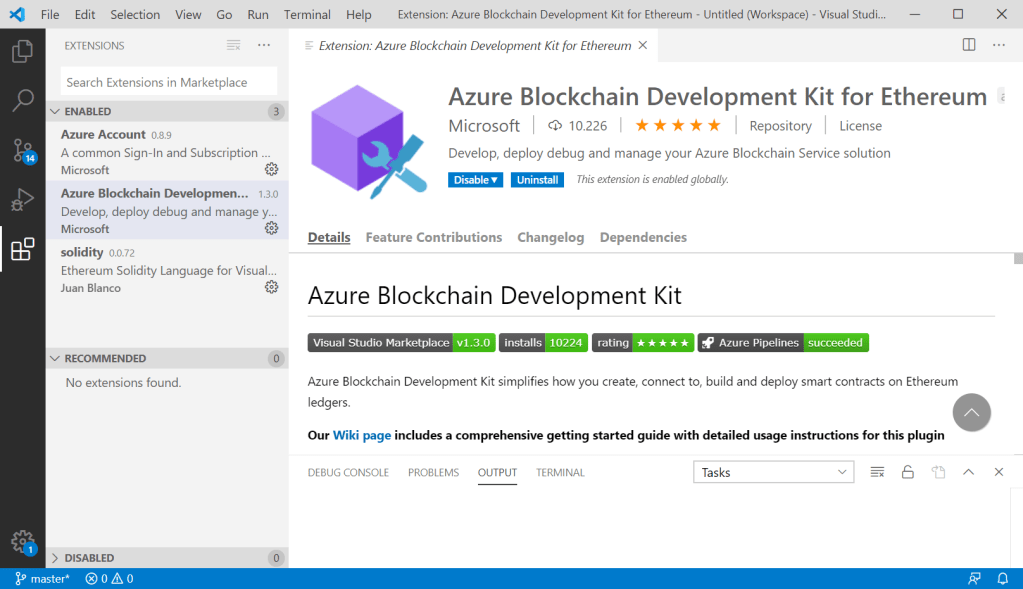
I’m using Visual Studio Code with the Ethereum Blockchain Development SDK to implement a Smart Contract in Solidity. You can find the link to the SDK at the Azure Blockchain Service portal.

Blockchain Development Kit for VS Code
VS Code with Azure Blockchain SDK

The SDK requires a lot of other software products to download and install. I found that the solidity compiler installed was newer than expected. As result the demo smart contract you get from the SDK did not compile. The simplest solution was to change the pragma of the contract

pragma solidity >= 0.5.16 <= 0.7.0;

ABI and Bytecode

In order to automate the deployment of a Smart Contract via Power Automate you need to provide the ABI and Bytecode. Both can be found in VS Code, at the build directory in the context menu.

Solidity ABI and Bytecode
Copy ABI and Bytecode directly from VS Code

Power Automate

You can directly provide the ABI and Bytecode in the Deploy Smart Contract action. However, I decided to place both in an Azure Table Storage and fetch it from there. To do so, I create a table with a column for the Bytecode, a column for the ABI and a name.

Store ABI and Bytecode in Azure Storage Account

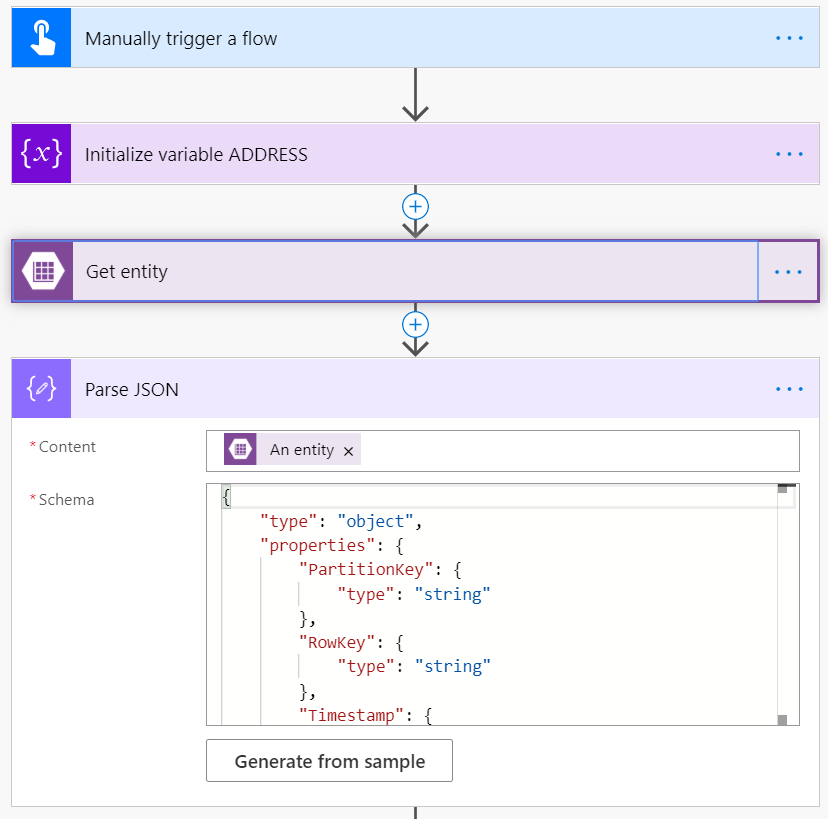
The first step in my flow is to connect to the Azure Storage account and get the smart contract I need. The result from the storage is a JSON string which is parsed so the ABI and Bytecode is available for the next steps

Deploy Ethereum Smart Contract from Flow
Fetch the smart contract binaries from the storage account

Next the Deploy Smart Contract action is used to deploy the contract. There you need to provide the connection to your Ethereum network. In my example there are two parameters for the constructor and for testing purpose these values are hardcoded. In real life you would provide values from the calling sources. The third parameter for the connector action requires the Bytecode which is taken from the storage account. The result from the deployment is the smart contracts address which is stored in a flow variable.

Deploy a Smart Contract to a private Ethereum Blockchain Network
Deploy a smart contract

Interacting with the smart contract

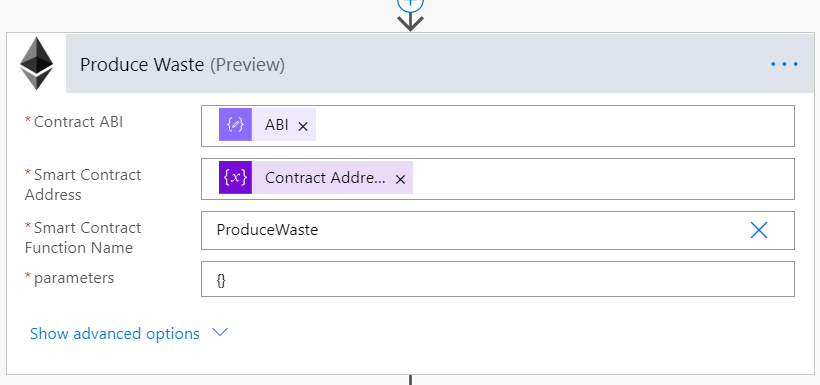
After the Smart Contract has been deployed to the Ethereum Blockchain Network, use the Execute Smart Contract Function action in the flow. For each step you have to provide the address, the ABI, the name of function and the parameter as JSON string. A function without parameters has to be called with {} because the parameter property is mandatory.

Execute a Smart Contract Function via Flow
Execute a Smart Contract function via Power Automate / Flow

Here is an example for a function with some parameters. These parameters have to be provided as JSON string in Flow.

function SetupMachine(int sawLength, 
                      int waterTemp, 
                      int rpm,
                      int speed) public
    {
        if (State != StateType.Assigned)
        {
            revert('Assign to a machine first');
        }

        SawLengthMM = sawLength;
        WaterTempDgrC = waterTemp;
        ExtruderRPM = rpm;
        ExtruderSpeed = speed;

        State = StateType.Setup;
        Worker = msg.sender;
    }
Execute a Smart Contract Function via Flow
Execute a Smart Contract function with parameters

Call an Azure Function from X++ in Dynamics 365 Finance / SCM

Create an Azure Function

Azure Functions are simple way to pack and provide business logic as web service without worrying about hosting a web server. Azure Functions can be implemented in different programming languages like C#, JavaScript, PHP, Java, etc. and can be hosted on Linux and Windows with different runtime environments that feed your need.

In the Azure Portal click + Create a resource and search for Function App:

Create a Azure Function App

In the next screen choose a subscription and create a resource group (or use an existing one if you like). Provide a useful name and choose code as Publish method. Select .NET Core 3.1 as runtime stack and a region that is near your location:

Configure the Azure Function App to use .NET Core 3.1

Click Review + Create to create the Azure Function. It takes a view minutes to provision all the required elements:

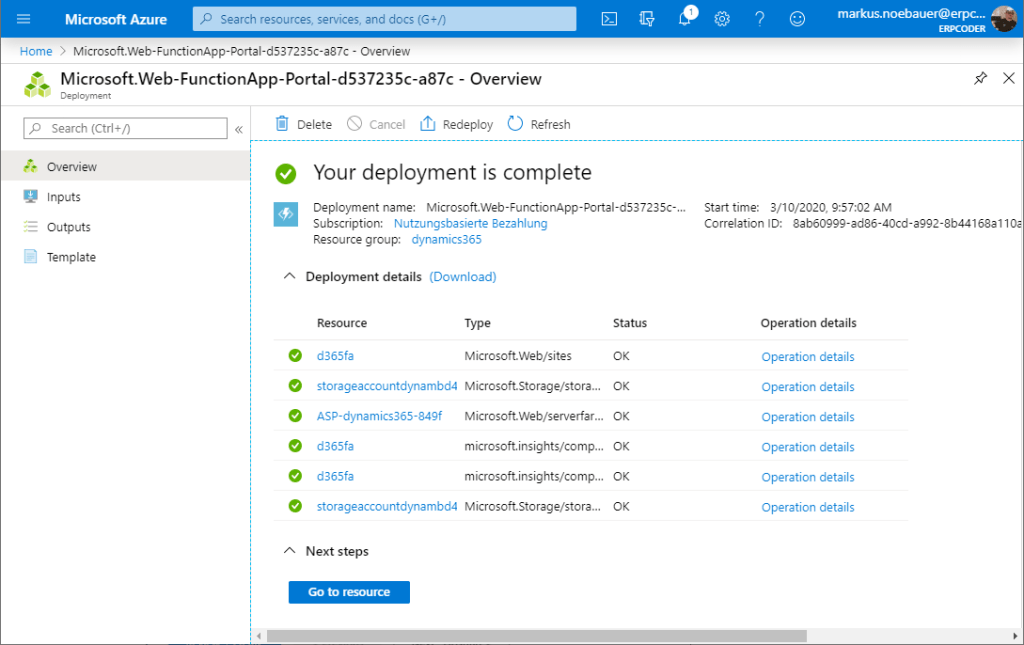
Deploy the Azure Function App

Click on Go to Resource. Next to the Functions group click + to create a new function and select In-Portal to edit the function code direct in the browser:

Create a new HTTP trigger

Choose the webhook + API to create a demo function that can be called via HTTP POST.

Use webhook for the Azure Function

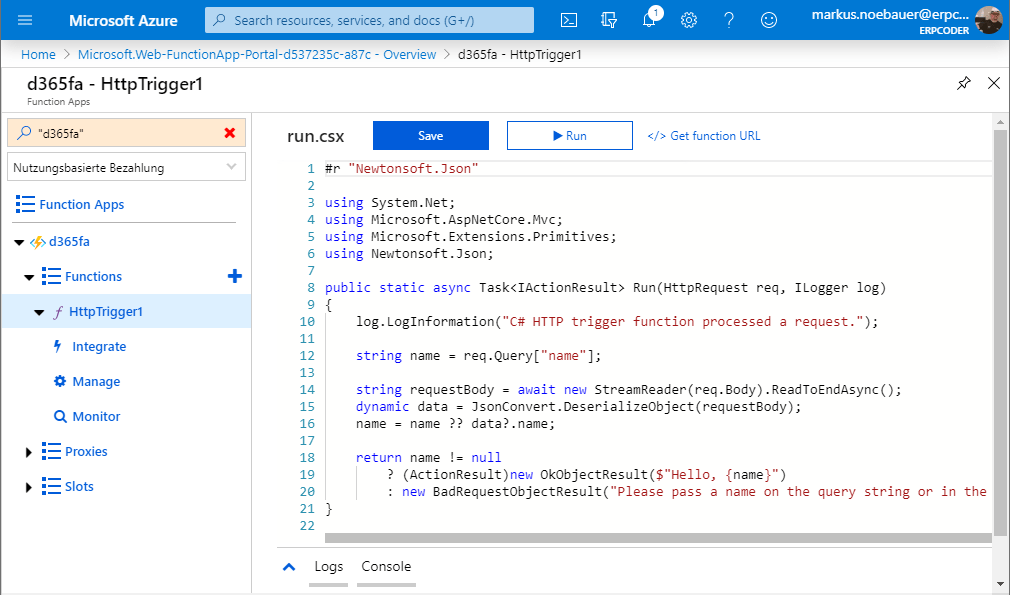
This will create a function that takes a name as parameter and returns “Hello ” + the parameter name.

C# Azure Function code

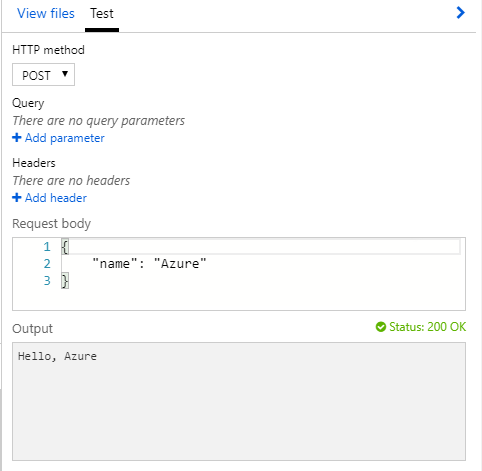
You can test the function by using Test tab on the right. The function takes a JSON string with a name parameter and returns a simple string.

Test the Azure Function with a JSON string

Call the function from X++

In the azure portal get the function URL with a function key. Copy the URL with the key:

Copy the Azure Function URL with function key

In Visual Studio create an X++ class with a main method for testing. Use the System.Net.Http.HttpClient class to call the service. The content is a JSON string encoded in UTF-8 with a name parameter and value. In this example the name is Dynamics:

System.Net.Http.HttpClient httpClient = new System.Net.Http.HttpClient();
System.Net.Http.HttpContent content = new System.Net.Http.StringContent(
        "{\"name\":\"Dynamics\"}",
        System.Text.Encoding::UTF8,
        "application/json");

At the moment X++ does not support the await keyword for asynchronouse calls. The workaround is to use the Task.Wait() method. Call the service with your function URL async and get the content of the call:

var task = httpClient.PostAsync("https://<YOUR_FUNCTION_URL>",content);
task.Wait();
System.Net.Http.HttpResponseMessage msg = task.Result;

System.Net.Http.HttpContent ct = msg.Content;
var result = ct.ReadAsStringAsync();
result.Wait();
System.String s = result.Result;

info(s);

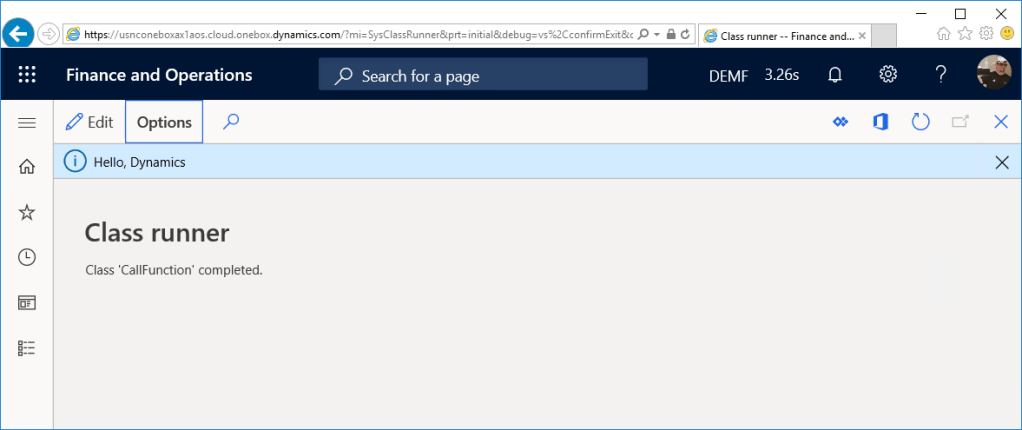
Start the class from Visual Studio. The result should look like this:

Call the Azure Function from Dynamics 365 Finance