There are many ways to analyze Dynamics 365 Finance and Supply Chain data in Fabric. One way is to replicate the Entity Export database. Then load it into a Lake House and combine it with additional data for reporting. Here is a video that shows the complete process from scratch:
Considerations
Exporting entities in Dynamics 365 Finance and Supply Chain to your own Azure SQL DB has been around for a long time. There are some considerations and limitations when using your BYOD (Bring Your Own Database) feature with Fabric:
Sizing: 100+ DTUs are required. Free and small Basic versions are not supported.
Networking: Public Endpoint and allow Azure Services
Combining views and wildcard selects on customized tables in Synapse may cause unforeseen problems. For example, I’ve created a view that combines all fields one table with additional fields from a joined table.
SELECT table1.*, table2.field1, table2.field2, table3.field3
from
table1 left outer join table2 on
table1.id = table2.id and table1.dataareaid = table2.dataareaid
In Synapse Workspace I’ve added a SQL Database called “Dynamics” and create the view. PowerBI Users would use the views from the Dynamics database instead of loading and joining raw tables by themselves.
A customization was made on table1. An additional field was added. The new field was synced to Synapse. Querying table1 in Synapse returned all its fields. Executing the SQL query on which the view is based als returned all the fields from table1 and the joined table2. However, the view itself in the Dynamics database in Synapse did not show the new field in the returned column headers.
The Lake Database in Synapse returned correct dataset but the view used its original field definition. So the data was shifted 1 field to the right and all values after the customized field were in the wrong column. For example, the value 1 from the new field was returned in the column Partition. The value 2024 from the Partition was returned as Field1. The value from Field1 was returned in Field2.
A quick and simple fix is to rerun the ALTER VIEW statement with the original code.
If you have the need to insert data into Dynamics 365 Finance and Supply Chain Management via Excel but don’t want to use the Addin you can do this task manually via VBA Code. Here is an example how to create a new customer via CustomerV3 OData entity.
App Registration
You have to register a new application in Entra ID. Allow API access to Dynamics 365 FSCM Entities. Create an application secret and note the value somewhere. Next you have to register the App ID (Client ID) in Dynamics 365 FSCM in the Entra ID Application form.
Authentication
OData in Dynamics 365 FSCM uses OAuth for authentication. You have to request an access token first and use it later for the communication with D365. In Excel create a VBA function that request an access token based on the Application Registration.
Function CreateAccessToken() As String
  Dim tenantId As String
  Dim clientId As String
  Dim secret As String
  Dim scope As String

'PROVIDE YOUR DATA HERE
  tenantId = ""
  clientId = ""
  secret = ""
  scope = "https://YOUR_D365FO_URL_dynamics.com/.default"

  Set objHTTP = CreateObject("MSXML2.ServerXMLHTTP")

  strURL = "https://login.microsoft.com/" & tenantId & "/oauth2/v2.0/token"
  strData = "tenant_id=" & tenantId & "&client_id=" & clientId & "&client_secret=" & secret & "&grant_type=client_credentials&scope=" & scope & ""

  objHTTP.Open "POST", strURL, False
  objHTTP.send (strData)
  strResponse = objHTTP.responseText
  Set objHTTP = Nothing

  Dim posAccessToken As Integer
  posAccessToken = InStr(1, strResponse, "access_token", vbTextCompare)
  posAccessToken = posAccessToken + 14

  Dim token As String
  token = Right(strResponse, Len(strResponse) - posAccessToken)
  token = Left(token, Len(token) - 2)

  CreateAccessToken = token
End Function
Data Entry Form
Create a form in Excel to provide the required data. In my example there is no AccountNum because it is generated in Dynamics 365 FSCM from a Number Sequence. Add a button and link it to a VBA Macro.
Call the CustomerV3 Entity from VBA
To create a new customer create an HTTP POST request to the CustomerV3 OData Entity. Provide the required fields as JSON String. Here is an example:
Sub CreateCustomerV3()

  Dim url As String
  Dim http As Object
  Dim data As String
  Dim response As String

  Dim token As String
  token = CreateAccessToken

  url = "https://YOUR_D365FO_ENV.dynamics.com/data/CustomersV3"

  Set http = CreateObject("MSXML2.ServerXMLHTTP.6.0")

  Dim name As String
  Dim cur As String
  Dim grp As String
  Dim cmp As String

  name = Cells(3, 3).Value
  cur = Cells(4, 3).Value
  grp = Cells(5, 3).Value
  cmp = Cells(6, 3).Value

  data = "{""OrganizationName"" : "" " & name & " "",""SalesCurrencyCode"": """ & cur & """,""CustomerGroupId"": """ & grp & """,""dataAreaId"" : """ & cmp & """}"

  http.Open "POST", url, False
  http.setRequestHeader "Authorization", "Bearer " & token
  http.setRequestHeader "Content-Type", "application/json"
  http.send data

  response = http.responseText

  'Only for debugging
  Cells(10, 5).Value = response
End Sub
To query D365 Finance and Supply Chain Management OData entities from external sources you can use simple HTTP GET Requests. Here is an example for Excel and VBA code.
App Registration in Microsoft Entra ID
In Entra ID (Azure Active Directory) create a new app registration.
Provide a meaningful name for your registration
Select only accounts in the organization
Leave the Redirect URL blank
Create a new secret. Make sure to copy the secret value because it will not be shown again.
Give the API Permissions for Application Connector.FullAccess and Delegated Odata.FullAccess
Configure D365 F/SCM Entra ID Application
In Dynamics 365 Finance and Supply Chain Management navigate to System Administration > Setup > Entra ID Application. Create a new record using the Client ID from the app registration, a meaningful name and associate a user account in D365.
Request a Bearer Token
To request a bearer token we have to call login.microsoft.com with the Tenant ID and v2.0 version: https://login.microsoft.com/TENANT_GUID_HERE/oauth2/v2.0/token . The tenant ID is a GUID that can be found in Entra ID Portal. You have to provide additional data in the request:
tenant_id: Again the GUID of your Azure Active Directory
client_id: App registration client ID
client_secret: App registration secret value
grant_type: “client_credentials” (hardcoded string value for this type of request)
scope: your Dynamics 365 FSCM URL followed by /.default
I recommend to try this in Postman before coding in Excel VBA because it’s easier to debug and test.
Here is the Excel VBA code to call an HTTP POST request and send the data to get a token. Fill in your values for tenant, client, secret, scope. The result should look like this:
I’m not parsing the JSON in my example but use String functions. Therefore I’m looking for the location of access_token in the response and cut out the bearer token string. I know this is not the best way to do this but it’s only an example. VBA and Excel have a limited view on strings. Don’t get confused if the value you see in the debug window or MSGBOX is not the complete bearer token string.
Dim objHTTP As Object
Set objHTTP = CreateObject("MSXML2.ServerXMLHTTP")

Dim strURL As String
strURL = "https://login.microsoft.com/_YOUR_TENTANT_ID_/oauth2/v2.0/token"

Dim strData As String
strData = "tenant_id=__&client_id=___&client_secret=___&grant_type=client_credentials&scope=___.operations.eu.dynamics.com/.default"

objHTTP.Open "POST", strURL, False
objHTTP.send (strData)

Dim strResponse As String
strResponse = objHTTP.responseText

Set objHTTP = Nothing

'Find the access token in the response
Dim posAccessToken As Integer
posAccessToken = InStr(1, strResponse, "access_token", vbTextCompare)
posAccessToken = posAccessToken + 14

Dim token As String
token = Right(strResponse, Len(strResponse) - posAccessToken)
token = Left(token, Len(token) - 2)
Query OData Entity
You can query entities using HTTP GET and provide OData query syntax values like $filter and $select. In my example I’m looking for a certain customer by its CustomerAccount and select only the OrganizationName. The %20 and %27 in the address are URL encoded Blanks _ and Quotes “.
Like in the code above I’m using string functions instead of JSON parsing for this example. The customer account is in cell B2, the name will be written to B3. I had to manually add a reference to MSXML2.ServerXMLHTTP.6.0 version in the VBA Code Editor (Menu Bar, References). Here is the VBA code to call the Odata query.
Dim custAccount As String
custAccount = Cells(2,2).Value

Dim objHTTP2 As Object
Set objHTTP2 = CreateObject("MSXML2.ServerXMLHTTP.6.0")

Dim strUrl2 as String
strURL2 = "https://_YOUR_INSTANCE_.operations.eu.dynamics.com/data/CustomersV3?$filter=CustomerAccount%20eq%20%27" & custAccount & "%27&$select=OrganizationName"

objHTTP2.Open "GET", strURL2, False
objHTTP2.setRequestHeader "Authorization", "Bearer " & token
objHTTP2.send

Dim strResponse2 as String
strResponse2 = objHTTP2.responseText
Set objHTTP2 = Nothing

Dim posCustomerName As Integer
posCustomerName = InStrRev(strResponse2, "OrganizationName")
posCustomerName = posCustomerName + 18

Dim d365CustomerName As String
d365CustomerName = Right(strResponse2, Len(strResponse2) - posCustomerName)
d365CustomerName = Left(d365CustomerName, Len(d365CustomerName) - 3)
d365CustomerName = Left(d365CustomerName, InStr(1, d365CustomerName, "}") - 1)

Cells(2,3).Value = d365CustomerName
Load Dynamics 365 F/SCM in Synapse and visualize in PowerBI
Synapse link for Dataverse is the replacement for Export to Datalake which has been deprecated in 2023. Although it is called link for Dataverse, it can be used to access Dynamics 365 Finance and Supply Chain tables (and CE data from dataverse as well).
SQL Track Changes has to be enabled in D365 F/SCM. Creates, Updates and Deletes are written to a storage account in CSV format. Synapse is running a spark pool that converts the CSVs into Deltalake format which relies on the (Open-Standard) Parquet format. As result you can see and query the F/SCM tables in the lake like it were tables in a relational database.
Good news, Synpase has a serverless SQL pool and a public SQL endpoint. You can find the SQL endpoint from the Manage Icon (down left) > SQL Pools > Select your pool > Workspace SQL Endpoint.
You can create databases in this SQL pool and create views based on the tables in the datalake. For example join CustTable and DirPartyTable and provide a view that contains customer data with a name and address.
You can use the development workspace in Synapse web based workspace but you could also use other tools to connect e.g. SQL Server Management Studio. Tables in the datalake and views in another database can be accessed.
PowerBI has a built-in connector for Synapse Workspace. You can easily load data from the tables and also from the views.
Data Management in Dynamics 365 Finance and Supply Chain Management can be used to export Entities in different formats like XML. In many cases the default Entity schema is not what you want. However, you can easily transform the XML output by applying an XSLT transformation directly in Dynamics.
I’ve made a short video how to transform the EcoResReleasedProductsV2 XML entity export into another schema with different structure and element names.
Business Events in Dynamics 365 Finance and Supply Chain Management can be used to notify external systems in near-time when a certain event occurs in the ERP system. Dynamics 365 F/SCM comes with a set of predefined business events. You may want to develop you own specific business events to send data to another system. Three artifacts are needed for a custom Business Event. The contract that contains the data that is sent, the Business Event and at least one trigger. Here is an example for a Business Event that triggers when a new customer is created.
Required Model Dependencies:
Application Foundation
Application Suite
Directory
Contact Person
Contract
[DataContract]
public class ERPCustomerCreatedContract extends BusinessEventsContract
{
    protected Name name;

    [DataMember('Name'),BusinessEventsDataMember("Customer Name")]
    public Name parmName(Name _name = name)
    {
        name = _name;
        return name;
    }

    public static ERPCustomerCreatedContract newFromCustTable(CustTable _custTable)
    {
        ERPCustomerCreatedContract contract = new ERPCustomerCreatedContract();
        contract.parmName(_custTable.name());
        return contract;
    }
}
Business Event
[BusinessEvents(classStr(ERPCustomerCreatedContract),
                'Customer Created',
                'Customer Created',
                ModuleAxapta::Customer)]
public class ERPCustomerCreated extends BusinessEventsBase
{
    CustTable custTable;

    protected void new()
    {
    }

    public static ERPCustomerCreated newFromCustTable(CustTable _custTable)
    {
        ERPCustomerCreated event = new ERPCustomerCreated();
        event.parmCustTable(_custTable);
        return event;
    }

    public CustTable parmCustTable(CustTable _custTable = custTable)
    {
        custTable = _custTable;
        return custTable;
    }

    [Wrappable(false), Replaceable(false)]
    public BusinessEventsContract buildContract()
    {
        return ERPCustomerCreatedContract::newFromCustTable(custTable);
    }
}
Trigger
Make sure the trigger runs after inserted not on inserting 😉
class ERPCustTable_EventHandler
{
    [DataEventHandler(tableStr(CustTable), DataEventType::Inserted)]
    public static void CustTable_onInserted(Common sender, DataEventArgs e)
    {
        CustTable custTable = sender as CustTable;
        ERPCustomerCreated::newFromCustTable(custTable).send();
    }
}
Configuration
Make sure your code builds. In Dynamics 365 F/SCM open the Business Events Catalog. Rebuild the catalog to see your Business Event. Make sure you have an endpoint configured. Activate the Business Event. Create a new Customer. The Business Event will trigger and send the contract to your endpoint.
After creating a new customer, the Business Event triggers and sends the message to the configured endpoint. In my case it’s a Blob Storage in Azure. Here is the resulting JSON Message:
Aggregating values from a related table is a common task in PowerBI. However, there are many ways how to achieve this goal. Here are a few examples:
Note: I'm using an Adventure Works Lite Demo DB and using SalesOrderHeader + SalesOrderDetail to aggregate the LineAmount from the details.
1) Aggregate at data source
If you have the option to push aggregation logic to the data source you should do so. Especially if the data source is SQL Server because its designed to execute queries and perform aggregations in a very effective way.
select h.SalesOrderID, sum(d.LineTotal) as SumLineTotals
from SalesLT.SalesOrderHeader as h
left outer join SalesLT.SalesOrderDetail as d
on h.SalesOrderID = d.SalesOrderID
group by h.SalesOrderID
2) Join in Power Query
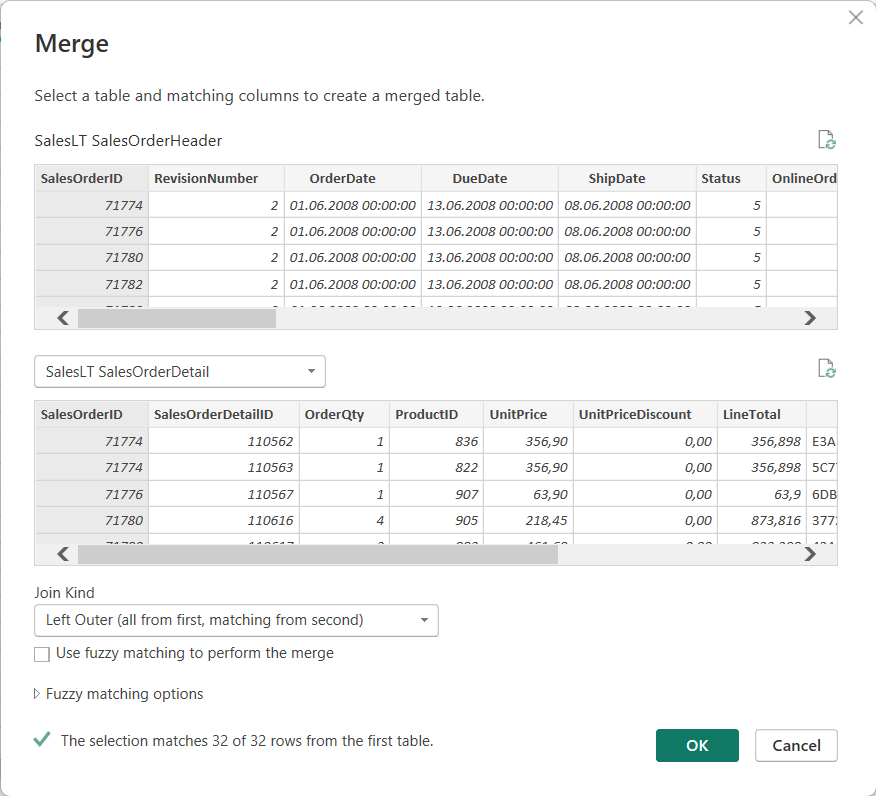
Load both tables using PowerQuery. Select the SalesOrderHeader table. From Home tab, select Merge Queries. Join both tables via SalesOrderID and select LEFT OUTER JOIN as join type.
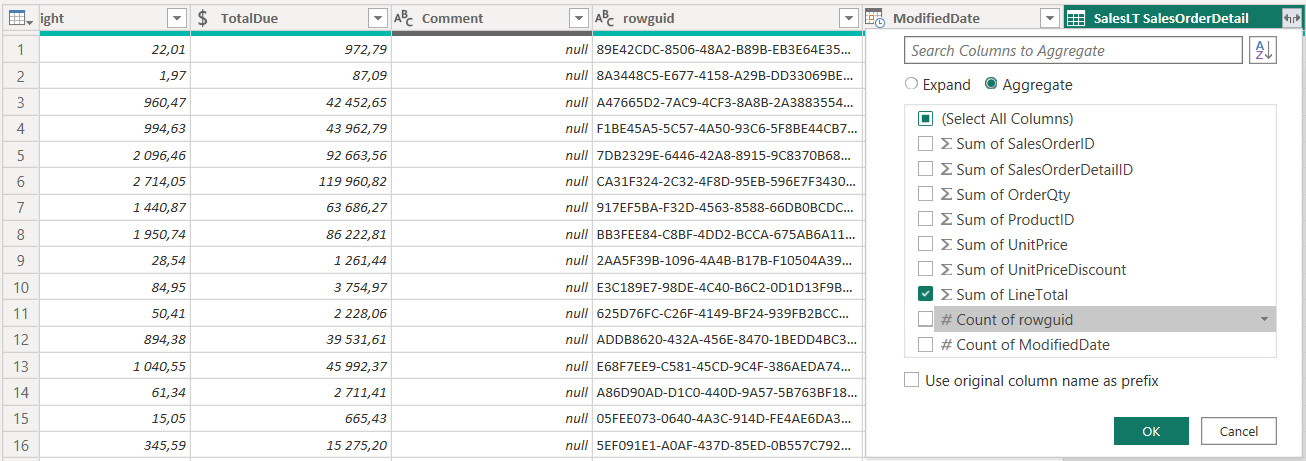
Navigate the joined table but select Aggregate instead of Expand. Aggregate the LineTotals from the SalesOrderDetails.
3) Calculated Column in Power Query (M)
You can also use PowerQuery to sum up values from another table. Note “Rename” is the name of the prev. Step in my PowerQuery.
= Table.AddColumn(Rename, "LineTotalsPQ",
each let no = [SalesOrderID]
in List.Sum(
Table.SelectRows(#"SalesLT SalesOrderDetail", each [SalesOrderID] = no)[LineTotal]
))
4) Calculated Column in Data Model (DAX)
Create a new column at the SalesOrderHeader in the data model using SUMX function.
Make sure you have an active 1:n relation from SalesOrderHeader to SalesOrderDetails via SalesOrderID. Create a new measure on the SalesOrderHeader using DAX.
Add a table visual to the report and place the SalesOrderID and the measure from the SalesOrderHeader table.
6) Visual
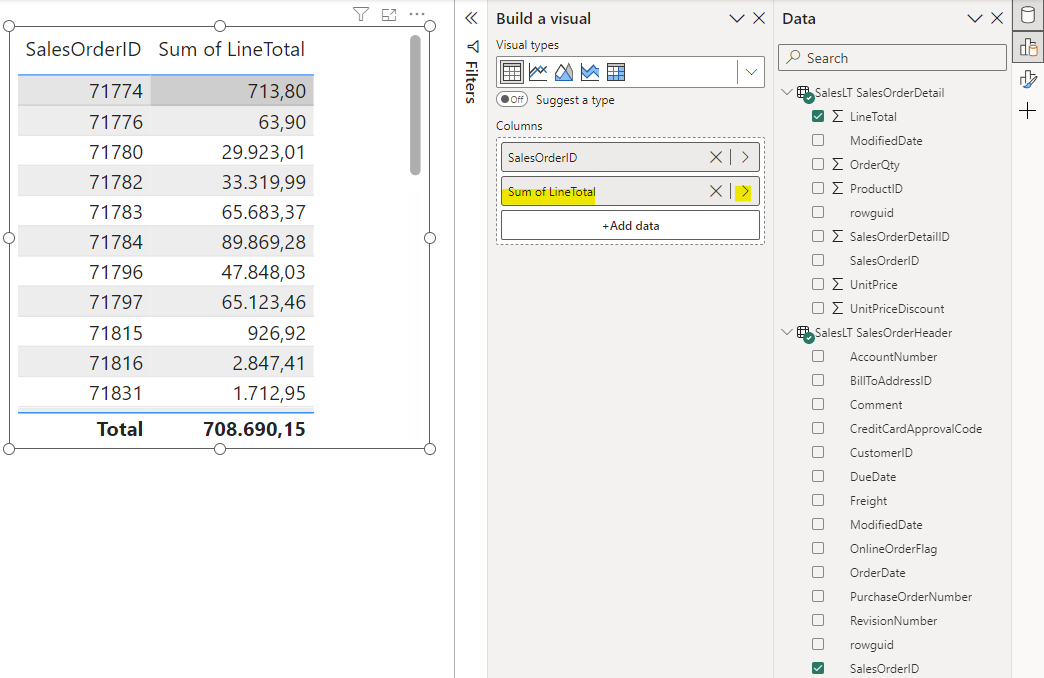
Make sure you have an active 1:n relation from SalesOrderHeader to SalesOrderDetails via SalesOrderID. Add a table visual and place the SalesOrderID from the SalesOrderHeader table. Add the LineAmount from the SalesOrderLines and choose to aggregate as Sum.
Reflection is used to dynamically retrieve metadata information from code artifacts dynamically at runtime. In older versions of Dynamics AX this was done using TreeNode framework which reflected the AOT structure. In Dynamics 365 Finance and Supply Chain Management you can use the MetadataSupport class.
Example: Table and its Fields
Create a temporary table that has a name field. The table will be dynamically populated with table names or field names. On the temporary table add 2 static methods to populate a table buffer with table names or field names.
public static TmpTableName populateTableName()
{
    TmpTableName _tmpTableName;
    var tables = Microsoft.Dynamics.Ax.Xpp.MetadataSupport::TableNames();
    while (tables.MoveNext())
    {
        _tmpTableName.clear();
        _tmpTableName.Name = tables.Current;
        _tmpTableName.insert();
    }
    return _tmpTableName;
}

public static TmpTableName populateFieldName(TableId _tableId)
{
     SysDictTable table = new SysDictTable(_tableId);
     Set fields = table.fields();
     SetEnumerator enum = fields.getEnumerator();
     TmpTableName _tmpTableName;

     while(enum.moveNext())
     {
         SysDictField field = enum.current();

         _tmpTableName.clear();
         _tmpTableName.Name = field.name();
         _tmpTableName.insert();
     }

     return _tmpTableName;
 }
Create a regular table that has 2 name fields, one for a table name and another for the field name. Overwrite the lookup method and provide the temporary table buffer as datasource.








 ErpCoder