Using Bing Maps app in Excel to visualize inventory on hand data
21. March 2015 1 Comment
This video shows how to use Bing Maps app in Excel to visualize on-hand data
Microsoft Dynamics 365 Business Management Solution Enthusiast
21. March 2015 1 Comment
This video shows how to use Bing Maps app in Excel to visualize on-hand data
4. February 2015 1 Comment
Dynamics AX 2012 supports to publish a query as document data source e.g. to load data in excel. However, document data sources are very limited. For example aggregation like sum() is not supported. Here is an example
Go to System Administration > Setup > Document Management > Document data sources > Add a query reference for the newly create query.
When you try to load data from this query using Excel Addins, you will face an error message.
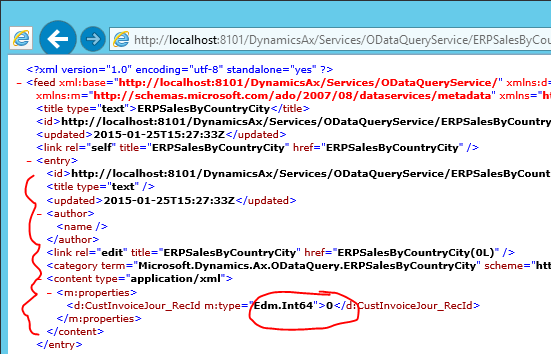
When you open the document data source in a browser, your will see that there are no useful entries in the data feed. By default the URL is http://localhost:8101/DynamicsAx/Services/ODataQueryService
However, one simple workaround is to create a view based on the query.
Open the view. The result should look like this
Finally, create a second view and use the view as data source. Add a query reference to the second query at the document data sources. The data feed now contains valid data.
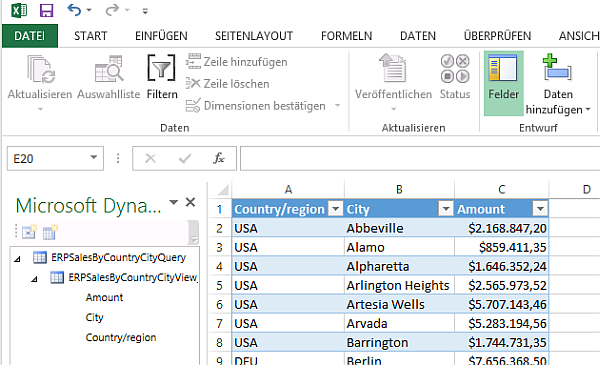
Now you can load your data using Excel Addins.
6. January 2015 1 Comment
This post shows how to provide an SSRS report via Mobile Device Portal in Dynamics Ax 2012 R3. The user will be able to scan an Item ID and the MDP page will show the BOMConsistOf Report for this item. Therefore the report will be rendered as HTML.
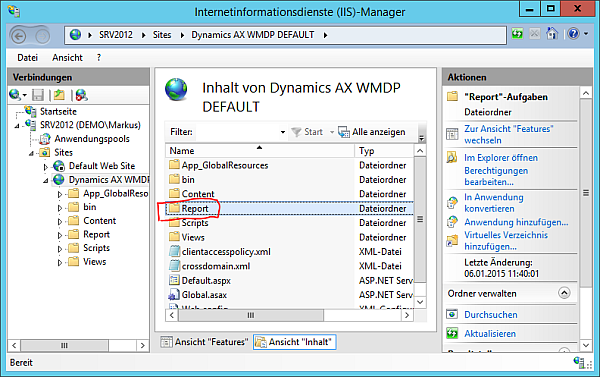
First, create a file share on the web server where Dynamics AX can save the HTML File. In my case I’ve created an additional folder in C:\Program Files (x86)\Microsoft Dynamics AX\60\Warehouse Mobile Devices Portal0\ , called it “Report” and set the folder properties in windows explorer to be a file share.
In Dynamics AX Development Workspace, extend the base enums WHSWorkActivity and WHSWorkExecuteMode by adding an additional enumeration value called “ItemInformation”. I’m using the label @SYS113931 for “Item Information”.
Next, create a new class that extends WHSWorkExecuteDisplay
class ERPWHSWorkExecuteDisplayItemInfo extends WHSWorkExecuteDisplay
{
}
The MDP page will include 2 steps, first to scan an ItemId and second to create the report and provide a link. Therefore add 3 methods to the class
// Label and text field for an ItemID
container buildStep0(container _con)
{
xSession session = new xSession();
container ret = _con;ret += [this.buildControl(#RFLabel,’Lbl_ItemId’,’Scan Item ID’,1,”,
#WHSRFUndefinedDataType,”,0)];ret += [this.buildControl(#RFText,’ItemId’,”@SYS7407″,1,”,
extendedTypeNum(ItemId),”, 0)];ret += [this.buildControl(#RFButton,#RFOK,”@SYS5473″,1,”,
#WHSRFUndefinedDataType,”,1)];return ret;
}
// Disabled text field with ItemID and Label with URL to HTML report
container buildStep1(container _con)
{
xSession session = new xSession();
container ret = _con;ret += [this.buildControl(#RFText,’ItemId’,”@SYS7407″,1,
pass.lookup(‘Item’),extendedTypeNum(ItemId),”,0,false)];ret += [this.buildControl(#RFLabel,’A_REPORT’,
‘http://localhost:8080/Report/bom.html’,
1,”,#WHSRFUndefinedDataType,”,0)];
ret += [this.buildControl(#RFButton,#RFOK,”@SYS5473″,1,”,
#WHSRFUndefinedDataType,”,1)];return ret;
}
// Set ItemID range and save report to File
private void createReport()
{
ItemId itemId = pass.lookup(‘Item’);
Query query;
BOMConsistOfController ctrl = new BOMConsistOfController();ctrl.parmReportName(ssrsReportStr(BOMConsistOf,Report));
query = ctrl.parmReportContract().parmQueryContracts().
.lookup(‘BOMConsistOfDP_DynamicParameter’);SysQuery::findOrCreateRange(query.dataSourceNo(1),
fieldNum(InventTable,ItemId)).value(itemId);
ctrl.parmReportContract().parmPrintSettings()
.printMediumType(SRSPrintMediumType::File);ctrl.parmReportContract().parmPrintSettings()
.fileFormat(SRSReportFileFormat::HTML4_0);ctrl.parmReportContract().parmPrintSettings()
.parmFileName(@”\\localhost\Report\bom.html”);ctrl.parmReportContract().parmPrintSettings().overwriteFile(true);
ctrl.run();
}
Add this code the displayForm method
public container displayForm(container _con, str _buttonClicked = ”)
{
WHSWorkExecute workExecute = new WHSWorkExecute();
container ret = connull();
container con = _con;
int hasError = 0;
int startInfologLine;pass = WHSRFPassthrough::create(conPeek(_con, 2));
hasError = this.hasError(_con);if (pass.exists(#UserId))
{
userId = pass.lookup(#UserId);
}startInfologLine = infologLine() + 1;
switch (step)
{
case 0:
ret = this.buildStep0(ret);
step = 1;
break;case 1:
pass.insert(‘Item’, conPeek(conPeek(con, 4 + hasError), #data));
this.createReport();
ret = this.buildStep1(ret);
step = 2;
break;case 2:
pass = this.resetPassthrough(ret, false);
ret = this.buildStep0(ret);
step = 0;
break;default:
break;}
ret = this.updateModeStepPass(ret,WHSWorkExecuteMode::ERPItemInfo,
step,pass);
ret = this.addCancelButton(ret, 1, true);return ret;
}
With this code in place the Mobile Device Portal page will show a simple text with the Reports URL. However, to provide a link, some JavaScript code is require. Start Visual Studio (or any other HTML editor) as Admin and open C:\Program Files (x86)\Microsoft Dynamics AX\60\Warehouse Mobile Devices Portal0\Views\Execute\ DisplayIEOS.aspx file. At the init() method add this code to hide the label and add a link.
function init() {
“use strict”;
focusFirstEnabledInput();
var label = document.getElementById(“A_REPORTLbl”);
if(label != null)
{
label.style.display = ‘none’;
var link = document.createElement(‘A’);
link.setAttribute(‘HREF’,label.outerText);
link.appendChild(document.createTextNode(“Report”));
label.parentNode.appendChild(link);
}
}
Make sure to compile your work in X++ and IL and synchronize the Data Dictionary. Restarting the AOS might also be a good idea at this stage.
Finally, configure the new activity to be available in Mobile Device Portal menu. In Dynamics AX 2012 R3 > Warehouse Management > Setup > Mobile Device > Mobile Device Menu Item > Add a new item with Mode:Indirect and Activity Code:Item Information. In Warehouse Management > Setup > Mobile Device > Mobile Device Menu > select inventory and add the newly create menu item.
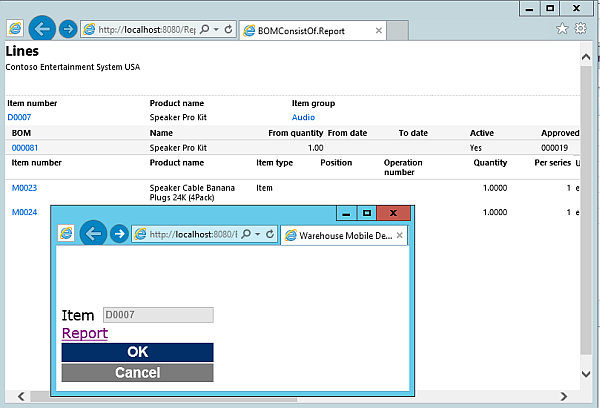
Open the Mobile Device Portal page, logon, select Inventory Management and Item Information. Provide a valid ItemId which has BOM lines. If you are using Contoso Demo data, item D0007 from company USMF is an example. Next, the SSRS report is create and placed as HTML file. The mobile device portal page will show the link to the HTML report.
BTW: you may use Visual Studio Addins to debug the application
2. December 2014 Leave a comment
I was recently upgrading an application to Dynamics AX 2012 R3 Cumulative Update 8. However, the data upgrade scripts didn’t load properly. AX presented an error “Failed to create session” and there were no batch jobs scheduled.
There ware 3 partitions in this installation
A detailed look in the dbo.UserInfo table revealed that the User Admin was only linked to the initial partition. However, the user requires access to all three partitions in order to create update scripts for these partitions.
The solution was to manually add 2 additional rows to the dbo.UserInfo table for the User Admin and link each row to one of the missing partitions. You may alter 2 existing users in order to get a valid RECID, or just increment the last RecID by 1 and delete the records after the upgrade scripts are finished.
5. November 2014 Leave a comment
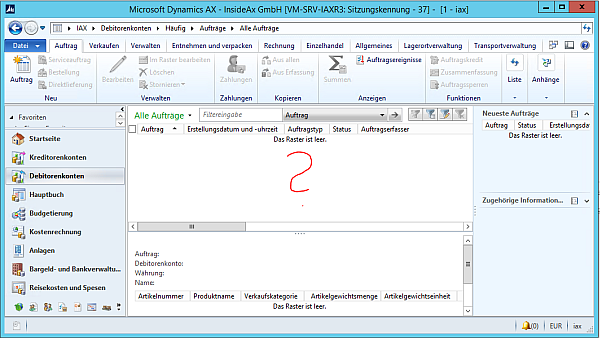
I had to resolve an issue where exactly one user did not see any orders in the sales table list page. The user had system administrator role. Default Admin Voodoo (clearing usage data, delete + re-import user) did not solve the problem.
However, opening the SalesTable form shows all orders.
In first step I used Dynamics AX Trace Parser to get the SQL statement for the sales table list page.
In detail the SQL Select statement was:
SELECT T1.SALESID,
T1.SALESNAME,
T1.RESERVATION,
— much more fields here
T2.PERSON,
T2.RECVERSION,
T2.RECID,
T3.NAME,
T3.RECID,
T3.RECVERSION,
T3.INSTANCERELATIONTYPE,
T3.RECVERSION,
T3.RECID
FROM SALESTABLE T1 LEFT
OUTER
JOIN HCMWORKER T2 ON ((T2.PARTITION=5637144576)
AND (T1.WORKERSALESTAKER=T2.RECID)) LEFT
OUTER
JOIN DIRPARTYTABLE T3 ON (((T3.PARTITION=5637144576)
AND (T2.PERSON=T3.RECID))
AND (T3.INSTANCERELATIONTYPE IN (2975) ))
WHERE (((T1.PARTITION=5637144576)
AND (T1.DATAAREAID=’iax’))
AND ((
NOT ((T1.RETURNSTATUS=4))
AND
NOT ((T1.RETURNSTATUS=1)))
AND (T1.CUSTACCOUNT=”)))
ORDER BY T1.SALESID DESC OPTION(FAST 5)
There was this one strange WHERE constraint CUSTACCOUNT=’’ . I compared this statement with the SQL statement for another user who saw all orders in the sales table list page. There was no such constraint regarding the CustAccount.
In a second step I had a detailed look on the SalesTableListPageInteraction class. The initializeQuery() method modifies the query. When the query is passed there was no range on the CustAccount. However, the isCustomer flag was set and the query was converted to a Self-Service Query.
public void initializeQuery(Query _query)
{
QueryBuildDataSource qbds;
ProjInvoiceTable projInvoiceTable;if (isCustomer)
{
EPQuery::makeMyCustomerSelfServiceQuery(_query,
tableNum(SalesTable));
}// more code here
super(_query);
}
The isCustomer flag gets set in the SaleTableListPageInteraction.initializing() method and calls the EP::isCustomer() method. There, the code checks if the actual user is also a contact person for a customer in the system.
select firstonly crossCompany RecId from dirPersonUser
where dirPersonUser.User == curUserId()
exists join dirPartyRelationship
where dirPartyRelationship.ChildParty ==
dirPersonUser.PersonParty
exists join custTable
where custTable.Party ==
dirPartyRelationship.ParentParty;
In my case the problem was solved by removing the user as contact for the customer
16. October 2014 Leave a comment
When a customer asks for storage systems, SSDs are a frequent option to boost performance. However, you’ll definitely face the question why enterprise SSDs are so expensive. Especially in an SMB, where you have to discuss each Cent, the question arises if it would be possible to use cheap consumer SSDs instead. Most storage systems use SAS drives while consumer SSDs have SATA ports. Depending on the controller you might not even be able to include a SATA SSD in your storage system.
However, I had such a situation where a SSD was used as direct attached storage within an IBM x3300 M4 server system. SQL Server was native installed on the machine and an Ocz Agility 3 SSD was used for tempdb only. After 22167 hours of usage (923 days), the first signs of problems showed up. Tempdb files were corrupt and the OS reported I/O errors accessing the files.
Using SSD in a storage system or direct attached storage in a server will significantly improve the system performance. However, don’t use consumer SSD in your system. They will probably fail within 2 – 3 years and you don’t get support for 24/7 environment. Enterprise SSDs a more expensive but more durable. Depending on your support contract you get spare parts up to 5 years.
6. October 2014 Leave a comment
Systematic variability management is an important prerequisite for successful software reuse. However, it requires significant effort and extensive domain knowledge to document and maintain information on variability. In this paper we present a tool-supported approach which supports semi-automatically inferring variability information from customized standard software products. The approach does not only enable the identification and documentation of variability information based on existing products, it is also capable of incrementally updating this information. To guarantee quick access to reusable code artifacts (e.g. requirements, features or software components), the presented solution stores these artifacts together with related requirements and a generated variability model in an asset repository. The tool-supported approach has been applied to customizations of Microsoft Dynamics AX ERP systems. Our experiences highlight the potential and benefits of our approach compared to manually gathering information on software variability.
The paper was presented at the 18th International Software Product Line Conference 2014 in Florence. The paper is available at ACM digital library
2. September 2014 Leave a comment
A customer recently reported a problem with AIF services. The AIF log at System Administration > Periodic > AIF > Exceptions shows failed AIF calls from an external system resulting in an exception “Activity … not found”. However, the service seems to be active and online.
Default Voodoo here is to deactivate and reactive the service. However, it turned out that the service could not be reactivated. Dynamics AX reported an error that no activities were found. A detailed look revealed that all activities for this service somehow disappeared
The solution is to open a development workspace, navigate to the service node in the AOT and (re-) register the service.
After re-register the service from the AOT, all missing activities were available again within the service configuration. The service could be activated without any problems.
Be aware that other services may also be affected by the same problem. Check if your reports are working, and if not check the BI Service. In case the BIService can not be activated, navigate in the AOT to the service node and re-register the SRSFrameworkService and SSASFrameworkService.
4. August 2014 1 Comment
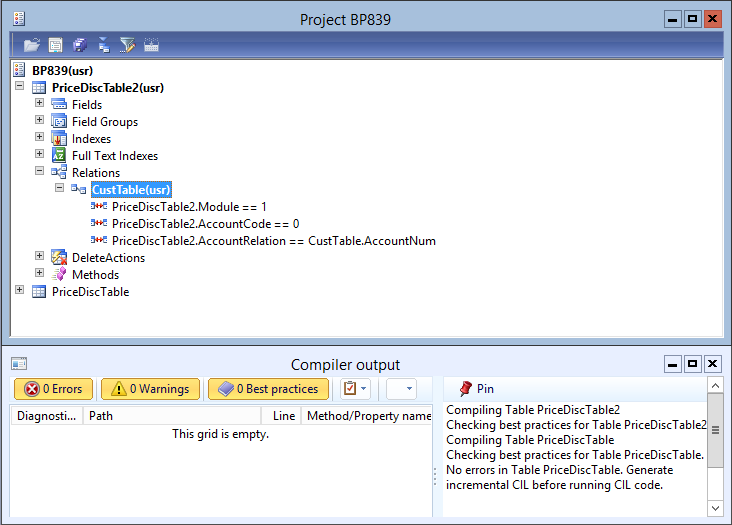
If your create a conditional relation including a fixed field and normal relation you will get a best practice error 839 telling you Only foreign key constraints are allowed on this table.
However such relations are used e.g. in the PriceDiscTable where no such BP:829 error is show. The table compiles without any best practice errors.
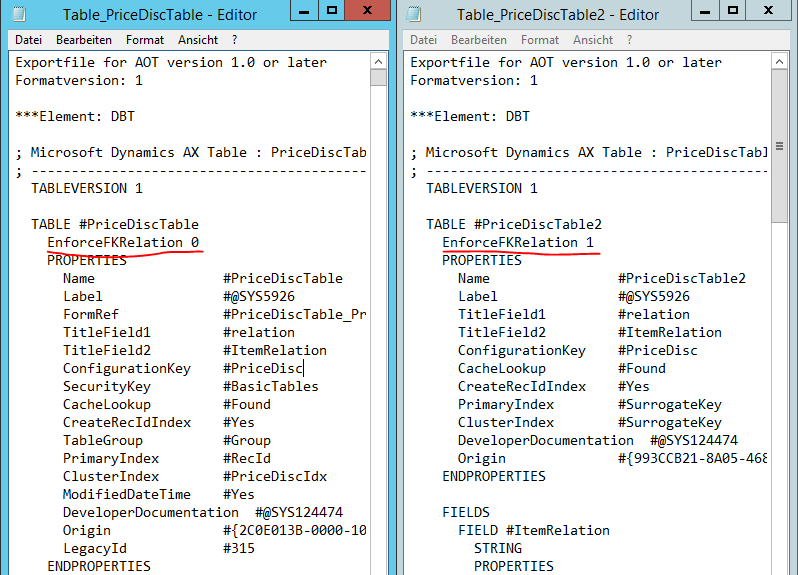
Exporting both tables to an XPO and comparing them reveals that a there is a flag EnforceFKRelation which is set to 0 at the PriceDiscTable and 1 to all other newly created tables in Dynamics AX.
However, you cannot set this flag in the property dialog in AX. As it is not a property of the table itself, it does not even appear in the TreeNode.AOTgetProperties() list.
Exportfile for AOT version 1.0 or later
Formatversion: 1***Element: DBT
; Microsoft Dynamics AX Table : PriceDiscTable unloaded
; —————————————————————————
TABLEVERSION 1
TABLE #PriceDiscTable
EnforceFKRelation 0
PROPERTIES
Name #PriceDiscTable
Label #@SYS5926
As Martin already posted, this issue can be addressed changing the value by hand in the XPO. However, this approach works only if the modified table was deleted before (re-)importing it to the AOT. Use the SQL Server Export / Import Data Tool to save your data e.g. to a flat file and import it afterwards. Moreover, if the flag is set to 0 in the XPO it is also advised not to use SurrogateKeys as Primary Key and Cluster Key anymore. Otherwise you will get minor import errors.
2. July 2014 Leave a comment
Abstract: Introducing a product line approach in an organization requires a systematic scoping phase to decide what products and features should be included. Product line scoping is a non-trivial activity and traditionally consumes a lot of time and resources. This issue highlights the need to complement traditional scoping activities with semi-automatic approaches that allow to initially estimate the potential for reuse with small efforts. In this paper we present an evaluation of a tool-supported approach that enables the semi-automatic analysis of existing products in order to calculate their similarity. This approach is tailored to be used within the configuration-based systems domain, where we have used it to identify similarity within two types of industrial standard software products. The results of this evaluation highlight that our approach provides accurate results and leads to time savings compared to manual similarity analysis.
The paper was presented at CAiSE’14 (26th International Conference on Advanced Information Systems Engineering) Thessaloniki, Greece. Get the paper from Springer