LLMs like ChatGTP, Copilot, Gemini, Claude etc. are very convenient for lot of tasks like coding, generating and optimizing documents and data analysis. With an MCP (Model Context Protocol) Server that connects to a SQL database you can use your AI to perform business intelligence tasks without the need of a classic BI Tool like PowerBI.
I’ve made a short video that shows Claude Desktop connecting to an Azure SQL Database (Adeventure Works) and performs data analysis and visualization:
There are many ways to analyze Dynamics 365 Finance and Supply Chain data in Fabric. One way is to replicate the Entity Export database. Then load it into a Lake House and combine it with additional data for reporting. Here is a video that shows the complete process from scratch:
Considerations
Exporting entities in Dynamics 365 Finance and Supply Chain to your own Azure SQL DB has been around for a long time. There are some considerations and limitations when using your BYOD (Bring Your Own Database) feature with Fabric:
Sizing: 100+ DTUs are required. Free and small Basic versions are not supported.
Networking: Public Endpoint and allow Azure Services
Combining views and wildcard selects on customized tables in Synapse may cause unforeseen problems. For example, I’ve created a view that combines all fields one table with additional fields from a joined table.
SELECT table1.*, table2.field1, table2.field2, table3.field3
from
table1 left outer join table2 on
table1.id = table2.id and table1.dataareaid = table2.dataareaid
In Synapse Workspace I’ve added a SQL Database called “Dynamics” and create the view. PowerBI Users would use the views from the Dynamics database instead of loading and joining raw tables by themselves.
A customization was made on table1. An additional field was added. The new field was synced to Synapse. Querying table1 in Synapse returned all its fields. Executing the SQL query on which the view is based als returned all the fields from table1 and the joined table2. However, the view itself in the Dynamics database in Synapse did not show the new field in the returned column headers.
The Lake Database in Synapse returned correct dataset but the view used its original field definition. So the data was shifted 1 field to the right and all values after the customized field were in the wrong column. For example, the value 1 from the new field was returned in the column Partition. The value 2024 from the Partition was returned as Field1. The value from Field1 was returned in Field2.
A quick and simple fix is to rerun the ALTER VIEW statement with the original code.
Load Dynamics 365 F/SCM in Synapse and visualize in PowerBI
Synapse link for Dataverse is the replacement for Export to Datalake which has been deprecated in 2023. Although it is called link for Dataverse, it can be used to access Dynamics 365 Finance and Supply Chain tables (and CE data from dataverse as well).
SQL Track Changes has to be enabled in D365 F/SCM. Creates, Updates and Deletes are written to a storage account in CSV format. Synapse is running a spark pool that converts the CSVs into Deltalake format which relies on the (Open-Standard) Parquet format. As result you can see and query the F/SCM tables in the lake like it were tables in a relational database.
Good news, Synpase has a serverless SQL pool and a public SQL endpoint. You can find the SQL endpoint from the Manage Icon (down left) > SQL Pools > Select your pool > Workspace SQL Endpoint.
You can create databases in this SQL pool and create views based on the tables in the datalake. For example join CustTable and DirPartyTable and provide a view that contains customer data with a name and address.
You can use the development workspace in Synapse web based workspace but you could also use other tools to connect e.g. SQL Server Management Studio. Tables in the datalake and views in another database can be accessed.
PowerBI has a built-in connector for Synapse Workspace. You can easily load data from the tables and also from the views.
Aggregating values from a related table is a common task in PowerBI. However, there are many ways how to achieve this goal. Here are a few examples:
Note: I'm using an Adventure Works Lite Demo DB and using SalesOrderHeader + SalesOrderDetail to aggregate the LineAmount from the details.
1) Aggregate at data source
If you have the option to push aggregation logic to the data source you should do so. Especially if the data source is SQL Server because its designed to execute queries and perform aggregations in a very effective way.
select h.SalesOrderID, sum(d.LineTotal) as SumLineTotals
from SalesLT.SalesOrderHeader as h
left outer join SalesLT.SalesOrderDetail as d
on h.SalesOrderID = d.SalesOrderID
group by h.SalesOrderID
2) Join in Power Query
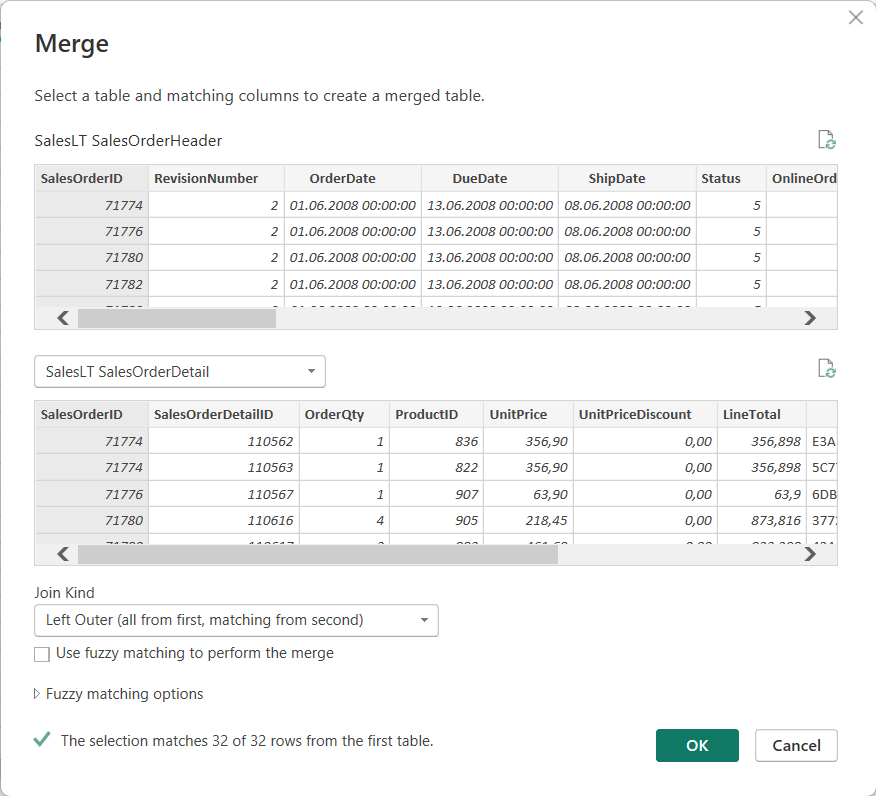
Load both tables using PowerQuery. Select the SalesOrderHeader table. From Home tab, select Merge Queries. Join both tables via SalesOrderID and select LEFT OUTER JOIN as join type.
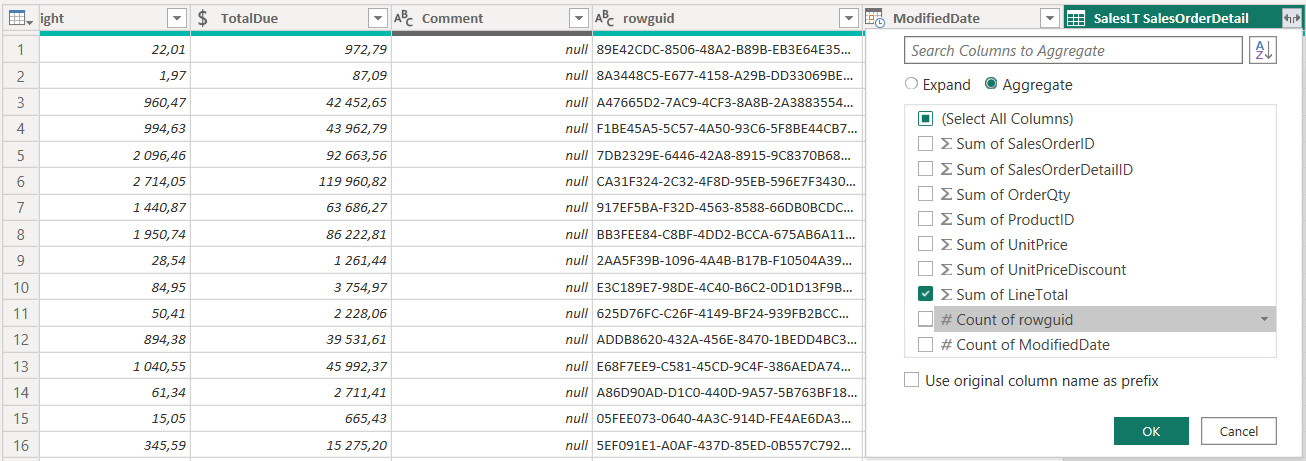
Navigate the joined table but select Aggregate instead of Expand. Aggregate the LineTotals from the SalesOrderDetails.
3) Calculated Column in Power Query (M)
You can also use PowerQuery to sum up values from another table. Note “Rename” is the name of the prev. Step in my PowerQuery.
= Table.AddColumn(Rename, "LineTotalsPQ",
each let no = [SalesOrderID]
in List.Sum(
Table.SelectRows(#"SalesLT SalesOrderDetail", each [SalesOrderID] = no)[LineTotal]
))
4) Calculated Column in Data Model (DAX)
Create a new column at the SalesOrderHeader in the data model using SUMX function.
Make sure you have an active 1:n relation from SalesOrderHeader to SalesOrderDetails via SalesOrderID. Create a new measure on the SalesOrderHeader using DAX.
Add a table visual to the report and place the SalesOrderID and the measure from the SalesOrderHeader table.
6) Visual
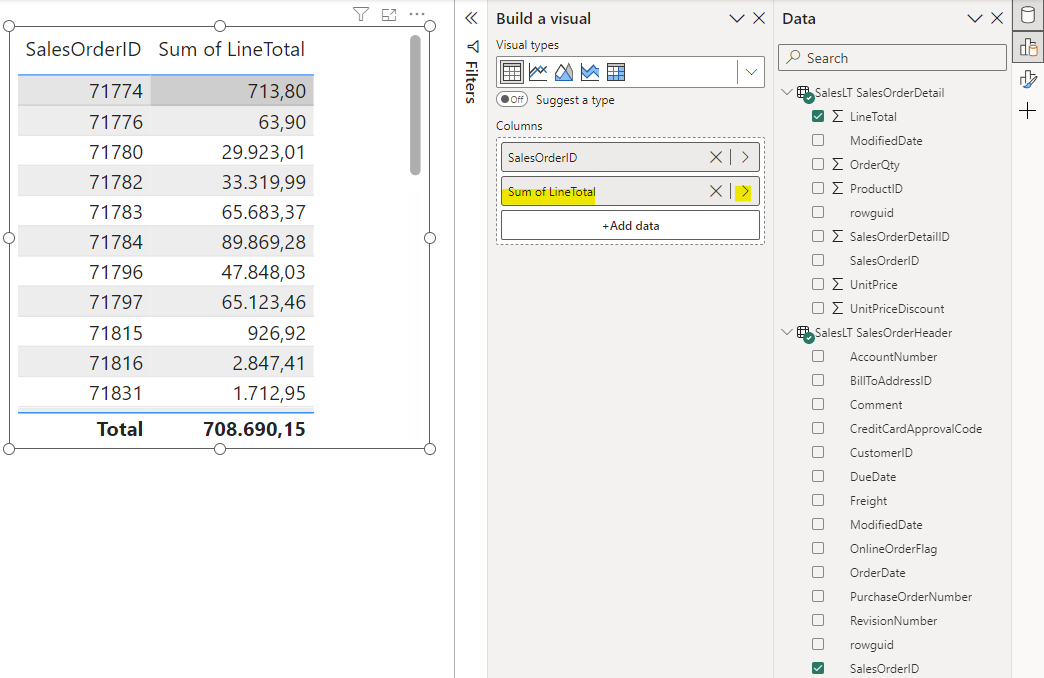
Make sure you have an active 1:n relation from SalesOrderHeader to SalesOrderDetails via SalesOrderID. Add a table visual and place the SalesOrderID from the SalesOrderHeader table. Add the LineAmount from the SalesOrderLines and choose to aggregate as Sum.
When working on PowerBI projects for a longer time or supporting a customer, version control would be a desireable feature. In many cases PowerBI files are stored on file share or SharePoint. At this moment (August 2023) there is no integrated version control feature in PowerBI Desktop. But we can use featues from different software products to build a version control strategy for PowerBI.
There is a preview feature call “Save as PowerBI project” in PowerBI Desktop. This will split the PowerBI report into multiple files that contain the model definition, the report layout and some more files. Now that we have multiple files in a project folder, one can come up with the idea to put these files under a version control system.
You can use Git as version control system on your local PC or wherever the PowerBI reports are developed. Git has a local repository and can be connected to central repository. In Azure DevOps you can setup projects using Git as version control system. Connect your local PowerBI Git repository with Azure DevOps to manage your PowerBI report development.
There are many ways how to access, import and export data in Dynamics 365 Finance & Supply Chain Management. Find here a one page PDF summary of 12 common ways. Every solution has it pros and cons.
PowerBI supports training machine learning models like classification and regression in PowerBI Online. In preparation for a webcast I’ve recorded the training of regression model to predict mean-time-to-failure. Watch the step-by-step guide in my ERPCoder Youtube Channel
Dynamics 365 Finance and Supply Chain Management uses SQL Server Reporting Services for reporting and document generation. In 2022 Microsoft included SSRS (aka. Paginated Reports) in PowerBI Pro license. One may ask if it is possible to use PowerBI Paginated Reports as well for reporting purpose in Dynamics 365 F/SCM.
X++ SSRS
PowerBI Paginated Reports
+ Direct access to transaction DB + Business logic in X++ + Integrated with Dynamics 365 FO
– Complex development – Embedded in Dynamics 365 FO deployment cycle
+ Simple development using Report Builder + Integrated with Business Intelligence + Reuse existing data models
– Limited development possibilities – No direct data access
Pros and Cons for Paginated Reports
Side-to-side comparison SSRS X++ report vs. PowerBI Paginated Report
Data Access
Paginated reports in PowerBI have only a limited capability to access data. There is no Dynamics 365 FO connector or OData access to entities. You could use different approaches to get Dynamics 365 FO data.
PowerBI dataset. The report builder can access PowerBI datasets. If you don’t have real time requirements for the paginated reports, this may be the preferred approach. Use the ETL functionality in Power Query to prepare the dataset or use an existing one.
Development
Paginated reports are designed by using the Report Builder. It is an adapted version of the SSRS Report Builder with some more data access features. In theory you could develop an SSRS report using Visual Studio and upload the .RDL file. However, PowerBI Paginated Reports are a limited version of SSRS and you might get errors.
Fazit
Paginated Reports are a reduced SSRS feature in PowerBI. The Report Builder is very limited. You can define data access, defined parameters and place data on the report sheet. If you want to create printable documents without real-time requirement the Paginated Reports may be an option for you.
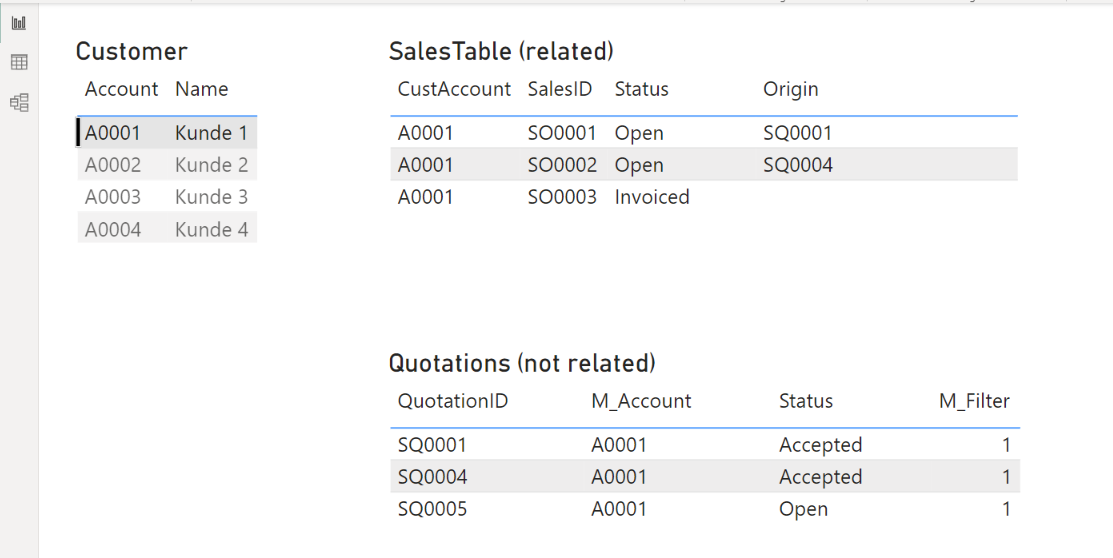
In some cases you want to filter a table based on a selection which is not related to the table. For example the SalesTable is realted to the CustTable via the Account. The QuotationTable is related to the SalesTable (QuotationID -> Origin). The QuotationTable also has an Account field but is not related to the CustTable.
Such a situation can be avoided by using a better design approach, however you may come across such a problem one day 😉
Compare SelectedValue
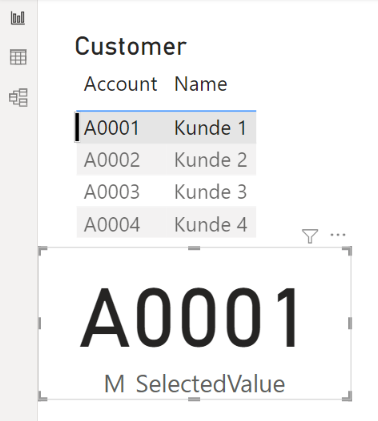
Create a new measure in the CustTable that returns the selected value. Place a table visual showing the CustTable in the report. For debugging reasons you may want to place a card visual with your measure as well.
Add a second measure to compare the selected CustTable value to the CustAccount value in the Quotation table and returns a numeric value (not a boolean). If there is no CustTable selected return e.g. 2, if the selected values are equal return 1, else return 0.












 ErpCoder