Miscellaneous charges are used in Dynamics AX to add charges to a sales or purchase order, like freight charges. Dynamics AX provides a framework to add charges per header or line. A miscellaneous charge can be defined for contact- and item relations. A relation can be defined by using a record or group. Sometimes a third relation is needed, like a site relation.
- Create a new enum that extends TableGroupAll called MarkupSiteCode
- Create a new string EDT called SiteRelation
- Add both to the MarkupAutoTable
- Add a new relation on the MarkupAutoTable to InventSite table
MarkupAutoTable.MarkupSiteCode == 0 (relation type: field fixed)
MarkupAutoTable.SiteRelation == InventSite.SiteId
- Add a new relation on the MarkupAutoTable to MarkupGroup table
0 == MarkupGroup.Module (relation type: related field is fixed)
MarkupAutoTable.MarkupSiteCode == 1
MarkupAutoTable.SiteRelation == MarkupGroup.GroupId
- Show both fields in the Overview grid at MarkupAutoSetup form
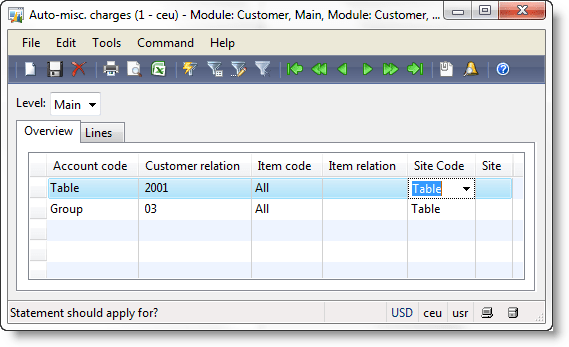
Misc. Charges form called from Accounts Receivable
- Extend the MarkupInventCustVend enum with another element called site
- Duplicate the MarkupGroup_Invent display menu item
Change the name to MarkupGroup_Site and the EnumParameter to Site
- Add the new display menu item to Accounts Receivable \ Setup \ Misc Charges
- Add the new display menu item to Accounts Payable \ Setup \ Misc Charges
- Populate the Site Groups with data, eg. East and West
- Add a new MarkupGroupId field to the InventSite table
- Add a new relation from InventSite to MarkupGroup where
InventSite.MarkupGroup == MarkupGroup.Group and
3 == MarkupGroup.Module (related field is fixed, where 3 is enum value Site)
- Add the MarkupGroup field to a new Field Group and show in the InventSite form
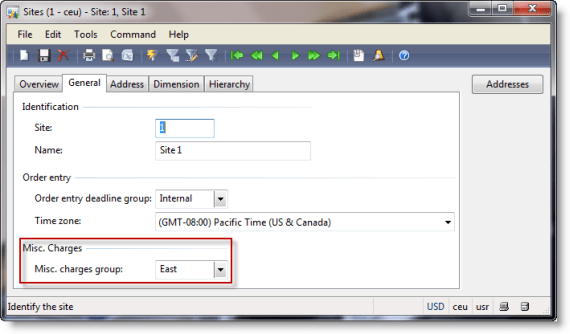
Invent Site Markup Group
Include the new site relation in the MarkupAutoTable find method.
static MarkupAutoTable find(MarkupModuleCategory   moduleCategory,
                            MarkupModule           module,
                            TableGroupAll          accountCode,
                            CustVendRel            accountRelation,
                            TableGroupAll          itemCode,
                            ItemRelation           itemRelation,
                            TableGroupAll          siteCode = TableGroupAll::All,
                            SiteRelation           siteRelation = '',
                            MarkupReturnType       markupReturn = ReturnCodeType::None,
                            ReturnCode             returnRelation = '',
                            boolean               _forUpdate = false)
{
    MarkupAutoTable markupAutoTable;
    ;
    markupAutoTable.selectForUpdate(_forUpdate);
    select firstonly markupAutoTable
        index hint MarkupIdx
        where markupAutoTable.ModuleCategory    == moduleCategory   &&
              markupAutoTable.ModuleType        == module           &&
              markupAutoTable.AccountCode       == accountCode      &&
              markupAutoTable.AccountRelation   == accountRelation  &&
              markupAutoTable.ItemCode          == itemCode         &&
              markupAutoTable.ItemRelation      == itemRelation     &&
              markupAutoTable.SiteCode          == siteCode         &&
              markupAutoTable.SiteRelation      == siteRelation     &&
              markupAutoTable.MarkupReturn      == markupReturn     &&
              markupAutoTable.ReturnRelation    == returnRelation;

    return markupAutoTable;
}
Markups are found and created at the Markup class. Next you have to adopt the business logic there to support site and site relations. First create a new static method called siteRelation().
static SiteRelation siteRelation(TableGroupAll      siteCode,
                                 SiteRelation       site,
                                 MarkupGroupId      groupId)
{
    switch(siteCode)
    {
        case TableGroupAll::Table       :   return site;
        case TableGroupAll::GroupId     :   return groupId;
        case TableGroupAll::All         :   return '';
    }
    return '';
}
Next change the insertMarkupTrans() method. Extend the parameter declaration with an optional InventSiteId and MarkupGroupId.
server static void insertMarkupTrans(
    HeadingLine              moduleCategory,
    MarkupModule             moduleType,
    Common                   source,
    CustVendAC               account,
    MarkupGroupId            accountGroup,
    CurrencyCode             currency,
    LanguageId               languageId        = CompanyInfo::languageId(),
    ItemId                   item            = '',
    MarkupGroupId            itemGroup       = '',
    InventSiteId             site            = '', // new parameter
    MarkupGroupId            siteGroup       = '', // new parameter
    boolean                 invertSign      = false)
Declare two new variables siteRelation:SiteRelation and siteCode:TableGroupAll. Insert a third while loop on the siteCode in the second loop. Dont forget to increment the siteCode variable at the end of the loop.
while (accountCode <= TableGroupAll::All)
{
    if (moduleCategory == HeadingLine::Heading)
        itemCode = TableGroupAll::All;
    else
        itemCode = TableGroupAll::Table;
    while (itemCode <= TableGroupAll::All)
    {
        // third loop over siteCode
        while(siteCode <=TableGroupAll::All)
        {
            accountRelation=Markup::accountRelation(accountCode,account,accountGroup);
            itemRelation=Markup::itemRelation(itemCode,item,itemGroup);
            siteRelation=Markup::siteRelation(siteCode,site,siteGroup);    // new
            // ...
        } // while (SiteCode
        siteCode += 1;
    }  // while (ItemCode ....
    itemCode += 1;
}
accountCode += 1;
There are some places in Dynamics AX where Markup::insertMarkupTrans() is used. You have to modify the call so it fits the new method signature including InventSiteId and sites MarkupGroup. Update you code at
- SalesTable.createMarkupTrans
- SalesLine.createMarkuTrans
- PurchTable.createMarkupTrans
- PurchLine.createMarkupTrans
- PurchReqLine.createMarkupTrans
- PurchRFQTable.createMarkupTrans
- PurchRFQLine.createMarkupTrans
- SalesBasket.createMarkupTrans
- SalesBasketLine.createMarkupTrans
- SalesQuotationLine.createMarkupTrans
- SalesQuotationTable.createMarkupTrans
// SalesLine.crateMarkupTrans
server void createMarkupTrans(SalesTable  salesTable)
{;
    if (this.markupAllowed())
    {
        Markup::insertMarkupTrans(
                      HeadingLine::Linie,
                      ModuleInventCustVend::Cust,
                      this,
                      salesTable.CustAccount,
                      salesTable.MarkupGroup,
                      salesTable.CurrencyCode,
                      salesTable.LanguageId,
                      this.ItemId,
                      this.inventTable().salesMarkupGroup(), // new
                      this.inventDim().InventSiteId,         // new
                      InventSite::find(this.inventDim().InventSiteId).MarkupGroupId,
                      (this.LineAmount < 0));   // invert sign on creditnotes
    }
}





 ErpCoder