Dynamics AX 2009: FTP Adapter for AIF

The Application Integration Framework in Dynamics AX is an extensible framework for data transportation and reception. It support the separation of transport technology (e.g. MSMQ, XML/SOAP Webservices, Filesystem Share) security aspects (services, permissions, transported data) and data manipulation. Creating new adapters to support other transport technologies is simple. Here is an example to support FTP.

Develop AIF FTP Adapter

  • First, create a new parameter table AifFTPParameters to store FTP server name, user, password and directory (4 strings). Next create a setup form for the AifFTPParameters table and a display menu item. Add an OK command button. Add this code to the buttons clicked event:

    void clicked()
    {;
        super();
        // use the server name as selected value 
        element.closeSelect(Setup_ServerName.text());
    }

    FTP Parameters setup

  • Create a new AifFTPSendAdapter class that implementes the AifSendAdapter interface. You may create empty implementations for begin(), commit(), initialize(), rollback() and terminate(). But you really need to implement the sendMessage() method. I’m using the System.Net Classes to implement the FTP transfer.
     

    public void sendMessage(AifGatewayMessage gatewayMessage)
    {
        System.Text.Encoding encoding;
        System.Byte[] bytes;
        str requestStr = "";
        object ftpo;
        System.Net.FtpWebRequest ftpRequest;
        System.Net.NetworkCredential credential;
        str ftpUser;
        str ftpPass;
        System.IO.Stream requestStream;
        InteropPermission clrPermission =
         new InteropPermission(InteropKind::ClrInterop);
        ;

        clrPermission.assert();

        switch(gatewayMessage.parmEncoding())
        {
            case ‘UTF-8’:
                encoding = System.Text.Encoding::get_UTF8();
                break;
            default:
                throw error("Unsupported Encoding");
        }
        bytes = encoding.GetBytes(gatewayMessage.parmMessageXml());

        requestStr = strfmt(‘ftp://%1′,AifFTPParameters::find().ServerName);
        if(AifFTPParameters::find().Directory)
        {
            requestStr = strfmt(‘%1/%2’,
                                 requestStr,
                                 AifFTPParameters::find().Directory);
        }

        requestStr = strfmt(‘%1/%2%3’,
                              requestStr,
                              gatewayMessage.parmMessageId(),
                              ’.xml’);

        ftpo =  System.Net.WebRequest::Create(requestStr);
        ftpRequest = ftpo;

        ftpUser = AifFTPParameters::find().UserName;
        ftpPass = AifFTPParameters::find().Password;
        //BP deviation documented
        credential = new System.Net.NetworkCredential(ftpUser,ftpPass);
        ftpRequest.set_Credentials(credential);
        ftpRequest.set_ContentLength(bytes.get_Length());
        ftpRequest.set_Method(‘STOR’);

        requestStream = ftpRequest.GetRequestStream();
        requestStream.Write(bytes,0,bytes.get_Length());
        requestStream.Close();

        CodeAccessPermission::revertAssert();
    }

  • Create a new AifFTPAdapter class that implements AifIntegrationAdapter. This class is used by the AIF configuration interface in Dynamics AX to identify an outbound adapter and its configuration form.

    public AifIntegrationAdapterType getAdapterType()
    {;
        return AifIntegrationAdapterType::SendOnly;
    }

    public MenuItemNameDisplay getAddressDisplayMenuItem()
    {;
        // the AifFTPParameter forms display menu items name
        return ‘AifFTPParameters’;
    }

    public AifTransportAddress getCanonicalTransportAddress(AifTransportAddress transportAddress)
    {;
        return transportAddress;
    }

    public MenuItemNameDisplay getConfigurationDisplayMenuItem()
    {;
        return ”;
    }

    public LabelString getLabel()
    {;
        return "AIF FTP Adapter";
    }

    public AifReceiveAdapter getReceiveAdapter()
    {;
        return null;
    }

    public AifSendAdapter getSendAdapter()
    {;
        return new AifFTPSendAdapter();
    }

    public boolean isHosted()
    {;
        return true;
    }

    public void validateConfiguration(AifTransportAddress transportAddress,
                                      AifChannelDirection channelDirection)
    {;
        //TODO:Check or throw error
    }

      1. Register FTP Adapter and configure AIF

    1. Go to Basics > Setup > Application Integration Framework.
    2. In Local Endpoints make sure you have an endpoint configured
    3. In Transport Adapters create a new record, select AifFTPAdapter and mark it as active.
    4. In Channels, create a new outbound FTP Channel, provide server name and credentials.
      Mark the channel as active.
      Configure AIF FTP Adapter 
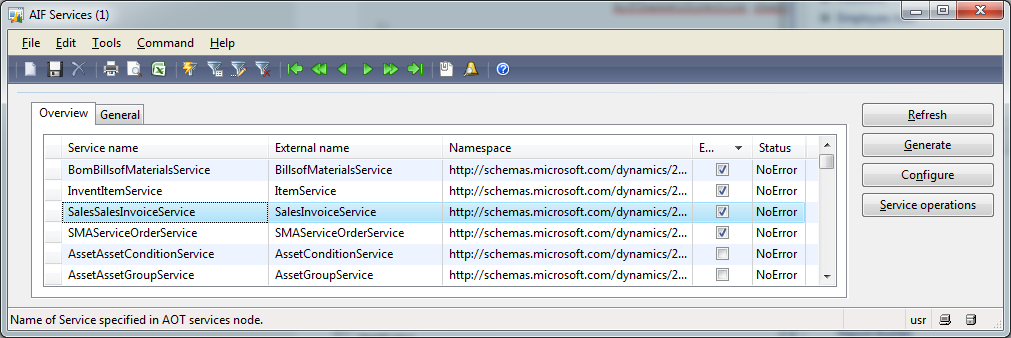
    5. In Services activate the SalesSalesInvoiceService
      Activate SalesSalesInvoiceService 
    6. In Endpoints create a new endpoint. Set the outbound channel to your FTP channel and set the local endpoint. Go to the Constraints tab and set “No Constraints” flag. Mark the endpoint as active.
      Create an endpoint with outbound FTP

      Click the Action Policies button and add the SalesSalesInvoiceService.read method
      Activate SalesSalesInvoiceService.read

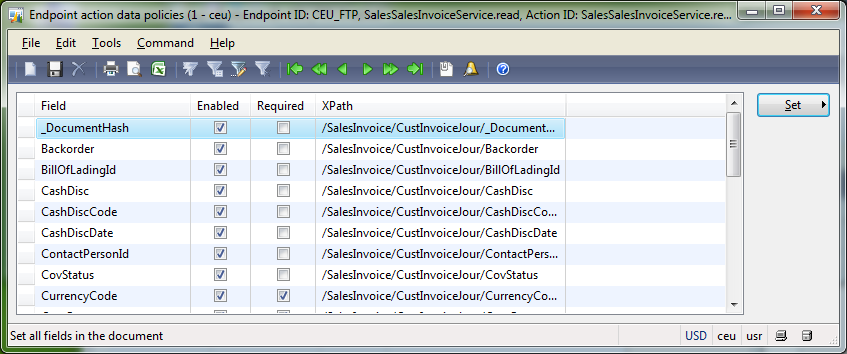
      Click the Data Policies button and use the set button to enable all data fields for transportation.
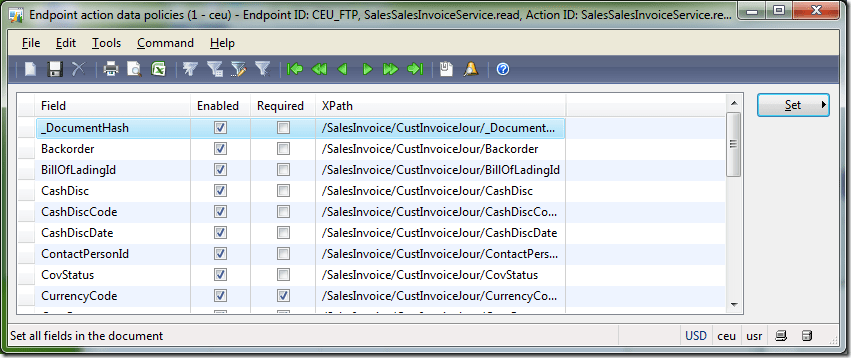
      Set data policies for invoice

    7. Go to Basic > Inquiries > Batch jobs. Make sure to run a batch job that processes the AIF message send and receive tasks: AIFInboundProcessingService, AIFOutboundProcessingService, AIFGatewaySendService and AIFGatewayReceiveService.
      Setup AIF processing batch jobs
    8. Go to Accounts Receivable > Inquiries > Journals > Invoice. Select an invoice and use the Send Electronically button to put it in the transportation queue.
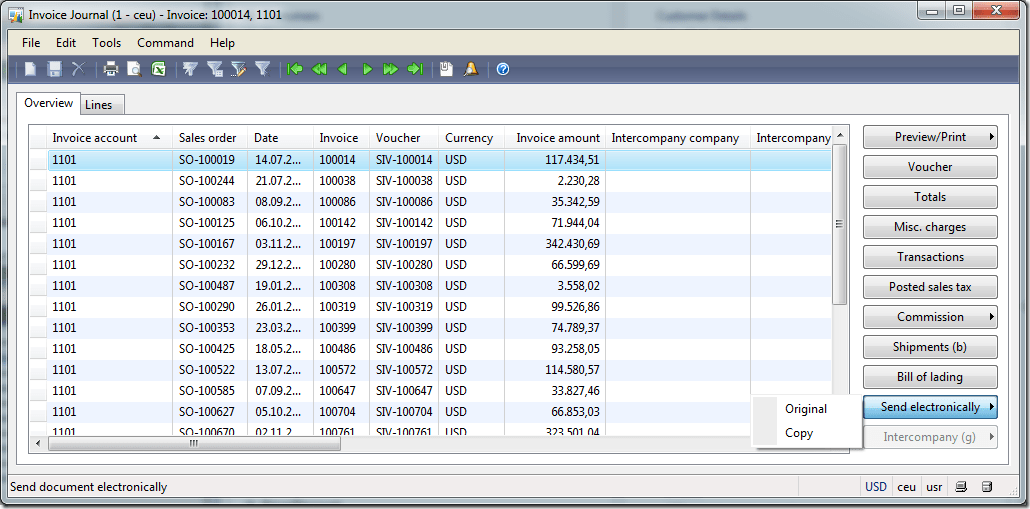
      Send invoice electronically using AIF
    9. Wait a few miniutes and take a look at your FTP space. There you should see the transmitted invoices as xml file.
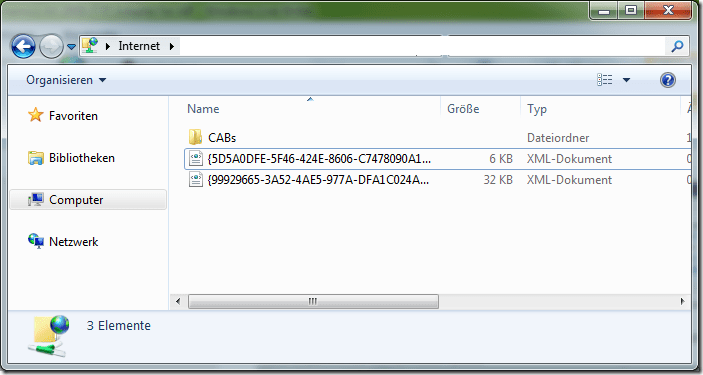
      Invoice successfully uploaded

    How to create a custom ribbon Addin for Excel 2010

    Creating a custom ribbon addin for Excel can be done in a few steps

    1. Develop your VBA code in a new Excel sheet, save it as Excel addin .xlam
    2. Open the addin with Custom UI Editor to create Buttons, Groups, etc. and link it with your VBA code
    3. Add the addin directory to the secure folders in excel
    4. Configure Excel to load your addin at startup

        Here are the required steps in detail

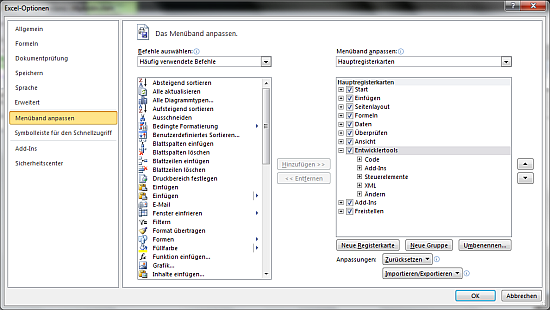
      Start Excel and develop your VBA code as you did before. If you do not see a development tab in excel, activate it via the options menu. File > Options > Ribbon > On the right side check “Development Tools”

      Activate the VBA Development Tab in Excel 2010
      You need to create an event handler to make your functions callable from the UI. Here is an example for a function and an event handler. The event handler foo_eventhandler calls the function foo which displays a message box with “Hello World from Excel”.

    Sub foo_eventhandler(control As IRibbonControl)
        foo
    End Sub

    Sub foo()
        MsgBox ("Hello World from Excel")
    End Sub

    Save your Excel as Excel Addin (.xlam) to your C:\Users\YOURNAME\AppData\Roaming\Microsoft\Addins directory. You can save it wherever you want, but the predefined addins directory might be good idea.

    Yet the addin does not have any UI elements. You have to define these elements by yourself. Download and install the Custom UI Editor from http://openxmldeveloper.org/blog/b/openxmldeveloper/archive/2009/08/07/7293.aspx . Start the editor and open your previous saved .xlam file. The editor shows a blank text field. From the Menu > Insert > Sample XML choose Excel Custom Tab. Use the onAction property at the button to call an eventhandler. Here is an example code to call the foo_eventhandler

    <customUI xmlns="http://schemas.microsoft.com/office/2009/07/customui">
        <ribbon>
            <tabs>
                <tab id="customTab" label="MyTab" insertAfterMso="TabHome">
                    <group id="customGroup" label="MyGroup">
                        <button id="customButton1" label="Say Hello" size="large"
                         onAction="foo_eventhandler" imageMso="HappyFace" />
                    </group>
                </tab>
            </tabs>
        </ribbon>
    </customUI>

    Start Excel from the program menu. Go to File > Options > Security Center > Settings > Secure Locations > Add Location, and add your addins directory e.g. C:\Users\YOURNAME\AppData\Roaming\Microsoft\Addins as secure directory to load stuff from. Close Excel.

    Add the Addins directory to the secure locations in Excel 2010

    When you open the .xlam file using Excel, you can already use your addin. However, it is not available when you start Excel from the programs menu. To load the addin when excel starts, go to the development tab  > Add-Ins and check your addin. (The form displays addins from the Appdata\Roaming\Microsoft\Addins directory)

    Load your Addin when Excel starts

    Now the Addin is loaded when Excel starts. Whenever you change something and the Addin does not appear anymore, go and check your xml UI code. Make sure that all IDs are unique and do not have blanks
    (e.g. id=”My Button2” is a bad idea)

    Custom Hello World Addin for Excel 2010

    More Icons

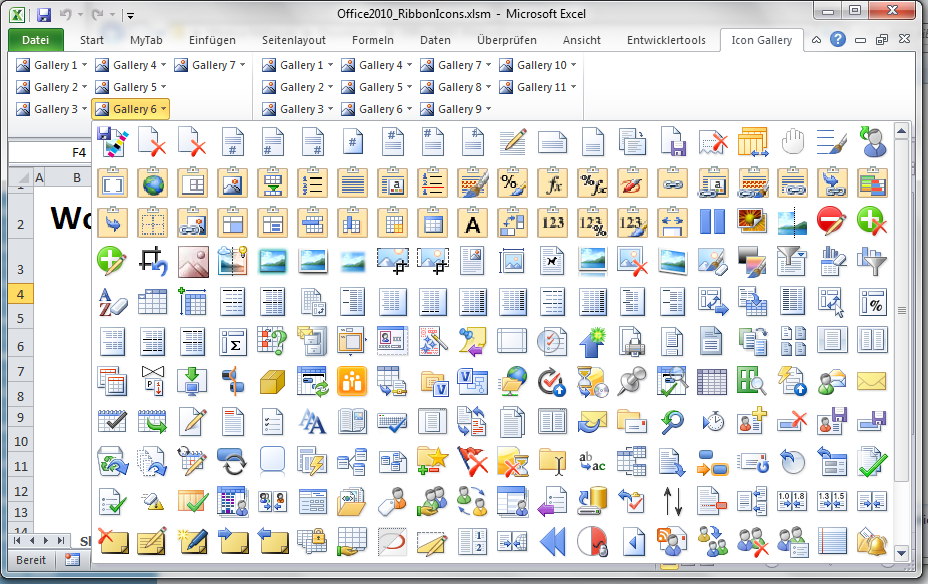
    There are many icons available you can use for your addins. For example download the icon gallery addin from http://www.accessribbon.de/index.php?Downloads:24 . To change the icon on button modify the imageMso property in your xml file.

    <button id="customButton1" label="Say Hello" size="large"
     onAction="foo_eventhandler" imageMso="HappyFace" />

    Have fun!

    Many icons in Excel 2010

    MCTS: MB6-872 Dynamics AX 2012 Installation & Configuration

    Now it’s official, I know how to install Dynamics AX 2012 Smiley

    image

    On Vacation: Berlin

    berlin

    Greetings from Berlin!

    MCTS: 70-573 SharePoint 2010 Application Development

    image

    On Friday 13th Smiley I was certified for SharePoint 2010 Application Development. Since every Dynamics AX Silver+ Partner need at least on SharePoint guy, I’m the one for InsideAx. I’m already experienced in maintaining SharePoint 2012 (mainly Foundation) for those of our Customers running Rolecenter in AX 2009. Furthermore I’ve upgraded and developed Enterprise Portal applications in the last two years. However, EP development and classic SharePoint development does diverge. Everybody who ever tried to modify EP using SharePoint designer knows what I’m taking about.

    I don’t want to say that all the cool SharePoint features cannot be used to extend Dynamics AX (e.g. I’ve built a web based appointment app using SharePoint and its lists and calendars to visualize the schedules). All those who are now forced to get in touch with SharePoint may experience that it can be used in may cases to provide cool solutions for their customers. But I’d like Microsoft to strengthen the web / enterprise portal development aspect of Dynamics AX by extending the development course materials and provide an Enterprise Portal Certification.

    SSRS: Error when opening design of duplicated report

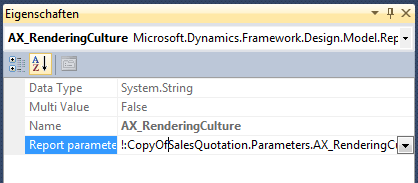
    When you duplicate an SSRS Dynamics AX 2012 report in Visual Studio, and you try to open the design node you may get an error message like “object instance not set to an object”. The reason is that the data set parameters contain the name of the report e.g. SalesQuotation. Now that you have duplicated the report its name is CopyOfSalesQuotation and the report is broken.

    Broken parameter in duplicated SSRS report

    Compiling the report project brings up a list of errors.

    Errors when compiling a duplicated report

    Navigate to each data set parameter and change the name of the report to match the new name e.g. CopyOfSalesQuotation instead fo SalesQuotation

    Broken parameter in duplicated report

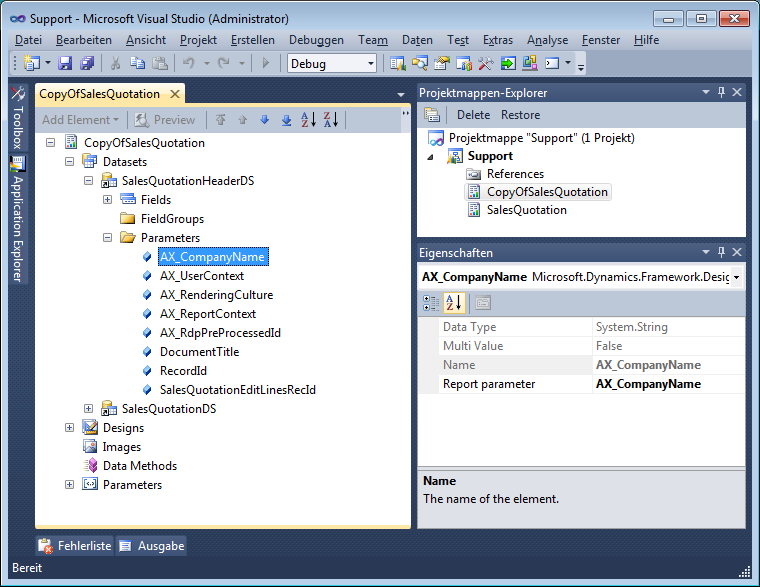
    The fixed parameter should look like this

    Dynamics AX 2012 duplicated report data set parameter

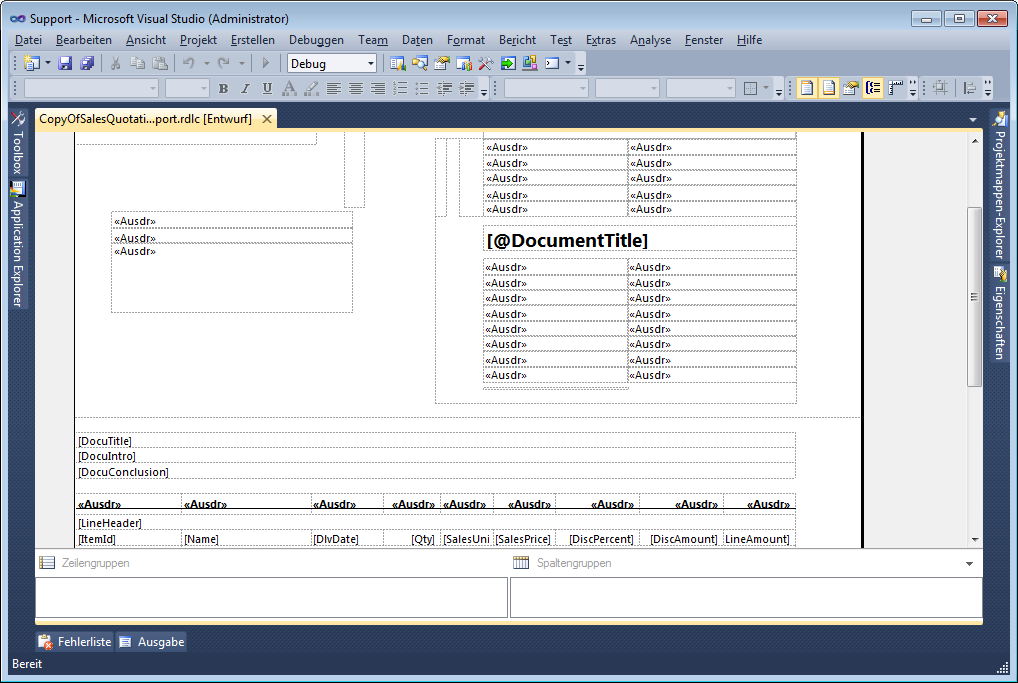
    Finally the report designer is working

    Dynamics AX 2012 duplicated report in report designer

    Dynamics AX 2012 on Windows Server 8 Beta with SQL 2012 RC0

    Microsoft recently released Windows Server 8 Beta and Windows 8 Consumer Preview. So my first though was about running Dynamics AX 2012 on Server 8 and Windows 8. However, installing AX 2012 on Server 8 failed due incompatibility with windows installer. But Windows Server 8 and Windows 8 Betas still come with an upgrade option. So I had the idea install AX 2012 on Server 2008 R2 and upgrade to Windows Server 8 Beta.

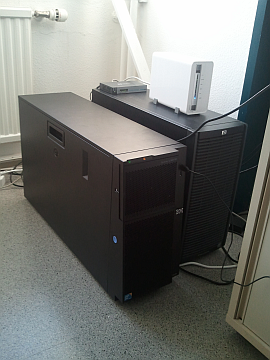
    Prolog (the IBM x3400 thing)

    We’ve bought an IBM x3400 M3 server for a customer. We’re still waiting for some hard disks to deliver, so the server is unused and becomes my testing platform for the moment. Installing Windows 8 Beta was straight forward, but as mentioned installing AX 2012 failed. So next I failed installing Windows Server 2008 R2 because no hard disk was found (missing driver). The solution:

    servers   usb driver

    IBM x3400 M3 and Raid driver on USB for Windows Server 2008 R2 installation

    Windows Server 2008 R2, SQL Server 2012 RC0

    Next I’ve joined the new 2008 R2 server to our domain. Loving Betas, Previews and other unstable stuff I’ve installed SQL Server 2012 RC0 to serve as database server for AX.

    • Installed .NET Framework 3.5.1 Feature using Server Manager
    • Installed .NET Framework 4.0 Full package
    • Installed NDP40-KB2390372-v2-x64 patch for .NET 4.0
    • Installed C++ Runtime Environments from AX 2012 DVD
    • Installed SQL Server Native Client
    • Installed Report Viewer 2012 from AX 2012 DVD
    • Installed Identity Foundation from AX 2012 DVD
    • Installed Open XML SDK for Office from AX 2012 DVD
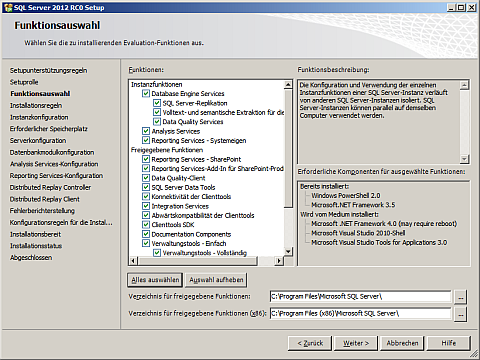
    • Installed SQL Server 2012 RC0 full featured

      sql sql2

      SQL Server 2012 RC0 Full Featured

      Pizza Break

      Ham, Eggs, Bacon, Onion and Corn, Coke and Tiramisu

      Pizza and Tiramisu

      Admin’s workplace Smiley

      Dynamics AX 2012

      AX on SQL 2012 RC0 is a little bit tricky, because even database creation failed. So I’ve set up an AOS using another SQL Server 2008 R2 with an existing AX 2012 database and baseline. Next I restored an AX 2012 database from a backup in SQL 2012 RC0 and configured the AOS to use it. Works as it should. However, the reporting extensions are not compatible with RC0 and installation failed.Dynamics AX 2012 with SQL Server 2012 RC0

      AX 2012 using SQL 2012 RC0

      Upgrade to Windows Server 8 Beta

    • Installed Windows Server Backup Feature from Server Manager and create a backup
    • Downloaded Server 8 ISO
    • Extracted it and copied it onto an USB stick using xcopy *.* /s/e/f u:\\
    • Started Upgrade from DVD or USB
    • The Upgrade took quite a lot of time until windows was ready

      Windows Server 8 Beta Upgrade

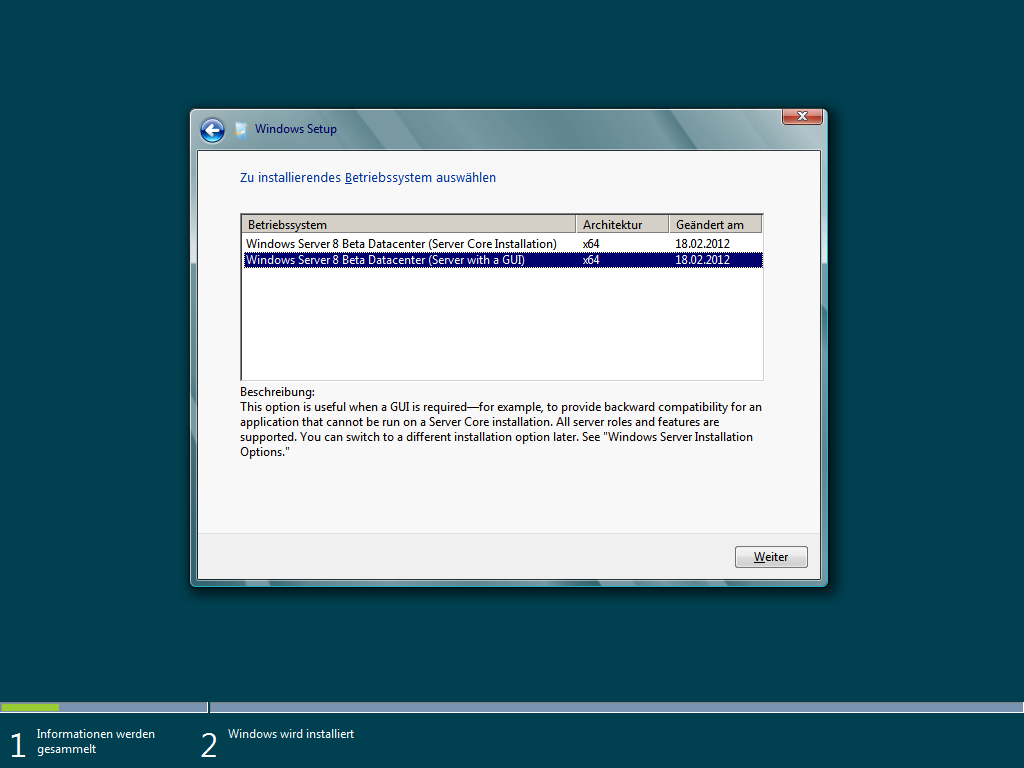
    Windows Server 8 Beta Data Center Edition with GUI

    Windows Server 8 Beta Upgrade

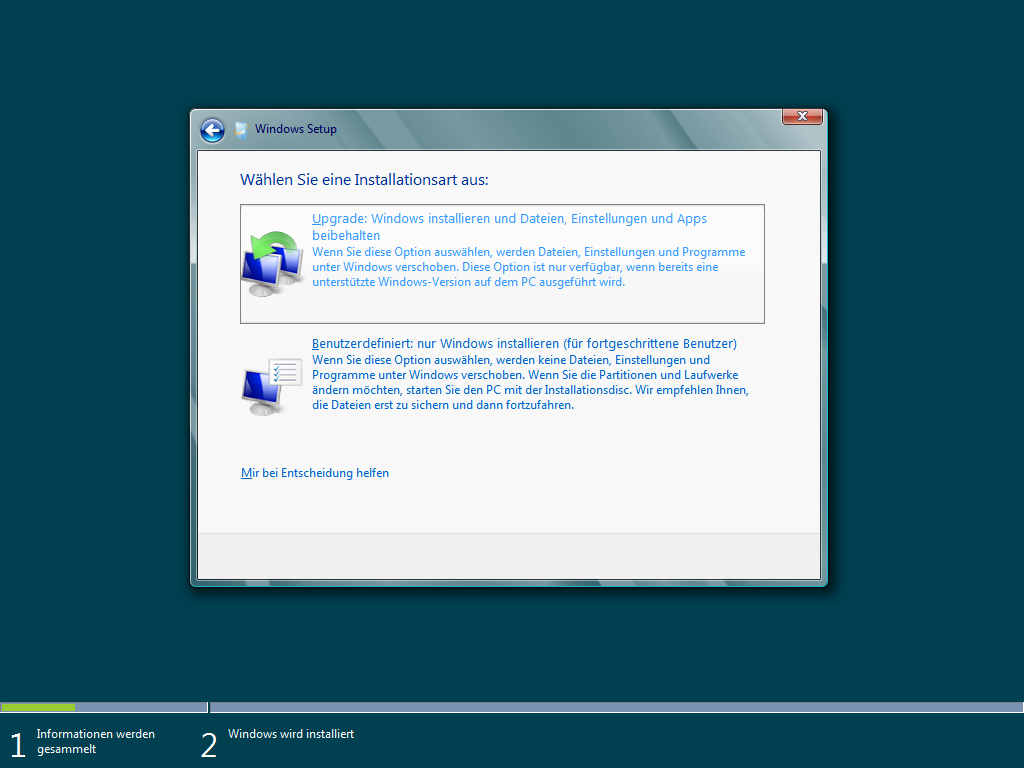
    Upgrade an existing Installation

    Windows Server 8 Beta Upgrade

    Windows Server 8 Beta is starting up, …

    Windows Server 8 Beta Start Screen

    Finally! Windows Server was upgraded from 2008 R2 to 8 Beta

    Repairing Dynamics AX

    Well, Windows as upgraded successfully but Dynamics AX is not working any more Trauriges Smiley Starting the AOS results in an error. Reviewing the windows event error logs brings up the details:
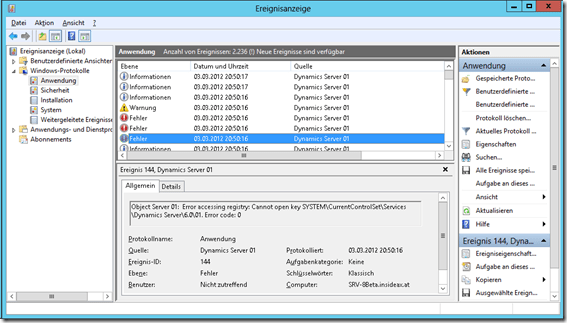
    image

    Object Server 01:  Error accessing registry: Cannot open key SYSTEM\CurrentControlSet\Services\Dynamics Server\6.01. Error code: 0

    Object Server 01:  The directory "C:\Windows\system32\\bin" does not exist or access to it has been denied by the operating system.

    Object Server 01:  The home directory for Axapta (C:\Windows\system32\) does not match the required structure or can not be accessed. Please check installation, configuration and access rights.

    Object Server 01:  Server terminated unexpectedly with 10 exitcode.

    The reason is an missing registry key:
    HKEY_LOCAL_MACHINE\SYSTEM\CurrentControlSet\Services\DynamicsServer\601

    image

    I solved this issue by importing an AX configuration from another server’s registry

    • Opened an RDP session to an other 2008 R2 server running an AX 2012 AOS
    • Start > Run > regedit
    • Navigated to HKEY_LOCAL_MACHINE\SYSTEM\CurrentControlSet\Services\DynamicsServer\60
    • Exported the registry key as file (Context Menu > Export)
    • Copied the .reg file the Server 8 Beta desktop and imported it
      There are a lot of settings and paths in the registry, make sure these settings apply to your w8 server
    • Started the Server Configuration Utility and changed the database setting back to localhost
    • Started the AOS
    • Started the Client

    Dynamics AX 2012 on Server 8 Beta

    Dynamics AX 2012 running on Windows Server 8 Beta

    VaMoS 2012 Paper: Managing variability of ERP ecosystems

    The paper is about variability in ERP ecosystems, especially the situation of Dynamics AX partner companies. We present an idea how partner companies could manage the variability in their solutions to set up a product line. The paper can be found at the ACM Digital Library

    Battle of Nations Monument

    Battle of Nations Monument near Leipzig

    Use Fulltext Index in AX 2012 to search in RSS feeds

    Here is a simple example how to use the fulltext index capability in Dynamics AX 2012. This example downloads RSS postings into a table with fulltext index and runs a query to identify those with specific words.

    Create the RssFeedTable

    1. Create a new String Extended Datatype called RssFeedId
    2. Create a new table called RssFeedTable and add the RssFeedId, Name and Uri
    3. Create a primary index based on the RssFeedId
    4. Set the RssFeedTable as Reference at the RssFeedId Extended
    5. Populate the table with data e.g.
      FeedId = technet
      Name = “Technet Austria”
      Uri = http://feeds.feedburner.com/TechnetTeamBlogAustria?format=xml

    Create the RssContentTable

    1. Create a new Table called RssContentTable
    2. Add the RssFeedId, Description255 and rename it as Title and a Memo field
    3. Create a fulltext index for the memo field

    image image

      Create the RSS Reader Class in C#

      1. Create a new Visual C# class library project for .NET 4.0 in Visual Studio
      2. Add the project to AOT
      3. Copy this code

      using System;
      using System.Collections.Generic;
      using System.Linq;
      using System.Text;
      using System.ServiceModel.Syndication;
      using System.Xml;
      using System.Text.RegularExpressions;

      namespace ErpCoder.RssFeed
      {
          public class Reader
          {
              private string xmlAddress = String.Empty;
              private IEnumerator<SyndicationItem> enumerator;

              public Reader(string address)
              {
                  xmlAddress = address;
              }

              public void Load()
              {
                  var reader = new XmlTextReader(xmlAddress);
                  var feed = SyndicationFeed.Load(reader);
                  enumerator = feed.Items.GetEnumerator();
              }

              public bool Read()
              {
                  return enumerator.MoveNext();
              }

              public string GetTitle()
              {
                  return enumerator.Current.Title.Text;
              }

              public string GetDescription()
              {
                  string text = Regex.Replace(enumerator.Current.Summary.Text,
                                               "<(.|n)*?>", String.Empty);
                  return text;
              }       
          }
      }

      1. Set the Deployment Target at the project to Client: Yes and deploy

      Populate the RssContentTable

      1. Create a find method on the RssFeedTable
      2. Copy this code and substitute the parameter in the find method with one of yours

      static void populateFeedTable(Args _args)
      {
          System.Exception ex;
          RssFeedTable feedTable = RssFeedTable::find("techat");
          RssFeedContent content; 
          ErpCoder.RssFeed.Reader reader;
          InteropPermission permission;
       
          permission = new InteropPermission(InteropKind::ClrInterop);    
          permission.assert();

          try
          {
              reader = new ErpCoder.RssFeed.Reader(feedTable.Uri);
              reader.Load();

              while(reader.Read())
              {
                  content.clear();
                  content.Title = reader.GetTitle();
                  content.Text = reader.GetDescription();
                  content.FeedId = feedTable.FeedId;
                  content.insert();
              }
          }
          catch(Exception::CLRError)
          {
              ex = CLRInterop::getLastException();
              error(ex.get_Message());
          }

          CodeAccessPermission::revertAssert();
      }

      Create a job to test the fulltext index

      1. Create a new job and copy this code

        static void queryFullText(Args _args)
        {
            RssFeedContent feedContent;
            Query query = new Query();

            QueryBuildDataSource qbdsContent =
             query.addDataSource(tableNum(RssFeedContent));

            QueryBuildRange rangeText =
             qbdsContent.addRange(fieldNum(RssFeedContent,Text),
                                  1,QueryRangeType::FullText);
            QueryRun queryRun;
            rangeText.value("Office Hyper-V");

            queryRun = new QueryRun(query);
            while(queryRun.next())
            {
                feedContent = queryRun.get(tableNum(RssFeedContent));
                info(feedContent.Text);
            }
        }

      2. Subsitute the value of the fulltext range value with yours
      3. Test the query

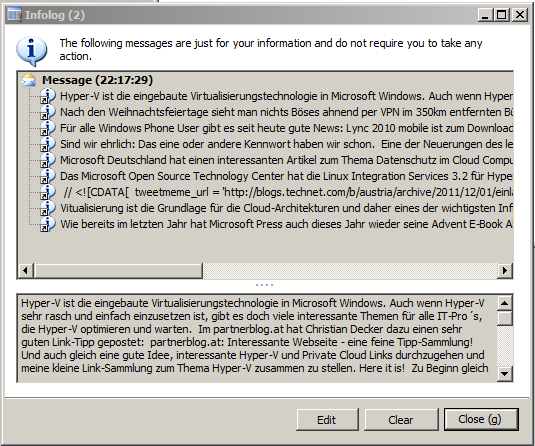
      image

      Using a Seagate Momentus XT Hybrid HDD to boost performance on a Dynamics AX 2012 presentation laptop

      Momentus XT is a hybrid HDD that combines a 7200rpm drive with a large SSD cache. I’ve bought one to run a  Dynamics AX 2012 presentation laptop. By design the performance is getting better for frequent tasks. Here are my results:

      Testcases:

      1. Boot Windows Server 2008 R2 until STRG+ALT+DEL screen appears
      2. Start Dynamics AX client and wait until role center has finished loading and rendering reports
      3. Post a sales order confirmation with 20 lines

      Laptop: HP 8540w Mobile Workstation, 8GB RAM, Core i7 2,8GHz
      Software: Windows Server 2008 R2 SP1, Dynamics AX 2012 CU1, SQL Server 2008 R2, Enterprise Portal with SharePoint Server 2010

        HDD XT #1 XT #2 XT #3 XT #4 XT #5
      Boot 03:05 03:13 02:36 01:48 01:54 01:46
      Start AX 00:51 00:40 00:31 00:18 00:17 00:18
      Confirmation 02:30 01:40 00:59 00:59 01:07 00:59