2nd International Business and System Conference, Riga 2013
8. November 2013 Leave a comment
BSC is co-located with the 6th Working Conference on the Practice of Enterprise Modeling PoEM in Riga (Latvia)
Microsoft Dynamics 365 Business Management Solution Enthusiast
8. November 2013 Leave a comment
BSC is co-located with the 6th Working Conference on the Practice of Enterprise Modeling PoEM in Riga (Latvia)
11. September 2013 1 Comment
This is an update on the first posting how to create a PowerPivot Application for Dynamics AX. These are the changes and updates:
You can publish Dynamics AX queries as open data feed. In contrast to direct SQL access it gives you more control on what is published because the builtin Dynamics AX security layer is used. Furthermore the data is delivered as XML and can easily be processed by other applications Create three queries using these datasources and fields:
| Datasource | ||||||
| ProjTable | ProjId | Name | ||||
| ProjJournalTrans | ProjId | CategoryId | Txt | Qty | Transdate | Worker |
| HCMWoker join DirPerson |
Person | RecId from HCMWorker | Name |
Go to Organization Administration > Setup > Document Management > Document data sources. For each of the queries create a new entry using Module “Project” and Type “Query Reference”. Choose your query from the dropdown and activate them.
You can check your services by opening the ODataService URL in your Browser. Depending on the name of the Server and Ports it might look like this http://localhost:8101/DynamicsAx/Services/ODataQueryService. You should see three available data services.
You can load the data by adding /COLLECTION_NAME to the URL. For example http://localhost:8101/DynamicsAx/Services/ODataQueryService/ERPProjTable to view the data from the ERPProjTable collection based on the ERPProjTable query.
PowerPivot and PowerView reports are builtin with Excel 2013. However, these addins need to be activated manually. Go to File > Options > Addins > Dropdown COM Addins. Activate PowerPivot and PowerView.
Go to PowerPivot Tab > Manage > Get External Data From Data Service. In the wizard copy the data service URL (without collection name) and click next. Select the data feed collections and finish the import
Switch to the Diagram View using the small button on the right bottom. Create the relations between the tables by drag and dropping the related fields. ProjTable.ProjId on ProjJournalTrans.ProjId and ProjJournalTrans.Worker on HcmWorker.RecId
Switch back to Excel. From the PowerPivot tab, select Calculated Fields and create 2 new calculated fields. One for the Qty sum and another sum of postings on project Holiday and Illness.
In the PowerPivot Tab, create a new KPI. Use the C_Absence as base value and the C_Total as Target value. Change the color scheme to Gree-Yellow-Red and set the sliders to 5% and 10%.
Go to Insert Tab, from the Tables Group select PowerPivot Table. In the Dialog select “External Datasource”. Switch to Tables and use Workbook Data Model.
Select the ERPWorker and drag the DirPers_Name field in the rows. Select the ERPProjJournalTrans and drag the C_Total calculated field in the Values box. Expand the C_Absence KPI. Drag the Value(C_Absence) and the Status in the values box.
Go to the Analyze Tab (only visible if the pivot table is selected), from the group Filter, create a new Timeline Filter and select the ProjJournalTrans_TransDate field. Place the Filter above the table (or wherever your want)
2. August 2013 Leave a comment
A typical Dynamics AX 2012 (R2) installation requires lot of RAM to work properly. Especially SharePoint, the basis for Role Center and Enterprise Portal want’s lot of it. I came across an issue where EP installation failed. The DynamicsSetupLog.txt revealed the issue; an exception at the SecurityTokenService.
The service ‘/SecurityTokenServiceApplication/securitytoken.svc’ cannot be activated due to an exception during compilation.The exception message is: Memory gates checking failed because the free memory (723009536 bytes) is less than 5% of total memory
There are some blogs regarding this issue: Restart NodeRunner, Set the App Domain, Configure minFreeMemoryPercentageToActivateService . The simplest solution however is to provide more memory ![]()
24. July 2013 Leave a comment
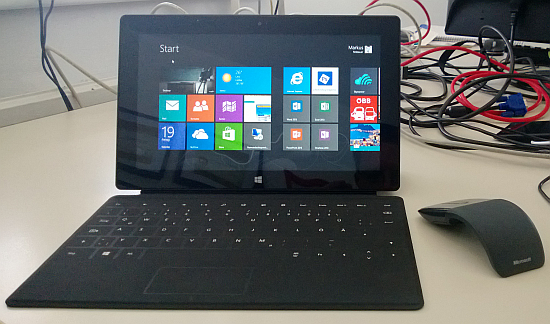
Since Microsoft has reduced the price for Surface and Surface RT I’ve bought a 32GB RT device. I was wondering if it would be useful in a business environment. Here are the specs: NVIDIA Tegra 3 Quad Core CPU, 2 GB RAM, 32GB storage / 16GB free, 1366 x 768 at 10.6", wifi, usb 2.0. Surface is a good tablet, however to make it useable in business you need at least a touch cover that gives you a keyboard and touchpad. I also utilized the usb port for a wireless mouse.
The touchcover is a great idea, an almost perfect solution to equip a tablet with a keyboard. It is thin, light, precise and protects the Screen during Transport. However, I’m missing some keys compared to a full featured Keyboard e.g. the print button to make screenshots. As the touchcover has no regular keys, it is hard to type in a dark environment. Of course the touchcover has no back light and you don’t "feel" the keys you’re aiming for. By design it is a tablet with a Keyboard, and you can’t put it on our keys like a laptop.
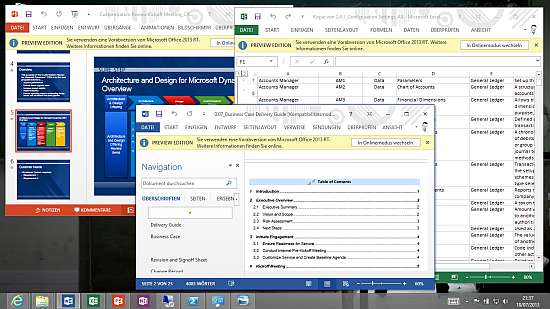
Here are the good news. Surface RT has a Windows Desktop as you know it from your Laptop or Desktop. It has taskbar, you can pin shortcuts on the Desktop like documents and Computer. Surface RT comes with Office 2013 Home&Student (Preview), which looks like a regular Office 2013 application on a PC. Right now, as I’m writing this post there is no final Outlook RT.
Update: Office Home&Student must not be used for commercial use. Therefore you need to own a seperate office license, e.g. via Office 365
The Surface RT tablet has wifi built in, but no WWAN card. If your on the road without WLAN you will have to use your mobile phone instead. Since almost every modern mobile phone can be used as WLAN access point nowadays, I don’t see it as limitation. The tablet has no LAN port, this might be an issue if you’re at a very old school cable based customers. You can configure windows VPN like you know it from your desktop and laptop devices. Surface RT is running the Remote Desktop Service Client that implements RDP 8 protocol. So you get all the cool features like WAN optimization via UDP (if there is server 2012 on the other side of the line). You also get PowerShell v3, but without ISE or –ShowWindow option.
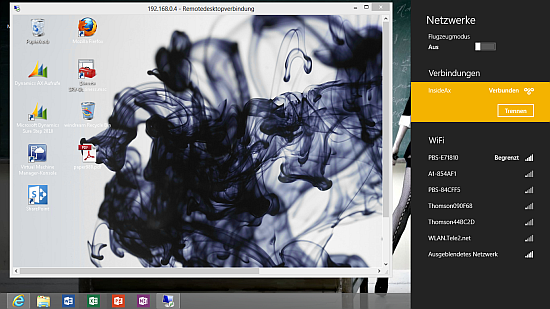
The platform limits the native execution of applications on the device. You can’t install a Dynamics AX client or other applications on the machine . However, since there is Remote App technology around for a while you can provide applications running on a RDS server (aka. Terminalserver). The RemoteApp Manager has a simple wizard that guides your through the process. Select an application, provide optional parameters e.g. a .axc config file, export the RemoteApp as RDP file and place it on a windows share. Open the RDP file from the Surface RT, authenticate yourself and voila here is Dynamics AX 2012 on a Surface RT:
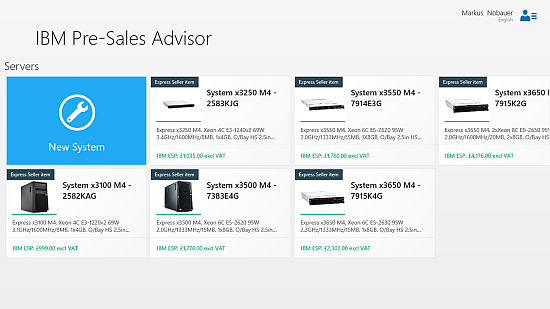
There are many apps available for windows 8 tablets, and some of them are business relevant. There isn’t hardly any useful Dynamics AX app available at the moment. However, here is summary what I’ve installed on my device: ÖBB Scotty for Austrian national railways, Skyscanner to query cheap flights, Holiday Inn IHG hotel reservation app, connect.8 for Xing, Photoshop Express to pimp my photos, Skype, Technet News and Windows Blog Feed Reader, a Facebook app, WordPress app, IBM Presales Advisor, Network Speed Test and Amazon Kindle App.
25. June 2013 Leave a comment
When you upgrade from Dynamics AX 2012 RTM / FP to R2 and start upgrade your reports in Visual Studio, your might run into an error telling you that the GetPartitionKey action was not found in the UserSessionService.
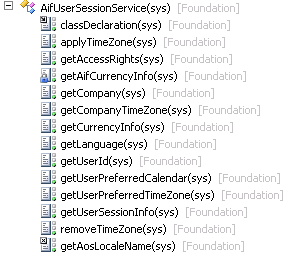
Partitions were introduced in R2 and therefore the UserSessionService has changed and got new methods. However, the WSDL interface definition is the old one and you need to update the interface description.
| AX 2012 FP | AX 2012 R2 |
If you want to check the actual interface description you might want to look at the WSDL itself. The URL can be found at AX > System Administration > Services and AIF > Inbound Ports > User Session Service > WSDL URI
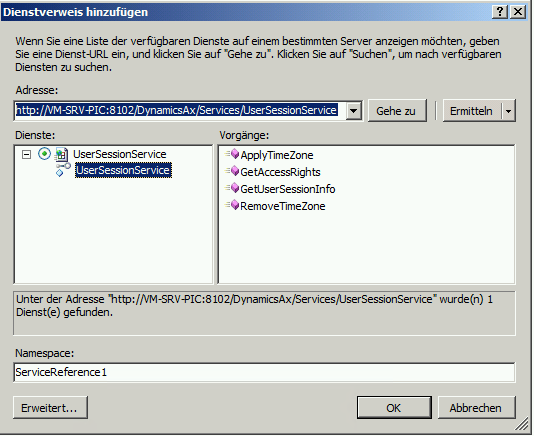
You might open the XML and go all the way through the files until you got the operations, or just feed the URL to Visual Studio. Create a new C# console application, add a service reference and provide the URL. If your WSDL definition is out of date your service reference looks like this.
Go back to Dynamics AX development environment. Compile the AifUserSessionService class in X++ and incremental IL. Make sure there are no errors in your application. Go to the services node in the AOT and select the AifUserSessionService. From the context menu click Add Ins > Register Service. Go to the service group node in the AOT. Select the UserSessionService group. From the context menu click Deploy Service Group. You will see the infolog popping up telling you that the .NET artifacts have been generated and deployed.
Go back to Visual Studio and refresh the service reference. The service has the same WSDL URL as before but the inferface has changed. Now you should see more methods including the GetPartitionKey.
15. May 2013 2 Comments
PowerPivot is a great extension for Excel to realize BI applications in very short. For Excel 2010 download and install the free PowerPivot extension. PowerPivot ist built in with Excel 2013. To activate PowerPivot go to File > Options > Addins > Choose COM Addins > activate PowerPivot.
Open PowerPivot Window > External Data > SQL Server. Provide Credentials to access Dynamics AX database. Select PROJTABLE, PROJJOURNALTRANS, HCMWORKER and DIRPARTYTABLE. For each table open the preview and select the following fields.
| ProjTable | ProjId | Name | DataAreaId | ||||
| ProjJournalTrans | ProjId | CategoryId | Txt | Qty | Transdate | Worker | DataAreaId |
| HcmWorker | Person | RecId | |||||
| DirPartytable | Name | RecId |
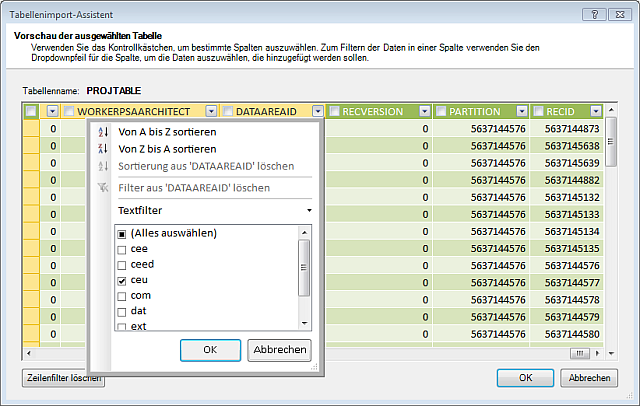
In the import wizard set a filter on the DataAreaId for PROJTABLE and PROJJOURNALTRANS on CEU
After the tables have been imported, create relations between these tables. Back in the PowerPivot window > Relations > Manage Relations create these relations.
Close the PowerPivot windows and return to Excel. From the PowerPivot tab create new pivot table. Place the PROJJOURNALTRANS[QTY] field in the right lower Values box. Place PROJTABLE[NAME] and PROJJOURNALTRANS[CATEGORYID] in the rows box. Place PROJTABLE[NAME] and PROJJOURNALTRANS[CATEGORYID] in the vertical slicer box. Place PROJJOURNALTRANS[YEAR] and PROJJOURNALTRANS[MONTH] in the columns box and horizontal slicer.
From the PowerPivot tab open the PowerPivot table dropdown, select 2 charts vertical and place them in a new sheet. For both charts place the PROJJOURNALTRANS[QTY] in the lower right values box. For the first diagram place the PROJTABLE[NAME] field in the columns box. In the second diagram place the DIRPARTYTABLE[NAME] in the rows box. Now there are two diagrams, postings per employee and postings per project. Place PROJTABLE[NAME], PROJJOURNALTRANS[CATEGORYID] and DIRPARTYTABLE[NAME] in the vertical slicer. Place PROJJOURNALTRANS[YEAR] and PROJJOURNALTRANS[MONTH] in the horizontal slicer.
Select the YEAR slicer, from the context menu open the pivot table connections. Connect the slicer to the other pivot table created earlier. By connecting the slicer a selection made on one sheet also effects the other sheet.
From the PowerPivot tab, PowerPivot table dropdown create a new simple pivot table on a new sheet. Place the DIRPARTYTABLE[NAME] field in the rows box. Place the PROJJOURNALTRANS[YEAR] in the horizontal slicer On the fieldlist select the PROJJOURNALTRANS table and create a new measure from the PowerPivot tab. Call the measure M_TOTAL and use the formula =sum(PROJJOURNALTRANS[QTY])
Create a second measure on the PROJJOURNALTRANS table called M_ABSENCE. This will be the sum of all postings made on project HOLIDAY (PROJID 50002) and ILLNESS (PROJID 50003). Use the formula
=CALCULATE(sum([QTY]);PROJJOURNALTRANS[PROJID] = "50002" || PROJJOURNALTRANS[PROJID] = "50003") .
On the fieldlist, select the measure M_ABSENCE in the PROJJOURNALTRANS table. From the PowerPivot tab, create a new Key Performance Indicator (KPI) based on the M_ABSENCE Measure. Select the M_TOTAL as target. Choose green > yellow > red color schema. Define green to be from 0 – 5 percent, yellow from 5 to 10 percent and red to all above.
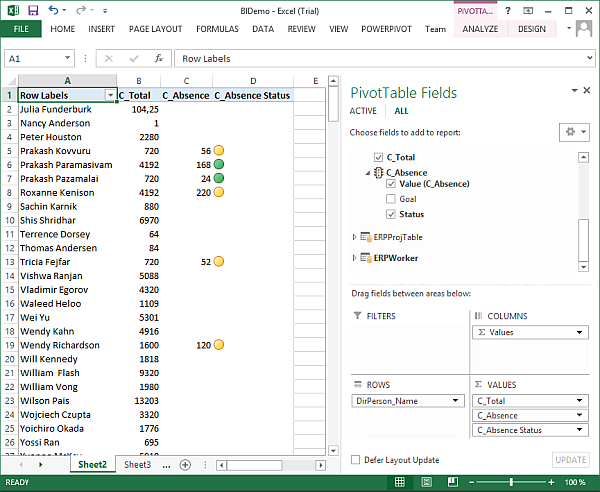
The pivot table with KPI should look like this
28. April 2013 Leave a comment
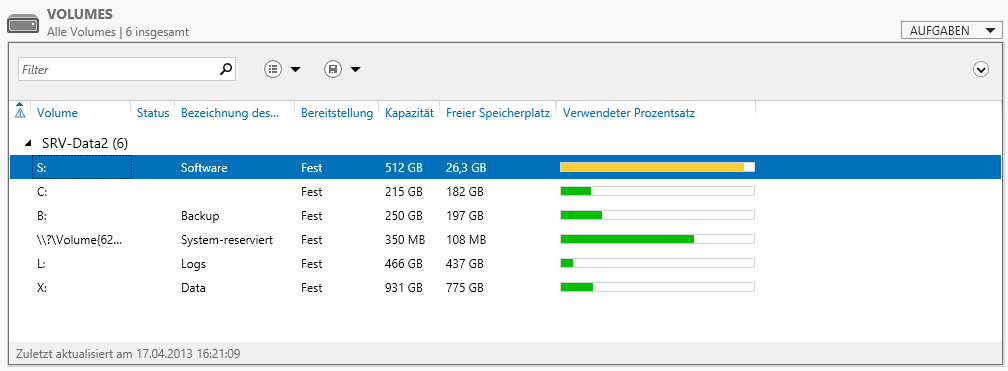
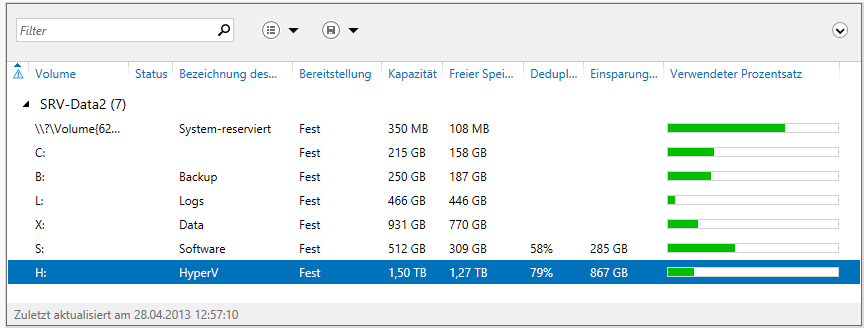
Deduplication is a new feature for File Services Role in Windows Server 2012 that helps to reduce the required storage space. This is done by inspecting the stored data. Identical parts are replaced by only a reference to a single stored part. Deduplication works great for data that has similar parts and is rarely modified, e.g. Archives. However, Deduplication works only for volumes. Migration to an iSCSI connected LUN is an option to get a deduplicatable volume.
Update 28.4: Deduplication Applied to HyperV Image Template Archive achieved 79% deduplication
4. March 2013 12 Comments
I’ve recently updated our company’s internal SharePoint 2010 portal to SharePoint 2013. One difference is that web apps is now a separate installation on another machine. The installation is straight forward and documented on Technet . However, there was on tricky issue. KB2592525 is a prerequisite and the PS New-OfficeWebAppsFarm cmdlet checks if the KB2592525 is installed. I was installing on a Windows Server 2008 R2 SP1 with all the actual patches but KB2592525 was not installed and the KB2592525 installer refused to install on this machine. One way to get around this issue is to force the update using pkgmgr.
That’s it, and the New-OfficeWebAppsFarm cmdlet will accept this workaround.
13. February 2013 Leave a comment
A colleague started to develop a report in Visual Studio and experienced a strange exception when selecting a query as dataset. It said that an exception occurred in the metadata service >SOMEFIELD option with ID -1 was not recognized
A look at the table being part of the query reveled the reason for this problem. The filed on the table is based on an extended datatype, but this datatype was deleted a while ago. However on a first look the field looks okay.
The table does compile without errors and incremental IL succeeds(!)
As soon as your select the fields enum property in the property window, you’ll see that the datatype is missing.
Set the compiler level up to 4 in order to get best practice errors displayed. It tells your that the field has an unknown type (BP:100) and that each field should be defined using a type.