MCTS: Small Business Server 2008, Configuration
30. April 2011 Leave a comment
Microsoft Dynamics 365 Business Management Solution Enthusiast
26. April 2011 Leave a comment
I’ve create an Item Journal Approval Workflow. It can be used to change the default order settings for a journal of items as part of a workflow. The Workflow contains three approval steps, for purchase, inventory management and sales. Each approval sets or clears the stopped flag in the default order settings in the corresponding tab.

Watch the Video at YouTube:
Download the Source at Axaptapedia
21. April 2011 Leave a comment
I’ve made a video to demostrate how easy it is to reverse engineer tables from Dynamics AX 2009 Visio:
19. April 2011 Leave a comment
I’ve passed the MB5-858 exam, Managing Microsoft Dynamics Implementations 

Some thoughts about MB5-858
7. February 2011 Leave a comment
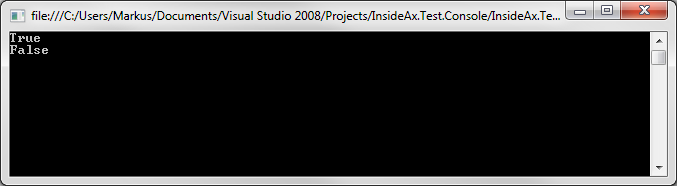
found an interesting behavior in AX 4.0 AIF. Querying a document with a NoYes field e.g. InventLocation.Manual requires to use the value “Yes” to become TRUE but value “1” doesn’t work.
var client = new InventLocationServiceSoapClient();
client.ClientCredentials.Windows.ClientCredential.Domain = "insideax";
client.ClientCredentials.Windows.ClientCredential.UserName = "AifUser";
client.ClientCredentials.Windows.ClientCredential.Password = "********";
var context = new DocumentContext();
context.MessageId = Guid.NewGuid().ToString();
context.SourceEndpoint = "EXTAPP";
context.DestinationEndpoint = "APP";
var query = new QueryCriteria();
query.CriteriaElement = new CriteriaElement[1];
query.CriteriaElement[0] = new CriteriaElement();
query.CriteriaElement[0].DataSourceName = "InventLocation";
query.CriteriaElement[0].FieldName = "Manual";
query.CriteriaElement[0].Operator = Operator.Equal;
query.CriteriaElement[0].Value1 = "1";
var axdInventLocation = client.findListInventLocation(context, query);
Console.WriteLine(axdInventLocation.InventLocation == null);
// new guid
context.MessageId = Guid.NewGuid().ToString();
// change value
query.CriteriaElement[0].Value1 = "Yes";
axdInventLocation = client.findListInventLocation(context, query);
Console.WriteLine(axdInventLocation.InventLocation == null);
Console.ReadKey();
Result is shown here:
6. February 2011 Leave a comment
I passed the 70-640 Active Directory exam  To summarize it’s a good idea to have some practice and it’s extremely useful to attend a course or at least watch some training videos e.g. Trainsignal.

31. January 2011 Leave a comment
The upgrade scripts to AX 2009 converts RefRecId fields to Int64 data types. In some cases when a <Something>RefRecId field on a table has not an extended data type but was created as integer field you get a synchronization error.
Illegal data conversion from original field TABLE.FIELDREFRECID to TABLE.FieldRefRecId: Unable to convert string data types to anything but INT, or REAL field types.
The error message doesn’t really fit to the problem 
One way to deal with this issue is to copy the table content to another database. Next delete the malicious field and create a new one with RefRecId as extended datatype. AX will synchronized and delete the field on the database. Finally restore the data from the other database.
I recommend to use the SQL Server Data Import/Export wizard.
26. January 2011 Leave a comment
There are multiple reasons why the AX 2009 AOS will not start the very first time. One reason may be that some maggots have modified system classes like Info, Sys* etc. Fortunately the AOS posts its pain to the windows event log. In the case of modifications on system classes the AOS posts a stack trace to the event log.
21. January 2011 Leave a comment
I’ve come across some issues upgrading a Dynamics AX 3.0 Installation to Dynamics AX 2009
A German localized SQL Server Installation may fail on a German(Austria) localized system. “SQL Server setup media does not support the language of the OS or does not have ENU localized files…” In that case you need to change the regional settings from German(Austria) to German(Germany)
Choosing an SQL Server fails because server was not found or access denied. In SQL Server Configuration Manager make sure

First logon to Dynamics AX fails “You are not a recognized user …” . Make sure the user credentials in table UserInfo are correct, especially the Active Directory Security Identified (SID)
30. November 2010 Leave a comment
Sometimes it’s necessary to execute a batch file on the server. You may use some .NET code to achieve this. First create a new class e.g. called ExecuteBatchOnServer. Add a static method that is executed on the server. Be aware that the file path is local on the server.
public static server void executeBatch(FilePath _filePath)
{
#File
InteropPermission interop;
FileIOPermission fileIo;
Set permissionSet = new Set(Types::Class);
System.Diagnostics.Process process;
System.Diagnostics.ProcessStartInfo startInfo;
str filePath = @"C:\Batch\batchfile.bat";
;
interop = new InteropPermission(InteropKind::ClrInterop);
fileIo = new FileIOPermission(filePath,#io_read);
permissionSet.add(interop);
permissionSet.add(fileIo);
CodeAccessPermission::assertMultiple(permissionSet);
startInfo = new System.Diagnostics.ProcessStartInfo();
startInfo.set_FileName(filePath);
process = new System.Diagnostics.Process();
process.set_StartInfo(startInfo);
process.Start();
process.WaitForExit();CodeAccessPermission::revertAssert();
}
Create a main method to make the class executable
public static void main(Args _args)
{
DialogButton result;
;
result = Box::yesNo("Excute Batch?",DialogButton::No);
if(result == DialogButton::Yes)
ExecuteBatchOnServer::executeBatch();
}
Typically its useful to see the standard output, error and exception text. Therefore its necessary to redirect the Standard* Output and add a try/catch block
public static server void executeBatch()
{
#File
InteropPermission interop;
FileIOPermission fileIo;
Set permissionSet = new Set(Types::Class);
System.Diagnostics.Process process;
System.Diagnostics.ProcessStartInfo startInfo;
str filePath = @"C:\Batch\batch.bat";
System.IO.StreamReader stdOut;
System.IO.StreamReader stdErr;
str txtOut;
str txtErr;
str txtExc;
;interop = new InteropPermission(InteropKind::ClrInterop);
fileIo = new FileIOPermission(filePath,#io_read);
permissionSet.add(interop);
permissionSet.add(fileIo);
CodeAccessPermission::assertMultiple(permissionSet);try
{
startInfo = new System.Diagnostics.ProcessStartInfo();
startInfo.set_FileName(filePath);
startInfo.set_UseShellExecute(false);
startInfo.set_RedirectStandardOutput(true);
startInfo.set_RedirectStandardError(true);process = new System.Diagnostics.Process();
process.set_StartInfo(startInfo);
process.Start();
stdOut = process.get_StandardOutput();
txtOut = stdOut.ReadToEnd();
stdErr = process.get_StandardError();
stdErr.ReadToEnd();
process.WaitForExit();
}
catch(Exception::CLRError)
{
txtExc = ClrInterop::getLastException().toString();
}if(txtOut) info(txtOut);
if(txtErr) error(txtErr);
if(txtExc) error(txtExc);CodeAccessPermission::revertAssert();
}





 ErpCoder