Multiple EcoResItemColorName lookups in the same form

We’ve recently discussed a situation a work, where more than one ItemId and Color lookup was used on the same form.

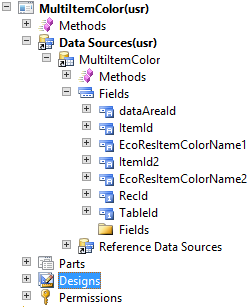
Form with two ItemIds and two EcoResItemColorNames

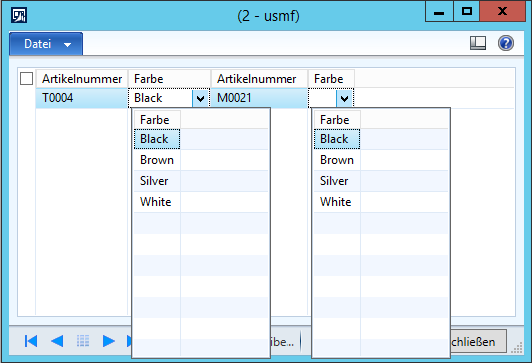
The EcoResItemColorName data type uses the  InventProductDimensionLookup to display the available colors for the item. However, if there are multiple items on a form and multiple color lookups the lookups always present the available color values for the first item.

Multiple Color Lookups on a form displays the wrong values

The InventProductDimensionLookup form uses the InventDimCtrl_Frm_Lookup controller class. The init() method
is used to determines the ItemId.

callerHasItemId     = this.callerItemFieldId() != 0;
if (! callerHasItemId)
{
    callerItemIdMethod  = formHasMethod(callingElement.args().caller(),
                                        identifierStr(itemId));
    if (callerItemIdMethod)
    {
        callerHasItemId = true;
    }
}

callerHasInventDimParm  = formHasMethod(callingElement.args().caller(),
                        InventDimCtrl_Frm::inventDimSetupObjectMethod());

callerWMSPalletIdMethod = formHasMethod(callingElement.args().caller(),
                                        identifierStr(wmsPalletId));

super();

If there is no ItemId in the caller form, the init() code checks for an itemId() method on the caller form. This can be used to provide the correct ItemId for each of the lookups.

  1. Rename ItemId to ItemId1
  2. Declare an ItemId variable activeItemId in the forms ClassDeclaration

    public class FormRun extends ObjectRun
    {
        ItemId activeItemId;
    }

  3. Overwrite each lookup() method on the EcoResItemColorFields in the form
  4. Set the activeItemId variable to the corresponding ItemId, e.g. ItemId1 for EcorResColorName1 and ItemId2 for EcoResColorName2

    public void lookup()
    {
        activeItemId = MultiItemColor.ItemId2;

        super();
    }

  5. Create an itemId() method on the form that returns the value of the Itemid variable

    public ItemId itemId()
    {
        return activeItemId;
    }


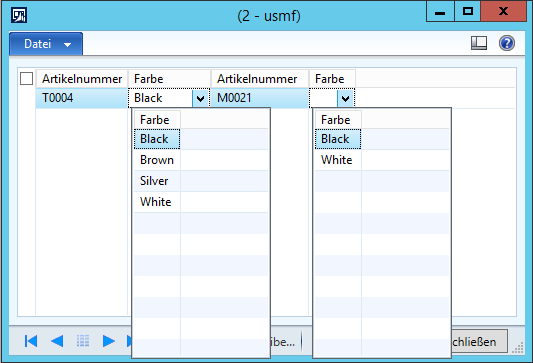
So the correct colors are displayed in the lookup

Multiple Color Lookups on a form

Unexpected Error when creating a new Workflow in AX 2012 R2

A colleague recently faced a problem regarding workflows in AX 2012 R2. When he tried to add a new workflow AX reported an error “An unexpected error has occurred while opening the workflow. See the event log on the AOS and contact your system administrator to resolve the issue.”  In a first step I added some code to Forms > WorkflowEditorHost > build() Method before the error is thrown to get the Stack and Exception Text

image

This revealed a problem with the services: “The communication object, System.ServiceModel.Channels. ServiceChannel, cannot be used for communication because it is in Faulted state.

image

Fortunately, such a problem can be solved with Default AX Voodoo. Generating Full IL and recreating the WCF configuration in the Dynamics AX Client Configuration Utility solved the problem.

Split long text in SSRS reports on two pages

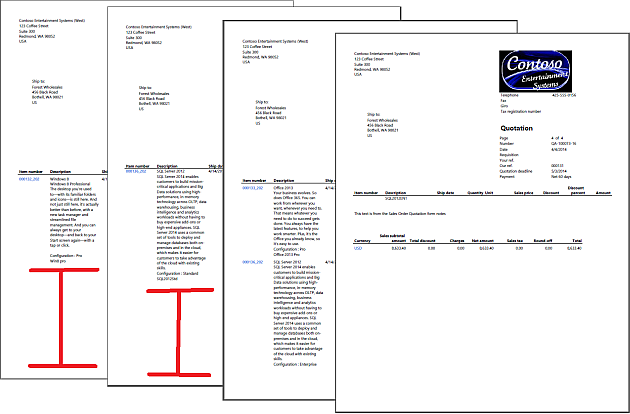
By default text in tables on Dynamics AX reports like SalesQuotation are kept together. If the text does not fit on the actual page, the complete line starts on the next page. This wastes lot of space and produces unnecessary many pages.

image

To split text in the SalesQuotation follow these steps:

  1. Start Visual Studio as Admin and load the SalesQuotation report from the Application Explorer
  2. Open the report design
  3. Add a new line under the line that contains [ItemId], [Name], [DlvDate] etc.image
  4. Assign the same fields in the new line, but don’t assign the [Name] field
    image
  5. Select the new line and set the property KeepTogether to False
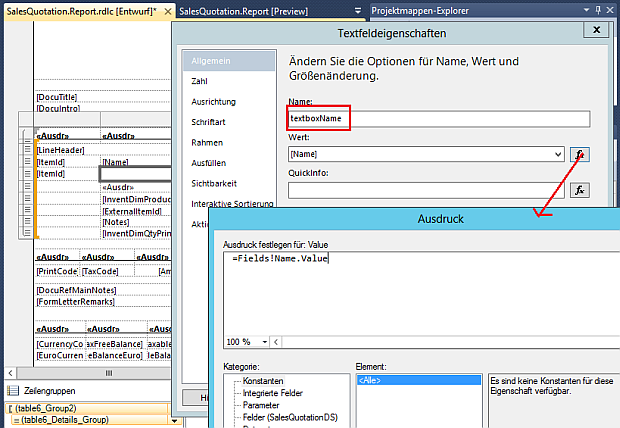
  6. Drag&Drop a textfield form the toolbox on an empty space in the report and name it textboxName
    image
  7. Drag&Drop the textfield in the empty column in the new line.
  8. Make sure the textfield “textboxName” is still selected and open the properties window. Set the field [Name] as value for the textfield
    image
  9. Change the Font and Size to fit the other fields, by default its Segoe UI 8pt
  10. Finally mark the old line above and set the property Hidden to True
  11. Deploy the report

image

WPA2-AUTO DHCP Problem with Windows 8

I recently faced a WLAN problem using Windows 8 devices. The WLAN was configured to use WPA with a pre-shared key. The network was working fine with Windows 7 devices. However, devices running Windows 8 only had limited connection with a auto configured IP address 169.254.0.0/16 and did not use the DHCP configured IP range. The problem was solved by changing WPA2-AUTO to WPA2.

WPA2-AUTO DHCP Problem with Windows 8

Add carry forward sum to OpenSalesOrders SSRS report

A common requirement is to add a running totals sum and carry foward which displays the actual sum on the next page. Following the tutorials like this by André it’s easy to implement also for Dynamics AX.

  1. Start Visual Studio as Admin and open CustSalesOpenOrders_NA report from the application explorer
  2. Open the report design
  3. Add 2 new columns on the right side and set Hidden property to TRUE
  4. Open the property dialog for the first new column and change the name to RunningTotal
  5. Set the following expression as value
    =RunningValue(Fields!amountRemainingMST.Value,SUM,"CustSalesOpenOrders_NADS")
  6. Open the property dialog for the second new column and change the name to RunningTotalPrev
  7. Set the following expression as value
    =RunningValue(Fields!amountRemainingMST.Value,SUM,"CustSalesOpenOrders_NADS") – Fields!amountRemainingMST.Value
  8. In the report design create a new text field in the report header above the amountRemainingMST
  9. Set the following expression as value
    ="Running Total: " +cstr(First(ReportItems!RunningTotalPrev.Value))
  10. In the report design add a new footer and add a text field in the footer under the amountRemainingMST
  11. Set the following expression as value
    ="Running Total: " +cstr(Last(ReportItems!RunningTotal.Value))
  12. Save and deploy the report
  13. Open Dynamics AX go to Sales and Marketing > Reports > Sales Orders and start the Open Sales Orders report

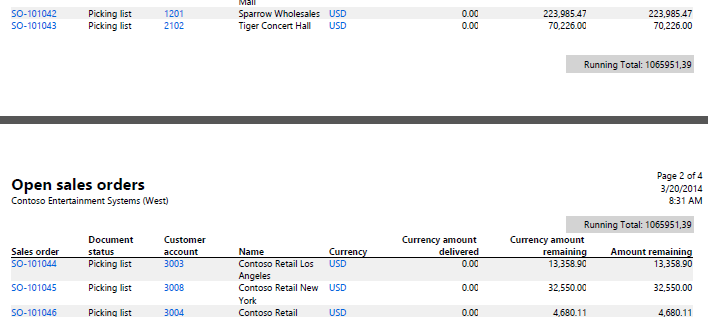
Your report should look like this, including a page sum and a carry forward on the next page

image

Upgrade HP nx7010 from XP to Windows 7

The end is near! XP support ends in April and still many devices out there run XP, like my good old HP nx7010 notebook. It was originally delivered with XP, and its performance not good enough to run Vista. However, Windows 7 and 8 are less hardware intensive therefore I decided to upgrade. The CPU does not fulfill the minimum hardware requirements, therefore I’ve chosen Windows 7. These are the original specs:

  • Intel Pentium M 1.7 GHz (single core)
  • 1.5 GB RAM
  • 120 GB HDD 5400 rpm (PATA no SATA!)
  • ATI Mobility Radeon 9600, 1680×1050 display
  • Windows XP SP3 and Office 2003 with actual updates

Upgrade

The good news are, stuff comes cheap for such old devices. I’ve bought a new battery, a docking station and a hard disk upgrade bay that has SATA intern and PATA extern. Moreover, I found an old 60 GB PATA disk with 7200 rpms from an old IBM ThinkPad and an old 60 GB SSD from another Lenovo x121e which is also dead now.

HP nx7010 Upgade Hardware

The estimated costs for this upgrade project were about 300€, but could be reduced to 136€ by reusing old hardware from other devices.

Device Estimated Costs Project incl. delivery Where to get
Upgrade Bay ~ 45€ 61€ Hantz.com
60 GB SSD ~ 50€ – (old one) Amazon, etc.
60 GB HDD 7200 rpm ~ 55€ – (old one) eBay ?
Battery ~ 40€ 40 € Amazon
Docking ~ 20€ 35 € eBay
Windows ~ 80€ – (Dreamspark) Amazon, etc.
  290 € 136 €  

The upgrade bay holds an OCZ SSD and replaces the DVD drive. The original front from the DVD drive is removed and will cover the upgrade bay.

SATA - PATA Upgrade Bay

Drivers for XP are still available for Download from HP. Most of the drivers are found by Windows Update. However, it was useful to download the original drivers, extract the sp*.exe files with WinRAR and let the device manager search for drivers on the local computer. The ATI Mobility Radeon was not identified automatically, but Windows installed a Basic VGA Adapter. To get the full screen resolution of 1680×1050 it was necessary to update the VGA driver manually and again let the driver wizard search in the folder where the ATI driver was extracted.

Benchmark

The processor is still the bottleneck in this device. However, since the HDDs have been replaced and an actual OS is installed the question is does the combination of a new OS and improved hardware make a difference and if so is it faster? Therefore I’ve conducted 4 Benchmarks on the original XP machine, on the improved Windows 7 machine an on a reference computer (HP Envy Spectre 14, Core i5-3317U + Intel SSD)

Boot: The time required from pressing the Power Button to boot to Desktop. The password dialog was disabled for this benchmark.

Print XPS: Printing a 75 pages Word Document in Office 2003 as XPS file. On the Windows 7 machine the benchmark was run using Office 2010.

Compress Video: Compressing a 700 MB video file using WinRAR and “Normal” compression ratio.

Convert Audio: Converting 20 MP3 files with Freemake Audio Converter into WMA

  nx7010 Windows XP nx7010 Windows 7 Envy14 Windows 7
Boot 00:44.03 00:57.05 00:21.16
Print XPS 00:27.35 00:48.85 00:21.43
Compress Video 15:25.00 08:21.00 00:44.87
Convert Audio 03:59.00 03:30.00 00:31.29

The benchmark shows that booting windows 7, and loading all what is coming with it, takes longer than booting XP. Converting a document from Word to XPS takes much more time in Windows 7 and Office 2010 than XP and Office 2003. However, the other two application benchmarks are faster on Windows 7.

The results in line 2 indicate that newer software like Office 2010 requires more resources and therefore is slower on old hardware. But old software like office 2003 on old hardware behaves like actual software on actual hardware. However, converting audio and compressing video took long on XP and still takes long compared to modern hardware. All in all, no surprise here. BTW: Does it run Dynamics AX 2012 R2? Yes it does Smiley and the client performance is ok.

Windows 7 and Dynamics Ax 2012 R2 on old HP nx7010

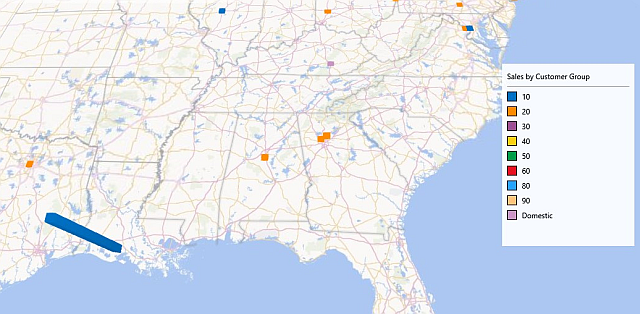
View Sales Data on Map in Excel 2013

Excel provides great BI features for end users and professionals. Loading, transforming and presenting data can easily be done with PowerView and PowerMap. This is an example to visualize Dynamics AX sales data.

Dynamics AX sales data in PowerMap

Prerequisites

Provide Data via ODataFeed

  1. Open Dynamics AX 2012 R2 development workspace
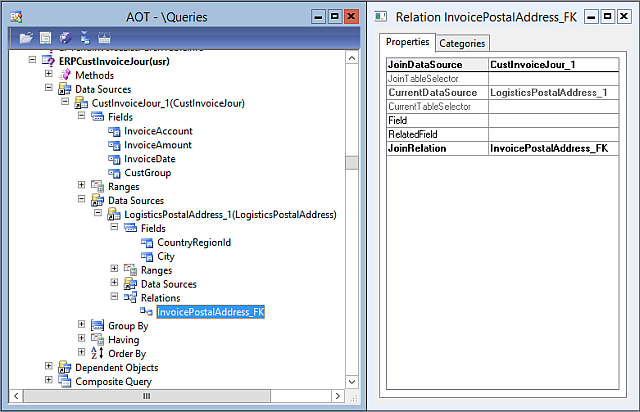
  2. Create a new Query called ERPCustInvoiceJour
  3. Add the CustInvoiceJour as datasource, set the Fields Dynamic property to false
  4. Add InvoiceAmount, InvoiceDate and CustGroup to the field list
  5. Add the LogisticsPostalAddress
  6. Add the CountryRegionId and City to the field list
  7. Set the Relations property to No
  8. Add a new relation manually, clear the Field and Related Field property but select InvoicePostalAddress_FK

image

In Dynamics AX Application workspace go to Organisation Administration > Setup > Document Management > Document Data Sources. Create a new record for module “Sales and Marketing”, type Query Reference for ERPCustInvoiceJour query. Enable the data source.

image

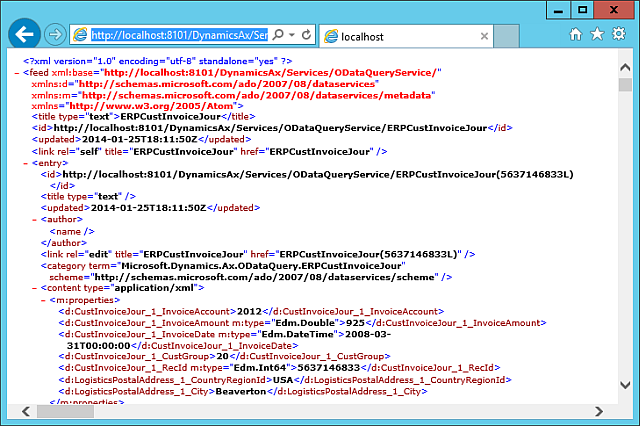
Open the ODataFeed in a browser, depending on the server name and AOS Port it should look like this http://localhost:8101/DynamicsAx/Services/ODataQueryService/ERPCustInvoiceJour

image

Enable PlugIns

  1. Open Excel and go to File > Options > Add Ins > COM Add-ins > Go…
  2. Enable PowerPivot, PowerView and PowerMap

image

          Create Map

        In Excel go to DATA > From other sources > Data Feed > provide the URL from Dynamics AX data feed. Load the data in Excel. go to INSERT > Map. Set the LogisticsPostalAddress_City as Geography field and click next.

      image

      Leave the Type as Column. Set the CustInvoiceJour_InvoiceAmount as Height for the Column. Set the CustInvoiceJour_CustGroup as Category and CustInvoiceJour_InvoiceDate as Time.

      image

      Run the map time line and watch where and when sales takes place. Watch the implementation in this short video

      Use .NET Assemblies in Dynamics AX 3.0 via COM

      Dynamics AX 3.0 Axapta.NET is great and since version 4.0 it can be used in Dynamics AX. However, some customers may still run an older version like 3.0 which makes it difficult to integrate AX with other applications. To use .NET assemblies in Dynamics AX 3.0 they have to be COM visible. There are good tutorials online like Mikes Odds and Ends. This article follows the steps presented by Mike to integrate a C# class library that creates HTML code in AX 3.0 SP6.

      Code in Visual Studio / C#

      1. Create a new project in Visual Studio
      2. Create a public interface called IHTMLHelper and add a method createHeader(int size,string text)

        namespace ERPCoder
        {
            public interface IHTMLHelper
            {
                string createHeader(int size, string text);
            }
        }

      3. Create a new class and name it HTMLHelper that implements IHTMLHelper
      4. Add a public empty constructor
      5. Add the namespace System.Runtime.InteropServices
      6. Mark the class as [ClassInterface(ClassInterfaceType.None)]
      7. Mark the class and createHeader() method as [ComVisible(true)]

        using System;
        using System.Collections.Generic;
        using System.Text;
        using System.Runtime.InteropServices;

        namespace ERPCoder
        {
            /// <summary>
            /// HTML Helper class
            /// </summary> 
         
            [ClassInterface(ClassInterfaceType.None)]
            [ComVisible(true)]

            public class HTMLHelper : IHTMLHelper
            {
                public HTMLHelper()
                {
                }

                /// <summary>
                /// Creates a HHTML header line
                /// </summary>
                /// <param name="size">Header size between 1 and 6</param>
                /// <param name="text">Header text</param>
                /// <returns>HTML header line</returns>
                [ComVisible(true)]
                public string createHeader(int size, string text)
                {
                    if (size < 1 || size > 6)
                        size = 6;

                    return String.Format("<H{0}>{1}</H{0}>", size, text);
                }
            }
        }


      Modify the Visual Studio Project properties

      1. In Visual Studio open the projects properties from the context menu on the project node in the solution explorer
      2. In the Application Tab open the Assembly Information Dialog enable the COM Visible Property
        Make assembly COM visible
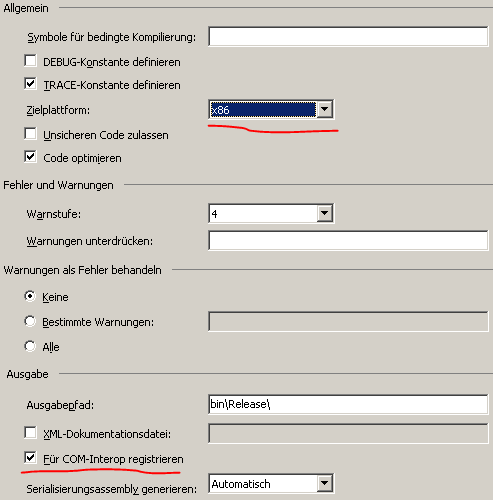
      3. In the Build Tab change the architecture to x86 and enable the Register for COM Interop property
        set x86 and register for COM
      4. In the Build Event add the regasm call as Post-Build event
        %SystemRoot%\Microsoft.NET\Framework\v2.0.50727\regasm $(TargetFileName) /tlb:$(TargetName).lib
      5. Build the project


      Include COM in Dynamics AX 3.0

      1. In Dynamics AX 3.0 open from the Menu > Tools > Development Tools > Wizards > COM Class Wrapper Wizard
      2. Click on Browse Button and navigate to the Visual Studio Build Directory
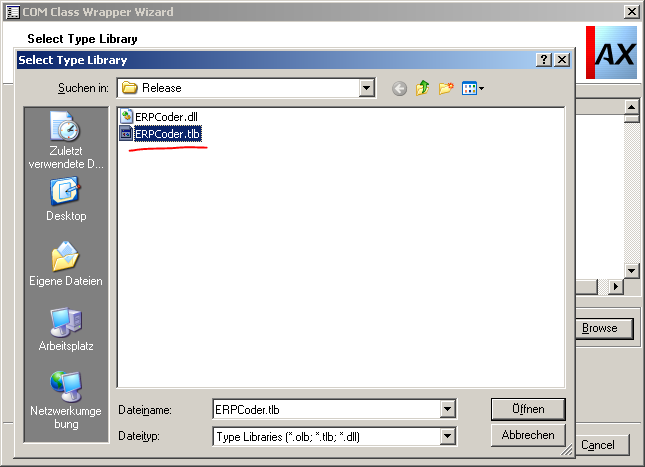
      3. Select the .tlb File and click Next
        Select .TLB in Axapta COM Wrapper Wizard 
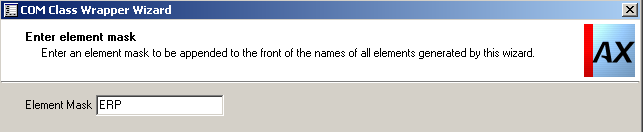
      4. Provide a Prefix e.g. ERP
        Provide Prefix in Axapta COM Wrapper Wizard
      5. AX creates two classes to wrap the Interface and implementation class
        Generated COM Wrapper classes in Axapta

      Test COM Object

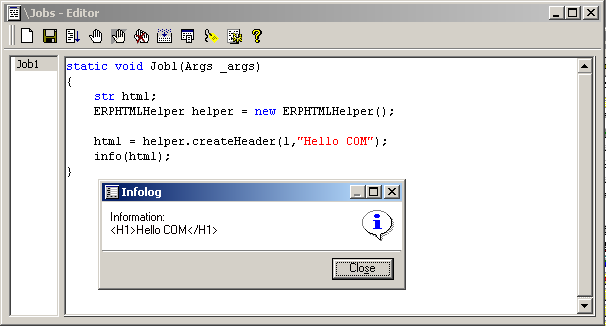
      Create a new job, that uses the wrapper class and call the createHeader() method
      Test COM Wrapper in X++

      BI Service Error: SSASFrameworkService not generated, Instance of ‘SysSecRole’ could not be created

      I recently faced another problem with SSRS reports. The BI Service (Administration > Setup > AIF > Incoming Ports) was down and could not be activated. Trying to re-activate the service resulted in an error telling me that the SSASFrameworkService could not be generated because an instance of service class “SysSecRole” could not be generated. AOS restart and Full IL Compilation didn’t solve the problem.

      However, the solution was to re-deploy the AIF Service Group: AOT > Service Groups > BI Service > Context Menu > Deploy Service Group. Afterwards the BI Service could be activated and reports were working again.

      AIF Error Microsoft.Dynamics.Ax.Xpp.InvalidRemoteCallException

      There are many reasons why an AIF Service call might fail, and I also ran into one. The task was to refactor existing code that processes some business logic and renames a file to .OLD. The original code looked like this

      public class ERPProcessFile
      {
          Filename fileName;

          public static void main(Args args) 
          { 
              ERPProcessFile pf = new ERPProcessFile(args);
              pf.run();
          }

          public void new(Args _args)
          {
              if(_args && _args.parm())
                  fileName = _args.parm();
              else
                  throw error(error::missingParameter(null));
          }

          private void run()
          {
              #File
              FileIOPermission permission;

              if(fileName != "")
              {
                  permission = new FileIOPermission(fileName,#io_write);
                  permission.assert();       
                  WinAPI::moveFile(fileName,strFmt(‘%1.old’,fileName));        
                  CodeAccessPermission::revertAssert();
              }
          }
      }

      The code above was tested using a Job

      static void Job1(Args _args)
      {
          Args args = new Args();
          args.parm(@"C:\Users\Public\Documents\textfile.txt");

          ERPProcessFile::main(args);
      }

      The code was wrapped in a service class and published as AIF HTTP web service

      class ERPProcessFileService
      {
          [SysEntryPointAttribute]
          public void processFile(Filename _localFile)
          {
              Args args = new Args();
              args.parm(_localFile);

              ERPProcessFile::main(args);
          }
      }

      The service was published to IIS, and imported in Visual C# as Ax2012 namespace

      var context = new Ax2012.CallContext();
      context.MessageId = Guid.NewGuid().ToString();

      var client = new Ax2012.ERPProcessFileServiceClient();
      client.ClientCredentials.Windows.ClientCredential =
      new System.Net.NetworkCredential("USER", "PW", "DOMAIN");
      client.processFile(context,@"C:\Users\Public\Documents\textfile.txt");

      The service call resulted in an exception

      {"Exception of type ‘Microsoft.Dynamics.Ax.Xpp.InvalidRemoteCallException’ was thrown."}

      The reason was the use of WinAPI class which does not work when executed on the AOS. However, the code works fine when tested using a Job, or called within a Form. The solution was easy; Checking if the code is executed on Server or Client and using WinAPI or WinAPIServer class.

      public class ERPProcessFile
      {
          Filename fileName;

          public static void main(Args args) 
          { 
              ERPProcessFile pf = new ERPProcessFile(args);
              if(xGlobal::clientKind() == ClientType::Client) 
                  pf.run();
              if(xGlobal::clientKind() == ClientType::Server)
                  pf.runServer();
          }

          public void new(Args _args)
          {
              if(_args && _args.parm())
                  fileName = _args.parm();
              else
                  throw error(error::missingParameter(null));
          }

          private void run()
          {
              #File
              FileIOPermission permission;

              if(fileName != "")
              {
                  permission = new FileIOPermission(fileName,#io_write);
                  permission.assert();       
                  WinAPI::moveFile(fileName,strFmt(‘%1.old’,fileName));        
                  CodeAccessPermission::revertAssert();
              }
          }

          private void runServer()
          {
              #File
              FileIOPermission permission;

              if(fileName != "")
              {
                  permission = new FileIOPermission(fileName,#io_write);
                  permission.assert();       
                  WinAPIServer::copyFile(fileName,strFmt(‘%1.old’,
                                                         fileName));         
                  WinAPIServer::deleteFile(fileName)
                  CodeAccessPermission::revertAssert();
              }
          }

      }