Create a Power BI Dashboard for Dynamics AX 2012 Sales

This is an update to the previous published articles on Data Visualization, OData Feeds, Power Map, Power Pivot in Office 2013 and Power Pivot in Office 2010. It shows how to use Power BI for Desktop to create a Sales Dashboard for Dynamics AX 2012 (R2).

Power BI Dashboard

Get Data

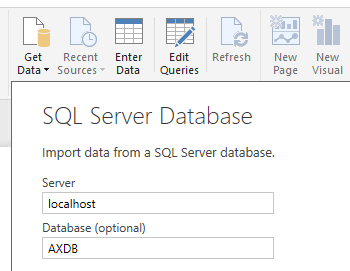
Start Power BI for Desktop and start with an empty report. From the ribbon on top click “Get Data”, choose SQ Server and provide your server and database. In this example I’m using a single server installation. However, in a production environment you might need to provide <SERVERNAME> \ <INSTANCENAME> , <PORT> e.g. SRVSQL\PROD,2303.

Get data into Power BI

In the next step you have to provide credentials. In my case I’m allowed to access the server with my domain account. In a production environment it is recommended to create a separate Login which is only used for BI Purpose. Don’t get confused if you get a warning that your SQL does not support encryption. If the connection was established successfully, the data wizard presents you a list of tables. Select the following tables:

  • CustInvoiceJour
  • CustInvoiceTrans
  • CustTable
  • InventTable
  • LogisticsPostalAddress

Select tables for Power BI

Click Load, and choose “Import” to load the data in Power BI for Desktop.

Transform Data

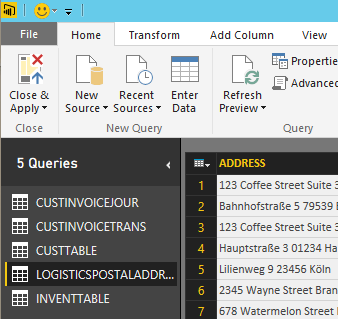
In Power BI for Desktop, at the Ribbon click “Edit Queries”. This will open the query editor. We don’t need all columns for this Demo. For each table click the “Choose Columns” button and the select only the following columns:

Choose columns for Power BI

CustInvoiceJour CustInvoiceTrans CustTable
  • InvoiceAccount
  • InvoiceDate
  • InvoiceId
  • NumberSequenceGroup
  • SalesId
  • InvoicePostalAddress
  • DataAreaId
  • InvoiceId
  • InvoiceDate
  • NumberSequenceGroup
  • ItemId
  • LineAmountMST
  • SumLineDiscMST
  • DataAreaId
  • AccountNum
  • CustGroup
  • DataAreaId
InventTable LogisticsPostalAddress
  • ItemId
  • ItemType
  • DataAreaId
  • Address
  • CountryRegionId
  • ZipCode
  • City
  • RecId

Click “Close & Apply” to finish this task.

Choose columns for Power BI


Create Relations

In Power BI for Desktop switch to the Data View (with the table symbol on the left pane). It is required to create primary keys and foreign keys before linking the tables. From the list of tables (on the right) select the CustTable and at the Ribbon click “New Column”. Type the following definition:

PK_Cust = CUSTTABLE[ACCOUNTNUM] & “-” & CUSTTABLE[DATAAREAID]

Create Foreign Keys in Power BI

This will create a new column with a customer account which is unique for all company accounts. Repeat this step for the following tables and columns:

InventTable:

PK_Item = INVENTTABLE[ITEMID] & “-” & INVENTTABLE[DATAAREAID]

CustTable:

PK_Cust = CUSTTABLE[ACCOUNTNUM] & “-” & CUSTTABLE[DATAAREAID]

CustInvoiceJour:

FK_Cust = CUSTINVOICEJOUR[INVOICEACCOUNT] & “-” & CUSTINVOICEJOUR[DATAAREAID]

PK_Invoice = CUSTINVOICEJOUR[INVOICEID] & “-” & CUSTINVOICEJOUR[SALESID] & “-” & CUSTINVOICEJOUR[NUMBERSEQUENCEGROUP] & “-” & CUSTINVOICEJOUR[DATAAREAID]

CustInvoiceTrans:

FK_Item = CUSTINVOICETRANS[ITEMID] & “-” & CUSTINVOICETRANS[DATAAREAID]

FK_Invoice = CUSTINVOICETRANS[INVOICEID] & “-” & CUSTINVOICETRANS[SALESID] & “-” & CUSTINVOICETRANS[NUMBERSEQUENCEGROUP] & “-” & CUSTINVOICETRANS[DATAAREAID]

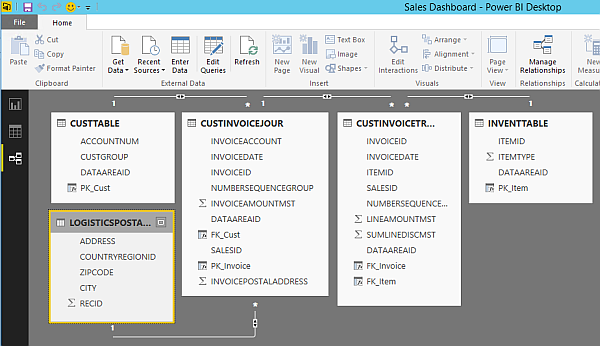
Save, and open the relations by clicking on the relations item in the navigation pane on the left. You can drag&drop columns from one table to another table to create relations. Link the following columns:

  • CustInvoiceTrans,FK_Item > InventTable.PK_Item
  • CustInvoiceTrans.FK_Invoice > CustInvoiceJour.PK_Invoice
  • CustInvoiceJour.FK_Cust > CustTable.PK_Cust
  • CustInvoiceJour.InvoicePostalAddress > LogisticsPostalAddress.RecId

Your data model should look like this:

Create relations in Power BI data model

Name the ItemType

In the data view, select the InventTable. From the ribbon create a new column and name it “TypeName”. Add the following code to translate the Enum based ItemType Integer Value to a meaningful name.

TypeName = IF(INVENTTABLE[ITEMTYPE] = 0; “Item”; IF(INVENTTABLE[ITEMTYPE] = 2; “Service”; “Not an Item”))

The InventTable should look like this:

Name item type column

Create a Discount measure

Next we will create a measure which calculates the given discounts as the percentage of the total price. Open the data view using the second button on the left navigation pane. Select the CustInvoiceTrans. From the ribbon, click “New Measure” button in the “Modelling” tab. Provide the following code:

M_DiscPerc = sum(CUSTINVOICETRANS[SUMLINEDISCMST]) * 100 / ( sum(CUSTINVOICETRANS[LINEAMOUNTMST]) + sum(CUSTINVOICETRANS[SUMLINEDISCMST]))

For example:

Qty = 1 € , Unit Price = 1000 €     –> Price = 1000 €
Discount = 100 €                    –> Price = 900
Discount Percentage 3 %             –> Price = 873 €

CustInvoiceTrans.LineAmountMST = 873
CustInvoiceTrans.Discount = 100
CustInvoiceTrans.LinePercent = 3.0
CustInvoiceTrans.SumLineDiscMST = 127

M_DiscPerc = 127 * 100 / (873 + 127) = 12,7

Visualize

Switch to the empty report view using the first button on the left navigation pane. From the Visualization toolbox click the “Card”. This will place an empty card on the report. Drag&Drop the LineAmountMst from the CustInvoiceTrans on the empty card. It should look like this:

Power BI card chart

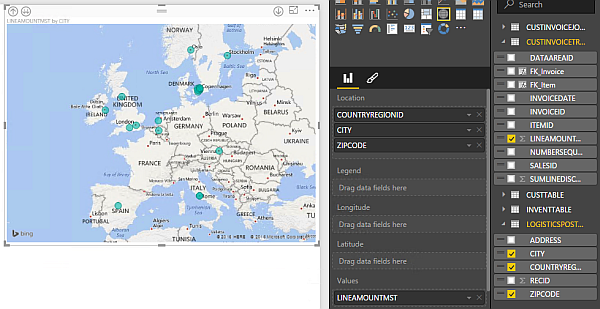
Next, place a map from the toolbox on the report. Drag&Drop the fields CountryRegionId, City and ZipCode from the LogisticsPostalAddress table on the Location. Drag&Drop the LineAmountMST from the CustInvoiceTrans on the Values Field. The map should look like this:

Power BI map chart

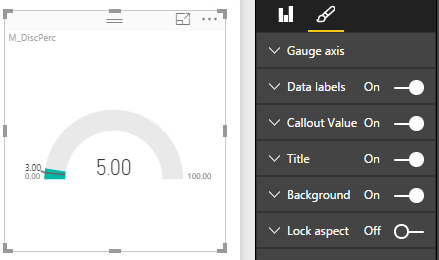
Add a new Gauge to the report and use the Measure M_DiscPerc as value. You cannot set a hardcoded Min. and Max. value in the data properties. Switch to the Format view using the pencil icon.  In the group Gauge Axis, set the Min. Value 0, the target value to 3 and Max. Value 100. Depending on your data, the gauge may look like this:

Power BI gauge control

Next a donut chart to visualize the revenue per item type. Drag&drop the LineAmountMST from the CustInvoiceJour on the value property of the donut chart and drag the TypeName from the InventTable.

Power BI donut chart

Place a column chart on the report to visualize the revenue per customer group. Place the LineAmountMST in the Value field. Use the CustGroup from the CustTable as Axis. Change the sort order to LineAmountMST by using the […] Dropdown Menu in the upper right corner of the chart.

Power BI column chart

Finally, add a line chart on the report to visualize the revenue per year. Place the LineAmountMST from the CustInvoiceTrans on the charts value field and put the InvoiceDate from the CustInvoiceTrans on the Axis field.

Power BI line chart

Fine-tuning

Give each chart a meaningful name. Change the size for the text to fit your report style. Switch to the data view. Change the column names into something more meaningful for an end user e.g. LineAmountMST to Amount. Change the columns formats e.g. Currency for LineAmountMST, date format for the InvoiceDate.

Using Azure Automation to copy Live Transaction DB to Test

Updating the Test system with actual transactional data from the Live system is a common task. This can be accomplished using scripts. However, in a hybrid IT environment you might want to organize, manage and monitor all your on-premises and cloud based scripts at a central place. Azure Automation is the platform to do this.

Prerequisites

  • Dynamics AX Live and Test installation on Windows Server 2012 R2
  • Azure Account (all services can be used for free in basic mode)


          Azure Automation

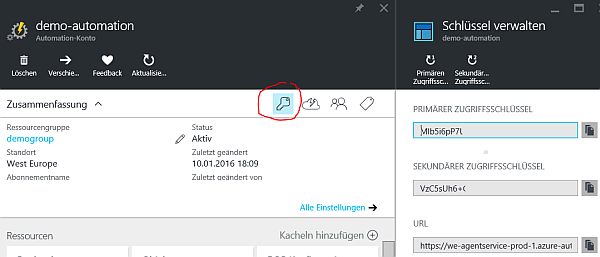
        In Azure Portal create a new instance of Azure Automation. When the instance was created, use the key to display the keys and URL. You’ll need this to connect your on-premises server with Azure Automation.

      Azure Automation

        Operational Insights

        Azure Automation can be instantly used to script your cloud-based datacenter. However, to manage the on-premises environment you have to connect your local systems with the cloud. This is done via Operational Insights.

        1. In Azure Portal create a new instance of Operational Insights
        2. Logon to Operational Insights Portal and start the “Get Started” checklist
        3. Add the Automation Solutions
        4. Connect the Dynamics AX server by downloading and installing the Agent for Windows

        Operational Insights

        At your on-premises server open PowerShell in admin mode and go to the agents installation directory e.g.

        cd "C:\Program Files\Microsoft Monitoring Agent\Agent\AzureAutomation\<version>\HybridRegistration"

        Import the Hybrid Registration module and register the server in Azure Automation.

        Import-Module HybridRegistration.psd1
        Add-HybridRunbookWorker –Name <String> -EndPoint <Url> -Token <String>

        Add-HybridRunbookWorker

        In this example I’ve used the Name parameter value “Dynamics” at the Add-HybridRunbookWorker Cmdlet. This creates a runbook worker group called “Dynamics” with one assigned on-premises server.

        On-Premises configuration

        Create a folder where to backup the Dynamics AX database. In this example I’m using a directory on the local system drive C:\AxTemp (which of course is not best practice). By default the Ops. Insights Agent runs as Local System. Make sure to give the account “NT Authority\System” appropriate rights in your SQL Server installation to access the Live DB and Test DB.

        SQL Server Security

        Runbook

        In Azure Portal, go to Azure Automation > Runbooks > Create a new runbook > Choose runbook type “Powershell”. Add the following code to your runbook.

        echo "Stopping Services"
        Stop-Service -Name AOS60`$01
        Stop-Service -Name AOS60`$02

        echo "Creating Backup from Live"
        Invoke-Sqlcmd -Query "backup database [Live] to  Disk = N’C:\AxTemp\Live.bak’ with copy_only" -QueryTimeout 0   


        echo "Restoring Backup to Test"
        Invoke-SqlCmd -Query "restore database [Test] from  DISK = N’C:\AxTemp\Live.bak’ with file = 1,  move N’R3Demo1‘ TO N’C:\Data\Test.mdf’,  MOVE N’R3Demo1_log‘ TO N’C:\Data\Test_log.ldf’" -QueryTimeout 0   
           
        echo "Cleanup Backup"
        Remove-Item -Path "C:\AxTemp\Live.bak"   
           
        echo "Starting Services"
        Start-Service -Name AOS60`$01
        Start-Service -Name AOS60`$02

        This will stop both AOS instances. Make sure the AOS service name fits your environment. The service name can be found in the services mmc. For example my Live AOS is named AOS60$01. Make sure to use the ` to escape the $ sign in the AOS name.

        Dynamics AOS name for scripting

        The script will then create a backup from database “Live” to C:\AxTemp\Live.bak. If your live DB has another name, change it to fit your name.

        Next the script will restore the backup to database “Test”. In my case the logical name of the database file is called “R3Demo1” and it’s log is called “R3Demo1_log”. Make sure this fits your installation. You can find the names in SQL Server management studio, by checking the database file properties.

        SQL Server database logical name

        Finally the script removes the backup file and restarts both AOS

        Runbook Execution

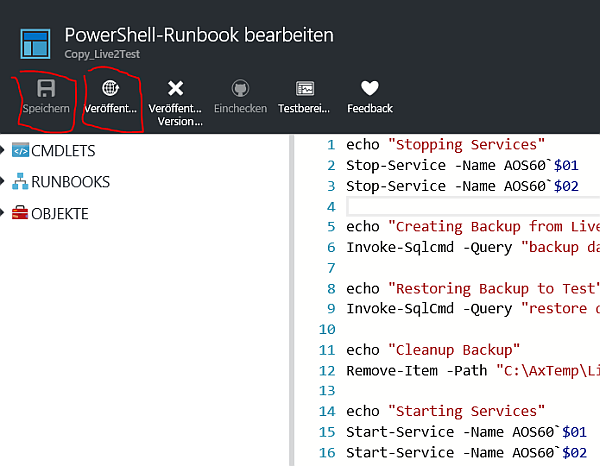
        In Azure Automation Runbook editor, save the actual runbook code and click publish.

        Runbook execution

        At the Azure Automation main page go to runbooks, select your newly created runbook and press the start button. On the next page select execution using a Hybrid Worker and select your worker group. In my example it’s called Dynamics (see PowerShell screenshot)

        Runbook execution

        This will submit your runbook to the on-premises server and execute it. You can check the execution by monitoring the C:\AxTemp directory where the backup will be placed. Don’t worry about the warnings when the workbook finishes. Starting the AOS’ takes a while and results in the typical message “service is not responding”.

        Runbook result


        More

        • Azure Automation supports timing of runbooks, so you can create a batch in the cloud to copy your data on-premises
        • This example uses a single server installation. However, the script can easily be modified to run on different servers
        • Using the Invoke-SqlCmd Cmdlet you can do all the cleanup work like changing the reporting server instance etc.

        Lookup Financial Dimension in AX 2012

        Financial Dimensions have changed in AX 2012. In contrast to earlier versions of Dynamics AX, financial dimensions now are somehow similar to inventory dimensions where a certain combination of dimension values are stored as dimension set. I faced a requirement that an external application (SharePoint based DMS) sends a certain combination of financial dimensions and AX has to assign this combination to a certain record. Here is a (simplified) code how to check the existence of such a dimension.

        // Example:
        // Business Unit 005 Electronics
        // Department 025 IT
        // ItemGroup Services

        //Step 1: Find Dimension Attributes

        DimensionAttribute  attributeBU = DimensionAttribute::findByLocalizedName("BusinessUnit");
        DimensionAttribute  attributeDP = DimensionAttribute::findByLocalizedName("Department");
        DimensionAttribute  attributeIG = DimensionAttribute::findByLocalizedName("ItemGroup");

        //Step 2: Find Dimension Attributes Values

        DimensionAttributeValue valueBU = DimensionAttributeValue::findByDimensionAttributeAndValue(attributeBU,"005");
        DimensionAttributeValue valueDP = DimensionAttributeValue::findByDimensionAttributeAndValue(attributeDP,"025");
        DimensionAttributeValue valueIG = DimensionAttributeValue::findByDimensionAttributeAndValue(attributeIG,"Services");

        //Step 3: Create an Array of Hash Keys from the Attribute Values 

        DimensionSHA1Hash hashKey;
        DimensionAttributeValueSet valueSet;

        HashKey dimAttrHashKeyArray[];
        dimAttrHashKeyArray[1] = valueBU.HashKey;
        dimAttrHashKeyArray[2] = valueDP.HashKey;
        dimAttrHashKeyArray[2] = valueIG.HashKey;

        hashKey = DimensionAttributeValueSetStorage::getHashFromArray(dimAttrHashKeyArray,3);

        //Step 4: Lookup Hash Key

        valueSet = DimensionAttributeValueSet::findByHash(hashKey);

        if(valueSet.RecId != 0)
        {
            info("Dimension found!");
        }

        Publish Dynamics Ax documents to SharePoint

        A typical requirement is to publish documents like Invoice, Purchase Order, etc. to an DMS system like SharePoint. However, in Dynamics AX 2012 and lower there is no built-in functionality to publish these documents to SharePoint. But this requirement can easily be achieved without coding.

        Prerequisite

        1. Install (at least) SharePoint 2013 Foundation incl. SP1. Foundation 2013 SP1 includes all the filters required to process PDF files and a basic search center. By default the configuration wizard creates a new team website collection.
        2. Make sure the WebClient window service is installed and running. If not, you may have to install the User Interface and Desktop Experience Feature on your server.
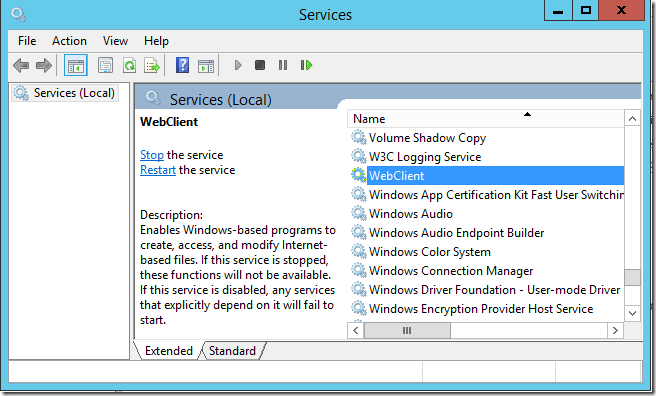
          WebClient Windows Service

        Document Library and Content Type

        In SharePoint  open the Settings image and open the Site Settings. From the User and Permissions group, open “People and Groups”. Select the Group “Owners”, Click “New” and add the Dynamics AX AOS Service account.
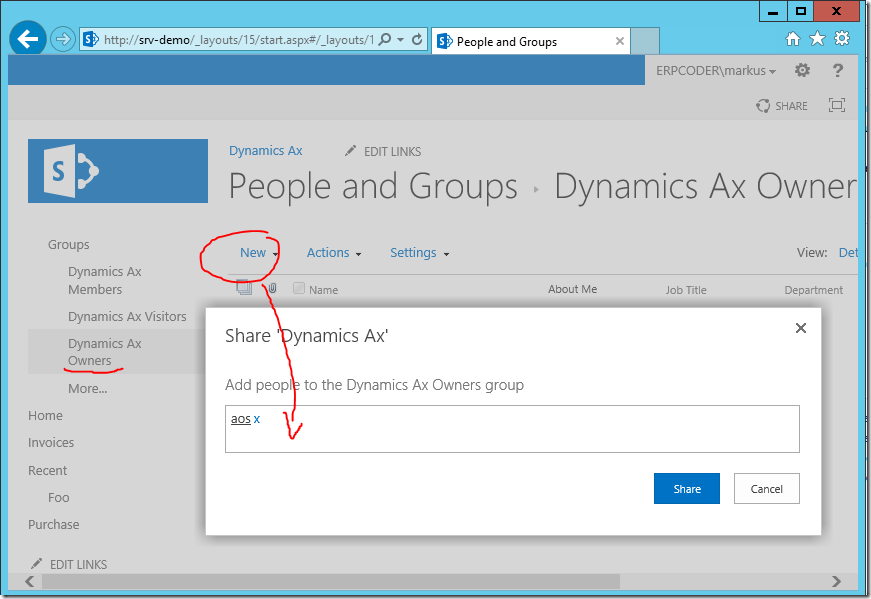
        Provide AOS user access to SharePoint document library

        In SharePoint create a new Document Library. On the team website open Settings image (right, on top) > Add an app > Name the document library “Invoice”.

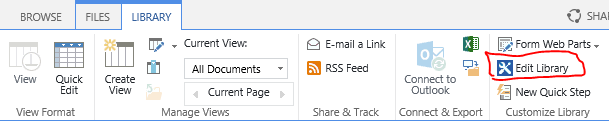
        Go to the newly created document library. Open the Library ribbon, and edit library with SharePoint Designer. SharePoint Designer is not installed by default, and you may have to download and install it first.

        Open with SharePoint Designer

        After SharePoint Designer was installed, click again on “Edit Library” with SharePoint Designer. Within SharePoint designer, select Content Types and create a new Content Type. Call it “Invoice” and make sure to select the parent content type form “Document Content Types” and parent content type “Document”. Save your modifications.
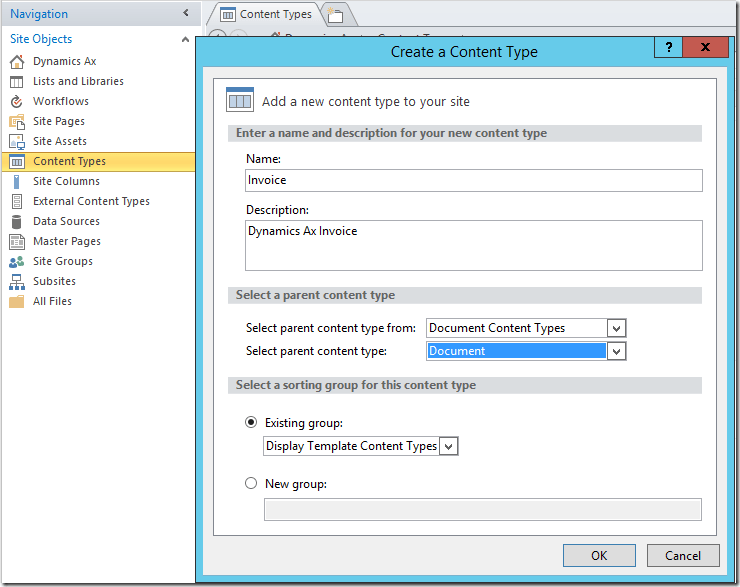
        New content type for Invoice

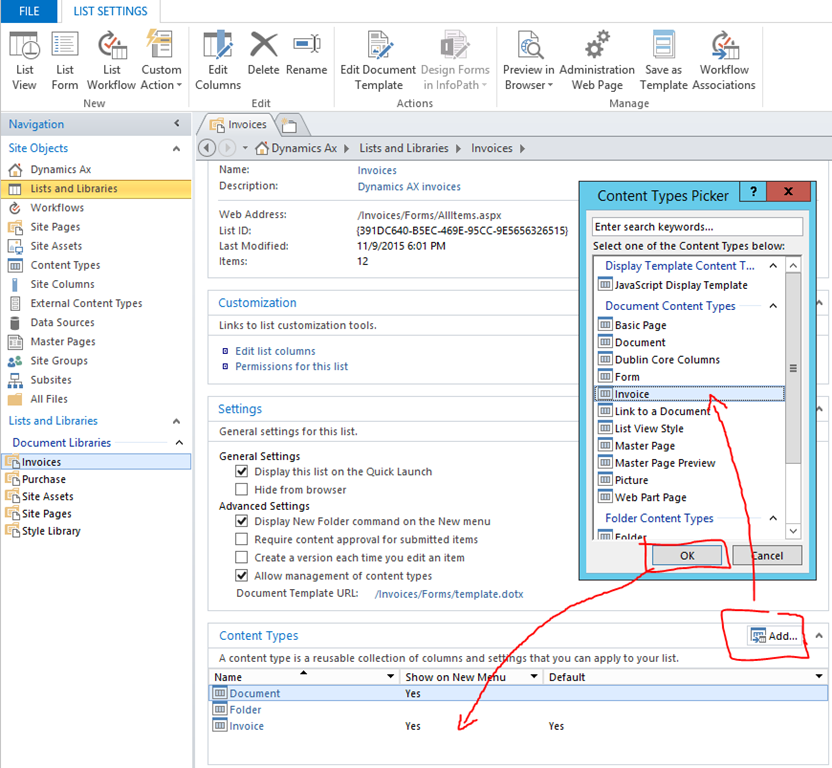
        In the navigation, select Lists and Libraries and open the Invoices library. Make sure the option “Allow management of content types” is enabled. At the “Content Types” group at the bottom, open “Add” and select your newly created Invoice content type. This will add the content type to the document library.
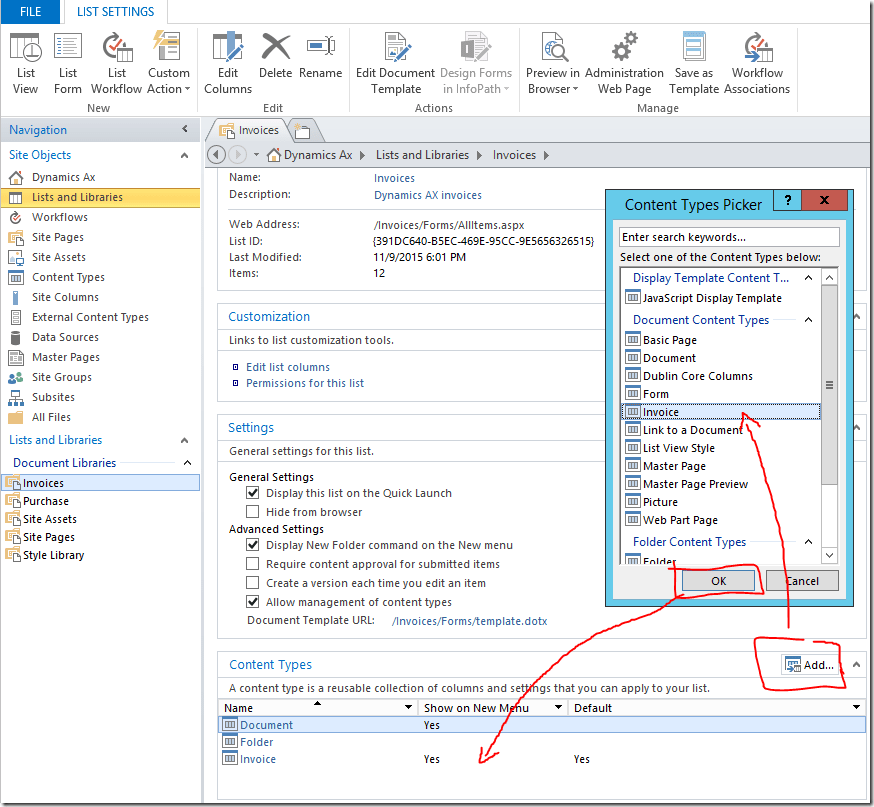
        Add Invoice content type to library's managed content types

        Select the Invoice content type at the content types group. At the ribbon select “Set as default”. Now every new document uploaded to the library will be an Invoice type. Save your modifications and go back go SharePoint.

        Set invoice as default content type

        At the Invoices document library in SharePoint, open the Library Ribbon and choose “Open in Explorer”. This will open a new instance of windows explorer, showing the content of the document library.
        Open Library with Windows Explorer

        Click in the address bar and copy the address.

        image


        Post and Publish Sales Invoice

        Open Dynamics AX 2012 and go to “Accounts Receivable” > Periodic > Sales Update > Invoice. Change the Quantity to Packing Slip. Make sure the options “Posting”, “Late Selection” and “Post Invoice” are enabled.

        Post Sales Invoice

        Open “Select” and make sure the selection is configured to identify all Delivered sales orders. Click OK and save the selection.

        Select only delivered sales orders

        Open Printer Setup > Invoice. Select File as Target and choose File Format PDF. Open the File Name Dialog and provide the Document Library Address as Target. Repeat this step for the Invoice (Copy).

        Print to SharePoint

        Back at the Posting Invoice Dialog, open Batch processing (at the bottom). Enable batch processing and modify the recurrence to “No End” and repeat all 5 minutes.

        Batch processing


        Test

        In Dynamics AX create one or more new sales order and post the packing slip. Wait until the Post Invoice batch job runs. The sales orders should be invoiced. Go to SharePoint and open the Invoices document library. There you should see the uploaded PDFs.
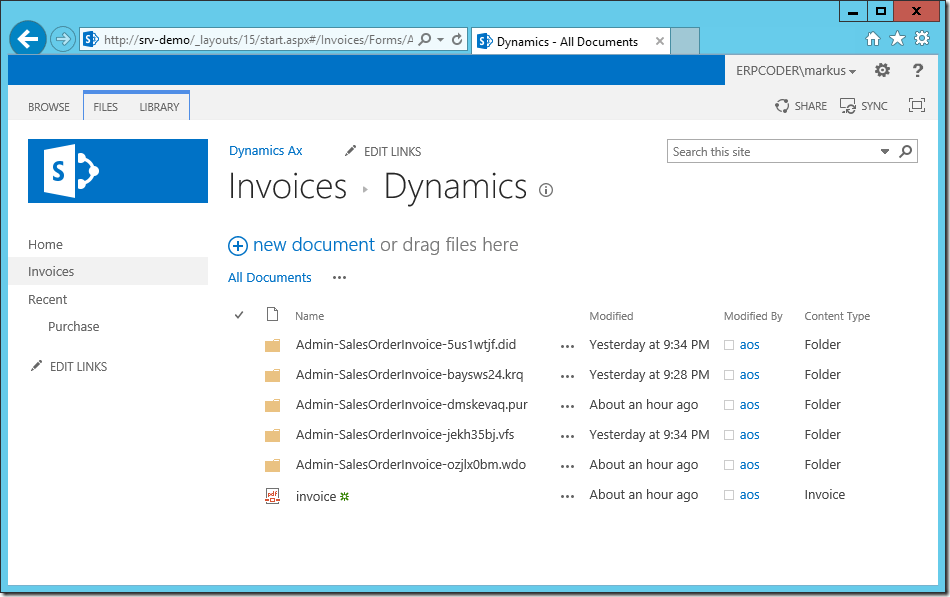
        Dynamics Ax Invoice Document Library

        Open the SharePoint Central Administration and go to Application > Manage service application > Search Service Application.

        SharPoint Search Service

        Select Content Sources and start the crawl manually. This will force SharePoint to index the PDF files in the Invoices document library. By default the crawler indices the documents on SharePoint periodically without manual interaction.

        Manually start crawl

        Open SharePoint Team Website. In the Search Box, type the Name of Customer. SharePoint will present a list of found documents related to the customer.
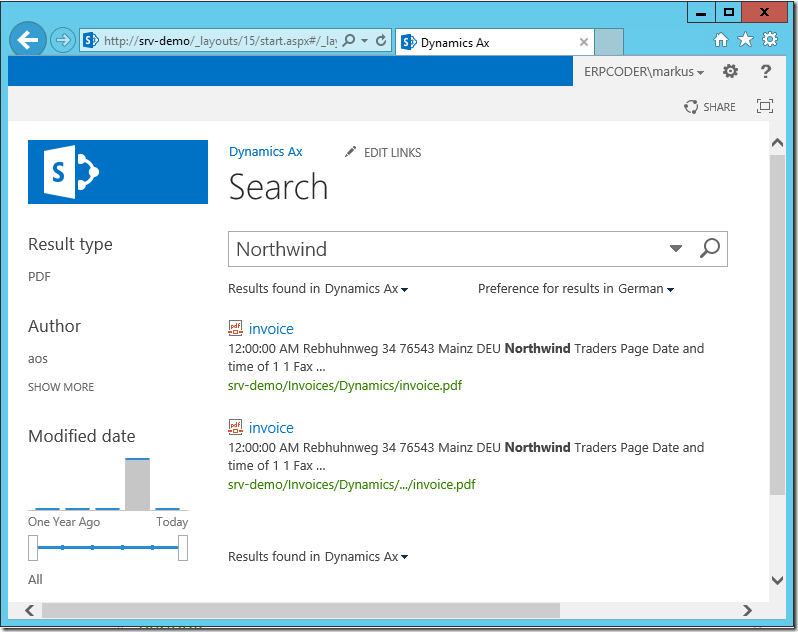
        Find Dynamics AX documents on SharePoint


        (Optional) Confirm and Publish Purchase Orders to SharePoint

        Create a new document library with an purchase order content type as default:

        Go to SharePoint, open the settings image menu and choose to add an app. Select document library and name it Purchases. Navigate to the new document library, and from the Library Ribbon, select “Open with SharePoint Designer”. In SharePoint designer create a new content type, based on a document content type, and name it Purchase. In SharePoint Designer navigate to the libraries, select the newly created Purchases library and make sure the option “Allow Management of Content Types” is enabled. Below, at the content types group add the Purchase content type you’ve created. Finally select the content type, and from the ribbon in SharePoint designer select “Set as Default”.

        In Dynamics AX go to the Procurement and Sourcing module > Settings > Procurement and Sourcing Parameters > and activate Change Management. This option is required to run the purchase order approval workflow.
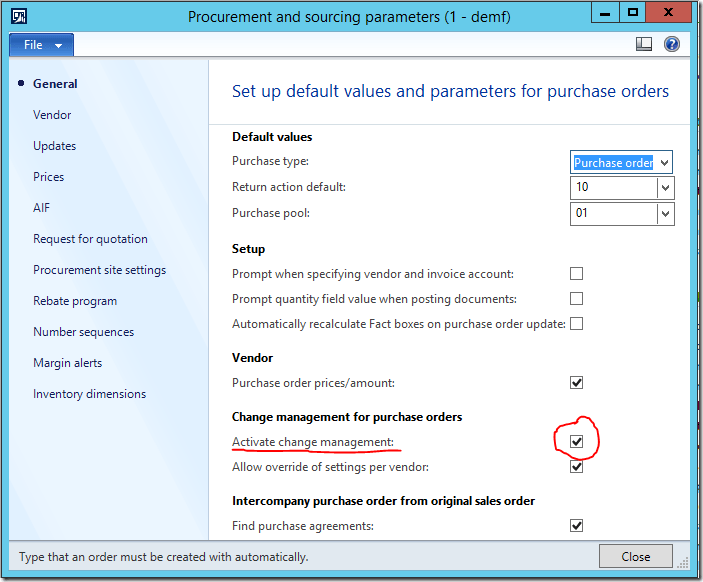
        Activate change management

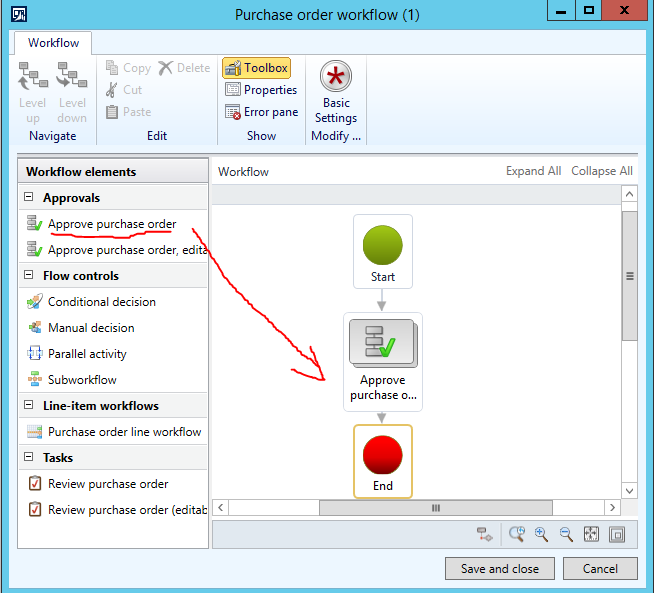
        Next go to Procurement and Sourcing > Settings > Procurement and Sourcing Workflows. Create a new workflow based on the Purchase Order Workflow template. In the Workflow Configuration, add the Approve Purchase Order task to the workflow, between start and end.

        Configure Purchase Order Workflow

        Provide meaningful texts for the Workflow Submission instruction. Double click on the Approve Purchase Order taks to open the details. There assign Step 1 to a user or a user group. For testing purpose, you may assign the approval to yourself. Save and activate the workflow configuration.

        Configure Purchase Order Workflow

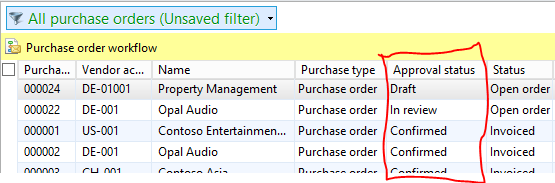
        Create a new purchase order. The purchase order starts in the approval state Draft. Submit it to the workflow for approval. This will change the state to “In Review”. Go back to the Purchase Order List Page and refresh the data. It may take a few minutes, depending on your workflow batch jobs configuration, until the purchase order is assigned to you for approval. When the purchase order is assigned for approval, approve the purchase and wait a few minutes until the purchase order has reached the state approved.

        Purchase Order Approval State

        Go to Procurement and Sourcing > Periodic > Purchase orders > Confirmation. Make Sure the Options Posting, Late Selection and Print purchase orders are active. From the Select button on the right, make sure only Approved and Open purchase orders will be selected.

        Confirm Purchase Order

        Open the Printer Setup > Purchase Order > Choose print to file as PDF and provide the path to the Purchases document library on your SharePoint. Repeat this for Printer Setup > Purchase Order (copy).
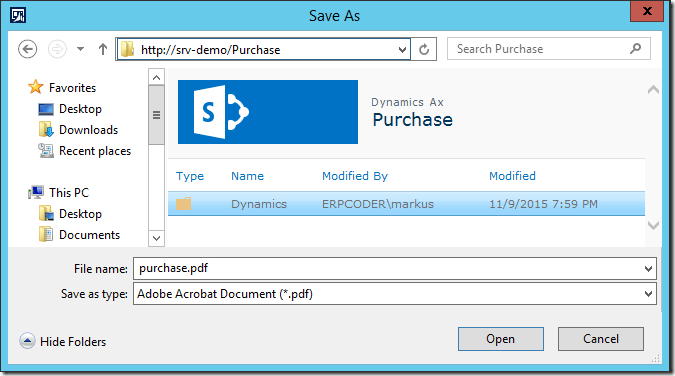
        Print to SharePoint

        Finally, open the Batch dialog  using the button on the lower right. Make sure to activate batch processing and set the recurrence to no end and recurring pattern to 10 minutes.

        Batch processing

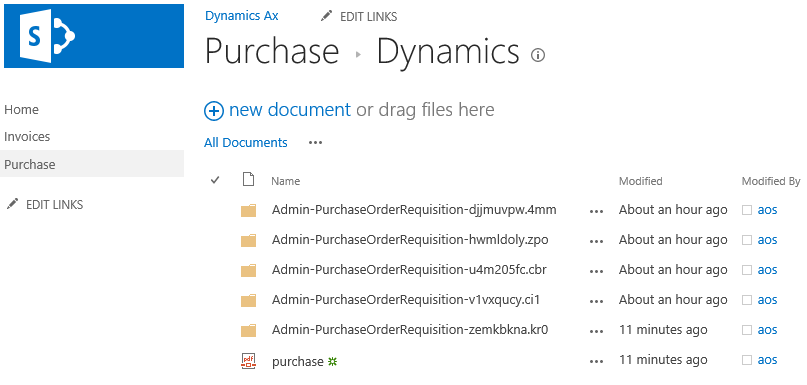
        After a few minutes the purchase order state has change from Approved to Confirmed, and you should see the generated PDFs on SharePoint. These documents will be included within the next search crawl and can be found using the search box at your SharePoint website.

        Purchase order confirmation

        (Optional) Enhance Search Experience

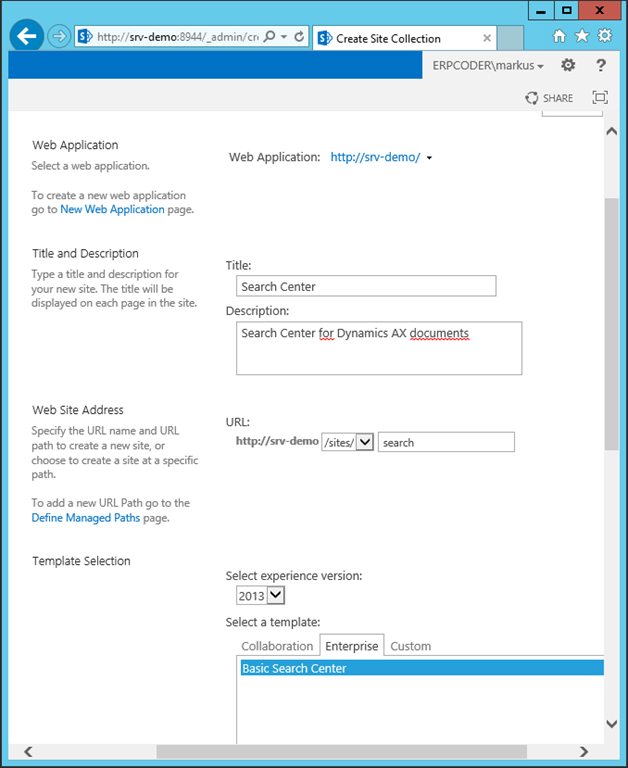
        Open SharePoint Central Administration and click the group Application Management. Go to “Create Site Collection” . Make sure your are using the same Web Application as the Team Website. Call the new site collection “Search” and provide an URL including like http://YOUR_SERVER/site/search. Make sure to select the “Basic Search Center” template from the Enterprise template group. Click OK, this will create a new basic search center.
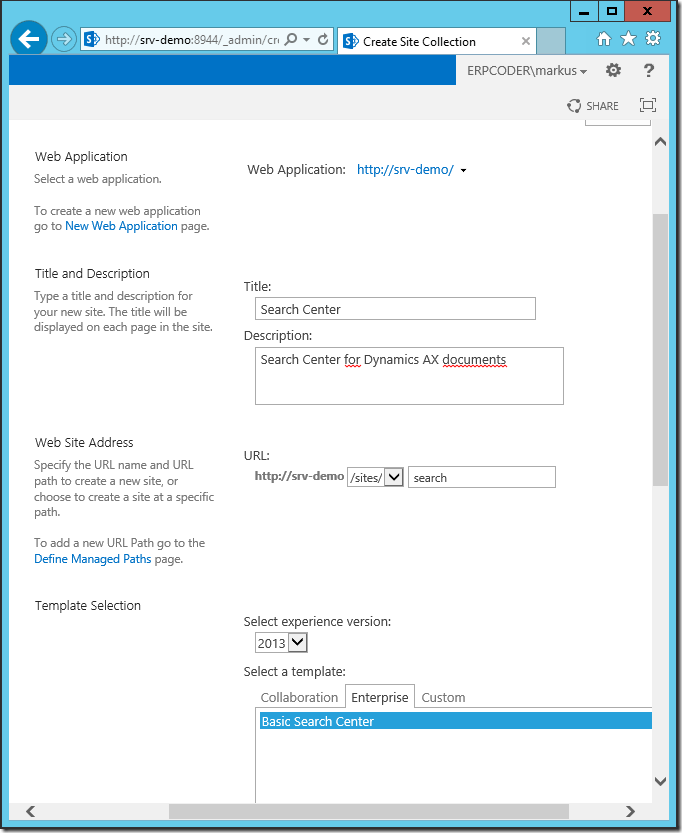
        Create Basic Search Center

        Open the URL you have provided in a web browser. You should see an almost empty web page with a search box.

        SharePoint Basic Search Center

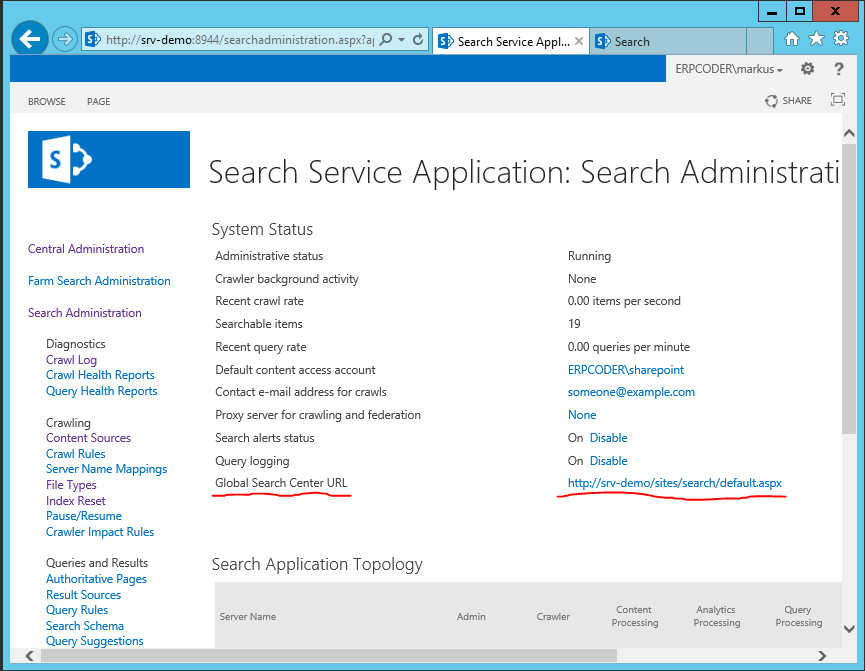
        In SharePoint Central Administration go to “Application Management” > “Manage Service Applications” > “Search Service Application”. Provide the Search Center URL at the property “Global Search Center URL”. This will instruct SharePoint to redirect all search to the Search Center.

        Global Search Center URL

        Open the Search Center URL in a browser and start a search e.g. for a Customer. This will open the result page. On the top right open the settings  image and click on “Edit page”. This will switch the page to edit mode. On the left side, click the drop down of the refiner web part and click “Edit Web Part”. This will open the Edit Dialog on the right.

        Customize Search Center Refiner

        Click on “Choose Refiners” and make sure SPContentType, File Type and Last Modified Time are selected. Remove all the other refiners from the select. Click OK in the dialog, Apply in the Web Part Configuration Dialog on the right and Stop Edition in the ribbon on the top left.
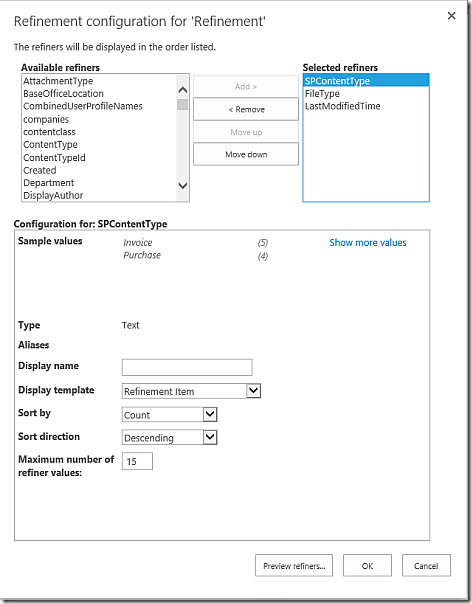
        SharePoint Search Refiner

        When you use the search center the next time, the result page will allow you to refine by Content Type like Invoice, Purchase Order, etc., File Type like PDF, Word, etc., and Date.

        Dynamics AX Document Search

        Ax 2012 Workflow Exception: Token StartElement in state Epilog would result in an invalid XML document.

        At work we developed a quite simple Sales Order Approval workflow for a customer running Dynamics Ax 2012 R2. The workflow artifacts compiled without error and the workflow was configured. However, every time a sales order was submitted to the workflow we were facing an error:

        Ax 2012 Workflow Error

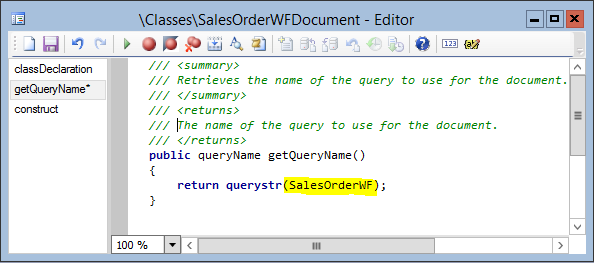
        A detailed look at the artifacts in the AOT reviled the problem. The Workflow Document class referred to a Query.

        Workflow Document Class

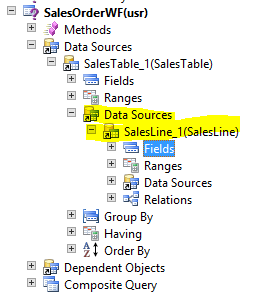
        The query had a SalesTable Datasource, but the SalesLine was not added as Sub Datasource within the SalesTable. Therefor the system could not generate a valid XML document.

        Query with 2 data sources

        We moved the SalesLine Datasource to the Sub Datasources of the SalesTable. Finally we compiled the project in X++ and IL and restarted the AOS.

        Corrected workflow query

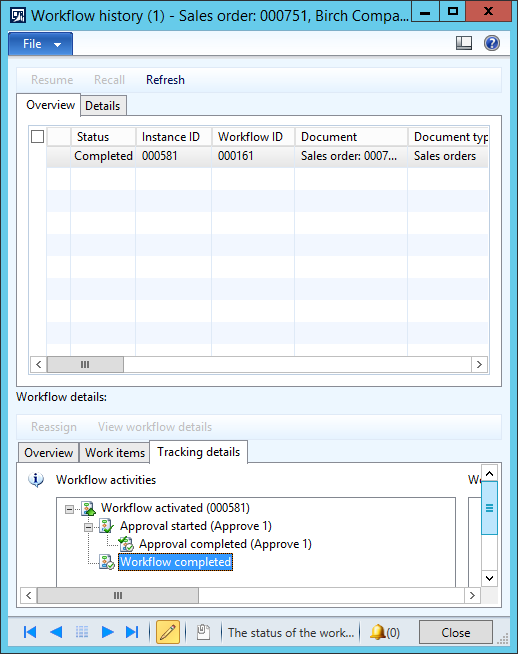
        Finally the workflow completed successfully

        Dynamics Ax 2012 Workflow completed

        How to create a Word App for Address Lookup in Dynamics Ax

        Office Apps provide additional functionality within an Office document like Excel and Word. This is an example how to create an App for Word 2013 which can be used to lookup an Address of a customer in Dynamics Ax.

        Dynamics Ax Word App


        Architecture

        Word App Architecture

        1. Dynamics Ax will provide a web service which takes the (partial) name of a customer as input parameter, and returns a list of matching customers and their addresses.
        2. However, apps prefer a more lightweight form of communication.Therefore another web service will provide a simple JSON interface.
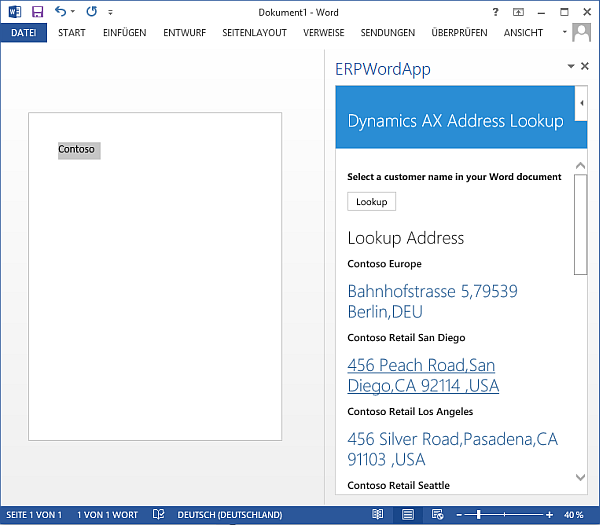
        3. Finally the Word App will be used to select a partial text within the document eg.”Contoso”, send it to AX and present the result of matching Customer / Addresses.

        Dynamics Ax Service

        Create a new data contract class and call it ERPCustomer. These will be the result objects for a customer lookup.

        [DataContractAttribute]
        class ERPCustomer
        {
            CustName    custName;
            LogisticsAddressing address;
        }

        [DataMemberAttribute]
        public LogisticsAddressing parmAddress(LogisticsAddressing _address = 
                                                                      address)
        {
            address = _address;

            return address;
        }

        [DataMemberAttribute]
        public CustName parmCustName(CustName _custName = custName)
        {
            custName = _custName;

            return custName;
        }

        Create a second class for the lookup logic and call it ERPAppHelper and add this static method:

        public static List lookup(Name _name)
        {
            CustTable custTable;
            DirPartyTable dirParty;
            List customers = new List(Types::Class);
            ERPCustomer customer;

            _name = strFmt("*%1*",_name);

            while select dirParty
                exists join custTable
                where dirParty.Name like _name && dirParty.RecId == custTable.Party
            {
                customer = new ERPCustomer();
                customer.parmAddress(dirParty.primaryAddress());
                customer.parmCustName(dirParty.Name);

                customers.addEnd(customer);
            }

            return customers;
        }

        Create a third class for the Lookup Service and call it ERPAppService

        [SysEntryPointAttribute(true),
        AifCollectionTypeAttribute(‘return’, Types::Class, classStr(ERPCustomer))]
        public List lookup(Name _name)
        {
            return ERPAppHelper::lookup(_name);
        }

        Create a new Service in the AOT, assign the ERPAppService class to the service and add the lookup method. Next create new privilege or use an existing one. Add the service lookup method to the privileges’ entry points. Right click on the service, from the context menu choose “Register”

        Dynamics Ax App Service

        Finally, to to System Administration > Setup > Services and AIF > Inbound Ports and create a new service. Use net.tcp port and add the lookup method as service operation.

        Dynamics Ax App Service AIF

        [Optional] Test the Dynamics Ax Service

        Open Visual Studio, create a new Console Project and call it TestAifService. Add the Service reference (URI from the Screenshot above) to your project and call it ERPAppService. Call the lookup method and print the results. Use code below, and replace USR, PW, DMN with a valid User, Password, Domain combination in your environment.

        using System;
        using System.Collections.Generic;
        using System.Linq;
        using System.Text;
        using System.Threading.Tasks;
        using TestAifService.ERPAppService;

        namespace TestAifService
        {
            class Program
            {
                static void Main(string[] args)
                {
                    var cred = new System.Net.NetworkCredential("USR","PW","DMN");
                    var client = new ERPAppServiceClient();
                    client.ClientCredentials.Windows.ClientCredential = cred;

                    var context = new CallContext();
                    context.MessageId = Guid.NewGuid().ToString();

                    var result = client.lookup(context, "Contoso");
                    foreach (var customer in result)
                    {
                        Console.WriteLine(customer.parmCustName);
                        Console.WriteLine(customer.parmAddress);
                    }
                    Console.ReadKey();
                }
            }
        }

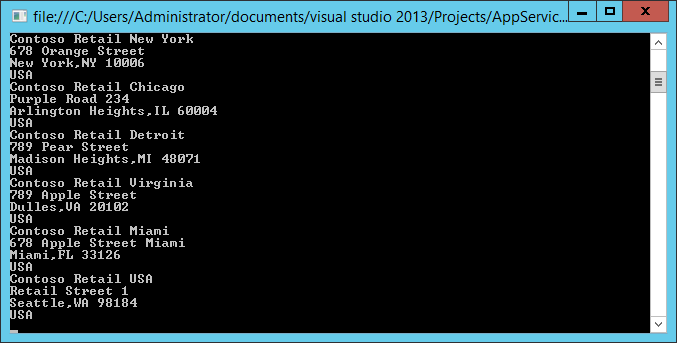
        If you are using the Contoso Demo Data, the result should look like this:

        Test Dynamics Ax AIF Service

        JSON Frontend Service

        In order to host the JSON Frontend Service, you need to install the Application Server Role and HTTP Activation. You will also need the Webserver role installed, including Application Development with .NET and ASP.NET.

        In Visual Studio 2013 create a new Website Project and choose a new WCF Service. Use .NET Version 4.5 and select the file system as host. Select a C:\inetpub\wwwroot\appservice as target directory. Name it ERPAppService. This will create a WCF service project in Visual Studio including a working Hello World Service. Add the service reference to the Dynamics Ax net.tcp service to your project and call it DynamicsAx. Your Visual Studio Project should look like this:

        Add Dynamics Ax AIF Service as Service Reference

        Next, modify the IService1.cs Interface:

        namespace ERPAppService
        {
            [ServiceContract]
            public interface IService1
            {
                [OperationContract]
                [WebInvoke(Method="GET",ResponseFormat=WebMessageFormat.Json,
                    BodyStyle=WebMessageBodyStyle.Wrapped,
                    UriTemplate="lookup/{name}")]
                ERPAppService.DynamicsAx.ERPCustomer[] lookup(string name);
            }
        }

        Go to the Service1.svc.cs object and implement the lookup method. Replace USR, PW and DOMAIN with a valid user to access Dynamics Ax.

        namespace ERPAppService
        {
            public class Service1 : IService1
            {

                public ERPAppService.DynamicsAx.ERPCustomer[] lookup(string name)
                {
                    var cred = new System.Net.NetworkCredential("USR","PW","DOMAIN");
                    var client = new DynamicsAx.ERPAppServiceClient();
                    client.ClientCredentials.Windows.ClientCredential = cred;

                    var context = new DynamicsAx.CallContext();
                    context.MessageId = Guid.NewGuid().ToString();

                    return client.lookup(context, name);
                }
            }
        }

        Open the web.config and go to the bindings element and add the webHttpBinding element. Within the webHttpBinding element add a binding element and set the security element to mode=Transport. This is required to host the service with SSL.

        <bindings>
          <netTcpBinding>
            <binding name="NetTcpBinding_ERPAppService" />
          </netTcpBinding>
          <webHttpBinding>
            <!– SSL !!!  –>
            <binding>
              <security mode="Transport"></security>
            </binding>
          </webHttpBinding>
        </bindings>


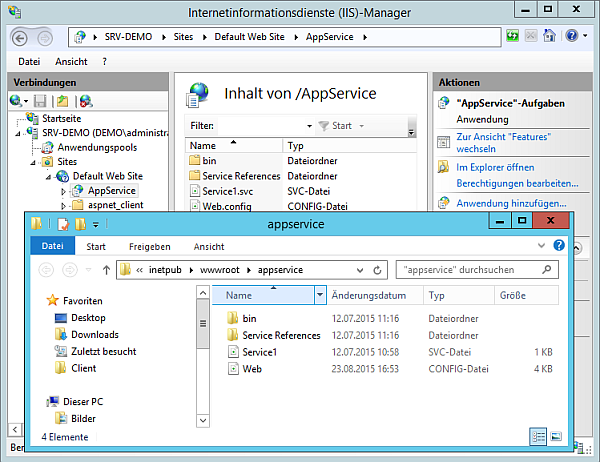
        Save, Compile and publish the service to the local directory. In the IIS Manager, right click on the Default Website and from the context menu create a new application and name it AppService. Select as directory the directory where your service is deployed.

        Host JSON App Service

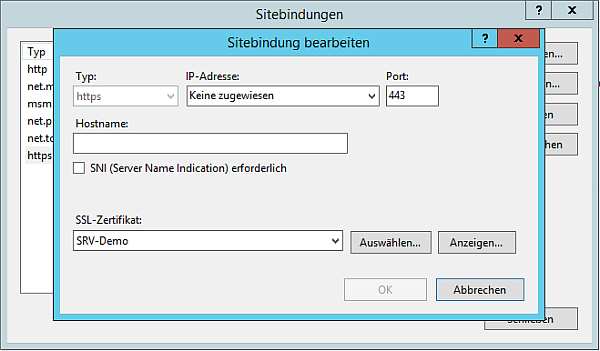
        Go to IIS Manager, select the server running IIS and from the feature pane open certificates. Create a new, self-signed SSL certificate. Next go to the Default Web Site, from the right pane open the Binding Dialog. Select the HTTPS:443 Binding and assign the newly created SSL certificate.

        SSL Certificate for JSON App Service

        Go to the AppService application and from the feature pane open SSL Settings. Set the “Requires SSL” active.

        [Optional] Test the JSON Service

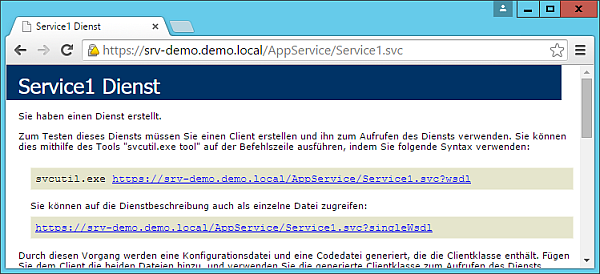
        Open a web browser and navigate to the service address. In this example the server name is SRV-Demo within the Domain Demo.Local. Therefore the serivce URL is https://srv-demo.demo.local/AppService/Service1.svc. The result should look like this.

        Test JSON App Service

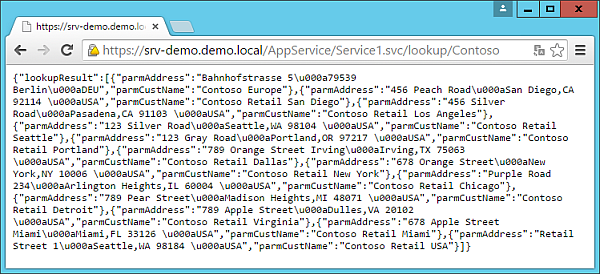
        Next call the service lookup method with parameter “Contoso”. The call should look like this https://srv-demo.demo.local/AppService/Service1.svc/lookup/Contoso. The result should like this:

        Test JSON App Service

        Develop a Word App

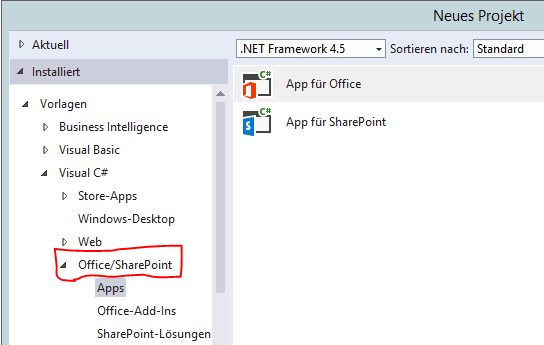
        In order to create Office Apps, you need at least the professional edition. Community Edition and Express edition do not include the Office / SharePoint App Development projects:

        Create new App Project in Visual Studio

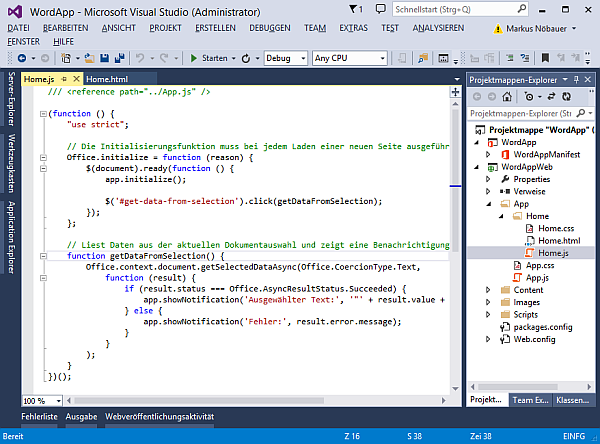
        Create a new Office App Project. In the wizard choose to develop a side pane app for Word. This will create a new project which already contains an app that can be used to process the selected text within word. The Home.js contains the getDataFromSelection function, which will be used to call the JSON Service.

        JSON Call from Word App

        Modify the code in the getDataFromSelection() method. Change the URL of the JSON Service to the URL of your service. Use HTTPS and the server name for which the SSL certificate was created. The following code will send the selected text to the JSON service, parse the result display the result as list of links within the word app. By clicking on the link, the text will be pasted into word.

        function getDataFromSelection() {
               

        Office.context.document.getSelectedDataAsync(Office.CoercionType.Text,
            function (result) {
                if (result.status === Office.AsyncResultStatus.Succeeded) {
                    var lookupUrl = https://srv-demo.demo.local/AppService/
                                    Service1.svc/lookup/
        + result.value;

                    $.getJSON(lookupUrl, function (data) {
                        var result = data.lookupResult;
                        $.each(result, function (key, val) {
                            var custname = val.parmCustName;
                            var address = val.parmAddress;
                            address = address.replace(/\n/g, ",");

                            $(‘#result_list’).append("<h3>" + custname + "</h3>");
                            $(‘#result_list’).append("<a onclick=
                   \"Office.context.document.setSelectedDataAsync(‘"+address+"’)\">"
                                                      + address + "</a>");

                             });
                         });

                     } else {
                        app.showNotification(‘Fehler:’, result.error.message);
                     }
                }
            );
        }


        Run and test your app Smiley

        Update: Send SSRS Report as Email (with meaningful PDF File name)

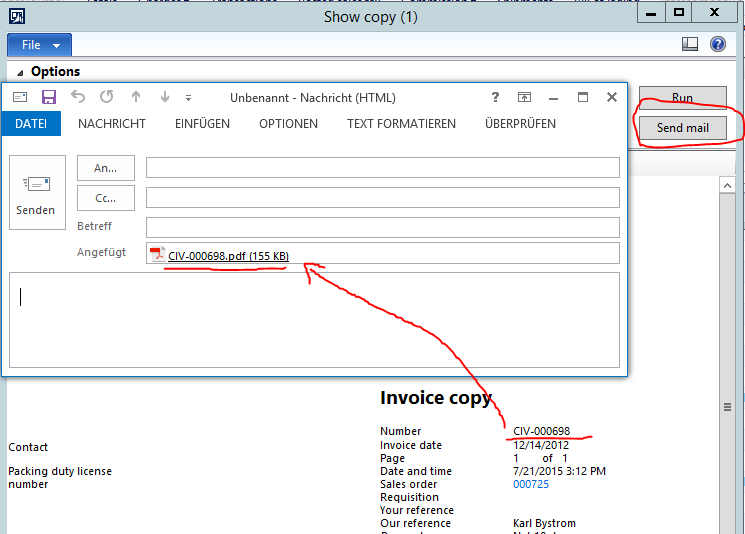
        A while ago I’ve described how to add a “Send E-Mail Button” to the Report Viewer in Dynamics AX 2012: https://erpcoder.wordpress.com/2013/01/07/send-ssrs-report-as-email/. In this initial script all reports were generated as Report.PDF file. However, a visitor recently asked how to generate a PDF file, named according to the documents ID, e.g. To create an Invoice PDF named as the Invoice Number in AX.

        This can be achieved by reading the SSRS Report Parameters and create a meaningful document name based on this information.  For example, the SalesInvoice report holds a parameter RecordId, which is the RecId for the corresponding CustInvoiceJour record in Dynamics Ax.

        Import the ReportViewer.WinForms DLL

        The DLL Microsoft.ReportViewer.WinForms is required. The DLL can be found at C:\Program Files (x86)\Microsoft Visual Studio 12.0\ReportViewer . Add the DLL as Reference in the AOT.

        Parameter Table

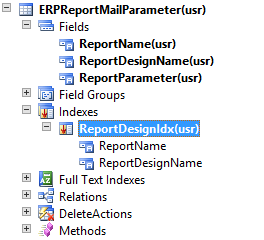
        Create a table that contains 3 fields and stores the combination of Report Name, Report Design and Report Parameter. Create an index for the combination of Report Name and Report Design.

        Report Mailing Parameter
        A sample configuration for SalesInvoice looks like this: The Report Name is SalesInvoice, the Report Design is Report and the Parameter used to generate the document name is RecordId.
        Report Mailing Parameter for SalesInvoice

        find() and exist()

        Add a find and exist method to the table.

        public static ERPReportMailParameter find(SrsReportName _name,
        SrsReportDesignName _design,
        boolean _forupdate = false)
        {
        ERPReportMailParameter parm;
        parm.selectForUpdate(_forupdate);
        select firstOnly parm
        where parm.ReportName == _name &&
        parm.ReportDesignName == _design;
        return parm;
        }


        public static boolean exist(SrsReportName _name,
        SrsReportDesignName _design)
        {
        return ERPReportMailParameter::find(_name,_design).RecId > 0;
        }

        Business Logic

        Create the following documentName* methods to generate the name of the PDF file. These methods are called by the SrsReportViewer Form to get a meaningful name for the PDF file in the mail.

        public static str documentName(SRSReportName _name,
        SRSReportDesignName _design,
        Microsoft.Reporting.WinForms.LocalReport _report)
        {
        Microsoft.Reporting.WinForms.ReportParameterInfoCollection parms;
        Microsoft.Reporting.WinForms.ReportParameterInfo reportParm;
        System.Collections.IList list;
        System.Object value;
        str documentName = “Report”;    // default value
        str parameterName = “”;
        str parameterValue = “”;

           // Is a parameter configured
        if(ERPReportMailParameter::exist(_name,_design))
        {
        parameterName = ERPReportMailParameter::find(_name,_design)
        .ReportParameter;

              parms = _report.GetParameters();
        reportParm = parms.get_Item(parameterName);
        list = reportParm.get_Values();
        value = list.get_Item(0);
        parameterValue = value.ToString();

              // Call document specific logic to determine the document name
        switch(_name)
        {
        case “SalesInvoice”:
        documentName = ERPReportMailParameter::documentNameSalesInvoice
        (parameterValue);
        break;

                 default:
        break;
        }
        }
        return documentName;
        }

        public static str documentNameSalesInvoice(str _parameterValue)
        {
        RecId recId = str2int64(_parameterValue);
        return CustInvoiceJour::findRecId(recId).InvoiceId;
        }

        SrsReportViewer Form

        At the SrsReportViewer Form, modify the init() method so the report parameters are always visible.

        public void init()
        {
        boolean showReportViewerParameters;
            super();
            if(this.controller())
        {
                // showReportViewerParameters = this.controller()
        .parmShowReportViewerParameters();
                this.setFormCaption();
                // set form help context.
        this.setFormHelpContext();
        }
        else
        {
        //showReportViewerParameters = false;
            }
            showReportViewerParameters = true;

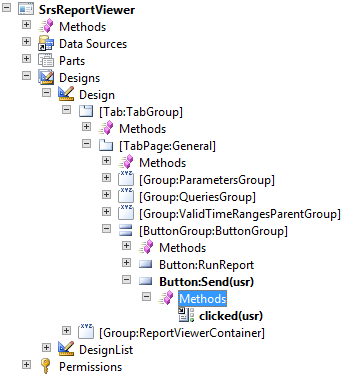
        Add a send button to the button group
        image

        Modify the clicked() method

        void clicked()
        {
        Microsoft.Dynamics.AX.Frameworks.Controls.ReportViewer.AxReportViewer
        axviewer;
        Microsoft.Reporting.WinForms.ReportViewer nviewer;
        Microsoft.Reporting.WinForms.LocalReport report;
        ERPReportMailParameter mailParameter;
        str parameterName;
        str reportName;
        str reportPath;
        int dot;
        int slash;
        str documentName = “Report”;
        SRSReportName srsReportName;
        SRSReportDesignName srsReportDesignName;
        System.Exception ex;
        System.Array bytear;
        System.Object no;
        System.IO.File file;
        str tmpPath;
        System.IO.FileStream fs;
        SmmOutlookEmail smmOutlookEmail = new SmmOutlookEmail();

           super();

           axviewer = AxReportViewer.control();
        nviewer = axviewer.get_ReportViewerControl();

           try
        {
        report = nviewer.get_ServerReport();
        reportPath = report.get_ReportPath();


              // cut the report server path
        slash = strFind(reportPath,”/”,strLen(reportPath),
        strLen(reportPath)*-1);
        reportName = subStr(reportPath,slash+1,strLen(reportPath)-slash);

              // split name and design
        dot = strFind(reportName,”.”,strLen(reportName),
        strLen(reportName)*-1);
        srsReportName = subStr(reportName,1,dot-1);
        srsReportDesignName = subStr(reportName,dot+1,
        strLen(reportName)-dot);
        documentName = ERPReportMailParameter::documentName
        (srsReportName,srsReportDesignName,report);

              //render as PDF
        bytear = report.Render(“PDF”);
        no = bytear;

              //path to temp. files
        tmpPath = System.IO.Path::GetTempPath();
        tmpPath = tmpPath + documentName + “.pdf”;

              //save to file
        fs = System.IO.File::Create(tmpPath);
        fs.Write(no,0,bytear.get_Length());
        fs.Flush();
        fs.Close(); 

              //open outlook email
        if (smmOutlookEmail.createMailItem())
        {
        smmOutlookEmail.isHTML(true);
        smmOutlookEmail.addFileAsAttachment(tmpPath);
        smmOutlookEmail.sendEMail(smmSaveCopyofEmail::No);
        }
        }
        catch(Exception::CLRError)
        {
        ex = CLRInterop::getLastException();
        info(ex.ToString());
        }
        }

        Test it

        Compile your code in X++ and IL and test it.

        Send SSRS Report per Email

        Multiple Aggregations in X++ Join

        At work we’ve recently discussed how to calculate a customers invoice amount for multiple years. One idea was to loop over the customer accounts (while select)  and individually calculate the sum for each year with individual statements (select sum). However, this can be done by a single statement.

        CustInvoiceJour     custInvoiceJour;
        CustInvoiceTrans    custInvoiceTrans1;
        CustInvoiceTrans    custInvoiceTrans2;

        while select InvoiceAccount,InvoiceId from custInvoiceJour
        group by InvoiceAccount
        outer join InvoiceId, sum(LineAmount) from custInvoiceTrans1
        where custInvoiceJour.InvoiceId == custInvoiceTrans1.InvoiceId &&
        custInvoiceTrans1.InvoiceDate >= str2DateDMY(‘1.1.2011’) &&
        custInvoiceTrans1.InvoiceDate <= str2DateDMY(‘31.12.2011’)
        outer join InvoiceId, sum(LineAmount) from custInvoiceTrans2
        where custInvoiceJour.InvoiceId == custInvoiceTrans2.InvoiceId &&
        custInvoiceTrans2.InvoiceDate >= str2DateDMY(‘1.1.2012’) &&
        custInvoiceTrans2.InvoiceDate <= str2DateDMY(‘31.12.2012’)
        {
        info( strFmt(“Customer:%1 2011:%2 2012:%3”,
        custInvoiceJour.InvoiceAccount,
        custInvoiceTrans1.LineAmount,
        custInvoiceTrans2.LineAmount));
        }
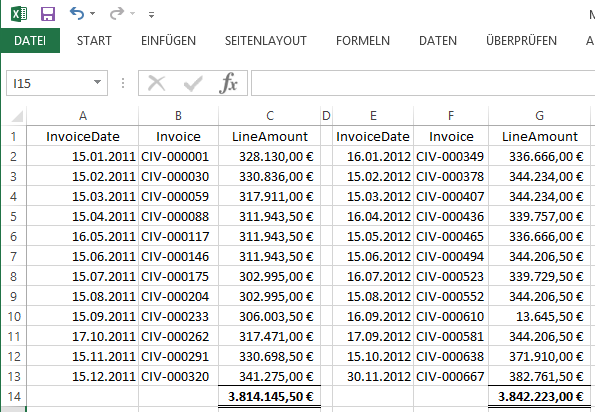
        //Customer:DE-001 2011:3.814.145,50 2012:3.842.223,00

        This will result in the following output

        Mutliple sum() in X++ Join

        Check values for customer DE-001 with excel

        Check Mutliple sum() in X++ Join

        Stacked Bar chart in Access

        Recently a colleague asked how to display a stacked bar chart in Access.

        Create a table where one column is used to group data e.g. Year, and additional fields containing values to be stacked e.g Revenue. For example, the columns Revenue by Item Group will be stacked by Year.

        Access bar chart data

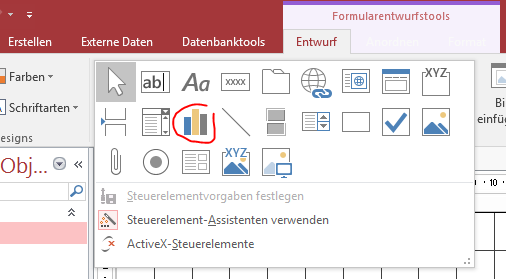
        Next, create a new form and add a diagram object to the form

        Add a chart to access

        In the diagram wizard select your table with data. Next move the Year and the Revenue fields from the table to the diagram data box.

        Add data fields to diagram

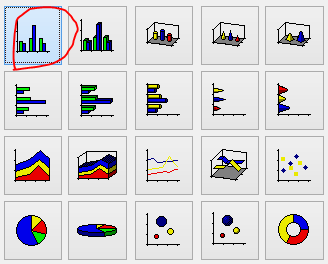
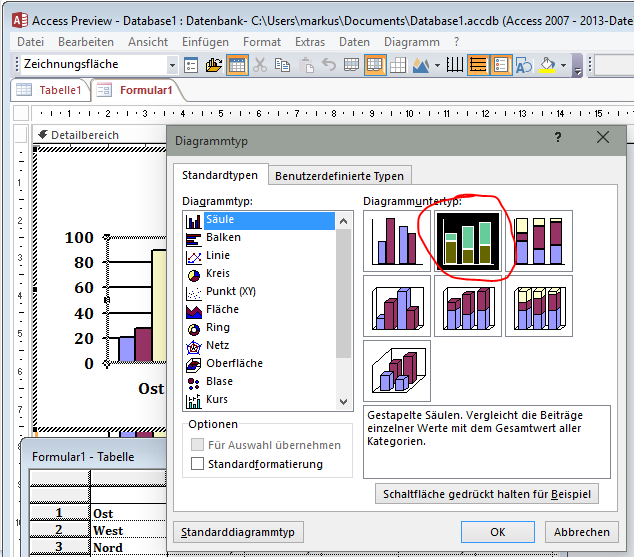
        Next choose a bar chart. There is no stacked bar chart in the wizard.

        Choose bar chart

        Drag and drop the year to the axis drop box. Drag and drop the Revenue fields to the data box on the left. By double click on field in the left box you can choose the aggregation function e.g. Count, Sum, None

        Assign fields to data and axis

        Preview the diagram, it should look like this

        Preview bar chart in access wizard

        Finish the wizard. A diagram is placed on the form.

        Bar chart in access form

        Double click the diagram will open the designer view. Here right click on the diagram an open change the diagram type to stacked bar chart

        Change chart type to stacked bar chart

        Format the diagram as you like. Save your design and open the form

        Stacked bar chart in access form

        SQL Server Transaction Log Shipping does not restore .TRN files

        Recently a customer was concerned to implement a fail over strategy for the Dynamics AX database. SQL Server 2008 R2 Standard Edition was in place. The underlying hardware was not capable to handle database mirroring. Therefore, log shipping and manual failover was chosen. However, the job on the second server refused to restore the .trn files. We managed to reproduced the problem in our lab environment with two SQL Instances (SQL1, SQL2) and a Northwind Demo Database.


        Log Shipping Configuration

        There are 2 SQL Servers in place, called SQL1 (primary) hosting a Northwind Database and SQL2 (traget). There are two file shares on the secondary server. LSBackup is used to backup .trn files from the primary server. LSCopy is used by the secondary server to copy .trn files and restore these files to the replicated database.

        image

        The backup at the primary server SQL1 was scheduled to run every 5 minutes. Files older than 1 hour in the LSBackup folder will be deleted.

        image

        The target database at the secondary server SQL2 was initialized by the configuration wizard

        image

        The copy job at the secondary server SQL2 was scheduled to run every 5 minutes. This job copies .trn files from the LSBackup folder into the LSCopy folder. Files older than 1 hour in the LSCopy folder will be deleted.

        image

        The restore job at the secondary server SQL2 was scheduled to run every 5 minutes.

        image


        Log Shipping Behavior

        The log shipping configuration seemed to be correct. The backup job on the primary server SQL1 placed the backup and .trn log backup files in the LSBackup folder. The copy job on the secondary server copied the .trn files to the LSCopy folder.

        image

        An initial check of the restore job history showed no errors.

        image


        The Problem

        A detailed look at the job revealed that the .trn files were not restored. The backup job reported “Skipped log backup file” because it “Could not find a log backup file that could be applied to the secondary database”"

        image


        The Reason

        A maintenance plan was in place on the primary server SQL1. This maintenance plan took a full backup at midnight and a transaction log backup every 15 minutes. The interleaving transaction log backups resulted in holes within the transaction log chain. Therefore the restore job on SQL2 was not able to apply the copied transaction log files.

        image 


        The Solution

        At the Northwind DB properties on primary server SQL1, the transaction log replication setting to SQL2 was removed. The wizard also removed the copy and restore jobs at SQL2. The replicated Northwind DB at SQL2 was removed manually. The transaction log shipping configuration was deactivated at the Northwind DB on SQL1.  All files in the LSBackup and LSRestore folders were deleted. The maintenance plan was deactivated.

        Next the transaction log shipping configuration was redone, as described above. Again the target database at SQL2 was initialized by a full backup of the Northwind DB from SQL1. Finally the secondary server SQL2 was able to restore the .trn files.

        image