On Vacation – Tyrol
1. July 2017 Leave a comment
no new postings in summer

Microsoft Dynamics 365 Business Management Solution Enthusiast
29. May 2017 Leave a comment
I was recently playing with an Dymo USB scale and how to connect it to a Dynamics AX 2012 instance on a virtualized HyperV installation. It turned out that connecting these two is not so hard at all. The Dymo scale was immediately recognized by my PC.
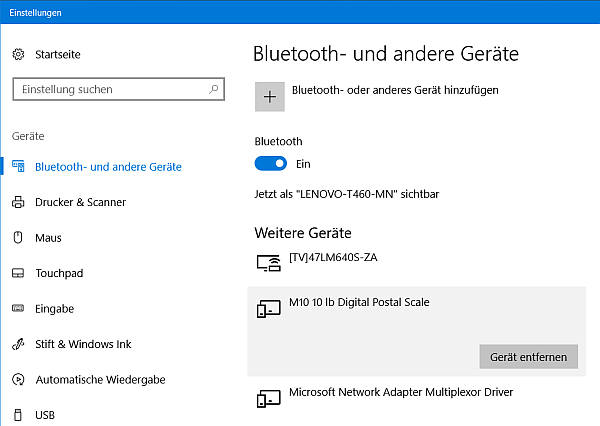
To access the USB scale, you need to know the Vendor ID and Product ID. This can be found in the Windows device manager. In my case the Vendor ID is 0x0922 and the Product ID is 0x8003

You need the Human Interface Device library, which is also available as source code. Download the Visual Studio project, open the .sln Solution from the SRC folder and build the library: https://github.com/mikeobrien/HidLibrary
Some code is needed to access the scale. Fortunately, there is a code snipped available here: http://r.lagserv.net/scalereader.htm .
public class USBScale
{
public int VendorId { get; set; }
public int ProductId { get; set; }
public HidDevice[] GetDevices()
{
//return HidDevices.Enumerate(0x0922, 0x8004).Cast().ToArray();
return HidDevices.Enumerate(VendorId, ProductId).Cast<HidDevice>().ToArray();}
public decimal GetGramm()
{
decimal? lb = -1;
decimal? gr = -1;
decimal? oz = -1;
bool? stable = false;GetWeight(out lb, out gr, out oz, out stable);
if (gr.HasValue)
return gr.Value;
else
return -1;
}
There are different ways to pass an USB device to a virtual machine. However, I was using a tool called USB Redirect which is available as trial version for testing. It has two components. The server which manages and shares the USB devices is installed on the physical machine.
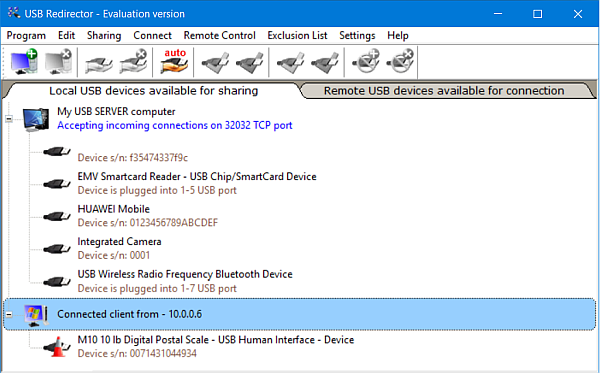
The client is installed on the VM and can access the USB device at the physical machine.
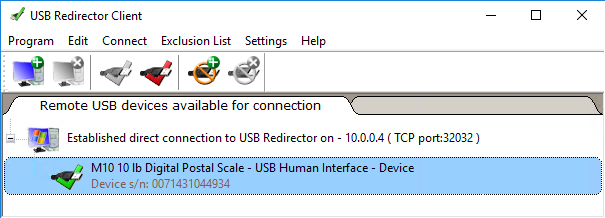
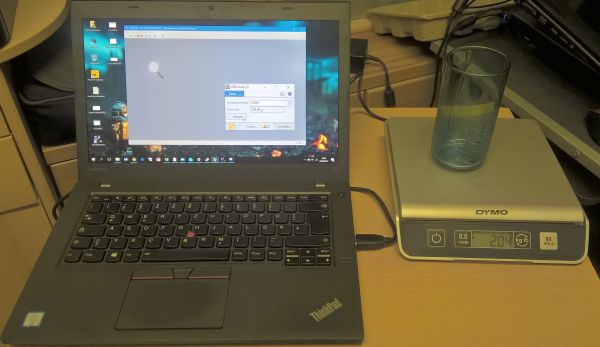
Finally, the last step to integrate with Dynamics AX is easy. Copy the HID Library DLL and the USBScale DLL to the client bin folder. Create a form with a Scale button. At the clicked() method create a new instance of the USBScale class, provide your product and vendor ID and call GetGramm().
<YOUR_NS>.UsbScale scale = new <YOUR_NS>.UsbScale();
scale.set_VendorId(<YOUR_VENDOR_ID);
scale.set_ProductId(<YOUR_PRODUCT_ID);
real value;value = scale.GetGramm();
info(strfmt(“%1 g”,value));
25. April 2017 1 Comment
Since version 2012, Dynamics AX supports included columns in indices although SQL Server supports it for quite a long time. Here are some examples how and why it is good practice to use included columns in an index. I’m using Dynamics AX 2012 R3 Cu12 on Windows Server 2016 and SQL Server 2016 with Contoso Demo data for this example
The cluster index can be defined using multiple fields and is used to defined the order of records stored in the table. Even more important is the fact, that if a table has a clustered index all the data is stored in the table, i.e. the cluster index IS the table!

Take a look at the space allocated by the indices. About 219 MB are used to store actual data and 167 MB are used to store index information

The following SQL Statement reveals the size in detail
SELECT
ind.name,
SUM(s.[used_page_count]) * 8 AS IndexSizeKB
FROM
sys.indexes ind
INNER JOIN
sys.tables t ON ind.object_id = t.object_id
INNER JOIN
sys.dm_db_partition_stats AS s ON s.[object_id] = ind.[object_id]
AND s.[index_id] = ind.[index_id]
WHERE
t.name = ‘INVENTTRANS’
GROUP BY ind.name
order by IndexSizeKB desc
The table data is stored in the TransOriginIdx
| name | IndexSizeKB |
| I_177TRANSORIGINIDX | 226992 ~ 221 MB |
| I_177OPENITEMIDX | 63720 |
| I_177STATUSITEMIDX | 34312 |
| I_177ITEMIDX | 24872 |
| I_177RECID | 23416 |
| I_177DIMIDIDX | 22192 |
Here is an example of a select statement with field select on the InventTrans table
while select ItemId,DatePhysical
from inventTrans
where
InventTrans.ItemId == ‘0001’ &&
inventTrans.DatePhysical >= str2Date(‘1.1.2011’,123){ .. }
The trace parser reveals the actual SQL Statement sent to the database

What happens is what you would expect, SQL uses the ItemIdx for this query
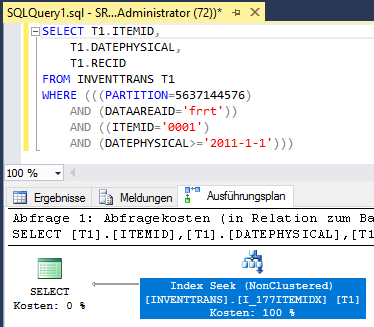
Only 5 logical reads where necessary

When the query selects fields which are not part of the index, SQL server has to perform a lookup in the Cluster Index for each record identified by the ItemIdx to get all the other fields. For example the Voucher and Qty are not part of the ItemIdx.
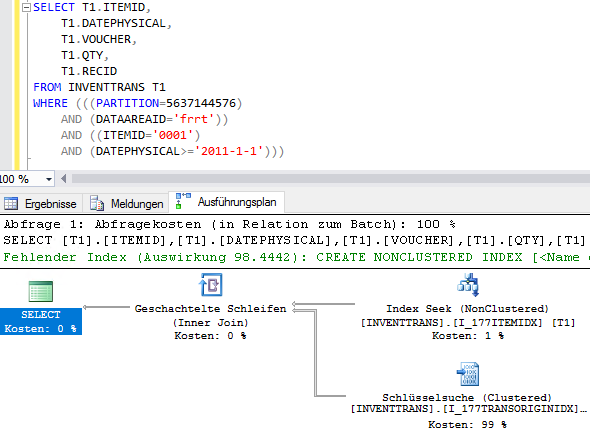
213 logical reads were necessary to fetch the data

This can get even worse, when performing the lookup becomes to expensive. This can happen when the query returns a larger number of records. For example, when querying for another ItemId. In this example SQL server does not use the ItemIdx anymore, but performs a search in the clustered index instead. The ItemIdx became completely useless for this query.
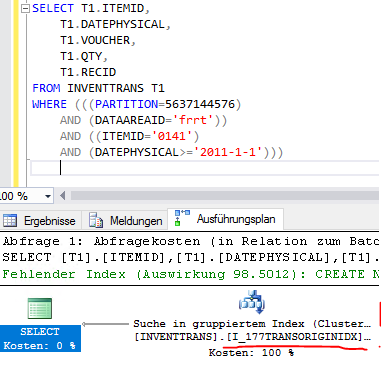
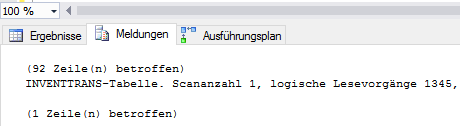
SQL server required 1345 logical reads to fetch the data!
Since version 2012 Dynamics AX supports the definition of Included Columns for indices. These columns are not used to sort the index. These are just fields which are stored within the index to avoid costly lookups in the clustered index. In Dynamics AX you just add columns to the index and set the property IncludedColumn to Yes.

You can find the included columns in SQL server when viewing the properties of the index

When the statement from above is executed again, SQL server can use the included columns from the index and does not perform costly lookups in the clustered index.
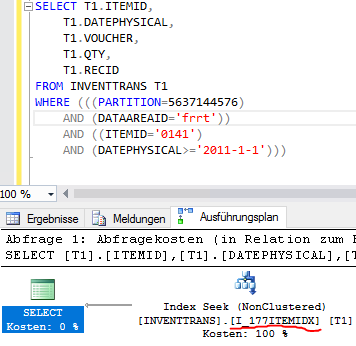
Only 6 logical reads are required to fetch the data. This is a huge optimization compared to the 1345 reads without included columns.

24. March 2017 Leave a comment
AIF is great for application integration and providing external applications required data. Document exports can be generated very easily by providing a query to the AIF document wizard. However, if you want to provide not only table fields but calculated values (e.g. display methods) in an AIF document some work is required. This is an example how to add the CustInvoiceJour.contributionMargin() method to the SalesSalesInvoiceService.
Add the following methods to the AxCustInvoiceJour class. (You may duplicate the parm* and set* method from an existing field e.g. InvoiceAmount and change the name and parameter.)
public AmountMst parmContributionMargin(AmountMst _margin = 0)
{
;
return custInvoiceJour.contributionMargin();
}
protected void setContributionMargin()
{
;
return;
}
Add a macro in the class declaration of the SaleSalesInvoice_CustInvoiceJour class
class SalesSalesInvoice_CustInvoiceJour extends AfStronglyTypedDataContainer
{
#define.XMLDocPurpose(‘XMLDocPurpose’)
#define.Weight(‘Weight’)
#define.Volume(‘Volume’)
// lot more here ..#define.ContributionMargin(‘ContributionMargin’)
}
Add the following methods to the SaleSalesInvoice_CustInvoiceJour class
public boolean existsContributionMargin()
{
return this.exists(#ContributionMargin);
}
public AmountMST parmContributionMargin(AmountMST_value = 0)
{
;
return this.get_Attribute(#ContributionMargin);
}
Open the AIFDocumentSchemaTable in the table browser and delete the record for the DocumentName SalesInvoice.

In the AOT navigate to the SalesSalesInvoiceService. From the context menu choose to register the service. This will populate the AIFDocumentSchemaTable with the new XML schema including the new field.
Don’t’ forget to activate the new field in your endpoint. Navigate to Basic > Setup > Application Integration Framework > Endpoints > Action Policies > Data Policies > Data Policies and active the new field.

Now you’re ready to test your work. In this example navigate to Accounts Receivable > Inquiries > Journals > Invoice and click on send electronically. Depending on your AIF configuration, check the output. Your new field should be there. Here is the XML from AIF Queue Manager processing an AIF message to a File System Adapter:

7. February 2017 7 Comments
Here are some ideas on SQL Server 2016 SP1 and Dynamics AX 2012 R3
There was a major change in Service Pack 1 for SQL Server 2016. While most cool features were Enterprise-Edition-Only for a very long time, many features like Column Store Index and Compression are now available for Standard Edition too. Have a detailed look at this Blog. SQL 2016 also introduces new features like the Query Store and Power BI Integration with Reporting Services
SQL Server 2016 Reporting Services require Dynamics AX R3 CU12 and an additional KB3184496 hotfix. Otherwise the installation will fail. The typical AX user won’t see the difference between SSRS 2016 and older versions. However, there are some features that might be interesting for us AX folks too, namely Power BI Integration.
Right now (January 2017) Power BI Integration is not so useful. You can place your Power BI files at the SSRS, which is actually only a better alternative to place the .PBIX file on a file share. However, it is said SSRS will be able not only to store but also to render Power BI files On Premises. This might be interesting for customers who are not willing to use Power BI in the cloud.
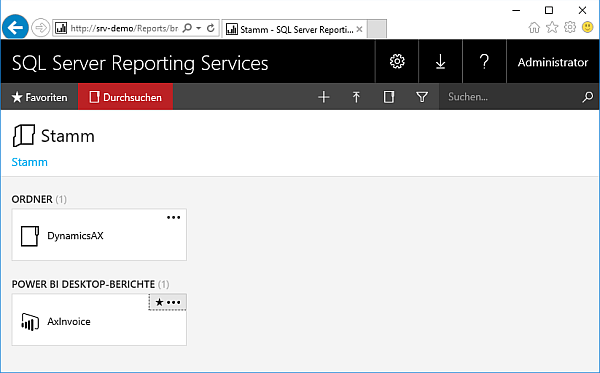
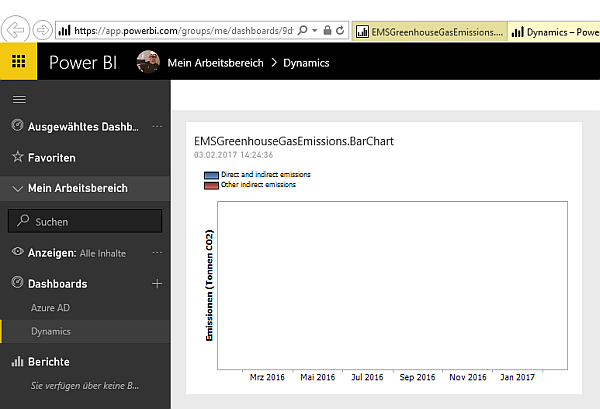
Right now in SSRS 2016 SP1 you can pin SSRS reports to your Power BI (Online) dashboard. This means, you can integrate your SSRS reports in Power BI. This might not sound very useful for Dynamics AX users. Why should I pin an invoice to a Power BI dashboard? But if a customer is already using SSRS for reporting, this might be a good option to start with Power BI and reuse the existing reports. Some Dynamics AX reports with OLAP data source can also be pinned to the Dashboard.
There is a Power BI Button in the SSRS report portal
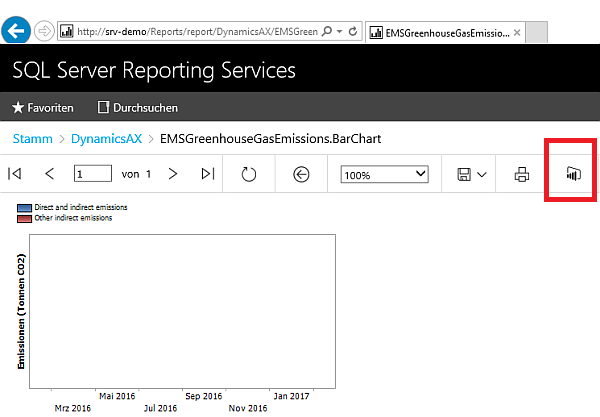
This will pin your report to one of your Power BI (Online) dashboards
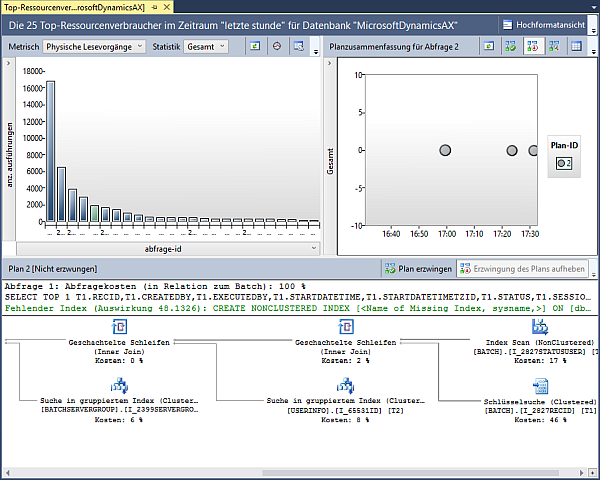
This is a very useful feature. All of us are familiar with performance problems reported by some users. The problem is to identify and reproduce the query which performed badly and find the reason. Query Store can be used to store information about such problem-queries, like the SQL statement executed, the used execution plan, etc. In SQL Server Management Studio you can view reports based on execution time, logical and physical write/reads, memory usage, etc.Query Store therefore is a very useful feature in SQL 2016 to identify performance issues.
Column Store Indices were introduced in SQL Server 2012 too speed up aggregation queries (e.g. sum). However, CSI hat a lot of limitations and was an Enterprise Edition features till 2016 (non SP). In SQL 2016 SP1 we can now use CSI in combination with Dynamics AX at our customers who have licensed Standard Edition of SQL Server.
In contrast to traditional Row Store Indices where records stored in 8 KB pages (e.g. CustInvoiceJour records), CSI store column values (e.g. LineAmountMST) together in 8 KB pages. Therefore aggregation functions can perform faster because less pages have to be read.
Here is an example:
select CustGroup, year(InvoiceDate) as YR, sum(LineAmountMST) as Amount
from CustInvoiceJour
group by CustGroup, year(InvoiceDate)
When executing this query against a Dynamics AX Contoso Demo database, 2158 logical reads were required.
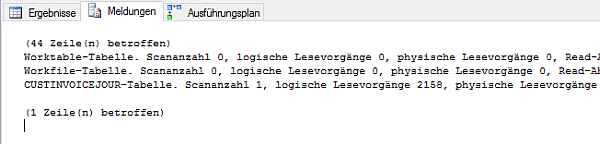
Next, create a non-clustered Column Store Index on the fields CustGroup, InvoiceDate and InvoiceAmountMST which are used in the query

The same query now utilizes the Column Store Index to fetch and aggregate the data. The IO statistics show that less reads were required to get the result. The query performs faster than with the traditional Row-Store index.

Be aware that Dynamics AX removes the Column Store Index from the database when you synchronize the data dictionary. This might not be such an issues in a production environment. When you deploy a new application version from Test to Live, make sure to recreate all lost CSI.
With stretch database you can migrate cold data (aka. existing but hardly not used) from your on premises expensive high performance storage to the cloud. This means you can split the data in large table and move old records in SQL azure. The application doesn’t recognize this split. Only if you query cold data, it will take longer to fetch the result. This sounds good. however there are some very crucial show stoppers.
So right now, this feature is not useful for Dynamics AX on premises installation
15. November 2016 Leave a comment
This is the my third post regarding the “Table 2 Line Update” mechanism in Dynamics AX. This shows you how to extend the request for quotations framework to update changes made to the header to the lines. The other post can be found here:
Use the existing extended data type TMSCarrierCode to add a new field called PreferredCarrier to the
At the PurchRFQTableMap, add the new field PreferredCarrier to the HeaderToLineUpdate field group. Define a mapping for the PurchRFQCaseTable PreferredCarrier field. At the AxPurchRFQCaseTable class add the following parm and set methods

At the AxPurchRFQCaseLine class add the following parm and set methods
protected void setPreferredCarrier()
{
if (this.isMethodExecuted(funcName(),
fieldNum(PurchRFQCaseLine,PreferredCarrier)))
{
return;
}this.setAxPurchRFQCaseTableFields();
if (this.isAxPurchRFQCaseTableFieldsSet() ||
this.axPurchRFQCaseTable().isFieldModified(
fieldNum(PurchRFQCaseTable, PreferredCarrier)))
{
this.parmPreferredCarrier(this.axPurchRFQCaseTable()
.parmPreferredCarrier());
}
}
public Name parmPreferredCarrier(TMSCarrierCode _PreferredCarrier = ”)
{
if(!prmisDefault(_PreferredCarrier))
{
this.setField(fieldNum(PurchRFQCaseLine, PreferredCarrier),
_PreferredCarrier);
}
return purchRFQCaseLine.PreferredCarrier;
}
At the AxPurchRFQCaseLine.setTableFields() method add the call of the setPreferredCarrier method
protected void setTableFields()
{
// <GIN> #ISOCountryRegionCodes
useMapPolicy = false;
// </GIN> super();
this.setLineNum(); this.setLineNumber();
// … lot of set* calls here
useMapPolicy = true;//ERP
this.setPreferredCarrier();
}
public FieldLabel lineUpdateDescription()
{
switch(fieldExt2Id(this.fieldId()))
{
case fieldNum(PurchRFQTableMap, DefaultDimension):
return "@SYS14926";
case fieldNum(PurchRFQTableMap, InventLocationId):
return "@SYS108782";
case fieldNum(PurchRFQTableMap, DeliveryDate):
return fieldId2pname(tableNum(PurchRFQCaseLine),
fieldNum(PurchRFQCaseLine, DeliveryDate));
case fieldNum(PurchRFQTableMap, ExpiryDateTime):
return fieldId2pname(tableNum(PurchRFQCaseLine),
fieldNum(PurchRFQCaseLine, ExpiryDateTime));
case fieldNum(PurchRFQTableMap, TaxGroup):
return fieldId2pname(tableNum(PurchRFQLine),
fieldNum(PurchRFQLine, TaxGroup));
case fieldNum(PurchRFQTableMap, LanguageId):
return fieldId2pname(tableNum(PurchRFQCaseLine),
fieldNum(PurchRFQCaseLine, Name));
// ERP preferred carrier
case fieldNum(PurchRFQTableMap, PreferredCarrier):
return fieldId2pname(tableNum(PurchRFQCaseLine),
fieldNum(PurchRFQCaseLine,PreferredCarrier));
}
throw error(strFmt("@SYS19306",funcName()));
}
In the PurchRFQCaseTable2LineUpdate class, extend the getFieldIdFromMappedTable() method to support the new PreferredCarrier field
FieldId getFieldIdFromMappedTable(FieldId _mapFieldId)
{
switch(_mapFieldId)
{
case fieldNum(PurchRFQTableMap, DefaultDimension) :
return fieldNum(PurchRFQCaseTable, DefaultDimension);
case fieldNum(PurchRFQTableMap, InventLocationId) :
return fieldNum(PurchRFQCaseTable, InventLocationId);
case fieldNum(PurchRFQTableMap, InventSiteId) :
return fieldNum(PurchRFQCaseTable, InventSiteId);
case fieldNum(PurchRFQTableMap, DeliveryDate) :
return fieldNum(PurchRFQCaseTable, DeliveryDate);
case fieldNum(PurchRFQTableMap, ExpiryDateTime) :
return fieldNum(PurchRFQCaseTable, ExpiryDateTime);
case fieldNum(PurchRFQTableMap, LanguageId) :
return fieldNum(PurchRFQCaseTable, LanguageId);
// ERP
case fieldNum(PurchRFQTableMap, PreferredCarrier) :
return fieldNum(PurchRFQCaseTable, PreferredCarrier);
}
return 0;
}
Go to Procurment and Sourcing module > Setup > Procurement and Sourcing Parameters > Request for Quotation and open the Update request for quotation lines. You should see the parameter dialog including the new Carrier field. Set the Update method to Prompt.

4. October 2016 Leave a comment
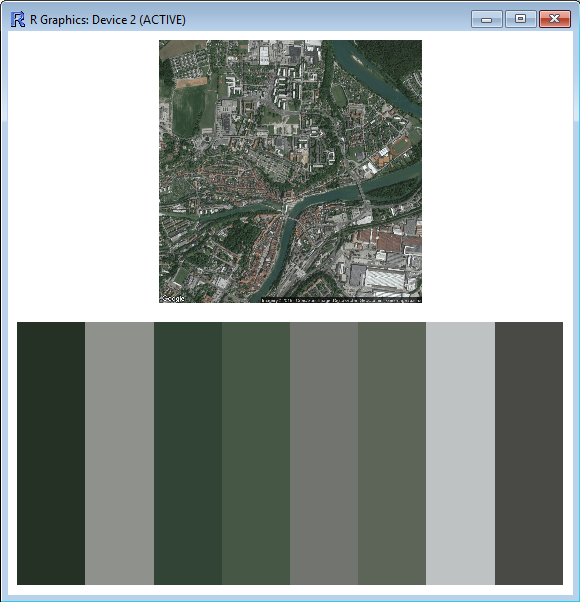
Power BI integrates R to perform complex analysis and sophisticated visualization. Earthtones is an R library which takes a screenshot from Google Maps of certain geo coordinate and extracts the landscape colors. Earthtones can be used to color diagrams based on the local color schema.
The package can be found on github. There is also a description how to donwload and install the package. Using earthtones is easy. The function get_earththones takes the parameters longitude and latitude, zoom and the number of colors to extract. The earthtones for Steyr look like this:
get_earthtones(latitude=48.045,longitude=14.422,zoom=15,number_of_colors=8)
The data model in this example is very simple. There are two excel sheets, one for the revenue by city and item group, another for the geo coordinates (longitude / latitude) and optimal zoom level per city.


The Power BI model is very simple, both data sources are linked by the city name

In this example a simple boxplot is used to visualize the revenue by item group. A data slicer for the column city is used to filter the data. The R diagram takes the following columns as input:
If only one city is selected, the R script shall gather the cities earthtone colors and format the diagram. If more than one city is selected, the diagram shall be formatted in red, blue and green. The following script loads the earthtone library and gets the distinct number of city names from the dataset. If there is more than 1 distinct name in the dataset the color variable is set to red,blue,green. Otherwise, earthtone is used to get the city typical color schema.
library(earthtones)
numCities <- length(unique(dataset$Stadt))
if(numCities > 1) {
color <- c(“red”,”blue”,”green”)
} else {
color <- get_earthtones(latitude = dataset$Lat[1],
longitude=dataset$Lon[1],
zoom= dataset$Zoom[1],
number_of_colors=3,include.map=FALSE)
}boxplot(Preis~Gruppe,dataset,col=(color),ylab=”Revenue”,xlab = “Item Group”)
The R script in Power BI looks like this:

If a city is selected, for example San Francisco, the diagram is formatted in the colors blue, gray and brown.
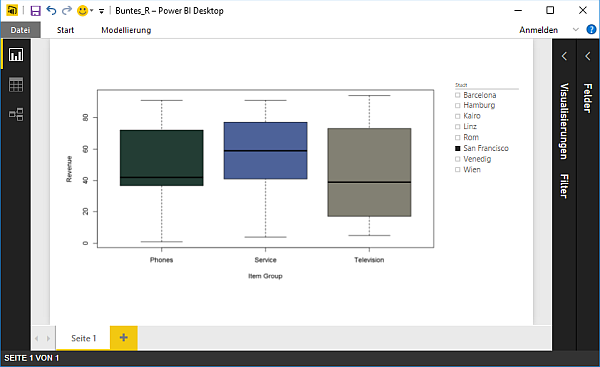
The colors fit the blue sea, the bay and the city seen from space.

If another city, for example Cairo, is selected the diagram gets formatted in dark green, dark- and light brown.

That fits the cities local color schema, the brown buildings, the green plants along the Nile and the desert sand.

6. September 2016 Leave a comment
Since SQL Server 2016, R can be used in T-SQL statements to perform sophisticated calculations. One example I was facing, was to calculate the distance between two cities. Although there are many ways to solve this tasks, R can also be used to perform a exact calculation.
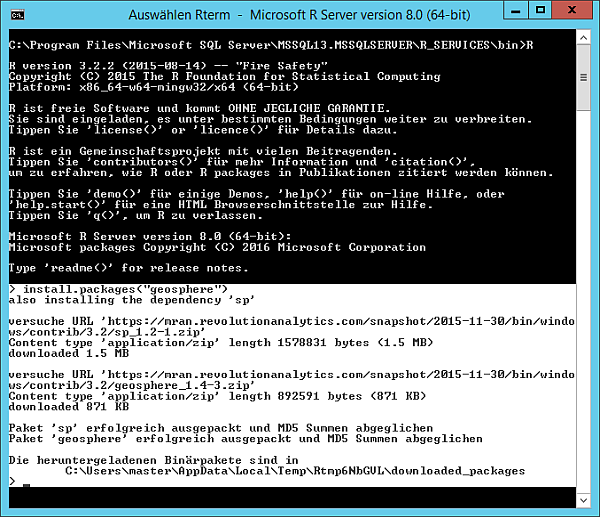
R services need to be installed in order to execute R scripts within T-SQL. To calculate the distance between two geo coordinates, the geosphere library is required. The procedure to install additional packages is documented at MSDN.
This example contains 2 tables, Cities and DistanceTable. The Cities table contains the name and geo coordinates of a city, while the DistanceTable contains two references FromCity and ToCtiy to the Cities table.
| Column | Datatype |
| CityID | int (Primary Key) |
| Name | nvarchar(128) |
| Longitude | real |
| Latitude | real |
| Column | Datatype |
| JournalID | int (Primary key) |
| FromCity | int (Foreign key) |
| ToCity | int (Foreign key) |
For example the two Austrian Cities Linz and Vienna look like this:

An entry in the distance table looks like this:

I’ve added another view to output the geo coordinates from both cities which are referenced in the DistanceTable
CREATE VIEW [dbo].[DistanceViewLonLat]
AS
SELECT DT.JournalID,
FC.Longitude AS FromLon, FC.Latitude AS FromLat,
TC.Longitude AS ToLon, TC.Latitude AS ToLat
FROM
dbo.DistanceTable AS DT
INNER JOIN dbo.Cities AS FC ON DT.FromCity = FC.CityID
INNER JOIN dbo.Cities AS TC ON DT.ToCity = TC.CityID
GO
A record from the view looks like this

The following R script takes a record from the view as input and calculates the distance between two points and rounds the result from meter to kilometer.
exec sp_execute_external_script
@language =N’R’,
@script=N’
library(sp)
library(geosphere)
sqlvalues <- as.matrix(InputDataSet);getDistKm <- function(row)
{
p1 <- c(row[1], row[2])
p2 <- c(row[3], row[4])d <- distGeo(p1,p2) / 1000
c(row[1], row[2], row[3], row[4], d)
}km <- apply(sqlvalues,1,getDistKm)
km <- t(km)OutputDataSet <- as.data.frame(km)
‘,
@input_data_1 =N’select FromLon, FromLat , ToLon, ToLat from DistanceViewLonLat where JournalID = 1;’
with result sets (([fromlng] real, [fromlat] real, [tolng] real, [tolat] real, [km] real not null));
go
The result looks like this:

18. July 2016 4 Comments
This is a follow-up to my initial blog post how to extend the SalesTable2Line Framework from 2011. However, this post is a walkthrough how to update PurchLine fields from the PurchTable header.
Create an extended datatype called ERPCarrier which extends the Name datatype. Provide a label called Carrier.On the PurchLine create two new fields called ERPCarrierRequested and ERPCarrierConfirmed based on the datatype ERPCarrier. Provide two meaningful labels, Requested Carrier and Confirmed Carrier. Create a field group called ERPCarrier and add both fields to the group.
On the PurchTable add two new fields called ERPCarrierRequested and ERPCarrierConfirmed based on the datatype ERPCarrier. Provide the same labels as on the PurchLine. Create a field group called ERPCarrier and add both fields to the group. Moreover, add both fields to the field group HeaderToLineUpdate!

On the PurchTable form, add the PurchTable field group ERPCarrier in the header view in the group delivery.
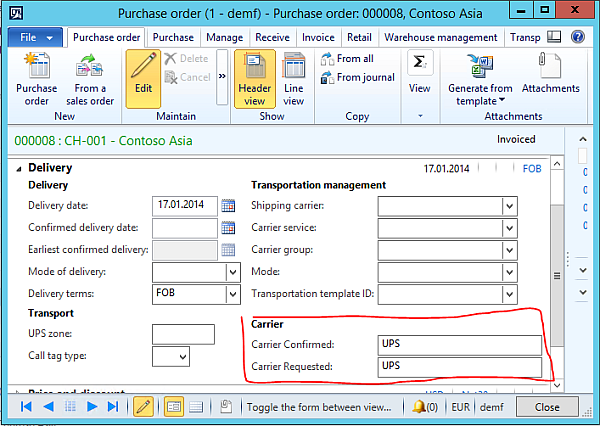
Add the PurchLine field group ERPCarrier in the line view in the tab delivery.

On the AxPurchTable class add two parm Methods for the two new fields
public ERPCarrierId parmERPCarrierConfirmed(ERPCarrierId _carrierId = ”)
{
if (!prmisDefault(_carrierId))
{
this.setField(fieldNum(PurchTable, ERPCarrierConfirmed), _carrierId);
}return purchTable.ERPCarrierConfirmed;
}
public ERPCarrierId parmERPCarrierRequested(ERPCarrierId _carrierId = ”)
{
if (!prmisDefault(_carrierId))
{
this.setField(fieldNum(PurchTable, ERPCarrierRequested), _carrierId);
}return purchTable.ERPCarrierRequested;
}
On the AxPurchLine class add two parm methods for the two new fields
public ERPCarrierId parmERPCarrierConfirmed(ERPCarrierId _carrierId = ”)
{
if (!prmisDefault(_carrierId))
{
this.setField(fieldNum(PurchLine, ERPCarrierConfirmed), _carrierId);
}return purchLine.ERPCarrierConfirmed;
}
public ERPCarrierId parmERPCarrierRequested(ERPCarrierId _carrierId = ”)
{
if (!prmisDefault(_carrierId))
{
this.setField(fieldNum(PurchLine, ERPCarrierRequested), _carrierId);
}return purchLine.ERPCarrierRequested;
}
Next, on the AxPurchLine class add two set methods
protected void setERPCarrierConfirmed()
{
if (this.isMethodExecuted(funcName(),
fieldNum(PurchLine, ERPCarrierConfirmed)))
{
return;
}this.setAxPurchTableFields();
if (!this.parmERPCarrierConfirmed() &&
this.axPurchTable().parmERPCarrierConfirmed())
{
this.parmERPCarrierConfirmed(
this.axPurchTable().parmERPCarrierConfirmed());
}
}
protected void setERPCarrierRequested()
{
if (this.isMethodExecuted(funcName(),
fieldNum(PurchLine, ERPCarrierRequested)))
{
return;
}this.setAxPurchTableFields();
if (!this.parmERPCarrierRequested() &&
this.axPurchTable().parmERPCarrierRequested())
{
this.parmERPCarrierRequested(
this.axPurchTable().parmERPCarrierRequested());
}
}
On the AxPurchLine class add a new static method which is used to set the new fields.
public static void setTableFields_ERPCarrier(XppPrePostArgs _args)
{
AxPurchLine thisAxPurchLine = _args.getThis();
thisAxPurchLine.setERPCarrierRequested();
thisAxPurchLine.setERPCarrierConfirmed();
}
On the AxPurchLine class, go to the setTableFields method and expand the event handler. Add a new Post X++ event handler. Provide the AxPurchLine as class for the event handler and the newly created method setTableFields_ERPCarrier as event handler method.

On the PurchTable2LineField class, open the getFieldDescription method and scoll down. Add the following code to handle the two fields.
case fieldNum(PurchTable, ERPCarrierConfirmed):
description = fieldid2pname(tablenum(PurchLine),
fieldnum(PurchLine, ERPCarrierConfirmed));
break;case fieldNum(PurchTable, ERPCarrierRequested):
description = fieldid2pname(tablenum(PurchLine),
fieldnum(PurchLine, ERPCarrierRequested));
break;
Compile your code an build incremental IL. Open the table PurchTable2LineParameters and delete all records. Restart the AOS to make sure no cached version is used. In AX go to Accounts Payable > Settings > Parameter > Tab Updates and click the button “Update order lines”. Set the Update Requested Carrier and Confirmed Carrier to Always.

Open a purchase order in AX and edit the purchase header. Provide a requested carrier e.g. UPS and a confirmed carrier e.g. DHL. Save your changes. Check if the values from the header have been copied to the purchase lines.
15. June 2016 4 Comments
The programming language R is great for statistics and analysis. R is becoming more and more relevant for business analysis. Microsoft has already integrated R in SQL Server 2016, Power BI and offers an open source R Implementation and Visual Studio integration. There are many tutorials for C interop with R but most of them use Linux tools and not Visual C++. This is a walkthrough how to build a C++ DLL and use it in R all in Visual Studio.
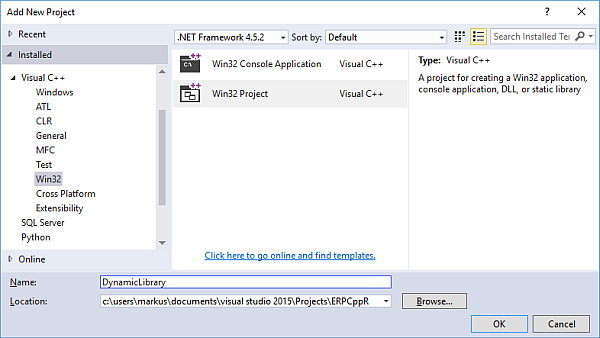
In the C++ Application dialog, choose a DLL
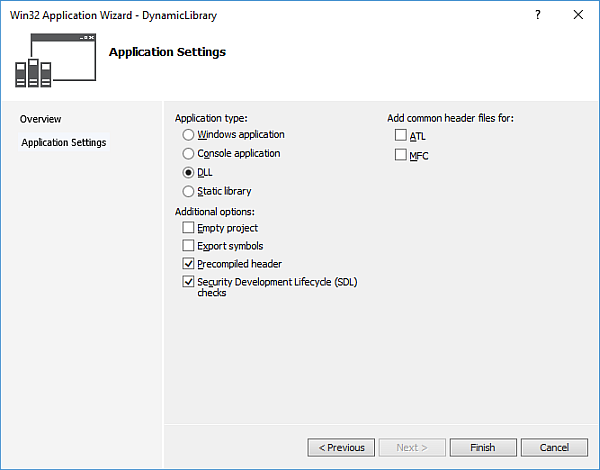
A new C++ project is created include a header file and a C++ file.
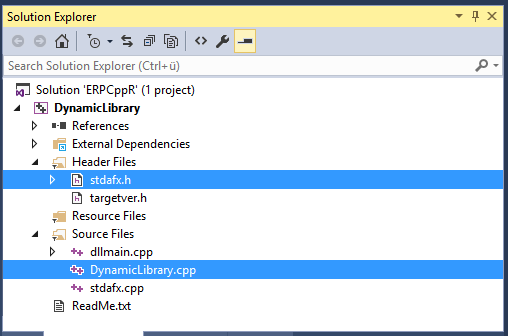
Open the stdafx.h file and add the definition for function foo() in the header file.
// stdafx.h : include file for standard system include files,
// or project specific include files that are used frequently, but
// are changed infrequently
//#pragma once
#include “targetver.h”
#define WIN32_LEAN_AND_MEAN // Exclude rarely-used stuff from Windows headers
// Windows Header Files:
#include <windows.h>
/// export symbols for DLL and specify C naming conventions
extern “C” __declspec(dllexport) void __cdecl foo(double *in, double *out);
Open the .cpp file and add the following implementation.
void foo(double *in, double *out)
{
double value = in[0] * 2;
out[0] = value;
}
Make sure to change the architecture to x64 before building.

Build the solution. The resulting DLL will be outputed in the x64 folder in the project folder(!) not in the Debug folder where a C# DLL would be.

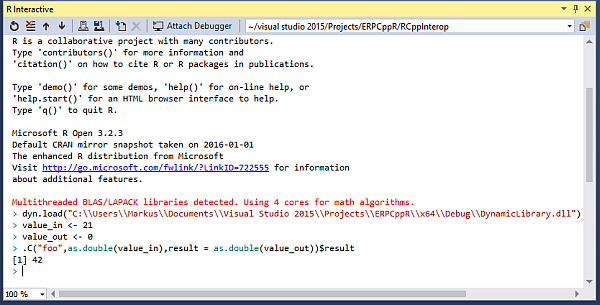
Add a new R project to the solution which already contains the C++ project. Go to the R Interactive Window.

Load the DLL from your output directory.
dyn.load(“C:\\PATH_TO\\YOUR.DLL”)
Declare 2 variables for input and output and assign values. For example input value 21 and a default value 0 for the output variable. Call the DLL function and output the result
value_in <- 21
value_out <-0
.C(“foo”,as.double(value_in),result=as.double(value_out))$result
The result should look like this




 ErpCoder