Use Fulltext Index in AX 2012 to search in RSS feeds

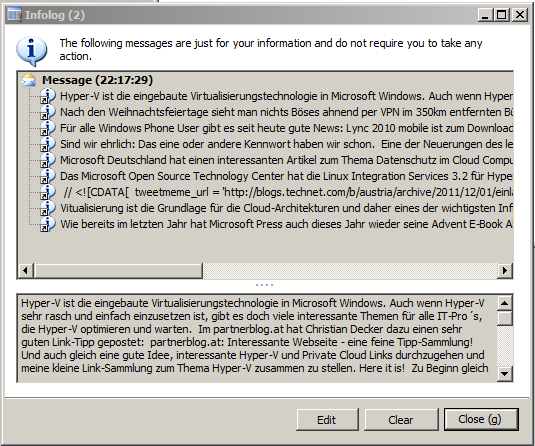
Here is a simple example how to use the fulltext index capability in Dynamics AX 2012. This example downloads RSS postings into a table with fulltext index and runs a query to identify those with specific words.

Create the RssFeedTable

  1. Create a new String Extended Datatype called RssFeedId
  2. Create a new table called RssFeedTable and add the RssFeedId, Name and Uri
  3. Create a primary index based on the RssFeedId
  4. Set the RssFeedTable as Reference at the RssFeedId Extended
  5. Populate the table with data e.g.
    FeedId = technet
    Name = “Technet Austria”
    Uri = http://feeds.feedburner.com/TechnetTeamBlogAustria?format=xml

Create the RssContentTable

  1. Create a new Table called RssContentTable
  2. Add the RssFeedId, Description255 and rename it as Title and a Memo field
  3. Create a fulltext index for the memo field

image image

    Create the RSS Reader Class in C#

    1. Create a new Visual C# class library project for .NET 4.0 in Visual Studio
    2. Add the project to AOT
    3. Copy this code

    using System;
    using System.Collections.Generic;
    using System.Linq;
    using System.Text;
    using System.ServiceModel.Syndication;
    using System.Xml;
    using System.Text.RegularExpressions;

    namespace ErpCoder.RssFeed
    {
        public class Reader
        {
            private string xmlAddress = String.Empty;
            private IEnumerator<SyndicationItem> enumerator;

            public Reader(string address)
            {
                xmlAddress = address;
            }

            public void Load()
            {
                var reader = new XmlTextReader(xmlAddress);
                var feed = SyndicationFeed.Load(reader);
                enumerator = feed.Items.GetEnumerator();
            }

            public bool Read()
            {
                return enumerator.MoveNext();
            }

            public string GetTitle()
            {
                return enumerator.Current.Title.Text;
            }

            public string GetDescription()
            {
                string text = Regex.Replace(enumerator.Current.Summary.Text,
                                             "<(.|n)*?>", String.Empty);
                return text;
            }       
        }
    }

    1. Set the Deployment Target at the project to Client: Yes and deploy

    Populate the RssContentTable

    1. Create a find method on the RssFeedTable
    2. Copy this code and substitute the parameter in the find method with one of yours

    static void populateFeedTable(Args _args)
    {
        System.Exception ex;
        RssFeedTable feedTable = RssFeedTable::find("techat");
        RssFeedContent content; 
        ErpCoder.RssFeed.Reader reader;
        InteropPermission permission;
     
        permission = new InteropPermission(InteropKind::ClrInterop);    
        permission.assert();

        try
        {
            reader = new ErpCoder.RssFeed.Reader(feedTable.Uri);
            reader.Load();

            while(reader.Read())
            {
                content.clear();
                content.Title = reader.GetTitle();
                content.Text = reader.GetDescription();
                content.FeedId = feedTable.FeedId;
                content.insert();
            }
        }
        catch(Exception::CLRError)
        {
            ex = CLRInterop::getLastException();
            error(ex.get_Message());
        }

        CodeAccessPermission::revertAssert();
    }

    Create a job to test the fulltext index

    1. Create a new job and copy this code

      static void queryFullText(Args _args)
      {
          RssFeedContent feedContent;
          Query query = new Query();

          QueryBuildDataSource qbdsContent =
           query.addDataSource(tableNum(RssFeedContent));

          QueryBuildRange rangeText =
           qbdsContent.addRange(fieldNum(RssFeedContent,Text),
                                1,QueryRangeType::FullText);
          QueryRun queryRun;
          rangeText.value("Office Hyper-V");

          queryRun = new QueryRun(query);
          while(queryRun.next())
          {
              feedContent = queryRun.get(tableNum(RssFeedContent));
              info(feedContent.Text);
          }
      }

    2. Subsitute the value of the fulltext range value with yours
    3. Test the query

    image

    @Dynamics AX Technical Conference

    You can find me at the Dynamics AX Technical Conference in Nice

    Extend SalesTable2Line Framework

    Dynamics AX provides a Framework for updating changes made on SalesTable fields to SalesLine fields. The update method can be configured within Dynamics AX at Accounts Receivable > Setup > Parameters > Updates > “Update order Line”. This form is used to configure if and how changes made to the SalesTable are written to the lines. This framework can be extended to update your own fields, like a “Notes” field in the example below.

    Dynamics AX 2009 Update Order Lines

    1. Create a new field called "SalesNotes” in the SalesTable and SalesLine
    2. Add the SalesTable.SalesNotes field to the Field Group HeaderToLineUpdate at the SalesTable
      Put Sales Notes field HeaderToLineUpdate group in the SalesTable
    3. Display the new fields in the SalesTable form e.g. in the General tab
    4. Open the SalesTable2LineParameters table in the table browser and remove all records. Don’t worry, these data will be populated automatically and is the basis for the “Update order line” form.
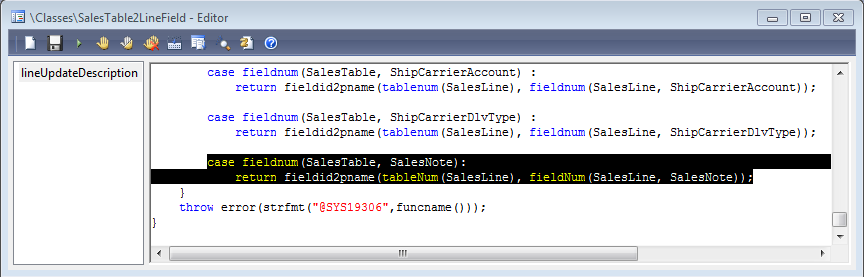
    5. Add the following line to the SalesTable2LineField.lineUpdateDescription method

      case fieldnum(SalesTable, SalesNote):
          return fieldid2pname(tableNum(SalesLine), fieldNum(SalesLine, SalesNote));

      Modify the SalesTable2LineField.lineUpdateDescription method


    6. Add a parameter method for the SalesNote field to the AxSalesTable class

      public SalesNote parmSalesNote(SalesNote _salesNote = ”)
      {
          if (!prmisdefault(_salesNote))
          {
              this.setField(fieldnum(SalesTable, SalesNote), _salesNote);
          }

          return salesTable.SalesNote;
      }

    7. Add a parameter method for the salesNote field to the AxSalesLine class

      public SalesNote parmSalesNote(SalesNote _salesNote = ”)
      {
          if (!prmisdefault(_salesNote))
          {
              this.setField(fieldnum(SalesLine, SalesNote), _salesNote);
          }

          return salesLine.SalesNote;
      }

    8. Create a setSalesNote method on the AxSalesLine class

      protected void setSalesNote()
      {
          if (this.isMethodExecuted(funcname(), fieldnum(SalesLine, SalesNote)))
          {
              return;
          }

          this.setAxSalesTableFields();

          if (this.isAxSalesTableFieldsSet() || this.axSalesTable().isFieldModified(fieldnum(SalesTable, SalesNote)))
          {
              this.parmSalesNote(this.axSalesTable().parmSalesNote());
          }
      }

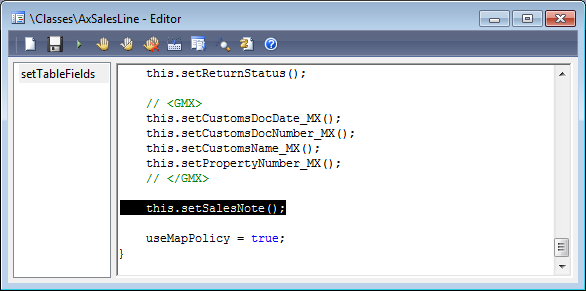
    9. Modify the setTableFields method to call the setSalesNote method
      Call the setSalesNote method
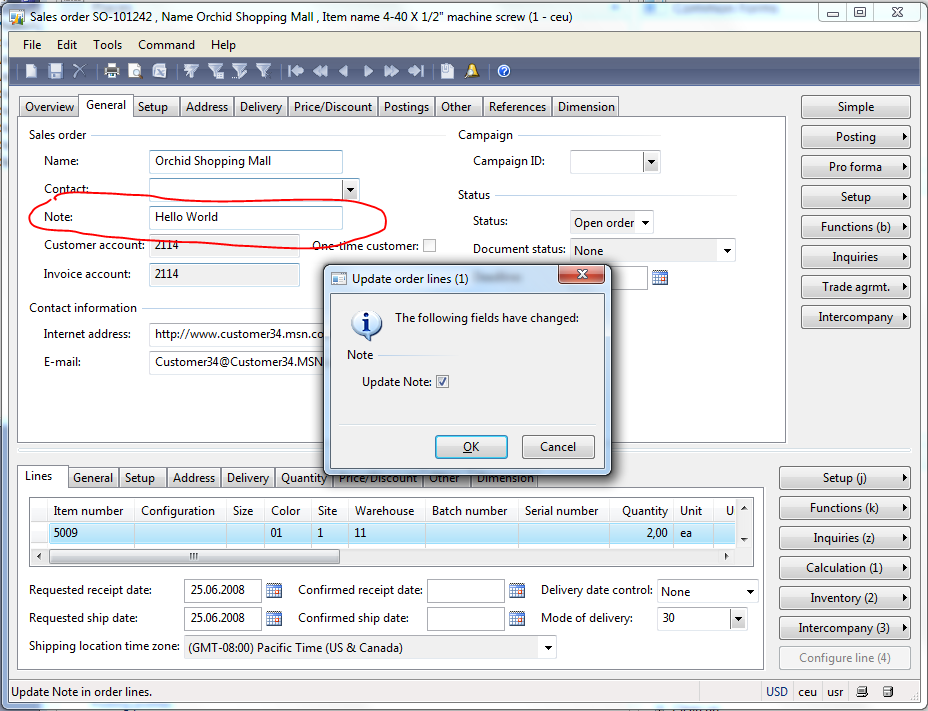
      Test your modification. Open the “Update order line” form and set the update method for Sales Notes to “Prompt”. Open the sales order details form, go to your new field, modify the text and save. A dialog will appear and ask your to update the Note fields. Click OK, and review the Sales Notes in the SalesLines.

    Modify the SalesNote value in a sales order

    Review the update on the sales line

    Add Sound to Infolog

    I’ve been asked by a colleague if it is possible to let the Infolog make a noise depending on the log type, e.g. a *beep* for an info, a *pling* for a warning and an evil noise for an error. Fortunately we can use .NET in AX 2009. The System.Media.SystemSound class already provides access to the typical system sounds. I’ve modified the Info class in AX this way:

    Exception add(
        Exception _exception,
        str _txt,
        str _helpUrl = ”,
        SysInfoAction _sysInfoAction = null,
        boolean buildprefix = true)
    {

        int numOfLines,i;
        int actionClassId;
        container packedAction;
        xSession session;   

        System.Media.SystemSound sound;
        InteropPermission permission;

        ;

    // default infolog code here …

        permission = new InteropPermission(Interopkind::ClrInterop);
        permission.assert();
       
    switch(_exception)
        {
            case(Exception::Info):
            sound = System.Media.SystemSounds::get_Asterisk();
            break;
            case(Exception::Warning):
            sound = System.Media.SystemSounds::get_Hand();
            break;
            case(Exception::Error):
            sound = System.Media.SystemSounds::get_Exclamation();
            break;
        }    
        if(sound!=null)
            sound.Play();

        CodeAccessPermission::revertAssert();

        return super(_exception, (buildprefix?getprefix():”)+_txt);
    }

    Enterprise Portal Custom Filter Error after a short time

    Again I experienced a strange behavior within Dynamics AX 2009 Enterprise Portal. I’ve created a AxGridView using an AxDataSource connected to a DataSet in Dynamics AX. The DataSet holds a setFilter method to set values on some QueryBuildRanges. Moreover I’ve create a button in my AxUserControl Webpart that invokes the setFilter method with some values.

    protected void SearchButton_Click(object sender, EventArgs e)
    {
       string value1 = TextBox1.Text;
       string value2 = TextBox2.Text;
       AxDataSourceMyTable.GetDataSet().DataSetRun.AxaptaObjectAdapter.Call  
        (“setFilter”,value1,value2);
    }

    public void setFilter(str _value1, str value2)
    {;
       qbrSomeField.value(_value1);
       qbrAnotherField.value(_value2);
       MyTable_DS.executeQuery();
    }

    This implementation worked fine the first time using the webpart. However, after a very short time I got an error telling me that no Business Connector Session was found.

    Microsoft.Dynamics.Framework.BusinessConnector.Session.Exceptions.NoKernelSessionException

    First I thought of some kind of timeout and played with IIS settings. But Google found this discussion where it is explained that Dynamics AX deletes the QueryBuildRange objects after a very short time, and therefore the call fails. The solution is to use SysQuery::findOrCreateRange .

    public void setFilter(str _value1, str value2)
    {
       QueryBuildDataSource qbds;
       ; 
       qbds = MyTable_DS.query().dataSourceTable(tableNum(MyTable))
       SysQuery::findOrCreateRange(qbds,fieldNum(MyTable,Field1)).value(_value1);
       SysQuery::findOrCreateRange(qbds,fieldNum(MyTable,Field2)).value(_value2);
       MyTable_DS.executeQuery();
    }

    Color Rows in Enterprise Portal AxGridView

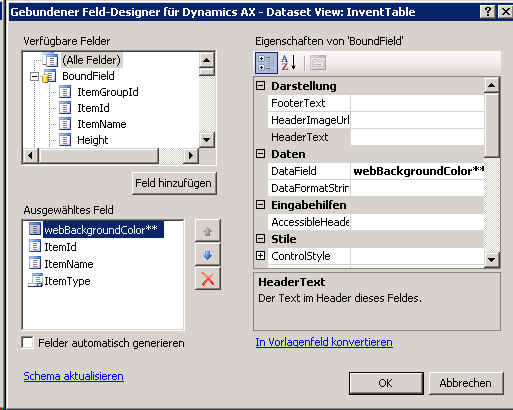
    image

    1. Create a new display method webBackgroundColor at InventTable

      public display Color webBackgroundColor()
      {;
          switch(this.ItemType)
          {
              case ItemType::BOM:     return "Red";
              case ItemType::Item:    return "Green";
              case ItemType::Service: return "Blue";
              default: return "White";
          }
      }

    2. Create a new Dataset and add InventTable as DataSource
    3. Create or open a new Dynamcis Ax web project in Visual Studio
    4. Create or open an AxWebUserControl and add an AxDataSource using InventTable data set from AX
    5. Add an AxGridView and link it with the AxDataSource
    6. Add webBackroungColor**, ItemId and ItemName to the grid
      image
    7. Select the AxGridView, change to events and modify the RowDataBound event

      protected void AxGridView1_RowDataBound(object sender, GridViewRowEventArgs e)
      {
          string axColor = e.Row.Cells[0].Text.ToLower();
         
          if(axColor.Equals("red"))
              e.Row.BackColor = System.Drawing.Color.Red;
          else if(axColor.Equals("green"))
              e.Row.BackColor = System.Drawing.Color.Green;
          else if(axColor.Equals("blue"))
              e.Row.BackColor = System.Drawing.Color.Blue;       
      }

    8. Load the user control in an enterprise portal site

    Use an Extended Datatype (Color instead of str) for the display method, otherwise you may experience strange behaviour in your ASP.NET application.

    Item Journal Approval Workflow

    I’ve create an Item Journal Approval Workflow. It can be used to change the default order settings for a journal of items as part of a workflow. The Workflow contains three approval steps, for purchase, inventory management and sales. Each approval sets or clears the stopped flag in the default order settings in the corresponding tab.

    ItemJournalApprovalWF


    Watch the Video at YouTube:

    Item Journal Approval Workflow for Dynamics AX 2009


    Download the Source at Axaptapedia

    AX 2009 Database Reverse Engineering

    I’ve made a video to demostrate how easy it is to reverse engineer tables from Dynamics AX 2009 Visio:

    AX 2009 Database Reverse Engineering

    Upgrade Issues (Part 3)

    RefRecId fields without Extended Datatype

    The upgrade scripts to AX 2009 converts RefRecId fields to Int64 data types. In some cases when a <Something>RefRecId field on a table has not an extended data type but was created as integer field you get a synchronization error.

    Illegal data conversion from original field TABLE.FIELDREFRECID to TABLE.FieldRefRecId: Unable to convert string data types to anything but INT, or REAL field types.

    The error message doesn’t really fit to the problem Trauriges Smiley

    One way to deal with this issue is to copy the table content to another database. Next delete the malicious field and create a new one with RefRecId as extended datatype. AX will synchronized and delete the field on the database. Finally restore the data from the other database.importexportdb

    I recommend to use the SQL Server Data Import/Export wizard.

    1. Create a new database called Backup
    2. Start SQL Server Import / Export from Programs Menu
    3. Source DB is the Upgrade DB
    4. Target DB is Backup (don’t use flat files etc.)
    5. Copy at least on table or view, select the malicious table and run
    6. In AX create a new field named as the defect one but as Int64 with RefRecId data type, e.g. MyRefRecId2
    7. In AX delete the original field and synchronize
    8. Start SQL Server Import/Export from Programs Menu and copy saved data back to Upgrade DB
    9. At selected table or view, activate overwrite instead of append

    Upgrade Issues (Part 2)

    AX 2009 AOS does not start

    There are multiple reasons why the AX 2009 AOS will not start the very first time. One reason may be that some maggots have modified system classes like Info, Sys* etc. Fortunately the AOS posts its pain to the windows event log. In the case of modifications on system classes the AOS posts a stack trace to the event log.

      1. Review the event log errors
      2. Identify the poison modification
      3. Remove the modification in the source system
      4. Copy the cleaned layer file
      5. Delete the .aoi file
      6. Start the AOS