Add a calculated field to an AIF Document

AIF is great for application integration and providing external applications required data. Document exports can be generated very easily by providing a query to the AIF document wizard. However, if you want to provide not only table fields but calculated values (e.g. display methods) in an AIF document some work is required. This is an example how to add the CustInvoiceJour.contributionMargin() method to the SalesSalesInvoiceService.

Parameter methods

Add the following methods to the AxCustInvoiceJour class. (You may duplicate the parm* and set* method from an existing field e.g. InvoiceAmount and change the name and parameter.)

public AmountMst parmContributionMargin(AmountMst _margin = 0)
{
;
return custInvoiceJour.contributionMargin();
}

protected void setContributionMargin()
{
;
return;
}

Add a macro in the class declaration of the SaleSalesInvoice_CustInvoiceJour class

class SalesSalesInvoice_CustInvoiceJour extends AfStronglyTypedDataContainer
{
#define.XMLDocPurpose(‘XMLDocPurpose’)
#define.Weight(‘Weight’)
#define.Volume(‘Volume’)
// lot more here ..

    #define.ContributionMargin(‘ContributionMargin’)

}

Add the following methods to the SaleSalesInvoice_CustInvoiceJour class

public boolean existsContributionMargin()
{
return this.exists(#ContributionMargin);
}

public AmountMST parmContributionMargin(AmountMST_value = 0)
{
;
return this.get_Attribute(#ContributionMargin);
}

Refresh the schema definitions

Open the AIFDocumentSchemaTable in the table browser and delete the record for the DocumentName SalesInvoice.

Delete the SalesInvoice record from the AIFDocumentSchemaTable

In the AOT navigate to the SalesSalesInvoiceService. From the context menu choose to register the service. This will populate the AIFDocumentSchemaTable with the new XML schema including the new field.

Don’t’ forget to activate the new field in your endpoint. Navigate to Basic > Setup > Application Integration Framework > Endpoints > Action Policies > Data Policies > Data Policies and active the new field.

Activate the new field in the AIF data policies

Now you’re ready to test your work. In this example navigate to Accounts Receivable > Inquiries > Journals > Invoice and click on send electronically. Depending on your AIF configuration, check the output. Your new field should be there. Here is the XML from AIF Queue Manager processing an AIF message to a File System Adapter:

ContributionMargin in CustInvoiceJour AIF document

SQL Server 2016 SP1 and Dynamics AX 2012 R3

Here are some ideas on SQL Server 2016 SP1 and Dynamics AX 2012 R3

Enterprise Features in Standard Edition since Service Pack 1

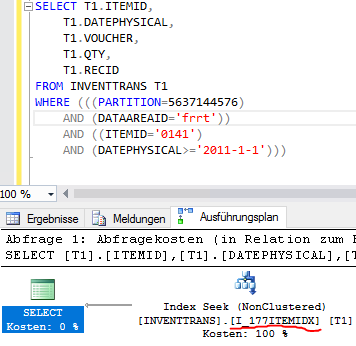
There was a major change in Service Pack 1 for SQL Server 2016. While most cool features were Enterprise-Edition-Only for a very long time, many features like Column Store Index and Compression are now available for Standard Edition too. Have a detailed look at this Blog. SQL 2016 also introduces new features like the Query Store and Power BI Integration with Reporting Services

Reporting Services

SQL Server 2016 Reporting Services require Dynamics AX R3 CU12 and an additional KB3184496 hotfix. Otherwise the installation will fail. The typical AX user won’t see the difference between SSRS 2016 and older versions. However, there are some features that might be interesting for us AX folks too, namely Power BI Integration.

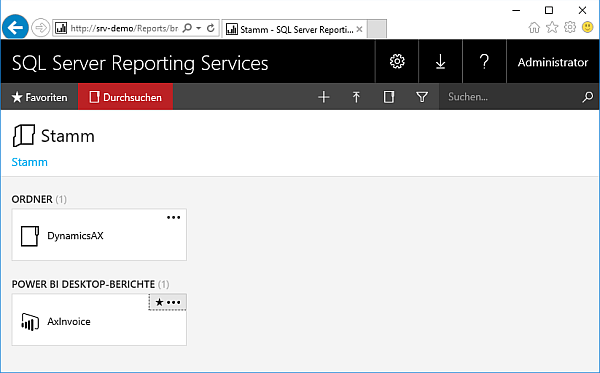
Right now (January 2017) Power BI Integration is not so useful. You can place your Power BI files at the SSRS, which is actually only a better alternative to place the .PBIX file on a file share. However, it is said SSRS will be able not only to store but also to render Power BI files On Premises. This might be interesting for customers who are not willing to use Power BI in the cloud.

Host Power BI files in SSRS 2016

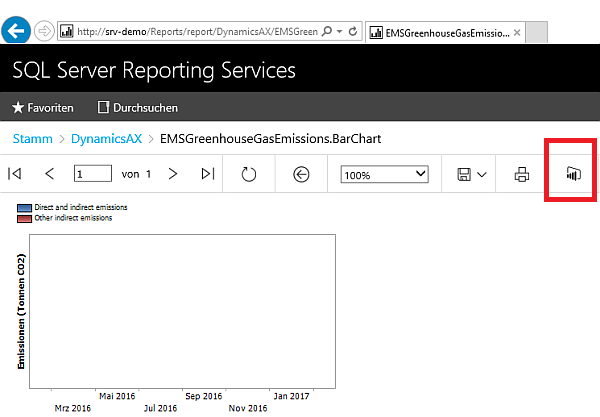
Right now in SSRS 2016 SP1 you can pin SSRS reports to your Power BI (Online) dashboard. This means, you can integrate your SSRS reports in Power BI. This might not sound very useful for Dynamics AX users. Why should I pin an invoice to a Power BI dashboard? But if a customer is already using SSRS for reporting, this might be a good option to start with Power BI and reuse the existing reports. Some Dynamics AX reports with OLAP data source can also be pinned to the Dashboard.

There is a Power BI Button in the SSRS report portal

image

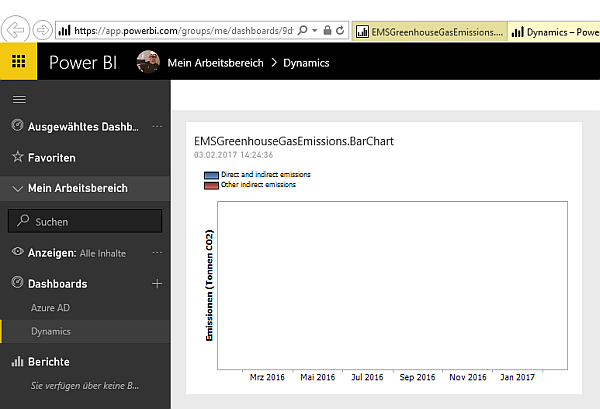
This will pin your report to one of your Power BI (Online) dashboards

image


Query Store

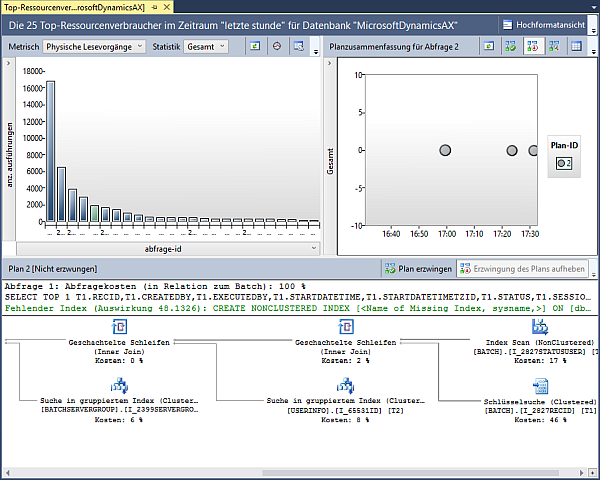
This is a very useful feature. All of us are familiar with performance problems reported by some users. The problem is to identify and reproduce the query which performed badly and find the reason. Query Store can be used to store information about such problem-queries, like the SQL statement executed, the used execution plan, etc. In SQL Server Management Studio you can view reports based on execution time, logical and physical write/reads, memory usage, etc.Query Store therefore is a very useful feature in SQL 2016 to identify performance issues.

SQL 2016 Query Store

Column Store Index

Column Store Indices were introduced in SQL Server 2012 too speed up aggregation queries (e.g. sum). However, CSI hat a lot of limitations and  was an Enterprise Edition features till 2016 (non SP). In SQL 2016 SP1 we can now use CSI in combination with Dynamics AX at our customers who have licensed Standard Edition of SQL Server.

In contrast to traditional Row Store Indices where records stored in 8 KB pages (e.g. CustInvoiceJour records), CSI store column values (e.g. LineAmountMST) together in 8 KB pages. Therefore aggregation functions can perform faster because less pages have to be read.

Here is an example:

select CustGroup, year(InvoiceDate) as YR, sum(LineAmountMST) as Amount
from CustInvoiceJour
group by CustGroup, year(InvoiceDate)

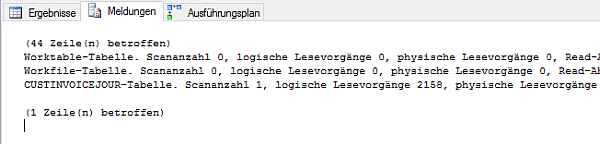
When executing this query against a Dynamics AX Contoso Demo database, 2158 logical reads were required.

Query Dynamics AX 2012 R3 database without Column Store Index

Next, create a non-clustered Column Store Index on the fields CustGroup, InvoiceDate and InvoiceAmountMST which are used in the query

Create a Column Store Index in Dynamics AX 2012 R3 database

The same query now utilizes the Column Store Index to fetch and aggregate the data. The IO statistics show that less reads were required to get the result. The query performs faster than with the traditional Row-Store index.

Colum Store Index with Dynamics AX 2012 R3

Be aware that Dynamics AX removes the Column Store Index from the database when you synchronize the data dictionary. This might not be such an issues in a production environment. When you deploy a new application version from Test to Live, make sure to recreate all lost CSI.

Stretch Database

With stretch database you can migrate cold data (aka. existing but hardly not used) from your on premises expensive high performance storage to the cloud. This means you can split the data in large table and move old records in SQL azure. The application doesn’t recognize this split. Only if you query cold data, it will take longer to fetch the result. This sounds good. however there are some very crucial show stoppers.

  • You can’t UPDATE or DELETE rows that have been migrated, or rows that are eligible for migration, in a Stretch-enabled table or in a view that includes Stretch-enabled tables.
  • You can’t INSERT rows into a Stretch-enabled table on a linked server.

So right now, this feature is not useful for Dynamics AX on premises installation

Extend the PurchRFQTable2Line Framework (AX 2012)

This is the my third post regarding the “Table 2 Line Update” mechanism in Dynamics AX.  This shows you how to extend the request for quotations framework to update changes made to the header to the lines. The other post can be found here:

Example: Add a preferred shipping carrier

Use the existing extended data type TMSCarrierCode to add a new field called PreferredCarrier to the

  • PurchRFQCaseTable,
  • PurchRFQCaseLine
  • and the map PurchRFQTableMap

At the PurchRFQTableMap, add the new field PreferredCarrier to the HeaderToLineUpdate field group. Define a mapping for the PurchRFQCaseTable PreferredCarrier field. At the AxPurchRFQCaseTable class add the following parm and set methods

image

At the AxPurchRFQCaseLine class add the following parm and set methods

protected void setPreferredCarrier()
{    
    if (this.isMethodExecuted(funcName(),  
        fieldNum(PurchRFQCaseLine,PreferredCarrier)))     
       {        
           return;  
       }

    this.setAxPurchRFQCaseTableFields();    
    if (this.isAxPurchRFQCaseTableFieldsSet() ||
        this.axPurchRFQCaseTable().isFieldModified(
        fieldNum(PurchRFQCaseTable, PreferredCarrier)))    
    {        
        this.parmPreferredCarrier(this.axPurchRFQCaseTable()
                                    .parmPreferredCarrier());    
    }
}


public Name parmPreferredCarrier(TMSCarrierCode _PreferredCarrier = ”)
{     
    if(!prmisDefault(_PreferredCarrier))    
    { 
        this.setField(fieldNum(PurchRFQCaseLine, PreferredCarrier),
                                                 _PreferredCarrier);     
    }
    return purchRFQCaseLine.PreferredCarrier;
}

At the AxPurchRFQCaseLine.setTableFields() method add the call of the setPreferredCarrier method


protected void setTableFields()
{   
    // <GIN>  #ISOCountryRegionCodes
    useMapPolicy = false;
    // </GIN>    super();
    this.setLineNum();    this.setLineNumber();
    // … lot of set* calls here
    useMapPolicy = true;

    //ERP     
    this.setPreferredCarrier();
}

public FieldLabel lineUpdateDescription()

    switch(fieldExt2Id(this.fieldId()))     
    {       
        case fieldNum(PurchRFQTableMap, DefaultDimension):           
        return "@SYS14926";
        case fieldNum(PurchRFQTableMap, InventLocationId):           
        return "@SYS108782";
        case fieldNum(PurchRFQTableMap, DeliveryDate):            
        return fieldId2pname(tableNum(PurchRFQCaseLine),
                              fieldNum(PurchRFQCaseLine, DeliveryDate));
        case fieldNum(PurchRFQTableMap, ExpiryDateTime):           
        return fieldId2pname(tableNum(PurchRFQCaseLine),
                             fieldNum(PurchRFQCaseLine, ExpiryDateTime));
        case fieldNum(PurchRFQTableMap, TaxGroup):            
        return fieldId2pname(tableNum(PurchRFQLine),
                             fieldNum(PurchRFQLine, TaxGroup));
        case fieldNum(PurchRFQTableMap, LanguageId):            
        return fieldId2pname(tableNum(PurchRFQCaseLine),
                             fieldNum(PurchRFQCaseLine, Name));
        // ERP preferred carrier
        case fieldNum(PurchRFQTableMap, PreferredCarrier):           
        return fieldId2pname(tableNum(PurchRFQCaseLine),
                            
fieldNum(PurchRFQCaseLine,PreferredCarrier));
    }
    throw error(strFmt("@SYS19306",funcName()));
}

In the PurchRFQCaseTable2LineUpdate class, extend the getFieldIdFromMappedTable() method to support the new PreferredCarrier field

FieldId getFieldIdFromMappedTable(FieldId _mapFieldId)

    switch(_mapFieldId)    
    {       
        case fieldNum(PurchRFQTableMap, DefaultDimension) :
        return fieldNum(PurchRFQCaseTable, DefaultDimension);       
        case fieldNum(PurchRFQTableMap, InventLocationId) : 
        return fieldNum(PurchRFQCaseTable, InventLocationId);       
        case fieldNum(PurchRFQTableMap, InventSiteId)     :
        return fieldNum(PurchRFQCaseTable, InventSiteId);       
        case fieldNum(PurchRFQTableMap, DeliveryDate)     :
        return fieldNum(PurchRFQCaseTable, DeliveryDate);       
        case fieldNum(PurchRFQTableMap, ExpiryDateTime)   :
        return fieldNum(PurchRFQCaseTable, ExpiryDateTime);       
        case fieldNum(PurchRFQTableMap, LanguageId)       :
        return fieldNum(PurchRFQCaseTable, LanguageId);
        // ERP       
        case fieldNum(PurchRFQTableMap, PreferredCarrier) :  
        return fieldNum(PurchRFQCaseTable, PreferredCarrier); 
    }
    return 0;
}

Go to Procurment and Sourcing module > Setup > Procurement and Sourcing Parameters > Request for Quotation and open the Update request for quotation lines. You should see the parameter dialog including the new Carrier field. Set the Update method to Prompt.

image

Dynamic colored R Diagram in Power BI using Earthtone

Power BI integrates R to perform complex analysis and sophisticated visualization. Earthtones is an R library which takes a screenshot from Google Maps of certain geo coordinate and extracts the landscape colors. Earthtones can be used to color diagrams based on the local color schema.

Earthtones

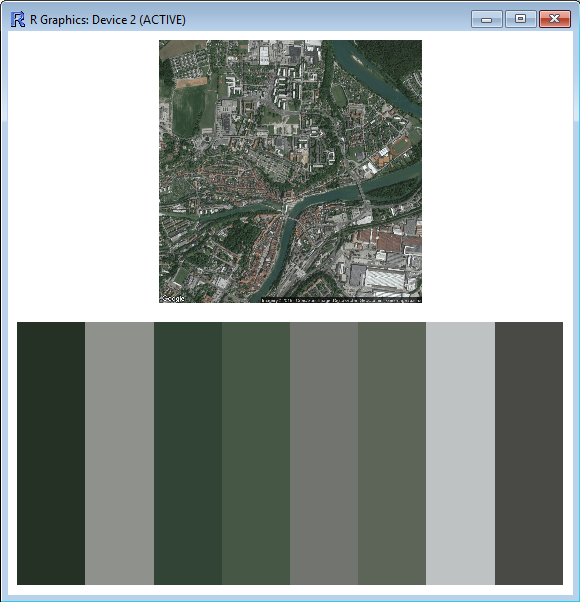
The package can be found on github. There is also a description how to donwload and install the package. Using earthtones is easy. The function get_earththones takes the parameters longitude and latitude, zoom and the number of colors to extract. The earthtones for Steyr look like this:

get_earthtones(latitude=48.045,longitude=14.422,zoom=15,number_of_colors=8)

Steyr Earthtones

Power BI Data Model

The data model in this example is very simple. There are two excel sheets, one for the revenue by city and item group, another for the geo coordinates (longitude / latitude) and optimal zoom level per city.

Excel Sheet Revenue per City and Item Group

City Geo Coordinates

The Power BI model is very simple, both data sources are linked by the city name

Power BI Data Model

R Boxplot diagram in Power BI

In this example a simple boxplot is used to visualize the revenue by item group. A data slicer for the column city is used to filter the data. The R diagram takes the following columns as input:

  • Longitude
  • Latitude
  • Zoom
  • City
  • Price
  • Group

If only one city is selected, the R script shall gather the cities earthtone colors and format the diagram. If more than one city is selected, the diagram shall be formatted in red, blue and green. The following script loads the earthtone library and gets the distinct number of city names from the dataset. If there is more than 1 distinct name in the dataset the color variable is set to red,blue,green. Otherwise, earthtone is used to get the city typical color schema.

library(earthtones)

numCities <- length(unique(dataset$Stadt))
if(numCities > 1) {
color <- c(“red”,”blue”,”green”)
} else {
color <- get_earthtones(latitude = dataset$Lat[1],
longitude=dataset$Lon[1],
zoom= dataset$Zoom[1],
number_of_colors=3,include.map=FALSE)
}

boxplot(Preis~Gruppe,dataset,col=(color),ylab=”Revenue”,xlab = “Item Group”)

The R script in Power BI looks like this:

R Script and Boxplot in Power BI

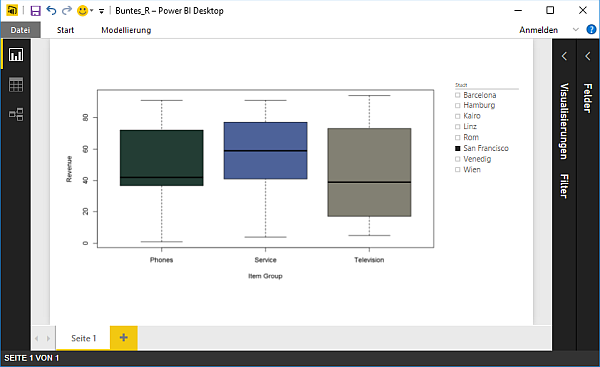
If a city is selected, for example San Francisco, the diagram is formatted in the colors blue, gray and brown.

R Diagram in Power BI with dynamic color

The colors fit the blue sea, the bay and the city seen from space.

R Earthtone for San Francisco

If another city, for example Cairo, is selected the diagram gets formatted in dark green, dark- and light brown.

R Diagram in Power BI with dynamic color

That fits the cities local color schema, the brown buildings, the green plants along the Nile and the desert sand.

R Earthtone for Cairo

Using R in SQL 2016 to calculate the distance between Cities

Since SQL Server 2016, R can be used in T-SQL statements to perform sophisticated calculations. One example I was facing, was to calculate the distance between two cities. Although there are many ways to solve this tasks, R can also be used to perform a exact calculation.

Prerequisites

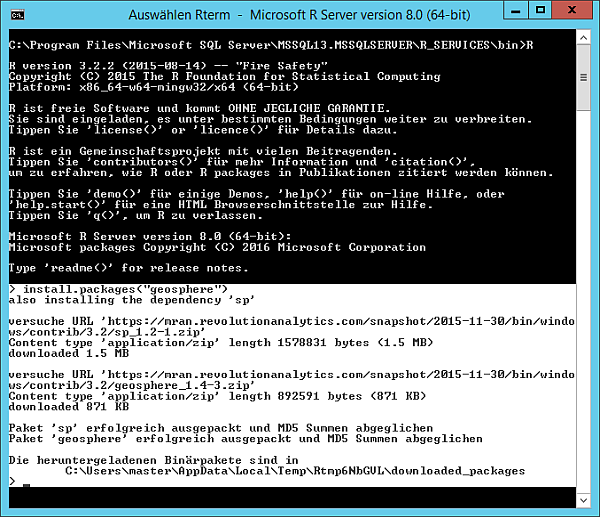
R services need to be installed in order to execute R scripts within T-SQL. To calculate the distance between two geo coordinates, the geosphere library is required. The procedure to install additional packages is documented at MSDN.

image

Data model

This example contains 2 tables, Cities and DistanceTable. The Cities table contains the name and geo coordinates of a city, while the DistanceTable contains two references FromCity and ToCtiy to the Cities table.

Column Datatype
CityID int (Primary Key)
Name nvarchar(128)
Longitude real
Latitude real
Column Datatype
JournalID int (Primary key)
FromCity int (Foreign key)
ToCity int (Foreign key)

For example the two Austrian Cities Linz and Vienna look like this:

image

An entry in the distance table looks like this:

image

I’ve added another view to output the geo coordinates from both cities which are referenced in the DistanceTable

CREATE VIEW [dbo].[DistanceViewLonLat]
AS
SELECT DT.JournalID,
FC.Longitude AS FromLon, FC.Latitude AS FromLat,
TC.Longitude AS ToLon, TC.Latitude AS ToLat
FROM
dbo.DistanceTable AS DT
INNER JOIN dbo.Cities AS FC ON DT.FromCity = FC.CityID
INNER JOIN dbo.Cities AS TC ON DT.ToCity = TC.CityID
GO

A record from the view looks like this

image

R Script

The following R script takes a record from the view as input and calculates the distance between two points and rounds the result from meter to kilometer.

exec sp_execute_external_script
@language =N’R’,
@script=N’
library(sp)
library(geosphere)
sqlvalues <- as.matrix(InputDataSet);

getDistKm <- function(row)
{
p1 <- c(row[1], row[2])
p2 <- c(row[3], row[4])

d <- distGeo(p1,p2) / 1000
c(row[1], row[2], row[3], row[4], d)
}

km <- apply(sqlvalues,1,getDistKm)
km <- t(km)

OutputDataSet <- as.data.frame(km)
‘,
@input_data_1 =N’select FromLon, FromLat , ToLon, ToLat from DistanceViewLonLat where JournalID = 1;’
with result sets (([fromlng] real, [fromlat] real, [tolng] real, [tolat] real, [km] real not null));
go

The result looks like this:

image

Extend PurchTable2Line Framework (AX 2012)

This is a follow-up to my initial blog post how to extend the SalesTable2Line Framework from 2011. However, this post is a walkthrough how to update PurchLine fields from the PurchTable header.

Fields and Field Groups

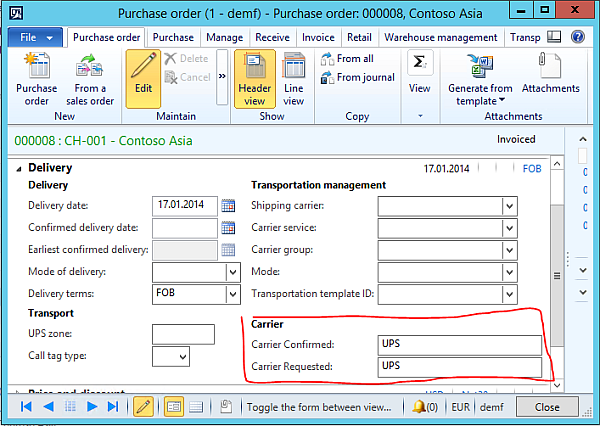
Create an extended datatype called ERPCarrier which extends the Name datatype. Provide a label called Carrier.On the PurchLine create two new fields called ERPCarrierRequested and ERPCarrierConfirmed based on the datatype ERPCarrier. Provide two meaningful labels, Requested Carrier and Confirmed Carrier. Create a field group called ERPCarrier and add both fields to the group.

On the PurchTable add two new fields called ERPCarrierRequested and ERPCarrierConfirmed based on the datatype ERPCarrier. Provide the same labels as on the PurchLine. Create a field group called ERPCarrier and add both fields to the group. Moreover, add both fields to the field group HeaderToLineUpdate!

image

On the PurchTable form, add the PurchTable field group ERPCarrier in the header view in the group delivery.

image

Add the PurchLine field group ERPCarrier in the line view in the tab delivery.

image

Code

On the AxPurchTable class add two parm Methods for the two new fields

public ERPCarrierId parmERPCarrierConfirmed(ERPCarrierId _carrierId = ”)
{
if (!prmisDefault(_carrierId))
{
this.setField(fieldNum(PurchTable, ERPCarrierConfirmed), _carrierId);
}

    return purchTable.ERPCarrierConfirmed;
}

public ERPCarrierId parmERPCarrierRequested(ERPCarrierId _carrierId = ”)
{
if (!prmisDefault(_carrierId))
{
this.setField(fieldNum(PurchTable, ERPCarrierRequested), _carrierId);
}

    return purchTable.ERPCarrierRequested;
}

On the AxPurchLine class add two parm methods for the two new fields

public ERPCarrierId parmERPCarrierConfirmed(ERPCarrierId _carrierId = ”)
{
if (!prmisDefault(_carrierId))
{
this.setField(fieldNum(PurchLine, ERPCarrierConfirmed), _carrierId);
}

    return purchLine.ERPCarrierConfirmed;
}

public ERPCarrierId parmERPCarrierRequested(ERPCarrierId _carrierId = ”)
{
if (!prmisDefault(_carrierId))
{
this.setField(fieldNum(PurchLine, ERPCarrierRequested), _carrierId);
}

    return purchLine.ERPCarrierRequested;
}

Next, on the AxPurchLine class add two set methods

protected void setERPCarrierConfirmed()
{
if (this.isMethodExecuted(funcName(),
fieldNum(PurchLine, ERPCarrierConfirmed)))
{
return;
}

    this.setAxPurchTableFields();

    if (!this.parmERPCarrierConfirmed() &&
this.axPurchTable().parmERPCarrierConfirmed())
{
this.parmERPCarrierConfirmed(
this.axPurchTable().parmERPCarrierConfirmed());
}
}

protected void setERPCarrierRequested()
{
if (this.isMethodExecuted(funcName(),
fieldNum(PurchLine, ERPCarrierRequested)))
{
return;
}

    this.setAxPurchTableFields();

    if (!this.parmERPCarrierRequested() &&
this.axPurchTable().parmERPCarrierRequested())
{
this.parmERPCarrierRequested(
this.axPurchTable().parmERPCarrierRequested());
}
}

On the AxPurchLine class add a new static method which is used to set the new fields.

public static void setTableFields_ERPCarrier(XppPrePostArgs _args)
{
AxPurchLine     thisAxPurchLine = _args.getThis();
thisAxPurchLine.setERPCarrierRequested();
thisAxPurchLine.setERPCarrierConfirmed();
}

On the AxPurchLine class, go to the setTableFields method and expand the event handler. Add a new Post X++ event handler. Provide the AxPurchLine as class for the event handler and the newly created method setTableFields_ERPCarrier as event handler method.

image

On the PurchTable2LineField class, open the getFieldDescription method and scoll down. Add  the following code to handle the two fields.

case fieldNum(PurchTable, ERPCarrierConfirmed):
description =  fieldid2pname(tablenum(PurchLine),
fieldnum(PurchLine, ERPCarrierConfirmed));
break;

case fieldNum(PurchTable, ERPCarrierRequested):
description =  fieldid2pname(tablenum(PurchLine),
fieldnum(PurchLine, ERPCarrierRequested));
break;

Test

Compile your code an build incremental IL. Open the table PurchTable2LineParameters and delete all records. Restart the AOS to make sure no cached version is used. In AX go to Accounts Payable > Settings > Parameter > Tab Updates and click the button “Update order lines”. Set the Update Requested Carrier and Confirmed Carrier to Always.

image

Open a purchase order in AX and edit the purchase header. Provide a requested carrier e.g. UPS and a confirmed carrier e.g. DHL. Save your changes. Check if the values from the header have been copied to the purchase lines.

How to Develop a C++ DLL for R in Visual Studio 2015

The programming language R is great for statistics and analysis. R is becoming more and more relevant for business analysis. Microsoft has already integrated R in SQL Server 2016, Power BI and offers an open source R Implementation and Visual Studio integration. There are many tutorials for C interop with R but most of them use Linux tools and not Visual C++. This is a walkthrough how to build a C++ DLL and use it in R all in Visual Studio.

    Visual C++
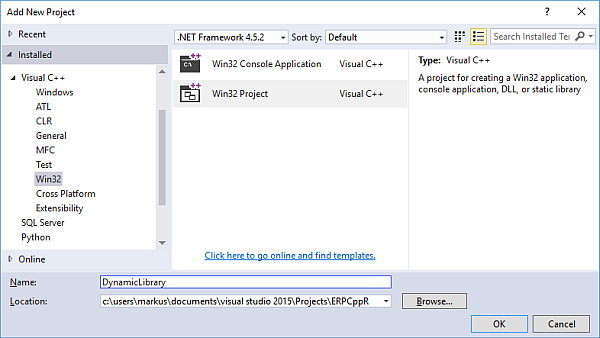
      Create a new empty solution in Visual Studio. Add a new Visual C++ Win32 project.

image

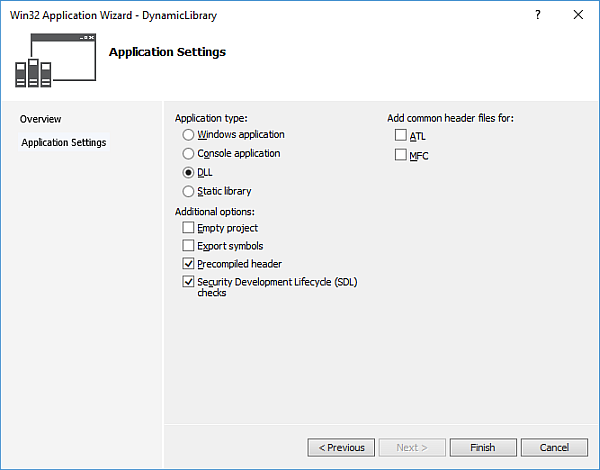
In the C++ Application dialog, choose a DLL

image

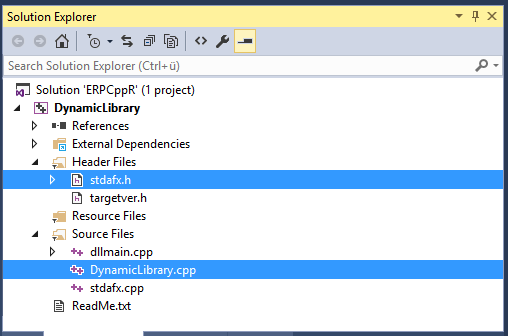
A new C++ project is created include a header file and a C++ file.

image

Open the stdafx.h file and add the definition for function foo() in the header file.

// stdafx.h : include file for standard system include files,
// or project specific include files that are used frequently, but
// are changed infrequently
//

#pragma once

#include “targetver.h”

#define WIN32_LEAN_AND_MEAN             // Exclude rarely-used stuff from Windows headers
// Windows Header Files:
#include <windows.h>


/// export symbols for DLL and specify C naming conventions

extern “C” __declspec(dllexport) void __cdecl foo(double *in, double *out);

Open the .cpp file and add the following implementation.

void foo(double *in, double *out)
{
double value = in[0] * 2;
out[0] = value;
}

Make sure to change the architecture to x64 before building.

image

Build the solution. The resulting DLL will be outputed in the x64 folder in the project folder(!) not in the Debug folder where a C# DLL would be.

image


R Project

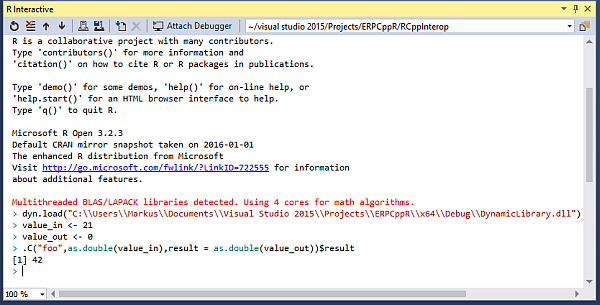
Add a new R project to  the solution which already contains the C++ project. Go to the R Interactive Window.

image

Load the DLL from your output directory.

dyn.load(“C:\\PATH_TO\\YOUR.DLL”)

Declare 2 variables for input and output and assign values. For example input value 21 and a default value 0 for the output variable. Call the DLL function and output the result

value_in <- 21
value_out <-0
.C(“foo”,as.double(value_in),result=as.double(value_out))$result

The result should look like this

image

SQL Backup Restore fails due to insufficient free space

A customer recently tried to restore a Dynamics AX database backup from the Live system to the Testing environment. The SQL Server data disk had 17 GB space left, and the size of database backup (.bak) file was about 11 GB.

image

However, SQL Server refused to restore the database because of insufficient free space. 

image

The reason was the file layout in the original Database. Typically, the database files and log files pre-allocate space to avoid costly file operations when the content of the database grows. In this case, the database file had 20 GB space and the log although the content of the database was only about 11 GB.

image

When a backup is created, SQL only backups the content of the files and adds additional information about the file layout. When the database is restored, the database files will be allocated like in the source database. Therefore 21 GB were needed but not available on disk.

The solution was to increase the storage on the Test system, restore the database and afterwards shrink the database file.

Preserve data when AIF service call fails

Dynamics AX AIF is great for all kind of interfaces and integration with 3rd party applications. By default AIF has an built-in transaction mechanism that prevents your system to become inconsistent if something goes wrong during processing.

Here is an example of a simple method which writes message data and the current transaction level into a table

[SysEntryPointAttribute]
public void call(Description _message)
{
    ERPServiceTable serviceTable;

    serviceTable.Message = _message;
    serviceTable.Info = strFmt("%1", appl.ttsLevel());
    serviceTable.insert();
}

Here is the service call from a C# console application

var client = new ERPService.ERPServiceClient();
client.ClientCredentials.Windows.ClientCredential.Domain = "YOUR_DOMAIN";
client.ClientCredentials.Windows.ClientCredential.UserName = "YOUR_USER";
client.ClientCredentials.Windows.ClientCredential.Password = "YOUR_PASSWORD";

var context = new ERPService.CallContext();
context.MessageId = Guid.NewGuid().ToString();
client.call(context, "Service Call");

When you call the service the result looks like this: Notice, the transaction level is already 1 although there is no ttsbegin in code.

AIF service call

But what happens when something goes wrong during processing the service call (e.g. posting a journal fails). Here is as simple method which can be used to simulate such a situation:

[SysEntryPointAttribute]
public void callWithError(Description _message,boolean _error)
{
    this.call(_message);
    if(_error)
    {
        throw error("Exception!");
    }
}

When you call the service method with the error flag set to FALSE, the message is written to the table and stays there.

context.MessageId = Guid.NewGuid().ToString();
client.callWithError(context, "Service Call without error", false);

However if you call the method with the error flag set to TRUE a rollback is triggered and your data is gone!

try
{
        context.MessageId = Guid.NewGuid().ToString();
        client.callWithError(context, "Service Call 2 with error", true);
}
catch
{
        Console.WriteLine("The service failed as expected!");
}

The table contains only 2 entries for both successful service calls. The data from the third service call is gone.

Service call with error not saved

However, if you want to keep the initial data for a post mortem analysis, this behavior is a problem. One way to work around this rollback is to reduce the transaction level back to 0 by calling an additional ttscommit. This will ensure no rollback will delete the transmitted data. Finally, raise the ttslevel back to 1 for further processing.

[SysEntryPointAttribute]
public void callWithError(Description _message,boolean _error = false)
{
    this.call(_message);

    ttsCommit;
    ttsBegin;

   
    if(_error)
    {
        throw error("Exception!");
    }
}

When you call the service method with the error flag set to true, the method still fails. But the initial transmitted data is preserved and can be used for analysis or manual processing.

Service call with error preserverd

BTW.

A more relaxed way to address this issue is to separate interfaces from business logic. For example provide two methods, one to transmit the data and another to process the data after it was successfully transmitted. If a second method is not an option (for what reason ever) write a batch class which processes the data. However, if you require immediate processing and a second call is not feasible this workaround may help.

Create a Power BI Dashboard for Dynamics AX 2012 Sales

This is an update to the previous published articles on Data Visualization, OData Feeds, Power Map, Power Pivot in Office 2013 and Power Pivot in Office 2010. It shows how to use Power BI for Desktop to create a Sales Dashboard for Dynamics AX 2012 (R2).

Power BI Dashboard

Get Data

Start Power BI for Desktop and start with an empty report. From the ribbon on top click “Get Data”, choose SQ Server and provide your server and database. In this example I’m using a single server installation. However, in a production environment you might need to provide <SERVERNAME> \ <INSTANCENAME> , <PORT> e.g. SRVSQL\PROD,2303.

Get data into Power BI

In the next step you have to provide credentials. In my case I’m allowed to access the server with my domain account. In a production environment it is recommended to create a separate Login which is only used for BI Purpose. Don’t get confused if you get a warning that your SQL does not support encryption. If the connection was established successfully, the data wizard presents you a list of tables. Select the following tables:

  • CustInvoiceJour
  • CustInvoiceTrans
  • CustTable
  • InventTable
  • LogisticsPostalAddress

Select tables for Power BI

Click Load, and choose “Import” to load the data in Power BI for Desktop.

Transform Data

In Power BI for Desktop, at the Ribbon click “Edit Queries”. This will open the query editor. We don’t need all columns for this Demo. For each table click the “Choose Columns” button and the select only the following columns:

Choose columns for Power BI

CustInvoiceJour CustInvoiceTrans CustTable
  • InvoiceAccount
  • InvoiceDate
  • InvoiceId
  • NumberSequenceGroup
  • SalesId
  • InvoicePostalAddress
  • DataAreaId
  • InvoiceId
  • InvoiceDate
  • NumberSequenceGroup
  • ItemId
  • LineAmountMST
  • SumLineDiscMST
  • DataAreaId
  • AccountNum
  • CustGroup
  • DataAreaId
InventTable LogisticsPostalAddress
  • ItemId
  • ItemType
  • DataAreaId
  • Address
  • CountryRegionId
  • ZipCode
  • City
  • RecId

Click “Close & Apply” to finish this task.

Choose columns for Power BI


Create Relations

In Power BI for Desktop switch to the Data View (with the table symbol on the left pane). It is required to create primary keys and foreign keys before linking the tables. From the list of tables (on the right) select the CustTable and at the Ribbon click “New Column”. Type the following definition:

PK_Cust = CUSTTABLE[ACCOUNTNUM] & “-” & CUSTTABLE[DATAAREAID]

Create Foreign Keys in Power BI

This will create a new column with a customer account which is unique for all company accounts. Repeat this step for the following tables and columns:

InventTable:

PK_Item = INVENTTABLE[ITEMID] & “-” & INVENTTABLE[DATAAREAID]

CustTable:

PK_Cust = CUSTTABLE[ACCOUNTNUM] & “-” & CUSTTABLE[DATAAREAID]

CustInvoiceJour:

FK_Cust = CUSTINVOICEJOUR[INVOICEACCOUNT] & “-” & CUSTINVOICEJOUR[DATAAREAID]

PK_Invoice = CUSTINVOICEJOUR[INVOICEID] & “-” & CUSTINVOICEJOUR[SALESID] & “-” & CUSTINVOICEJOUR[NUMBERSEQUENCEGROUP] & “-” & CUSTINVOICEJOUR[DATAAREAID]

CustInvoiceTrans:

FK_Item = CUSTINVOICETRANS[ITEMID] & “-” & CUSTINVOICETRANS[DATAAREAID]

FK_Invoice = CUSTINVOICETRANS[INVOICEID] & “-” & CUSTINVOICETRANS[SALESID] & “-” & CUSTINVOICETRANS[NUMBERSEQUENCEGROUP] & “-” & CUSTINVOICETRANS[DATAAREAID]

Save, and open the relations by clicking on the relations item in the navigation pane on the left. You can drag&drop columns from one table to another table to create relations. Link the following columns:

  • CustInvoiceTrans,FK_Item > InventTable.PK_Item
  • CustInvoiceTrans.FK_Invoice > CustInvoiceJour.PK_Invoice
  • CustInvoiceJour.FK_Cust > CustTable.PK_Cust
  • CustInvoiceJour.InvoicePostalAddress > LogisticsPostalAddress.RecId

Your data model should look like this:

Create relations in Power BI data model

Name the ItemType

In the data view, select the InventTable. From the ribbon create a new column and name it “TypeName”. Add the following code to translate the Enum based ItemType Integer Value to a meaningful name.

TypeName = IF(INVENTTABLE[ITEMTYPE] = 0; “Item”; IF(INVENTTABLE[ITEMTYPE] = 2; “Service”; “Not an Item”))

The InventTable should look like this:

Name item type column

Create a Discount measure

Next we will create a measure which calculates the given discounts as the percentage of the total price. Open the data view using the second button on the left navigation pane. Select the CustInvoiceTrans. From the ribbon, click “New Measure” button in the “Modelling” tab. Provide the following code:

M_DiscPerc = sum(CUSTINVOICETRANS[SUMLINEDISCMST]) * 100 / ( sum(CUSTINVOICETRANS[LINEAMOUNTMST]) + sum(CUSTINVOICETRANS[SUMLINEDISCMST]))

For example:

Qty = 1 € , Unit Price = 1000 €     –> Price = 1000 €
Discount = 100 €                    –> Price = 900
Discount Percentage 3 %             –> Price = 873 €

CustInvoiceTrans.LineAmountMST = 873
CustInvoiceTrans.Discount = 100
CustInvoiceTrans.LinePercent = 3.0
CustInvoiceTrans.SumLineDiscMST = 127

M_DiscPerc = 127 * 100 / (873 + 127) = 12,7

Visualize

Switch to the empty report view using the first button on the left navigation pane. From the Visualization toolbox click the “Card”. This will place an empty card on the report. Drag&Drop the LineAmountMst from the CustInvoiceTrans on the empty card. It should look like this:

Power BI card chart

Next, place a map from the toolbox on the report. Drag&Drop the fields CountryRegionId, City and ZipCode from the LogisticsPostalAddress table on the Location. Drag&Drop the LineAmountMST from the CustInvoiceTrans on the Values Field. The map should look like this:

Power BI map chart

Add a new Gauge to the report and use the Measure M_DiscPerc as value. You cannot set a hardcoded Min. and Max. value in the data properties. Switch to the Format view using the pencil icon.  In the group Gauge Axis, set the Min. Value 0, the target value to 3 and Max. Value 100. Depending on your data, the gauge may look like this:

Power BI gauge control

Next a donut chart to visualize the revenue per item type. Drag&drop the LineAmountMST from the CustInvoiceJour on the value property of the donut chart and drag the TypeName from the InventTable.

Power BI donut chart

Place a column chart on the report to visualize the revenue per customer group. Place the LineAmountMST in the Value field. Use the CustGroup from the CustTable as Axis. Change the sort order to LineAmountMST by using the […] Dropdown Menu in the upper right corner of the chart.

Power BI column chart

Finally, add a line chart on the report to visualize the revenue per year. Place the LineAmountMST from the CustInvoiceTrans on the charts value field and put the InvoiceDate from the CustInvoiceTrans on the Axis field.

Power BI line chart

Fine-tuning

Give each chart a meaningful name. Change the size for the text to fit your report style. Switch to the data view. Change the column names into something more meaningful for an end user e.g. LineAmountMST to Amount. Change the columns formats e.g. Currency for LineAmountMST, date format for the InvoiceDate.